
Operate live
Once setup is ready, staff manages the active list, handles entries, sends notifications, and recovers mistakes in real time.
The live Waitlist app is where staff manages people during daily operations. This guide covers signing in, the live list, entry states, notifications, the Status Screen, kiosk mode, and remote self check-in.
1. Before daily use
Before staff can use the Waitlist app, a location manager must configure the location in Dashboard: active service plan with billing, a guestlist and area, operating hours, transmitters if using pagers, and the Form Designer fields. Reload Waitlist after changing Dashboard configuration; guest activity updates in real time, but configuration does not.
Accounts, billing, locations, users, guestlists, areas, forms, hours, SMS, transmitters, and staff pager profiles are all configured before live operation.
Once setup is ready, staff manages the active list, handles entries, sends notifications, and recovers mistakes in real time.
Approved integrations can create or update waitlist entries through the API. Staff handles the resulting entries in the same live workspace.
2. Sign in
Staff sign in to the Waitlist app with the email and password registered for them in Dashboard. This sign-in is separate from Dashboard and is designed for shared devices that stay at the location.
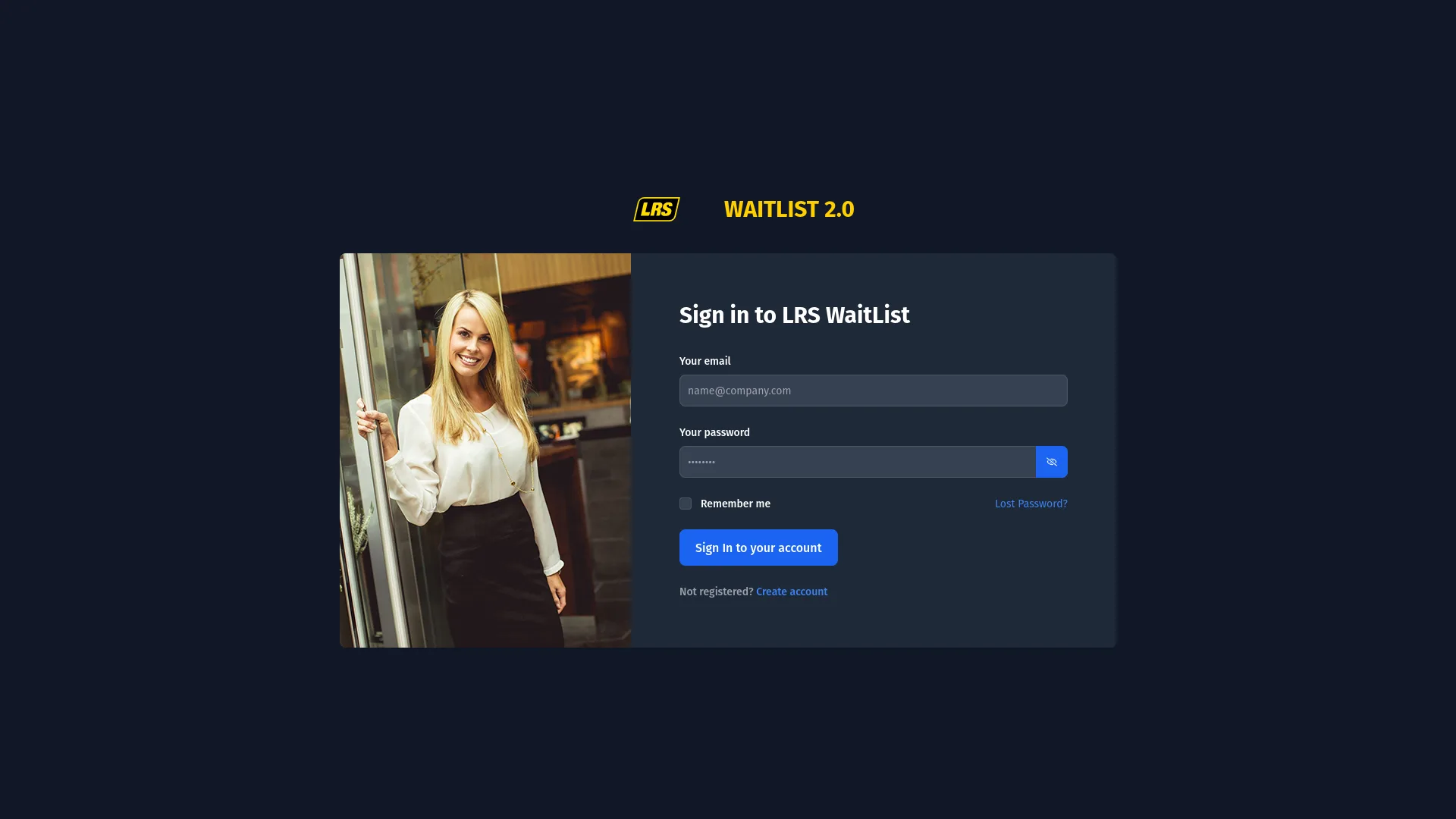
The Lost Password link sends a reset email to the address on file — useful when a team member forgets their password mid-shift. The Waitlist screen lock is a lighter alternative to signing out. Staff cannot disable a location-enabled lock. Location managers and higher roles can set their own automatic-lock preference. The effective idle timeout is the longer of the personal timeout and the location timeout floor. The Manual Lock button locks the screen immediately; managers always have this manual control; staff see it only when their effective automatic lock is enabled. Unlocking requires the user's four-digit lock password, not a full sign-in.
Remember me controls how long the sign-in survives on that browser. Checked, the session stays valid for up to seven days, so a dedicated terminal does not have to be signed in again at the start of every shift. Left unchecked, the session ends as soon as the browser session ends — the safer choice on a shared or personal device.
Public kiosk, self check-in, and guest status links continue to open when someone is already signed in on the same browser. Staff do not need to sign out before opening one of these links.
3. Entry methods
There are four ways an entry can appear on the live list. Staff walk-ins are added directly. Remote self check-ins and kiosk phone entries arrive as Pending. Kiosk pager entries with 1–4 digits normally enter Received Wait Time, or Waiting when automatic kiosk pager check-in succeeds. API-created entries follow the state supplied by the integration.
| Entry method | What happens |
|---|---|
| Staff walk-in | Staff selects the location, waitlist, and area, fills the staff-visible form, and saves. The entry appears immediately as active and Waiting. |
| Kiosk | Staff launches kiosk from Dashboard. Phone entries appear as Pending. A 1–4-digit pager entry normally enters Received Wait Time; it moves directly to Waiting when automatic kiosk pager check-in is enabled and succeeds. |
| Remote self check-in | The visitor follows the remote check-in link, fills the form on their device, and submits. The entry appears as Pending until staff sends an estimated wait time. |
| API-created | An authorized external system creates the entry for a specific location and area. It appears in the same live workspace and follows the state supplied by the integration. |
| Entry method | Required setup |
|---|---|
| Staff walk-in | Active location, active guestlist, at least one active area, and at least one field visible in the staff add/edit form. |
| Kiosk | Kiosk Area selected in Dashboard, kiosk launched from the Dashboard guestlist page, kiosk-visible fields, and the configured remote time interval currently open. Kiosk does not enforce the day's Active or Enable Remote Check-in toggles. |
| Remote self check-in | Self Check-in Area selected in Dashboard, Remote Check-in hours enabled for today and currently open, remote-visible fields on the form, and an SMS plan (to send the wait time link after check-in). |
| API-created | Active billed location with API Access, active API key bound to that location, and the current guestlist/area UUIDs and required form fields. |
4. Daily operation
The Wait List tab is the default view when the app opens. The left sidebar shows the selected location, all available areas with their live entry counts, the SMS Messages counter, and two display shortcuts at the bottom. The main panel shows the active entries for the selected area.
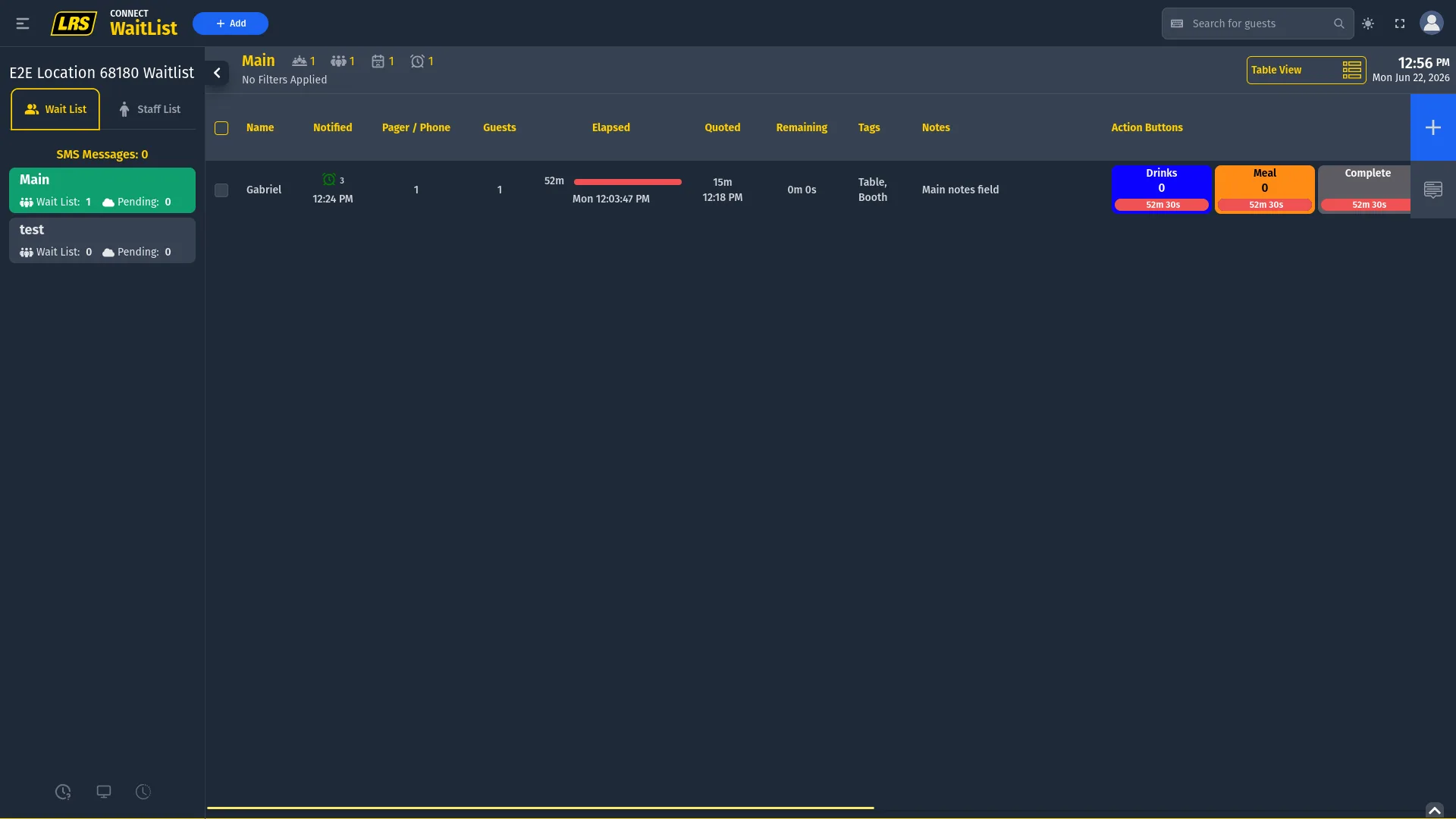
The sidebar appears on the left of every screen in the Waitlist app and is the primary navigation surface during daily operation. The table below describes each element visible in the sidebar when a waitlist is active.
| Sidebar element | What it shows |
|---|---|
| Location name | Shown at the top of the sidebar. Confirms which location is active. Click the collapse arrow to hide the sidebar and expand the list. |
| Area rows | Each waitlist area appears as a row. The selected area is highlighted in green. Clicking another row switches the active list. |
| Wait List: N | Wait List includes all loaded entries in the selected area, including Pending entries. |
| Pending: N | Subset of loaded entries currently in the Pending state. Received Wait Time entries are not included. |
| SMS Messages: N | Current billing-period SMS segment usage with recently observed phone notifications added during the session. It is not a daily count. |
| Status Screen icon (monitor) | Center icon at the bottom of the sidebar. Opens the display-only Status Screen. |
| History icon (clock) | Right icon at the bottom of the sidebar. Opens the Waitlist History modal showing entries from the last 24 hours. |
The top bar gives staff access to adding, searching, filtering, view selection, and read-only queue statistics. Availability can vary with the selected area and view.
| Control | How to use it |
|---|---|
| + Add | Opens the Add Guest modal for the currently selected area. |
| Search | Full-text search across entry names, contact values, tags, selected dropdown options, and action button labels. |
| Header statistics | The four header icons are read-only statistics, not filters. |
| Table view | The default and most information-dense view. Required when Action Buttons are active. The view selector in the top right switches between Table, Card, and Mini Card. |
| Card / Mini Card views | Available on areas without active Action Buttons. Each entry becomes a card with larger touch targets. Mini Card is more compact for high-volume lists. Both show the same timing fields; neither shows Action Button timers. |
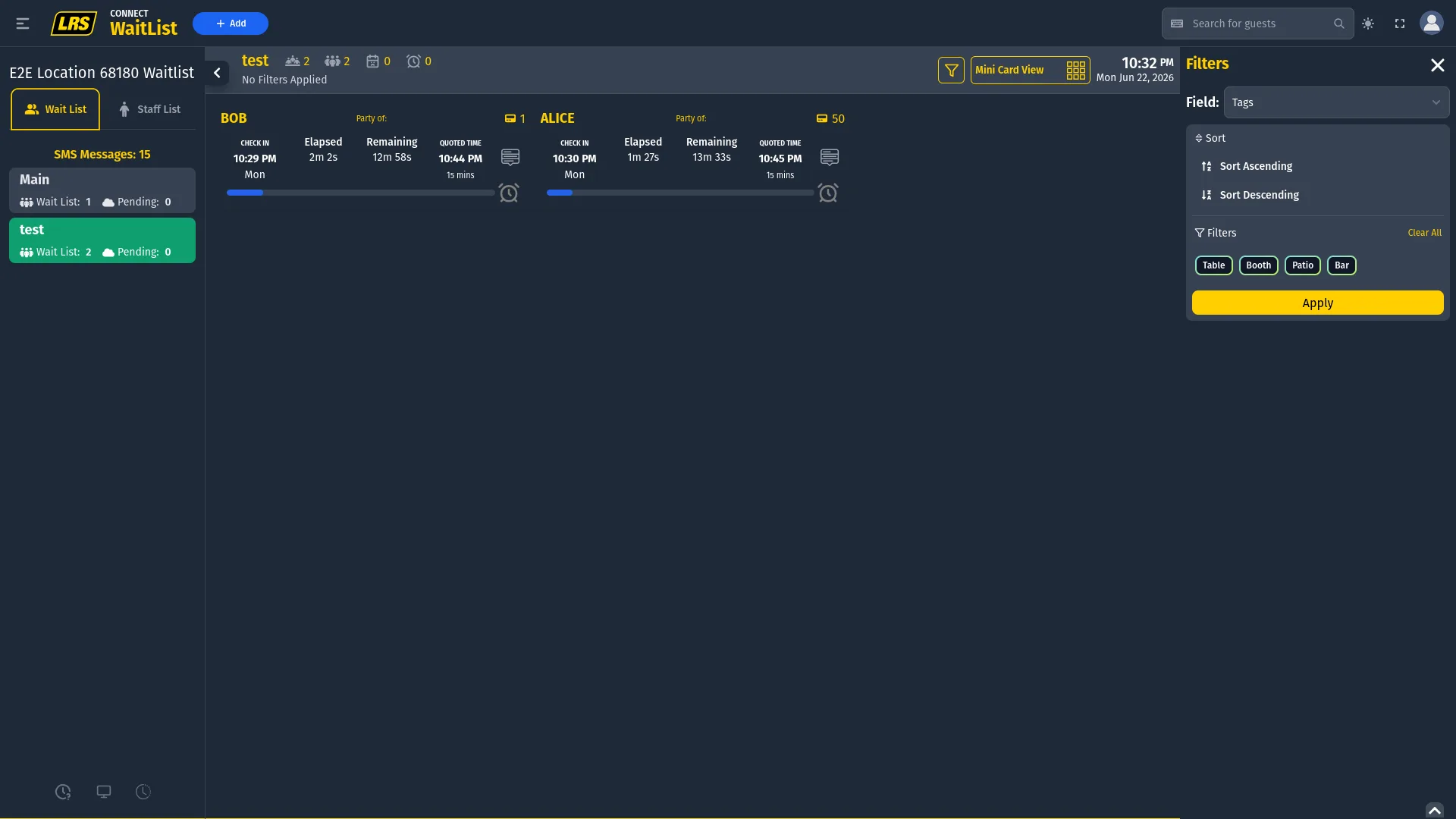
| Funnel (filter icon) | Available in Card View and Mini Card View only. Opens the Filters panel on the right side. Select a field, choose values to match, set sort direction, and tap Apply. Active filters show as dismissible badges in the area header. |
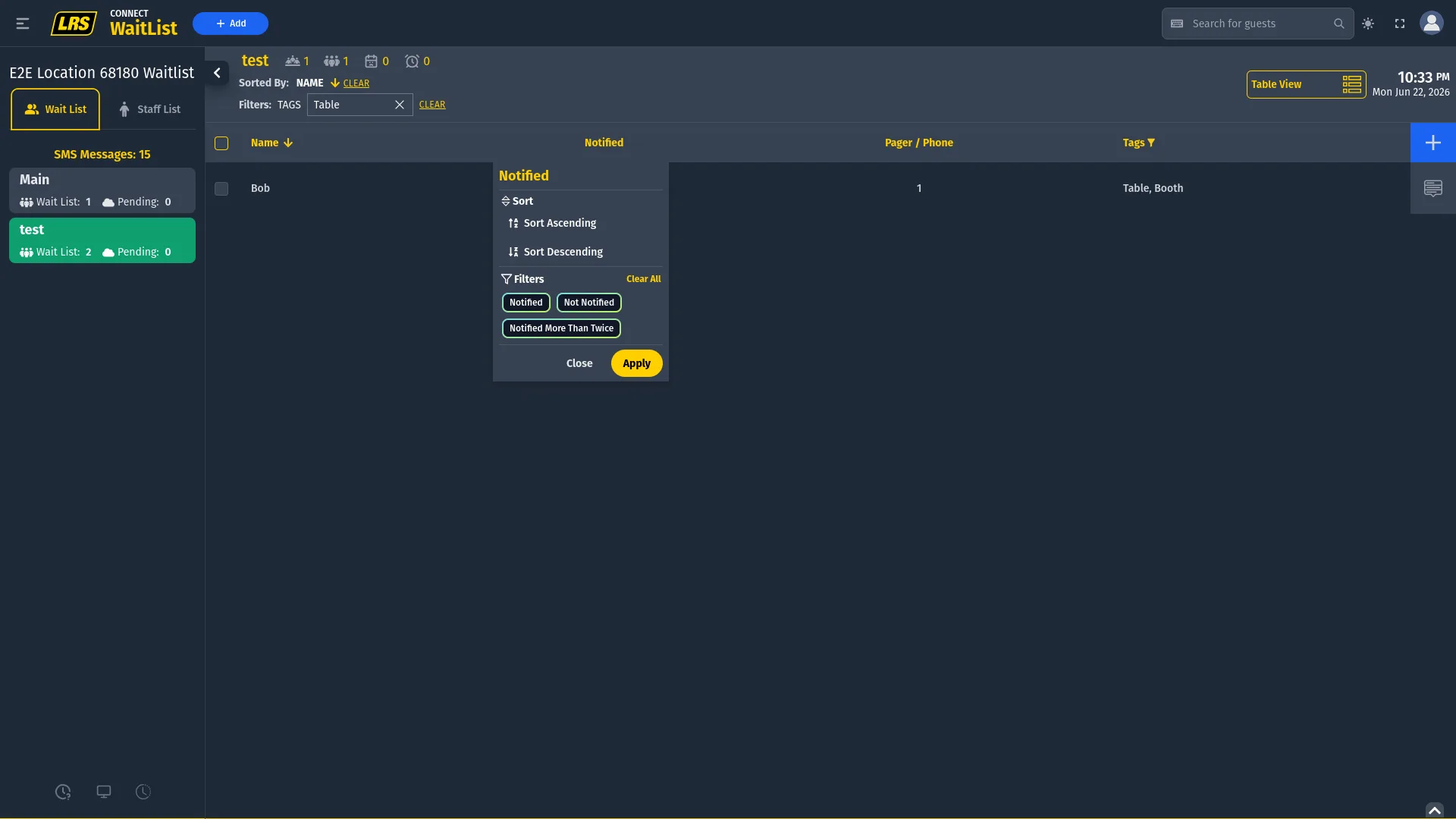
| Column sort/filter | Available in Table View only. Click any column header to open a per-column popup. All columns offer sort ascending/descending. Columns with discrete values also show filterable chips — for example, the Notified column shows Notified, Not Notified, and Notified More Than Twice. |
| Active filter bar | When sort or filter constraints are active, a summary bar appears below the area name. Each constraint has its own CLEAR link so individual filters can be removed without resetting everything. |
| Action panel | Use the rightmost menu button to open actions. Double-clicking most table fields opens Edit directly. |
| Drag to move | Drag an entry row to a different area in the left sidebar to move it without opening the action panel. |
The view selector switches between Table, Card, and Mini Card. Use Table View for areas with Action Buttons. Complete appears only when enabled for a checked-in guest; if a saved Card preference remains after changing areas, switch back to Table manually.
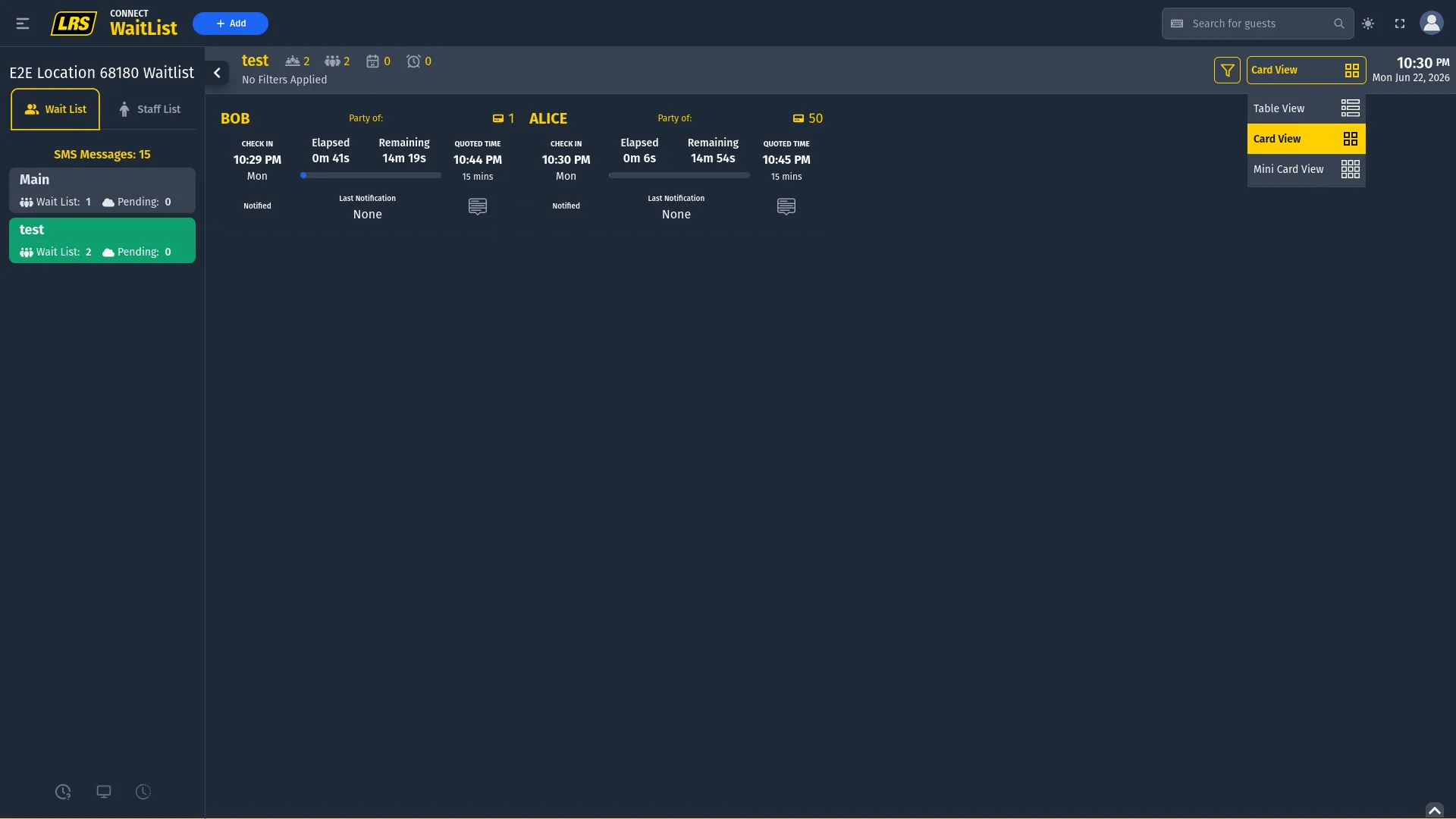
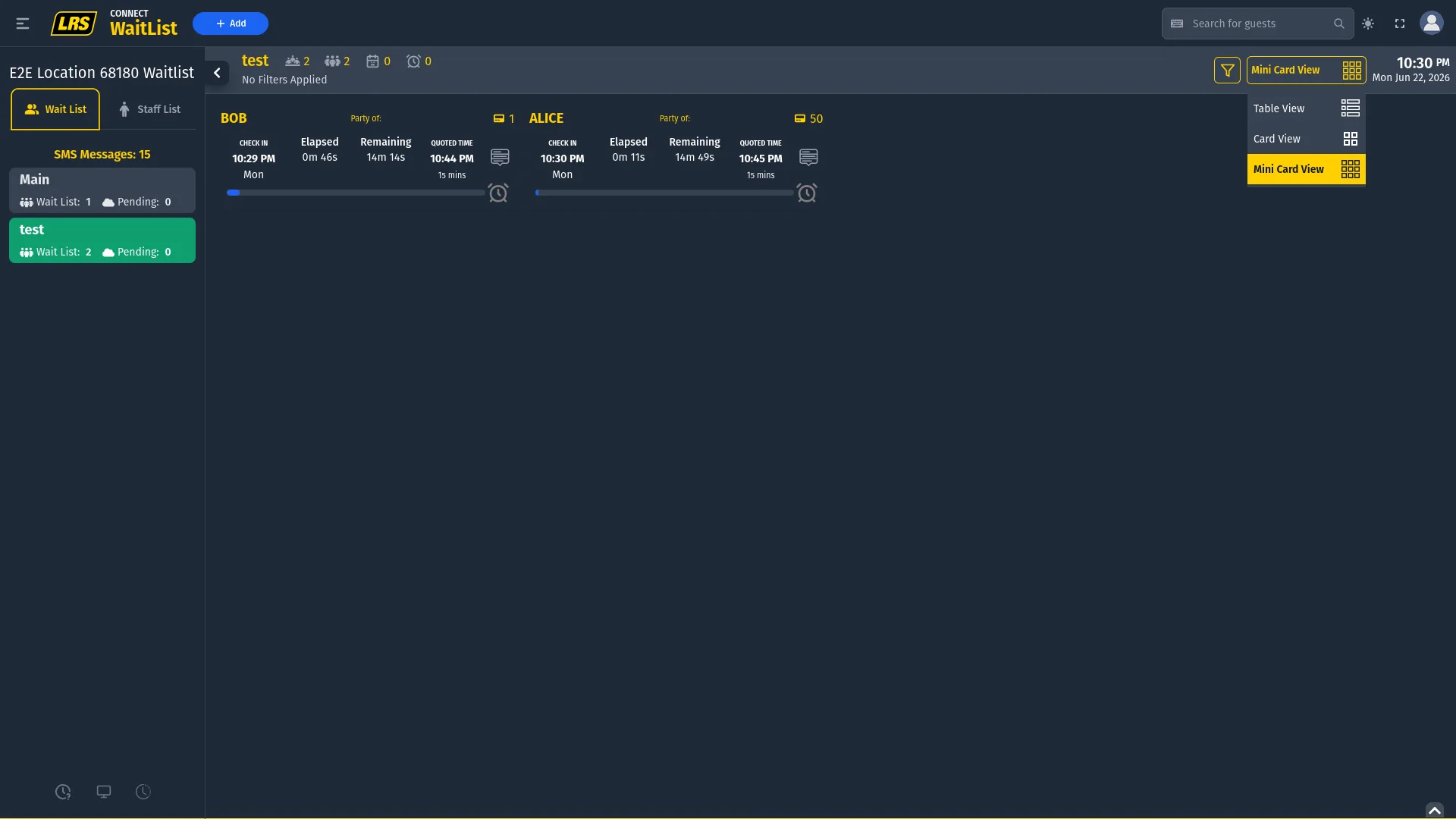
There are two ways to narrow the live list, and each is available in a different view. In Card View and Mini Card View, the funnel icon opens the Filters panel — a field-aware sidebar that lets staff pick a field, select matching values as chips, and apply a sort direction all at once. In Table View, clicking any column header opens a per-column popup with sort options; columns with discrete values also show filterable chips specific to that column.

When any sort or filter is active, the area header shows a summary bar with one badge per active constraint and a CLEAR link for each. Removing a constraint updates the list immediately without affecting any other active filters.
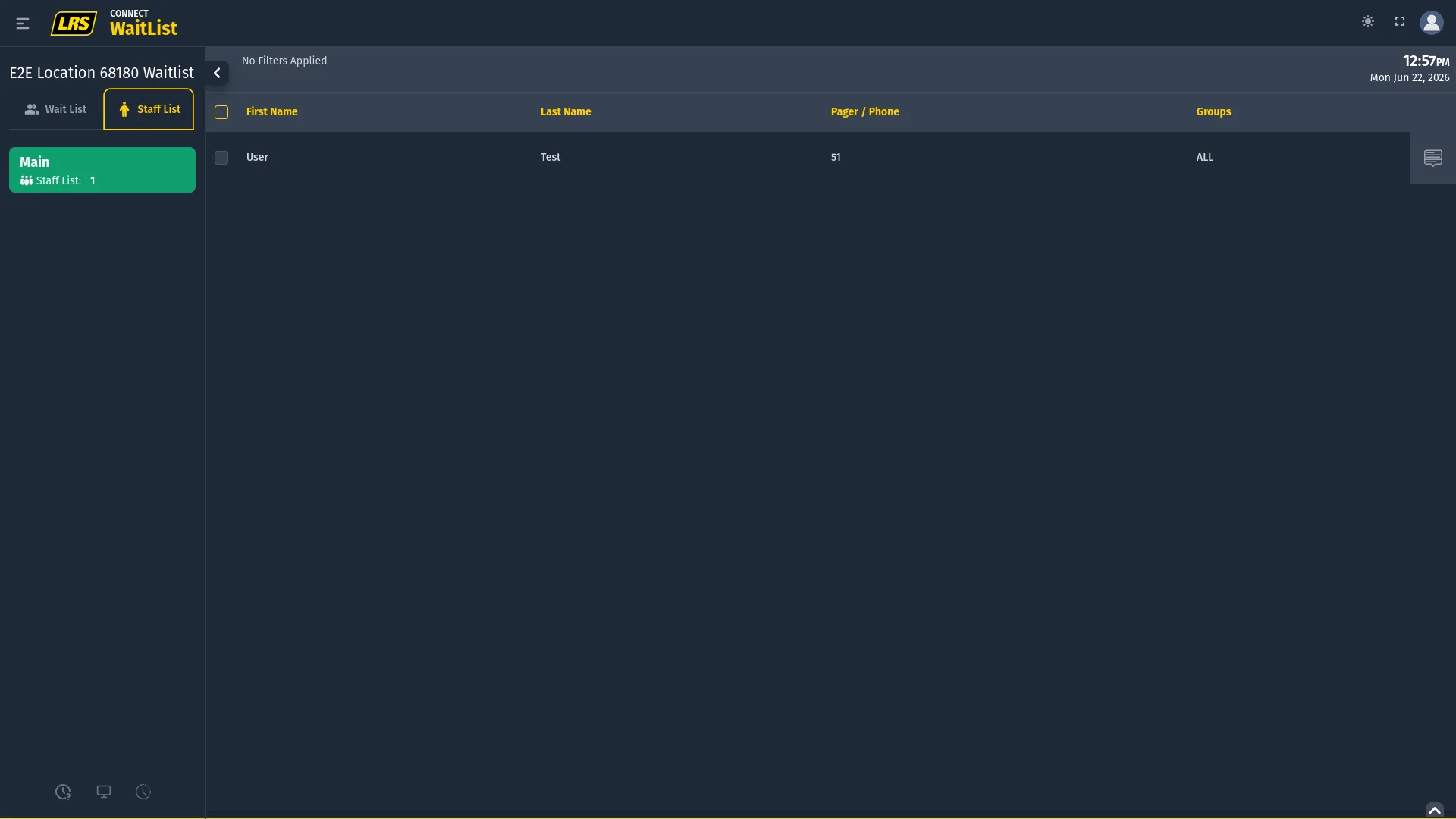
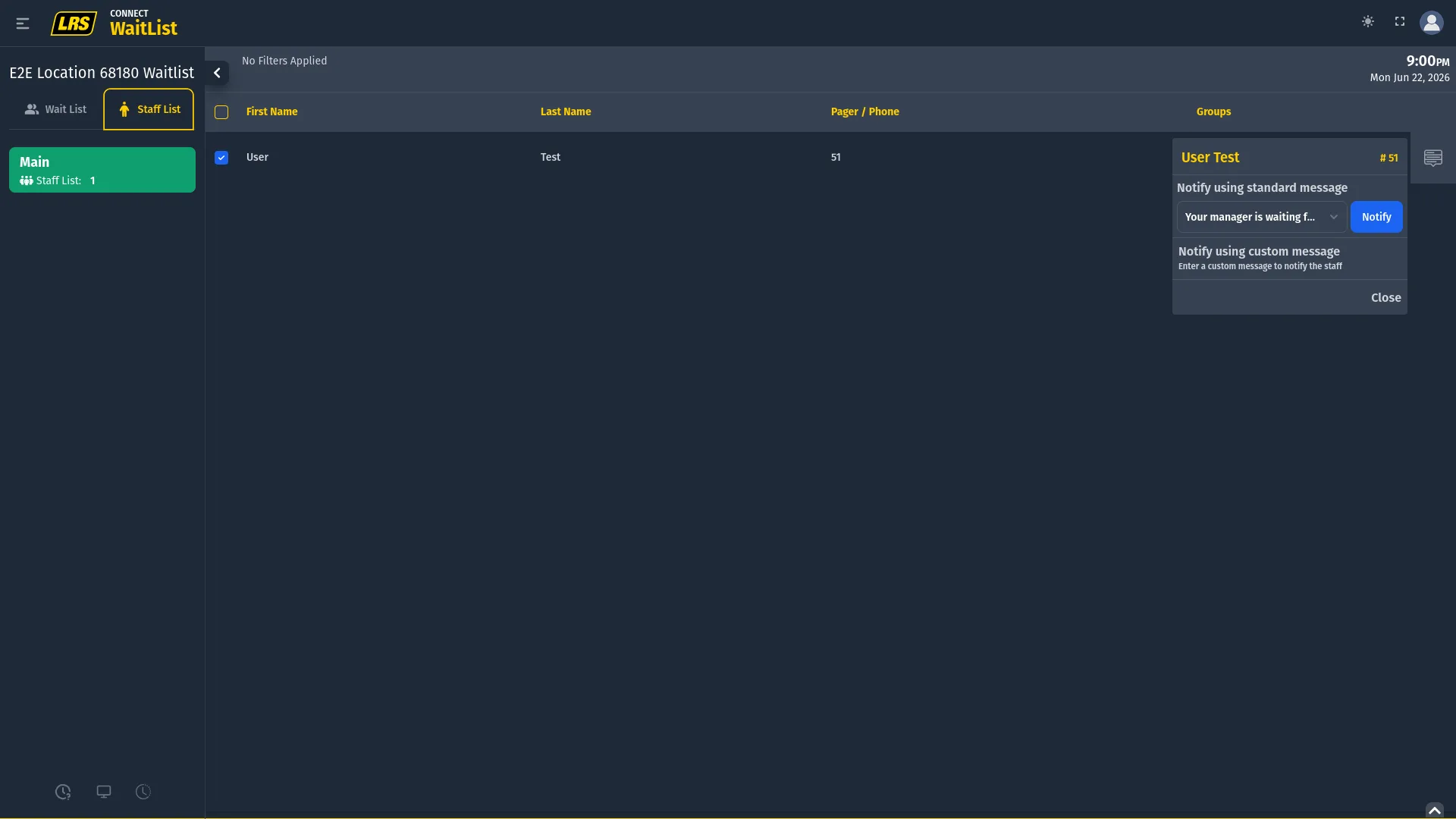
Switching to the Staff List tab shows pager and phone profiles registered for the location. These profiles are separate from Dashboard login accounts. Use the rightmost action menu to notify an individual; group labels organize staff recipients and do not route guest Notification Tasks.
To notify multiple staff, select their rows and open Notify. The displayed count is a recipient estimate, not a true SMS count; delivery follows each profile's preferred phone or pager channel.
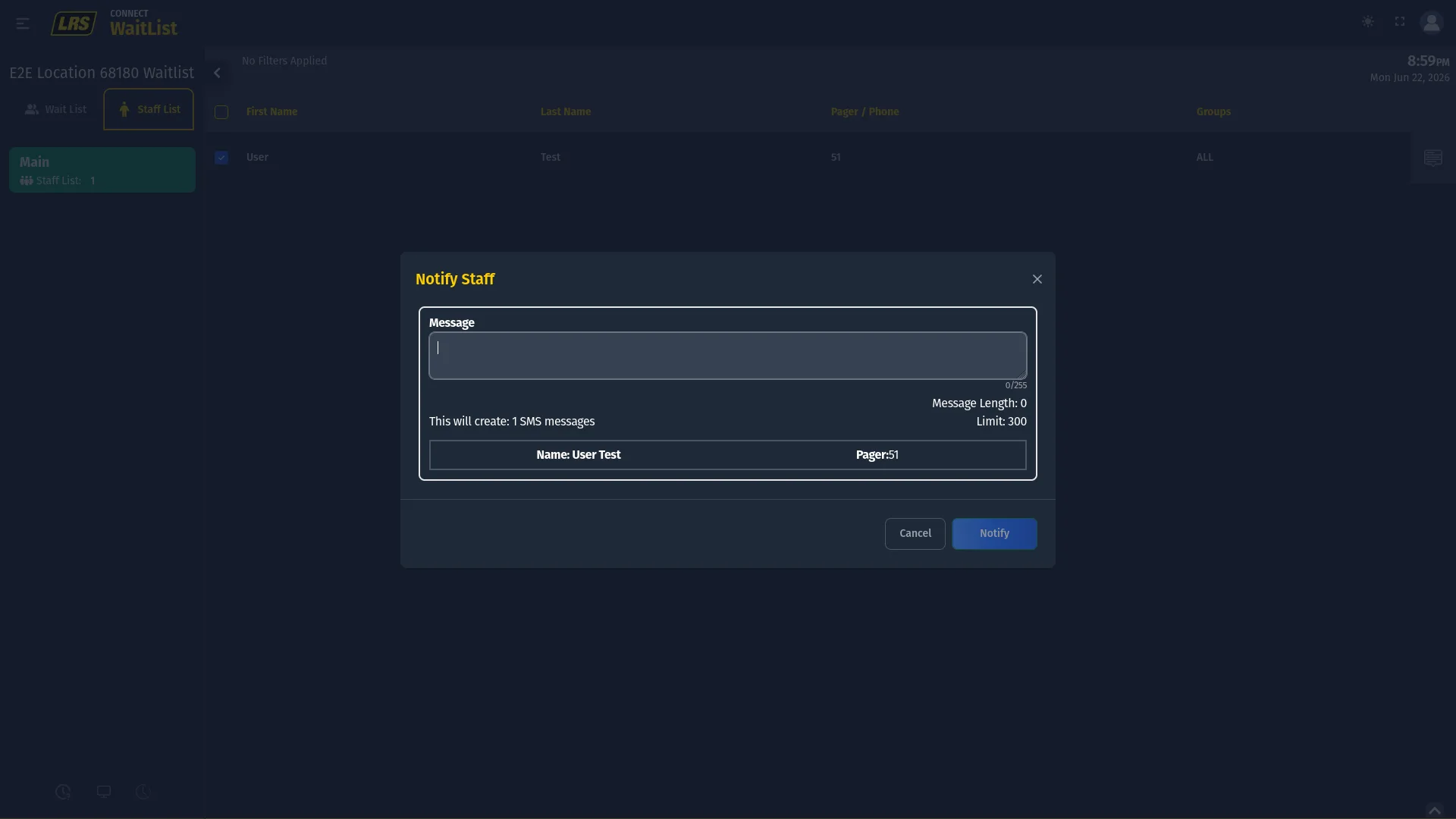
Open the rightmost action menu on a staff row for individual notification. Its standard messages are built into Waitlist rather than loaded from Dashboard; a custom one-off message is also available.
5. Waitlist entries
Entries can be added, edited, moved, completed, removed, and restored. Use + Add for staff-created entries, the row action panel for state-specific operations, and Waitlist History for restore.
| Action | How it works |
|---|---|
| Add | Click + Add, confirm the correct area is selected in the sidebar, fill the staff-visible form, and click Add Guest to Waitlist. |
| Edit | Open the rightmost menu and choose Edit Guest Information, or double-click a table field. Update the form and click Edit Guest. Duplicate contact values are rejected with an inline error. |
| Move | Open the action panel and choose the target area from the Move to Another Waitlist menu, or drag the row directly to another area in the sidebar. |
| Complete | Open the action panel, choose Complete Guest Journey, and confirm in the modal that appears. |
| Remove | Open the action panel, choose Remove from Waitlist, and confirm in the modal that appears. |
| Restore | Click the clock icon at the bottom of the sidebar to open Waitlist History, find the entry, click Restore, and confirm. |
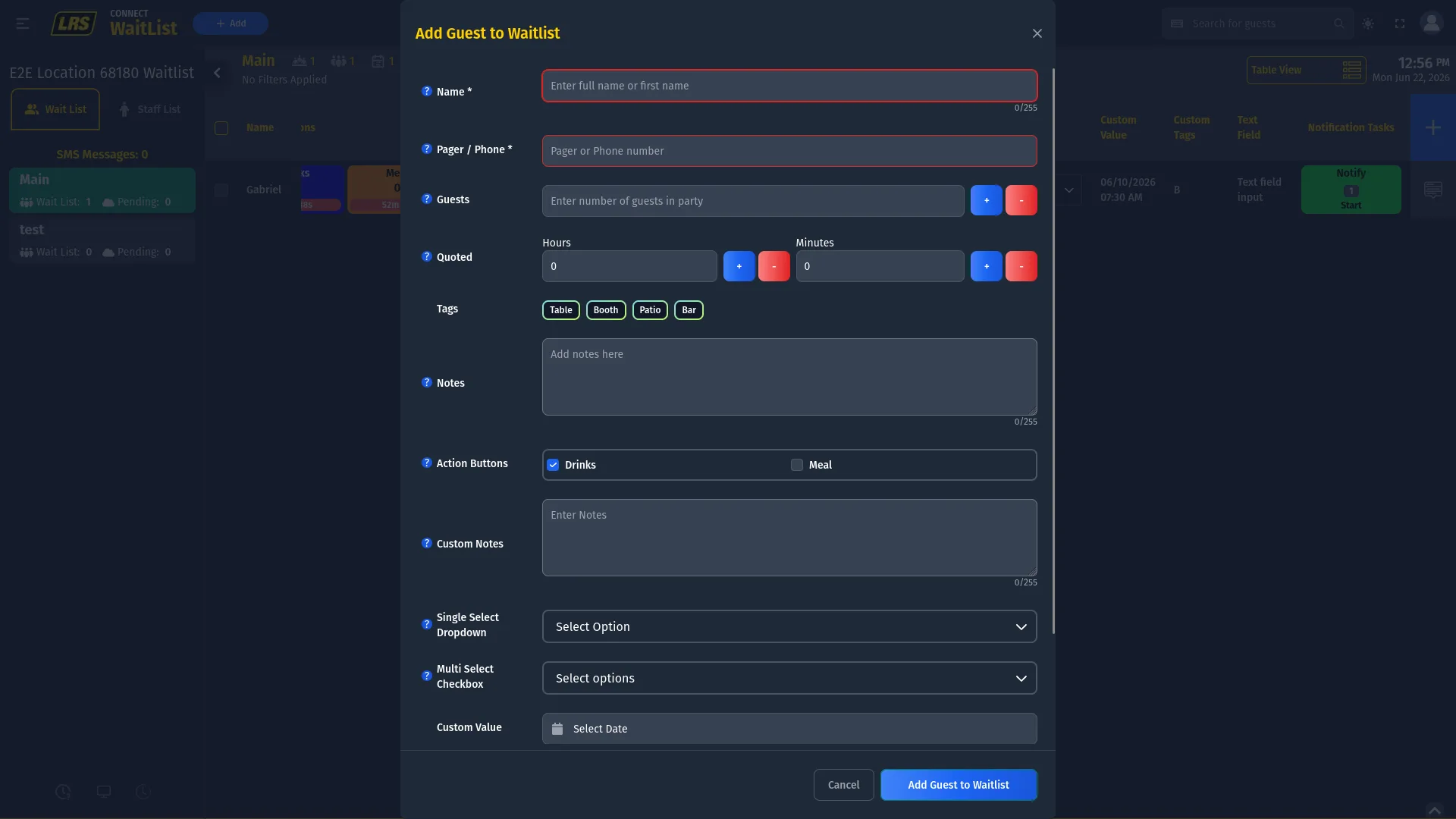
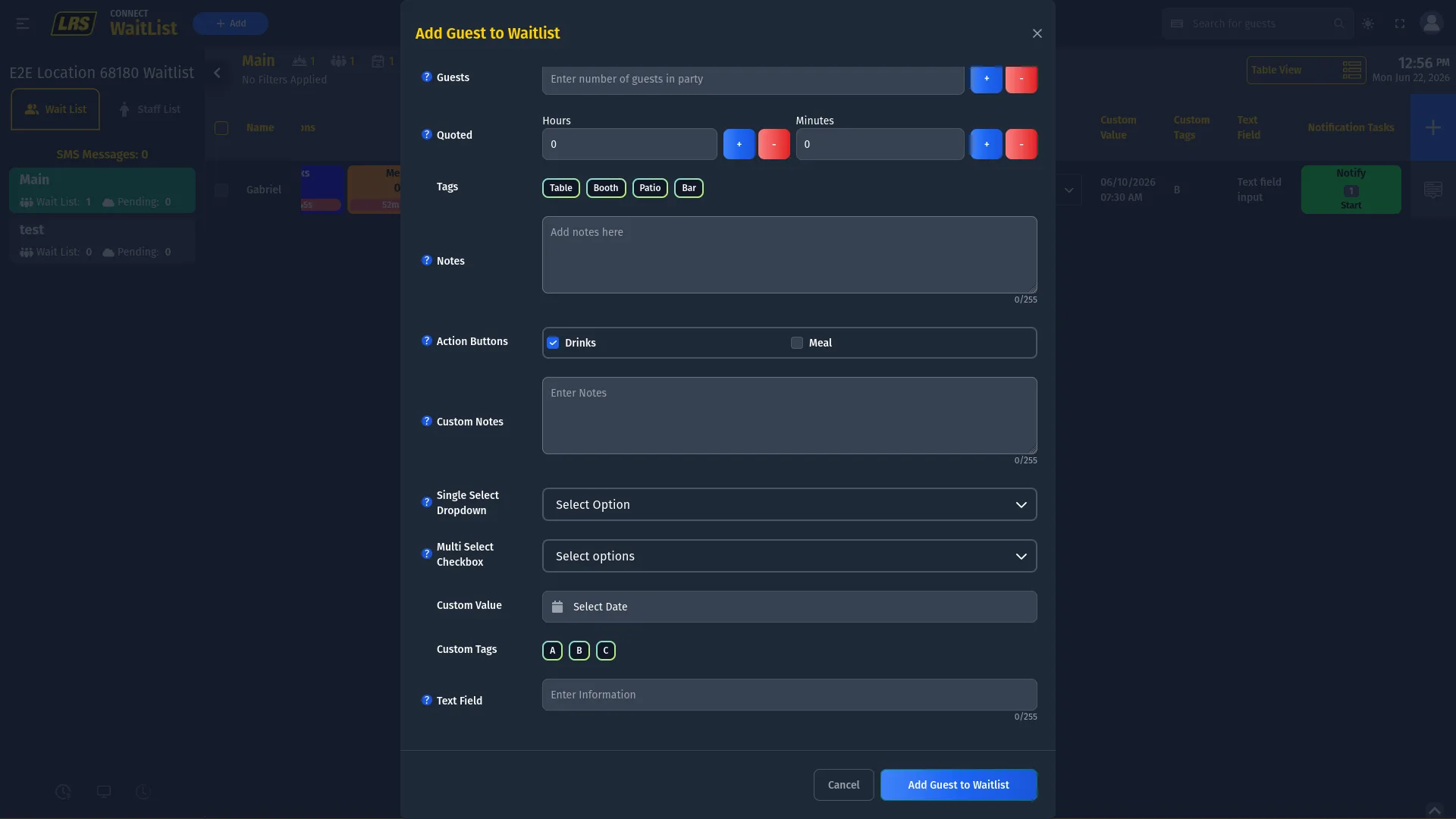
The Add Guest modal shows all staff-visible fields for the selected area in Form Designer order. Required fields are outlined until filled. Action Button fields let staff choose which independent buttons appear for this entry.
The Edit Guest modal opens with all values pre-filled. Any change — selecting or deselecting tags, adjusting the quoted time, updating custom fields — takes effect immediately on save and is visible in real time to every staff member viewing the same area.
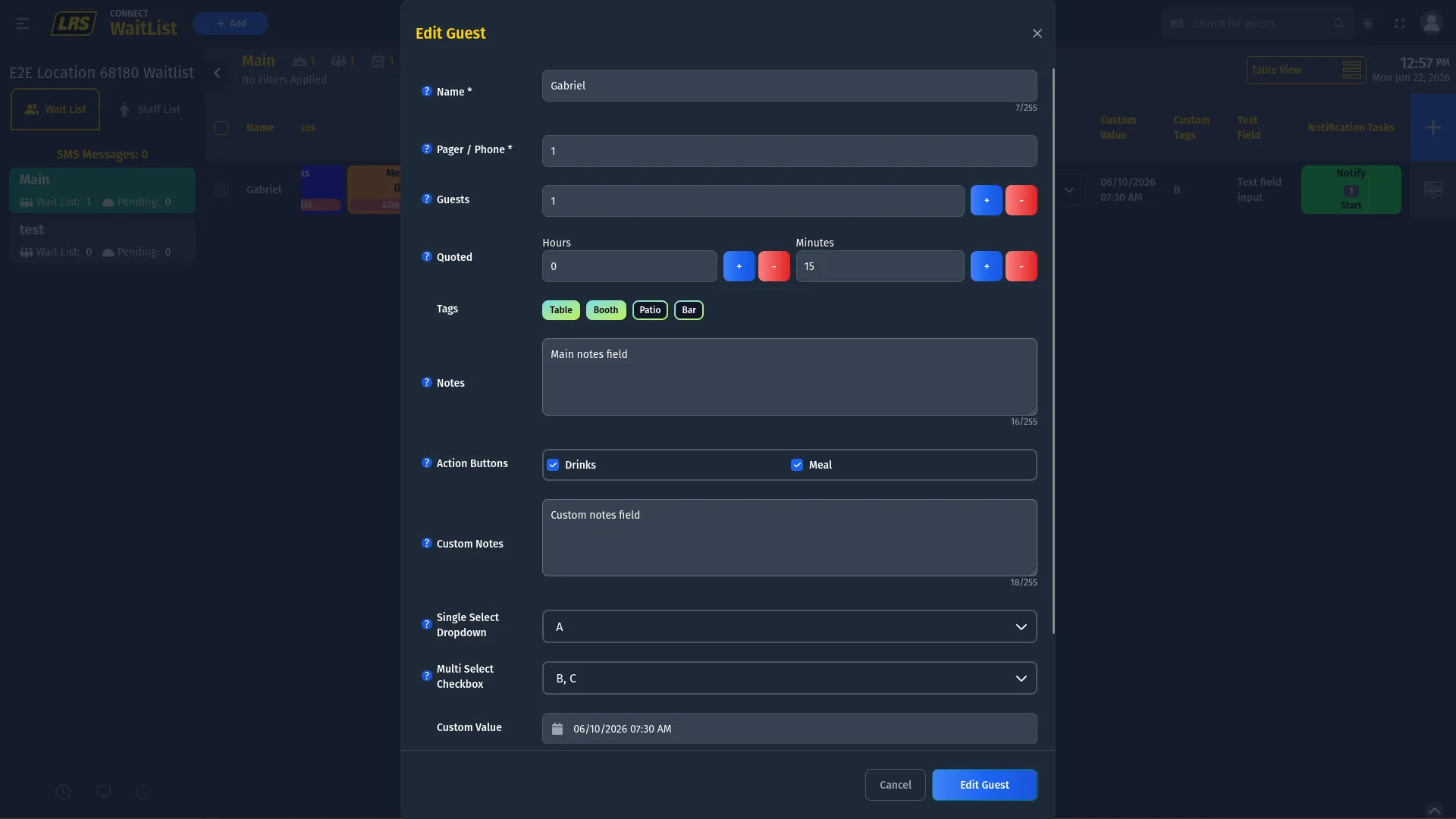
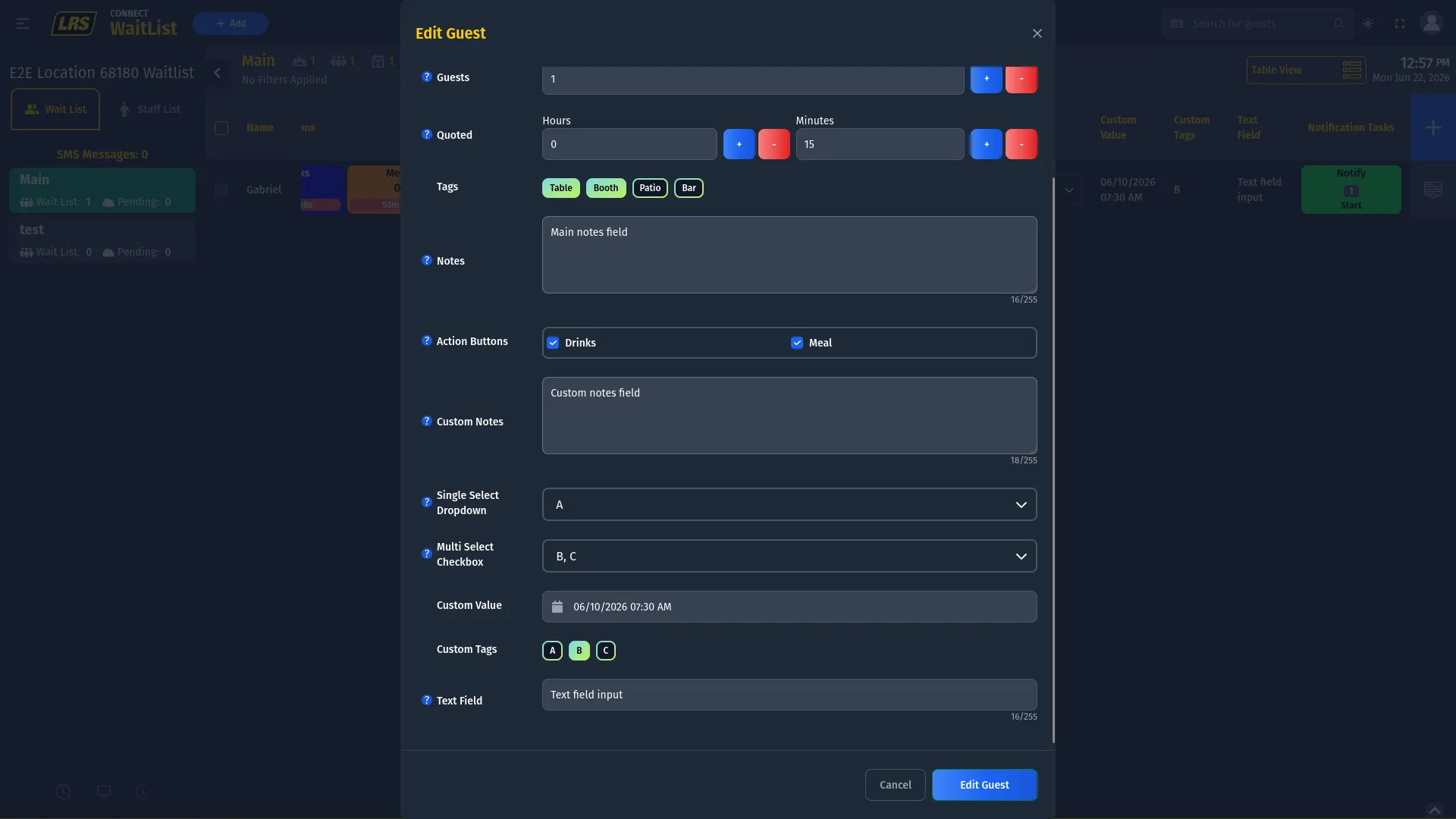
When a multiselect field has inline editing enabled, checkbox clicks remain local while the menu is open. Select or clear every required option, then close the dropdown to send one booking update. Wait for the success toast before leaving the page. Closing with no changes does not send an update, and clearing the final option saves an empty selection.
Entries can be moved to a different area without going through the full remove and re-add flow. The action panel lists all available areas as move targets, and drag-and-drop from the live list to the sidebar is a faster alternative when the panel is not already open.
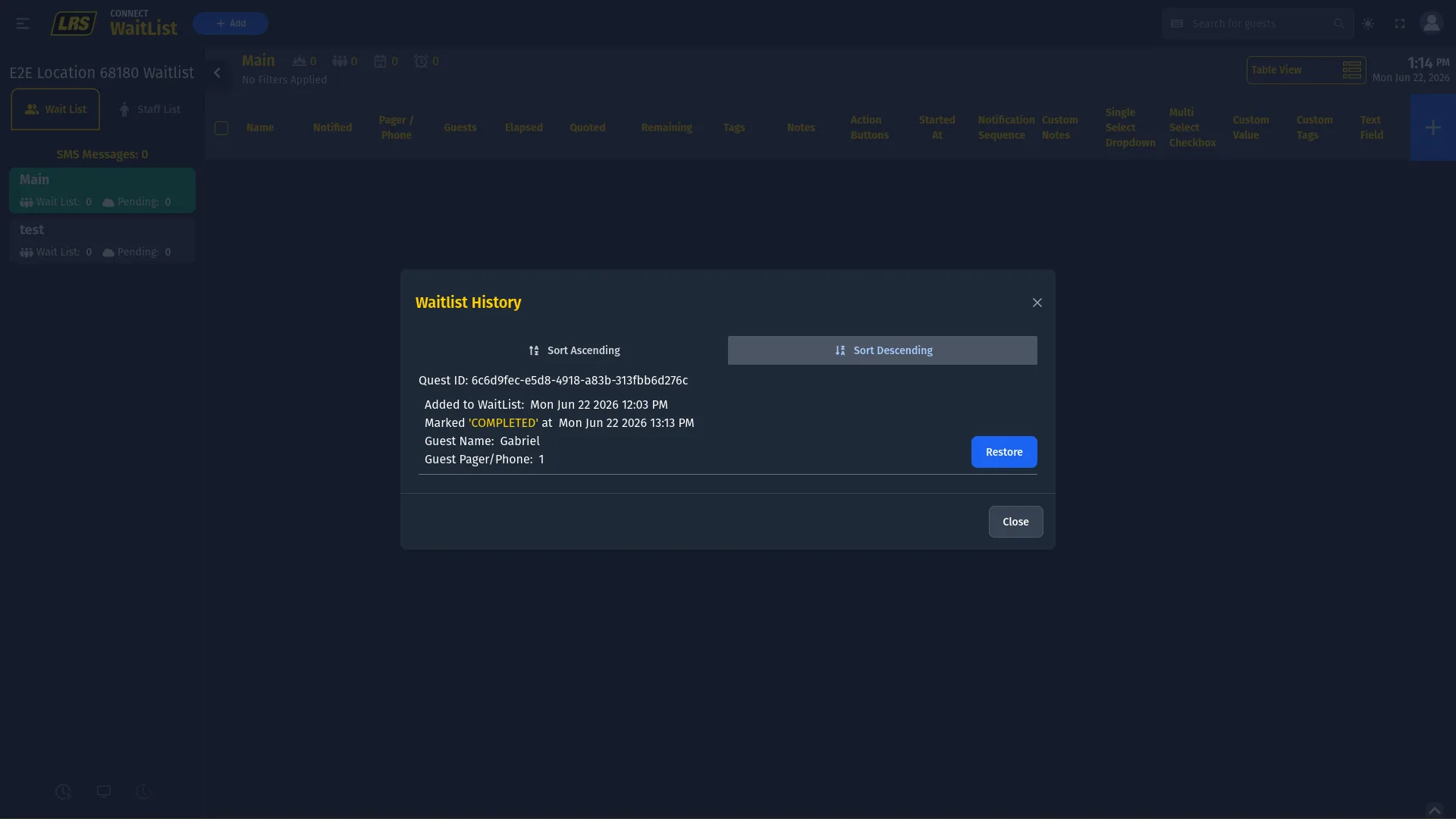
Complete an entry when the visit or service is finished. Remove it when the guest leaves before being served or cancels. Both actions move the entry to Waitlist History, where it remains available for restore for 24 hours.
Waitlist History shows completed or removed entries from the last 24 hours for the currently selected area. Switch areas to search elsewhere. Results load in pages of up to 100 and retain their entry identifier across restore operations.
6. Waitlist states
Each entry on the live list has a state that reflects where it is in the workflow. States are visible in the entry's row color and in the action panel options. Understanding them is essential for knowing what to do next with any given entry.
The six states below cover the full lifecycle of an entry, from the moment it is added to when it is completed or removed.
| State | Meaning |
|---|---|
| Waiting | Active and checked in. Added directly by staff, transitioned from Received Wait Time via Check-in guest, or checked in automatically after a successful kiosk pager submission when that area option is enabled. |
| Pending | Remote self check-in and kiosk phone entries wait for staff to send an estimated wait time. The row displays in red. Kiosk pager entries use Received Wait Time unless automatic kiosk pager check-in succeeds. |
| Received wait time | Staff sent an estimated wait and the guest was notified. Waiting for staff to tap Check-in guest to complete the check-in. Row displays in orange. |
| Notified | A successful phone notification sets this state during sending. A pager notification reaches Notified only after acknowledgement. |
| Restored | The entry was recovered from Waitlist History and returned to the active area. |
| Completed / Removed | The entry is no longer active. It appears in Waitlist History for 24 hours and can be restored during that window. |
Pending, Received Wait Time, and Restored use distinct row colors; other active states use the default row color.
| Row color | State and meaning |
|---|---|
| No highlight | Waiting or Notified — entry is active. Notified entries keep the same row color; notification status is tracked in the Notified column. |
| Red | Pending — arrived through remote self check-in or a kiosk phone entry and needs a wait time from staff. |
| Orange | Received wait time — staff sent a wait time, needs Check-in guest to complete. |
| Blue | Restored — returned from Waitlist History to the active area. |
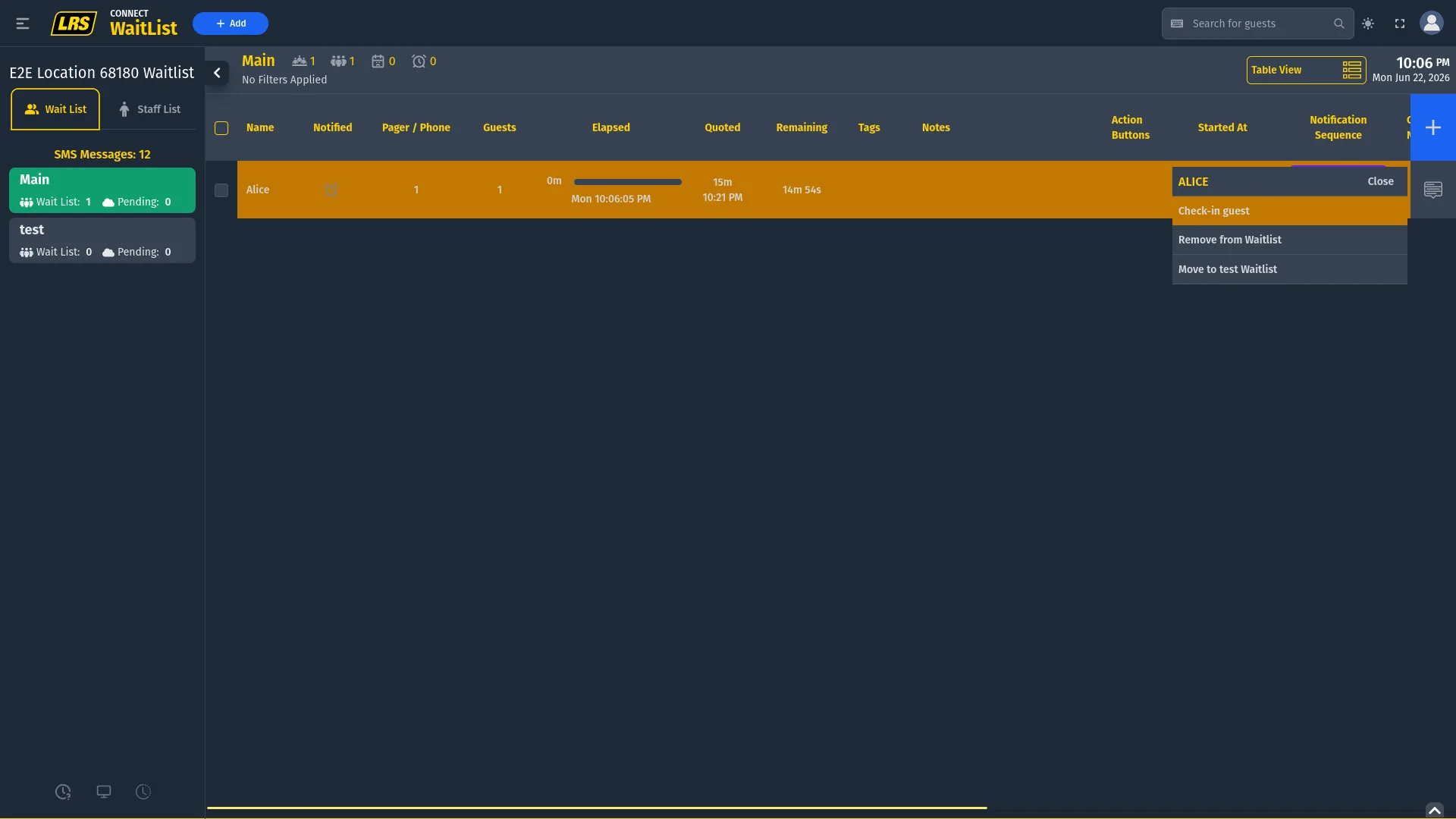
A Pending entry is red, and Notify Guest of Wait Time is its primary action. Wait List includes Pending; the Pending count is a subset that shows how many entries still need their first wait-time response.
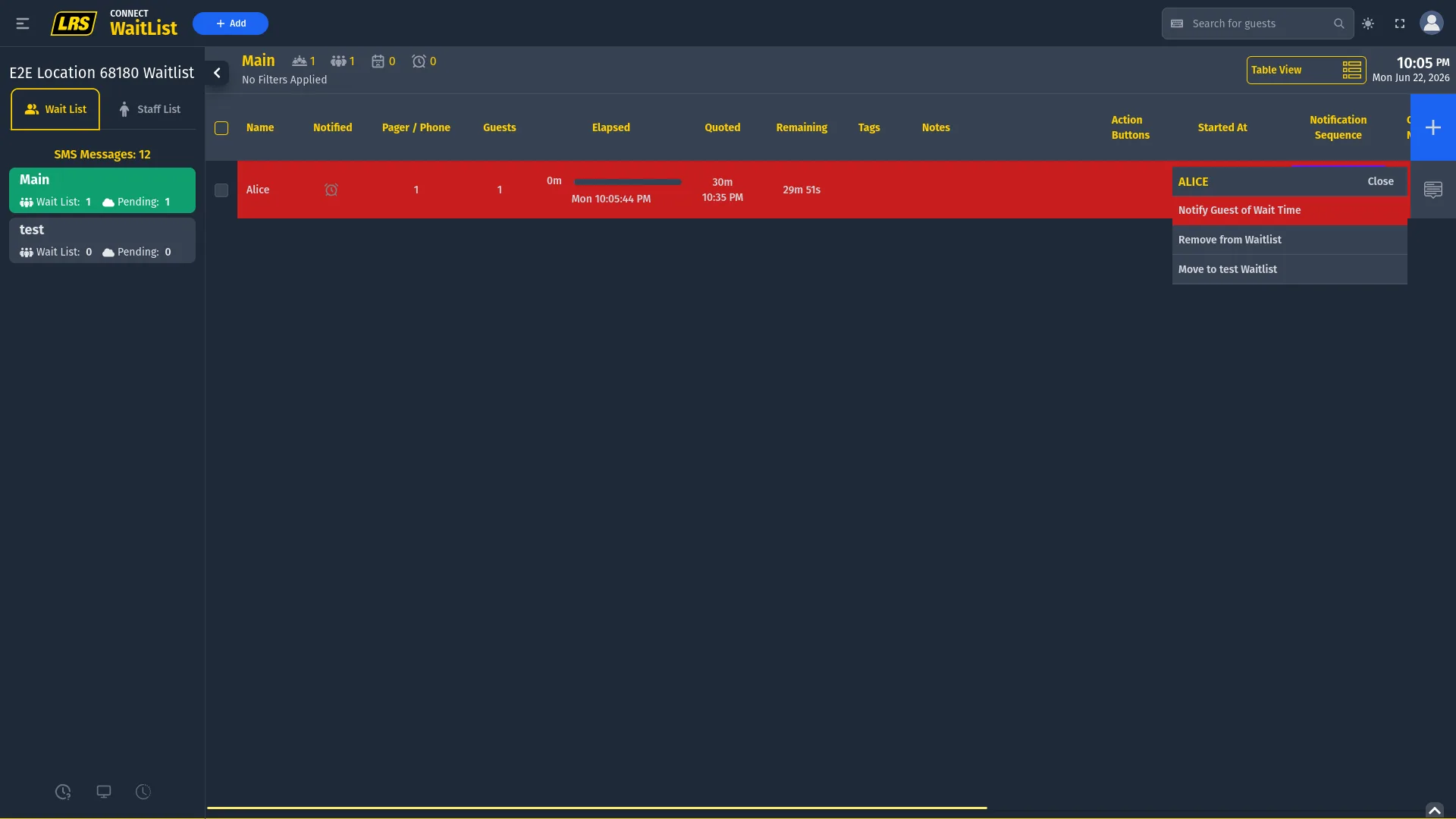
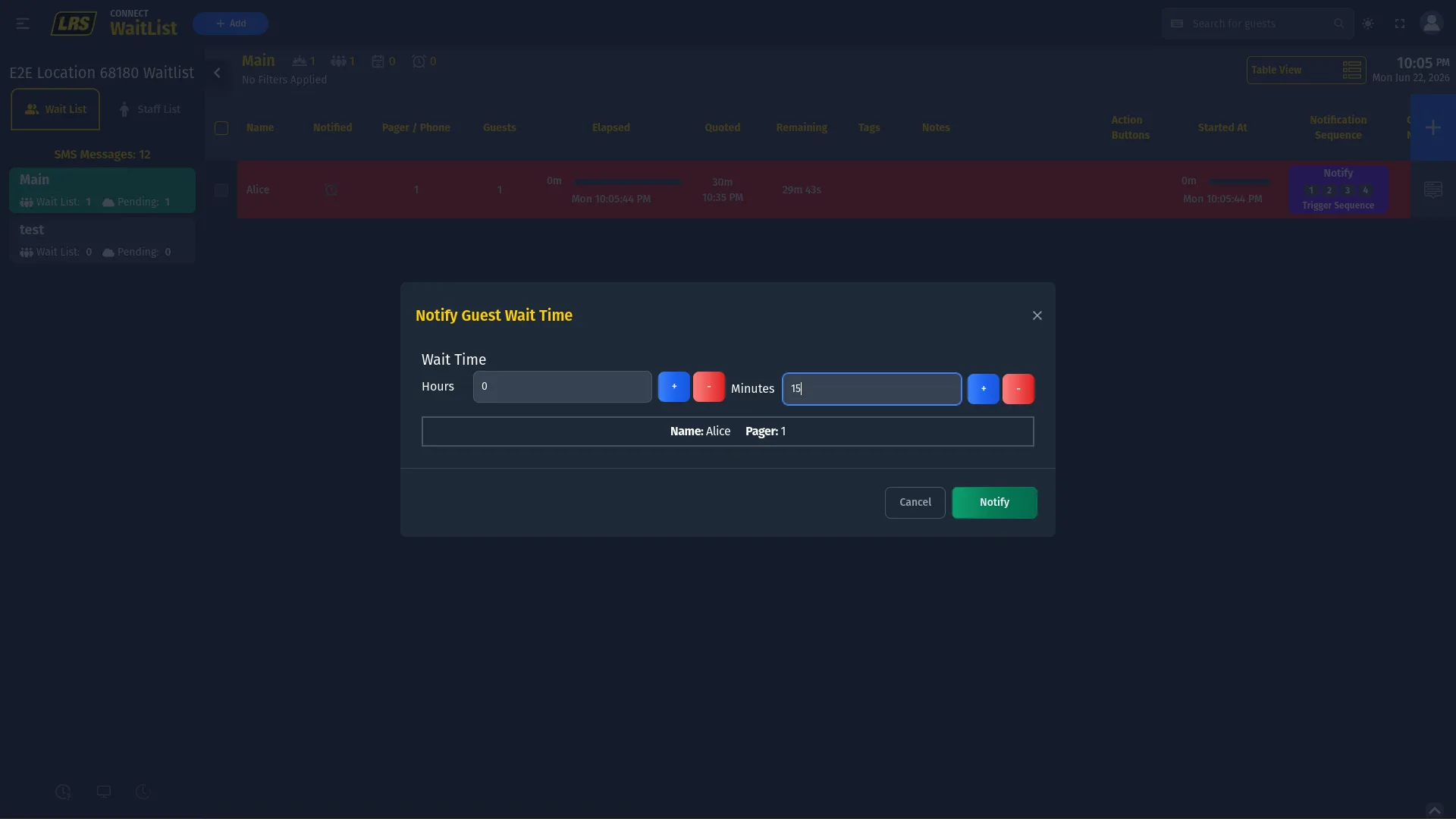
The Notify Guest of Wait Time modal requires setting an estimated wait time in hours and minutes. Setting the time does three things at once: sends the guest an SMS with their wait and a status page link, populates the Quoted column on the entry, and activates any Programmed Notification triggers configured in Dashboard for the area.
After the guest receives a wait time, the entry turns orange — the Received Wait Time state. The action panel now shows Check-in guest as the primary action. Selecting it moves the entry to Waiting, removes the orange highlight, and completes the check-in flow.
7. Notifications
The Waitlist app sends guest and staff notifications through SMS or pager channels. Guest workflow fields such as Notification Sequence and Notification Tasks target the guest contact; staff notifications use Staff List actions and each profile's preferred channel.
| Message type | What it does |
|---|---|
| Wait-time message | Sent to Pending entries. Gives the guest an estimated wait time and a status page link. Transitions the entry from Pending to Received Wait Time. |
| Standard message | Sends the default area notification. Available on active Waiting entries. |
| Selectable message | Lets staff pick from saved message templates when the area does not allow free-text writing. |
| Custom message | Free-text notification. Only available when the selected area has custom messages enabled in Dashboard under Notification Options. |
| Notification Sequence | A timed chain started by staff. The interface calculates due times from the initial acknowledgement; due steps must be sent with Notify. |
| Notification Tasks | A multi-step guest-notification workflow. Send the notification, wait for acknowledgement, then confirm the task. Later due notifications are sent manually; the final task may auto-close the entry. |
Dashboard can optionally record creation and check-in messages in notification history. When enabled for the corresponding message, a successful pager send contributes to the entry's Notified indicator; leaving both options off sends configured messages without adding those history items.
Several conditions can prevent a notification from going out. The table below lists the most common blockers and where in Dashboard each one is resolved.
| Situation | What to check |
|---|---|
| No phone number on entry | SMS requires a Pager/Phone value. Edit the entry to add one. |
| SMS plan missing | SMS Messages must be included on the location's service plan in Dashboard. |
| Allowance exhausted | Check the SMS Usage tab in Dashboard. Usage beyond the remaining allowance is billable at the effective segment price; exhausting the allowance does not by itself reset or renew it. |
| Custom message not available | Custom writing is toggled per area in Dashboard under Notification Options. |
| Pager alert not firing | Pager alerts require a transmitter assigned to the area and the correct pager hardware type selected in Notification Options. |
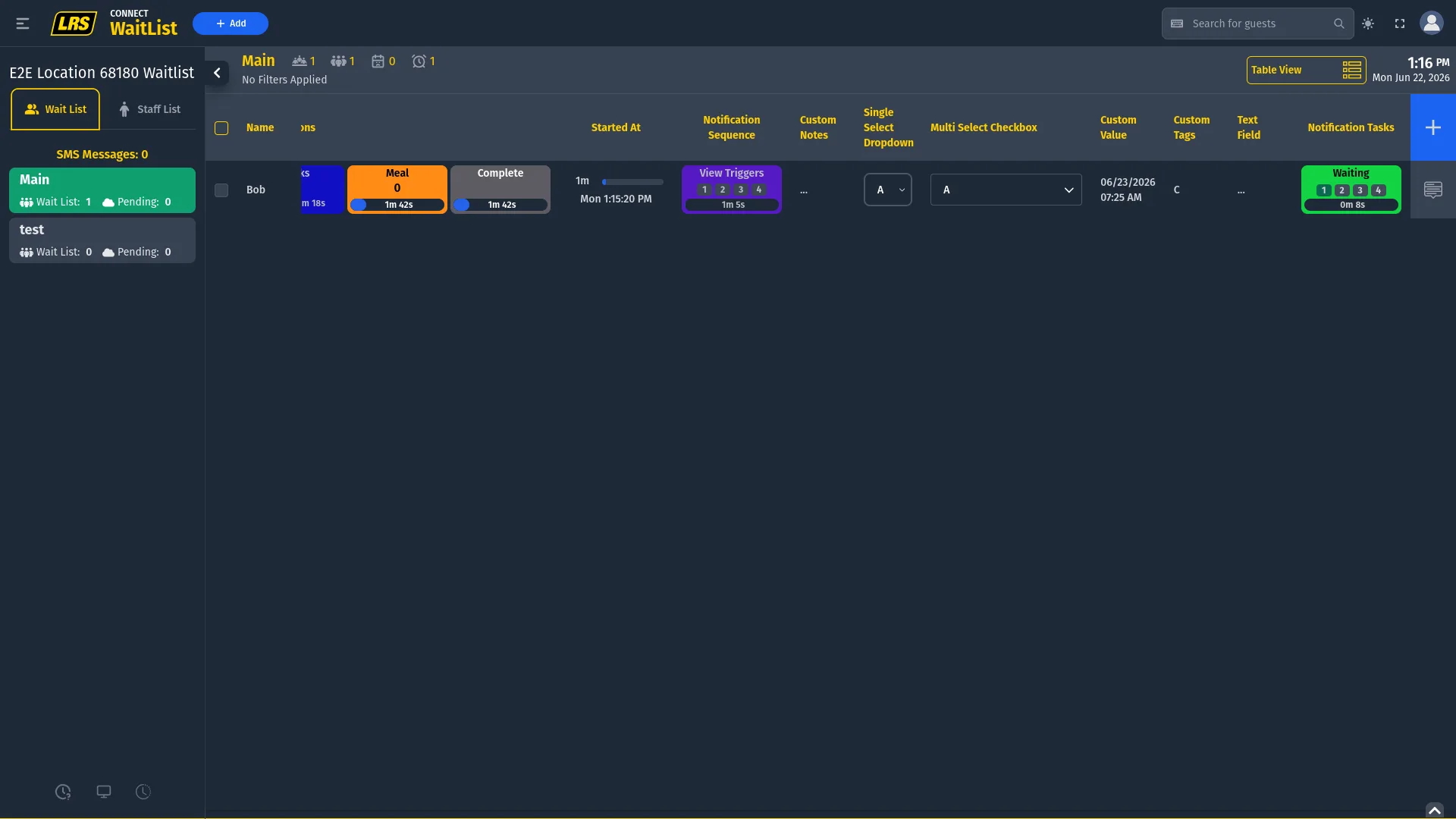
A running Notification Sequence shows View Triggers and one indicator per step. The modal calculates due times from the initial acknowledgement. Due steps must be sent manually with Notify.
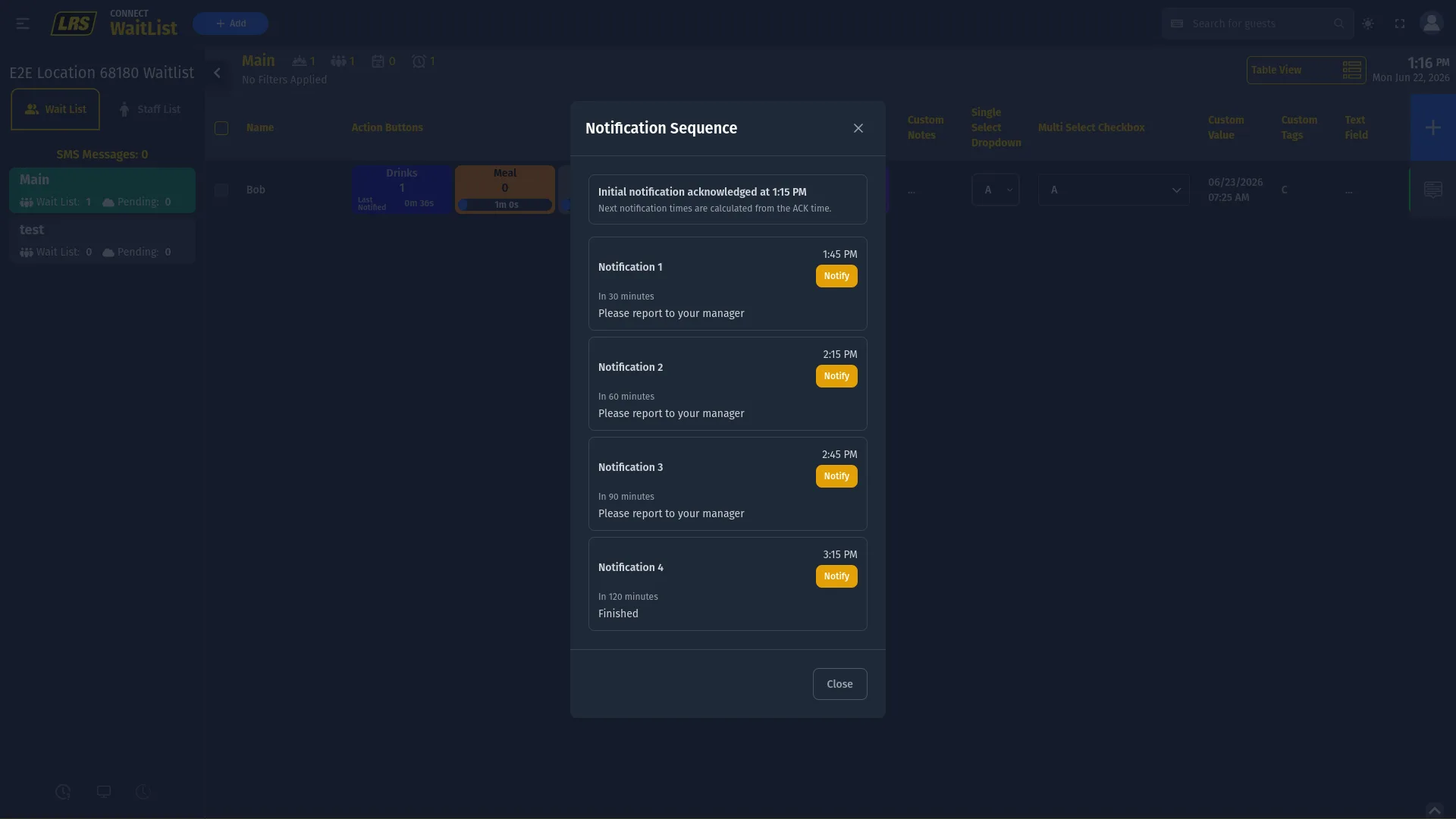
The critical detail in the sequence modal is the acknowledgement time. All subsequent notification times are calculated from the moment the first notification was acknowledged — not from when each step individually fires. This means manually firing a step early does not shift the scheduled times for later steps.
Notification Tasks appear with a state badge, step indicators, and a timer. Staff sends the guest notification, waits for acknowledgement, and then confirms the task. Later due notifications are also sent manually. Auto Close Booking can finish the entry after the final task.
8. Status Screen
The Status Screen is a read-only lobby view for the selected area and status-screen-visible fields. It inherits the area's saved filters, so clear filters before relying on it as a complete lobby list.
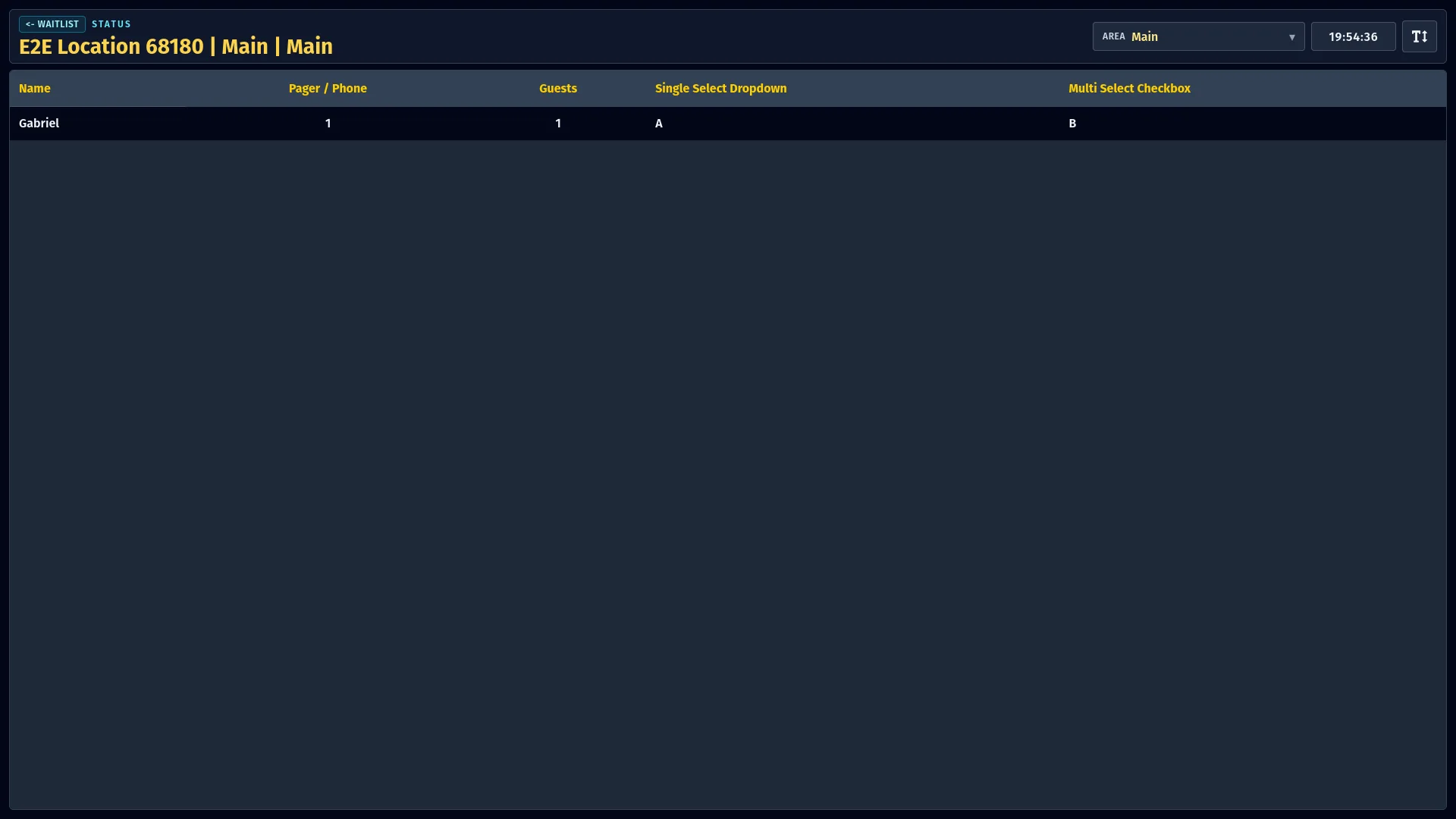
The Status Screen is opened from the monitor icon at the bottom of the left sidebar. The current organization and location remain selected. The breadcrumb in the top-left corner returns directly to that live list, making it quick to switch between monitoring and managing without re-selecting the area. The area selector in the top-right allows switching to a different area's display without going back to the live list at all. The font size button adjusts text scaling for readability at a distance.
9. Kiosk
Kiosk mode turns a tablet or touchscreen into an on-site check-in station. Entries using a phone value appear as Pending. Entries using a 1–4-digit pager value normally enter Received Wait Time and appear on the public position list immediately.
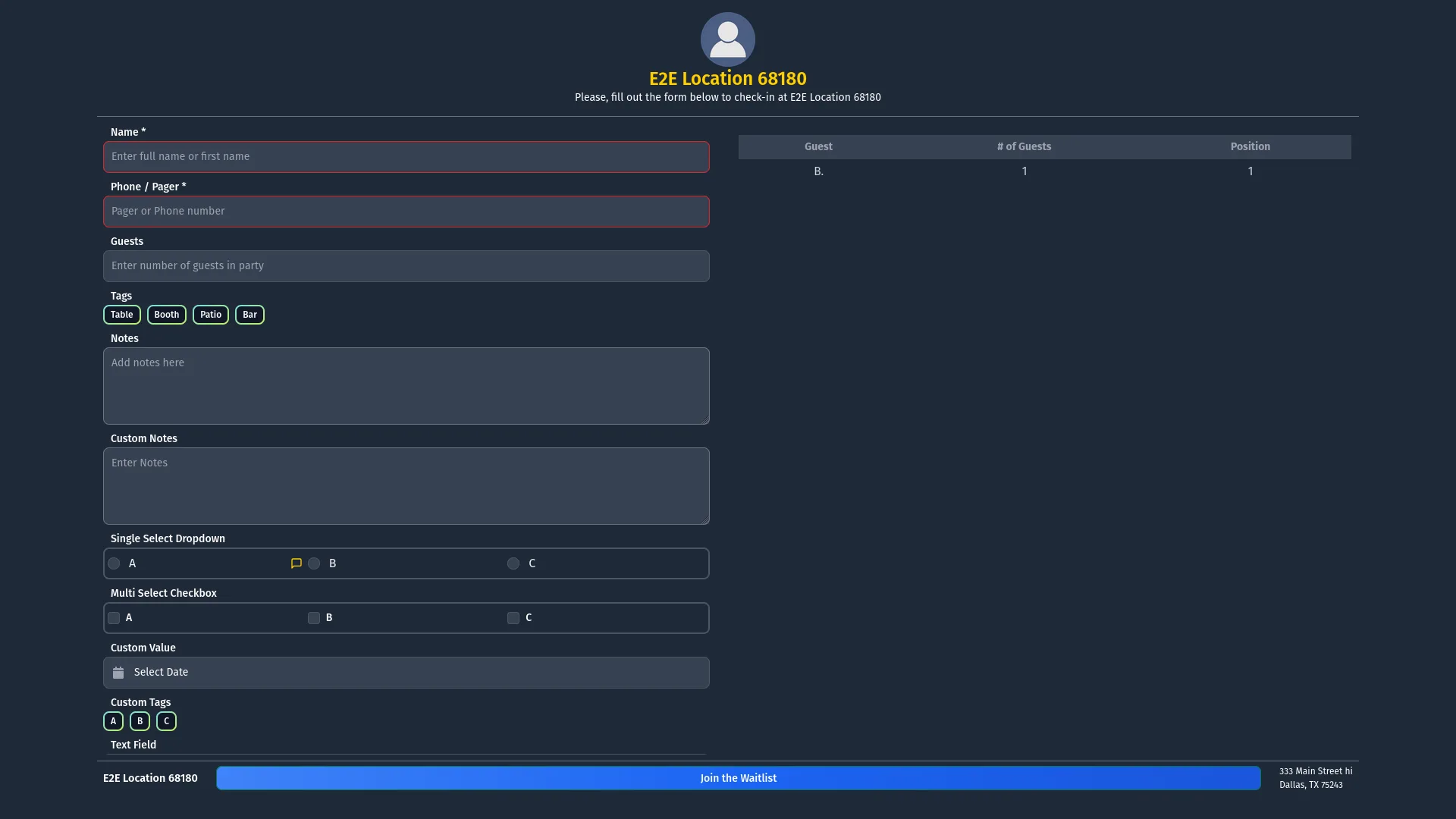
The kiosk form shows kiosk-visible fields in their configured order and uses their configured field titles. The public list shows initials and party size. Pending phone entries remain staff-only until a wait time is provided; 1–4-digit pager entries appear publicly immediately. A chat icon on a Single Select option marks a guest-notification action used during staff inline editing; kiosk submission does not trigger that action.
Confirmation and check-in messages configured for the area can be sent to a kiosk pager. If Automatically check in kiosk guests using pagers is enabled, a successful submission moves the pager entry directly to Waiting. If a configured pager alert cannot be accepted, the entry remains in Received Wait Time so staff can finish the check-in manually.
After submission, the kiosk confirms only that the information was received and asks the visitor to follow the instructions provided by staff or sent to the pager or phone. It does not promise a text message, an estimated wait time, or a specific arrival step for every setup.
10. Self check-in
Remote self check-in lets guests join from their own device. The Dashboard link toggle publishes the URL and QR code. Acceptance is controlled by the selected Self Check-in Area and today's Active, Enable Remote Check-in, and remote-hour settings.
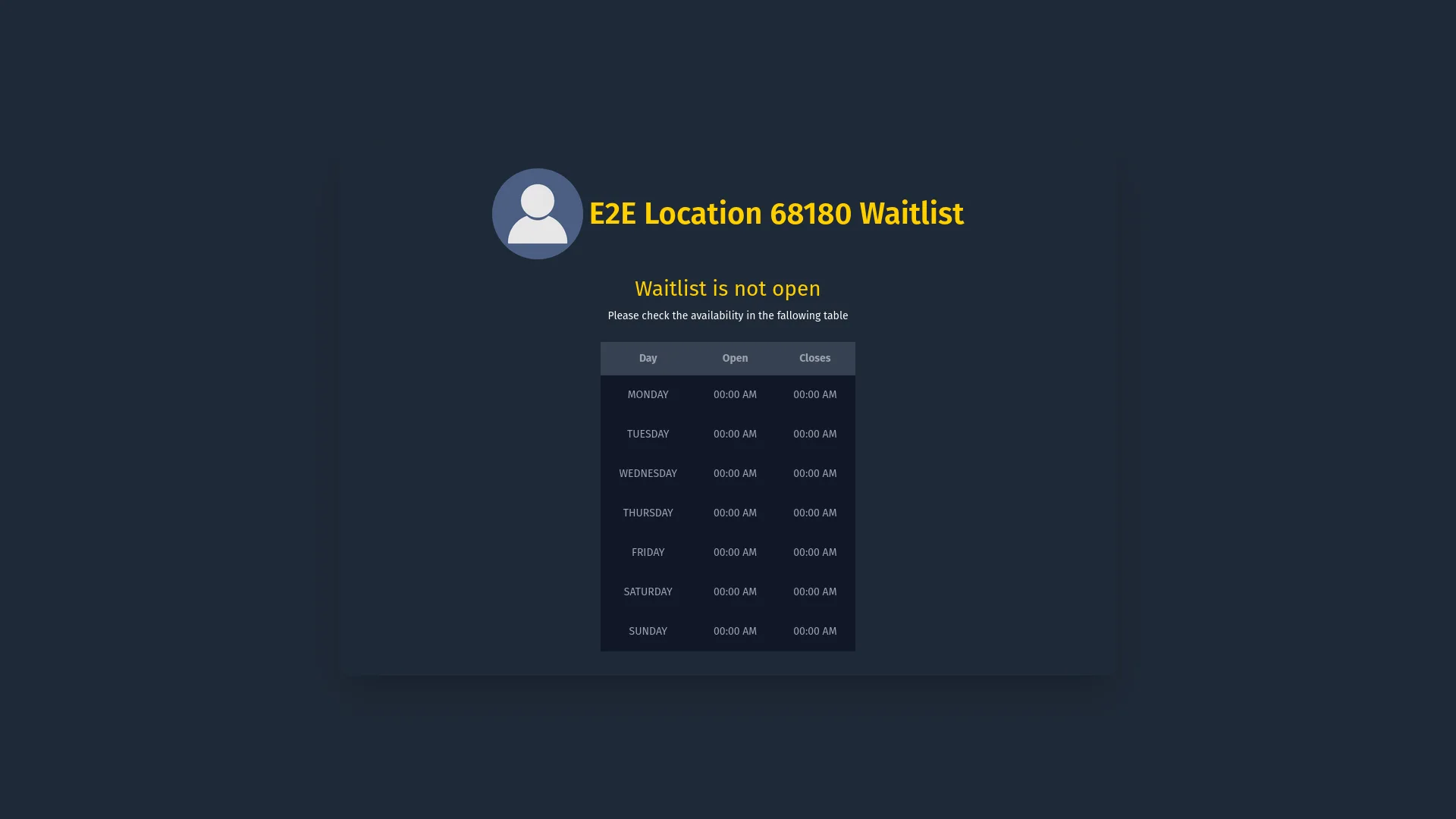
If self check-in is unavailable because of the day's settings or current time, the page shows Waitlist is not open and the weekly schedule.
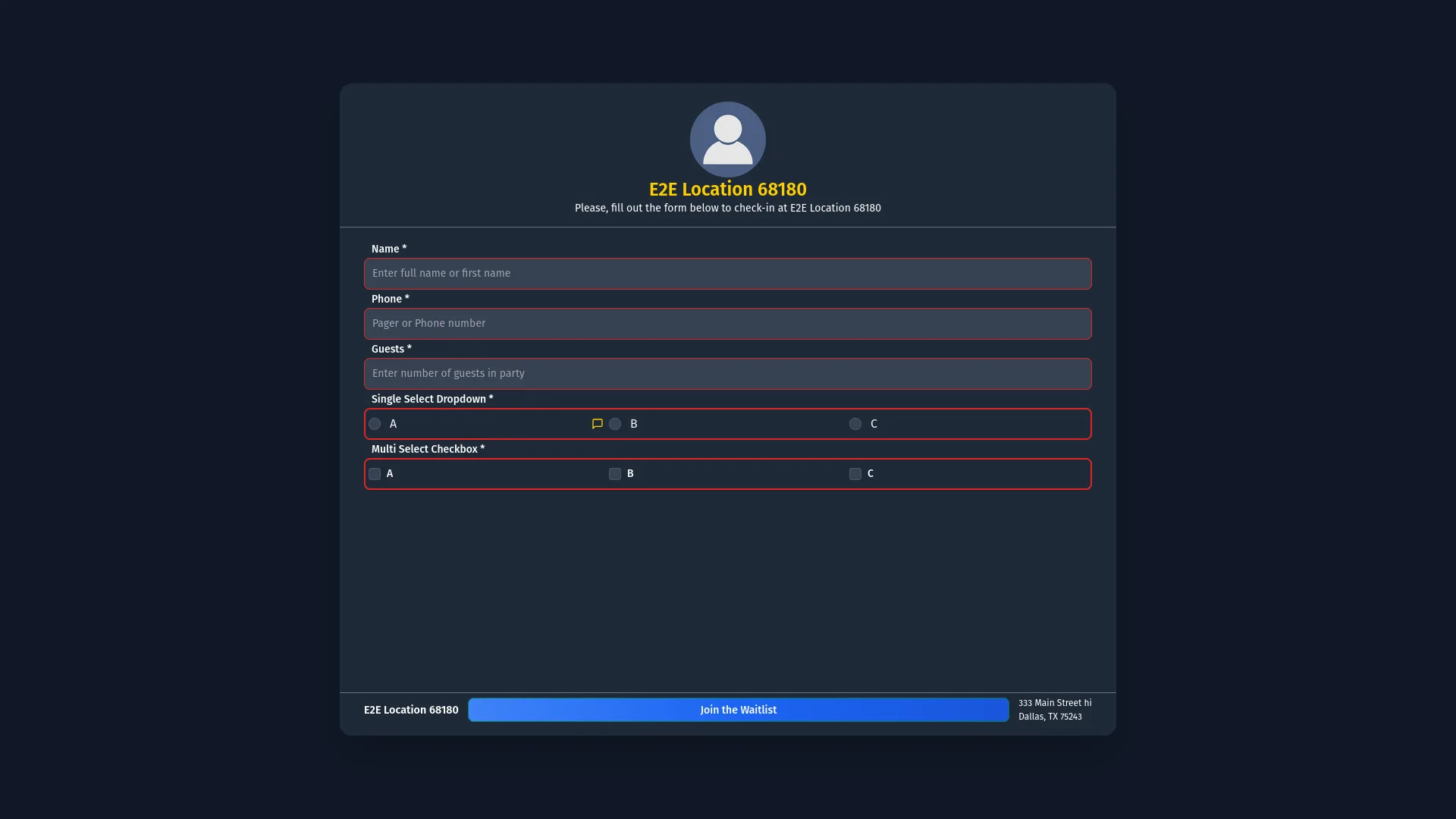
When the link is open, visitors see the remote check-in form. Only the fields set as remote-check-in-visible in the Form Designer are shown. Required fields are enforced at submission — the form cannot be sent until they are all filled.
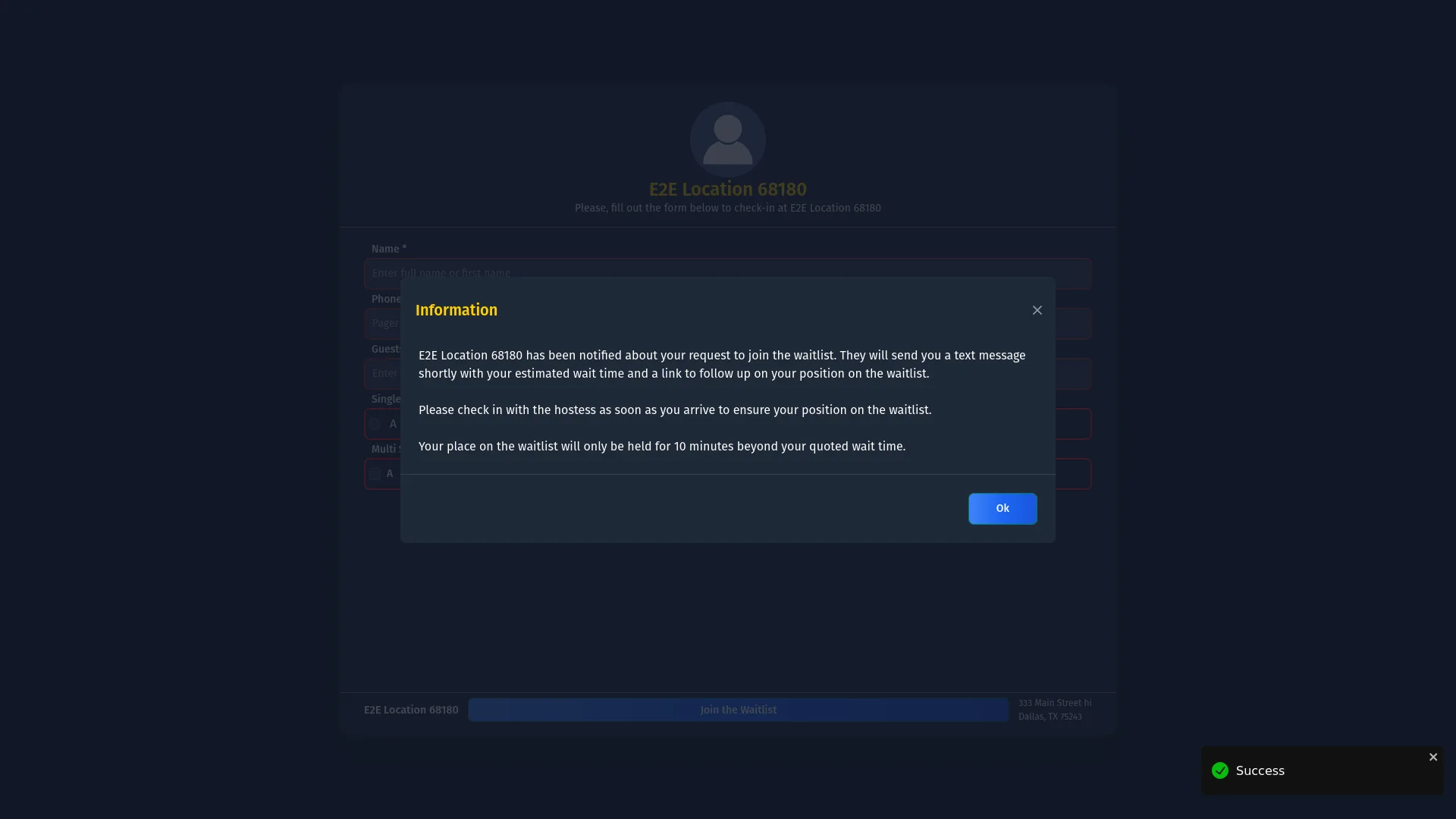
After submitting, the confirmation modal explains that staff was notified, that the visitor should expect their wait-time message, and what to do on arrival. Dashboard's Delay Tolerance setting controls how late the visitor may complete remote check-in.
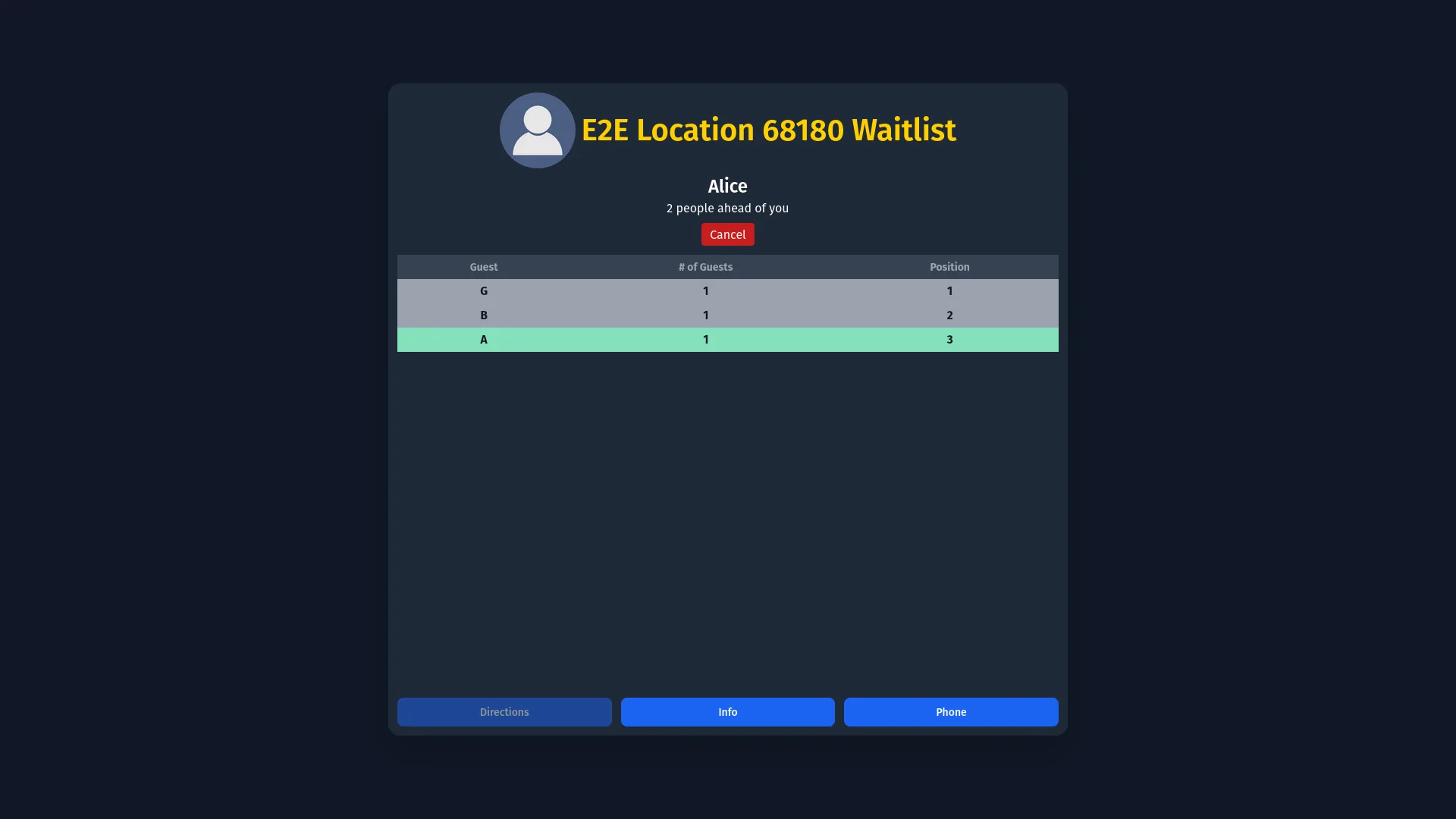
The guest status page resolves against the configured Self Check-in Area. Queue position is available only during local operating hours and counts parties ahead. Cancel works only in the original check-in browser session; another device may display status without being able to cancel. Location information and phone shortcuts may be available, while Directions is currently unavailable.
11. Troubleshooting
Open Dashboard, go to the area's Form Designer, and check the visibility switch for the staff add/edit form. A field set to hidden will not appear in the modal even if it is active.
Notify Guest of Wait Time is always available on Pending entries, but the notification requires a Pager/Phone value to send the SMS. If the entry has none, the send will fail — edit the entry to add a contact number first.
The area or the destination area already has an active entry with the same contact. Search for the existing entry, resolve or remove it, then retry the add, move, or restore.
Custom writing is enabled per area in Dashboard under Notification Options. The area may be configured for selectable messages only.
The selected area has active Action Buttons. Action Buttons require table view to show the countdown timers and the Complete button.
Sequence steps do not send automatically. Open View Triggers and use Notify for the due step.
Send the guest notification first and wait for its acknowledgement. The confirmation action becomes available after acknowledgement.
Confirm a Kiosk Area is selected in the Dashboard guestlist workspace and that the kiosk was launched from the Dashboard guestlist page — not by directly opening a URL on a device.
Check that Remote Check-in hours are set for today in Hours of Operation, that the current time is within those hours, and that a Self Check-in Area is selected in the Dashboard guestlist workspace.
The Waitlist app could not load the configuration it needs and stopped rather than running with incomplete settings. Nothing was lost — entries already on the list are unaffected. Use Contact support on that screen, or log out and sign in again once connectivity is restored.