
Menu item missing after login
Confirm the user has a location manager or org manager assignment. Staff without a manager role cannot see Dashboard configuration menus.
Dashboard is the control center for LRS Waitlist NEXT. This guide covers every area of Dashboard organized by role — from public access up to account owner — so you can go directly to the section that matches your level of access.
1. Role model
Dashboard adapts its sidebar, menus, and available tabs to the signed-in user's role. A user can hold multiple roles at once — for example, being an org manager for one organization while also acting as a location manager for a location in a different organization. The sidebar updates automatically when role assignments change.
| Role | Scope of access |
|---|---|
| Public (unauthenticated) | Can view the landing page and request a demo. No access to Dashboard or the live Waitlist app. |
| Staff | Signs in with email and password. Cannot access Dashboard configuration. Sees a no-access page with a Go to the Waitlist action. |
| Staff Manager / Location Manager | Manages assigned locations: profile, hours, plan, transmitters, guestlists, areas, form designer, staff profiles, SMS, and location users. |
| Org Manager | Manages assigned organizations: org profile, users, financial overview, API keys, billing accounts, and the org-level waitlist structure. |
| Account Admin | Broad access to all organizations, locations, global users, and auditing. Only the Account Owner can grant or revoke Account Admin status. |
| Account Owner | The account creator. Full and permanent access. Cannot be removed by other users. |
2. Public
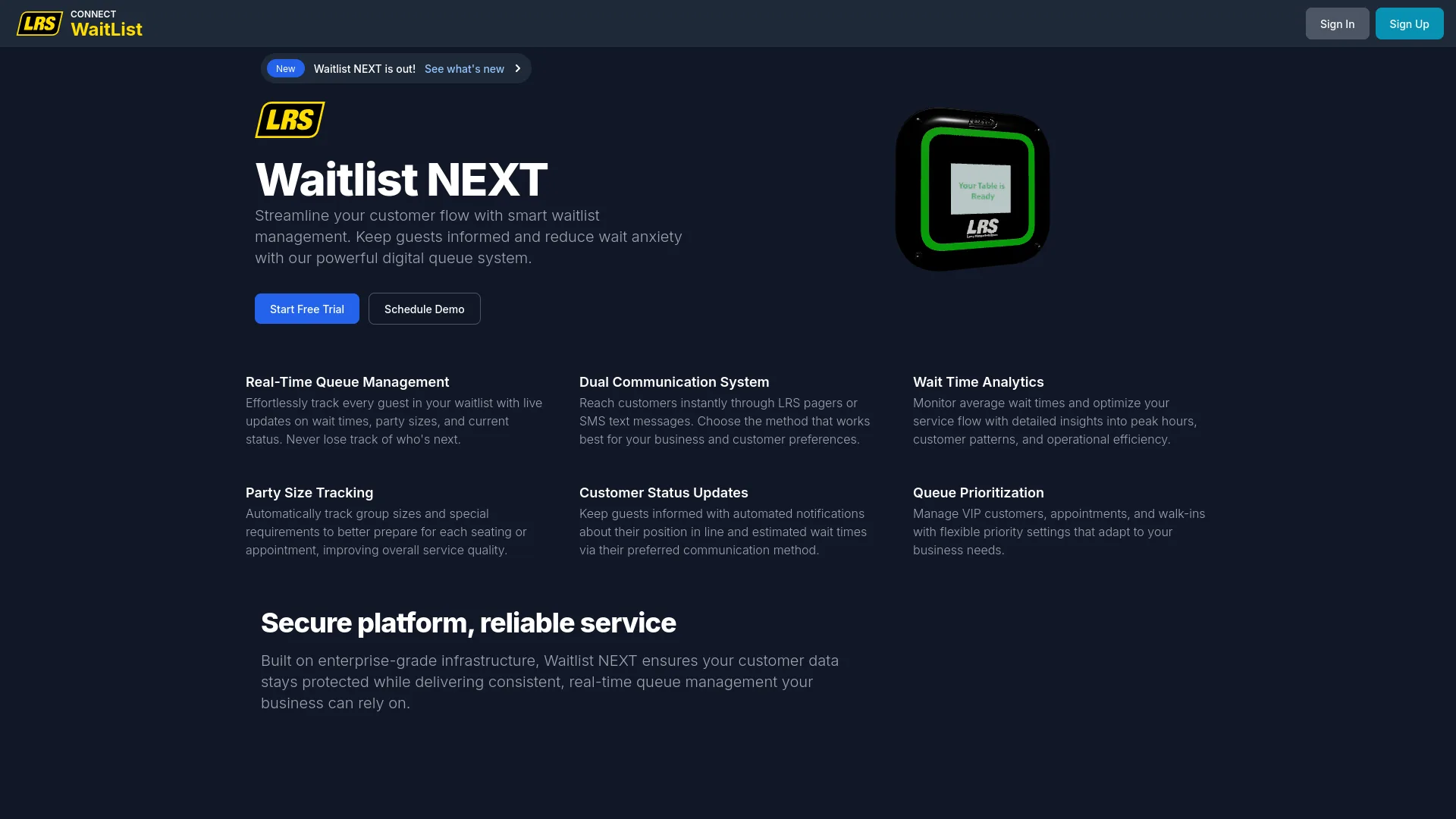
Before signing in, any visitor can explore the product on the LRS Waitlist NEXT landing page. The landing page offers two primary paths: create a new account or sign in to an existing one. A Schedule Demo option lets prospects request a guided walkthrough before committing.
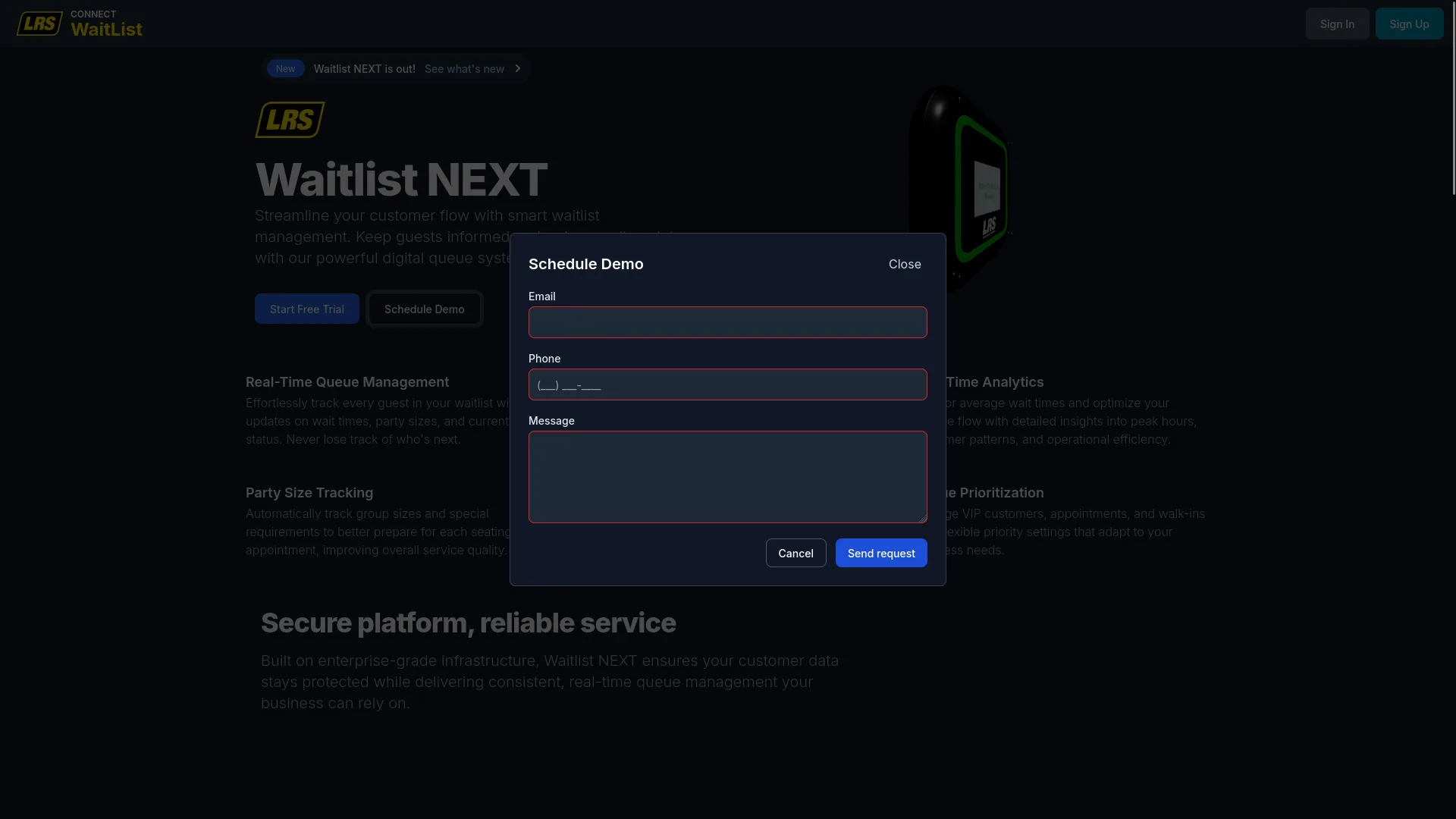
The Schedule Demo form requires email, phone, and a message. An LRS representative follows up directly to arrange the session.
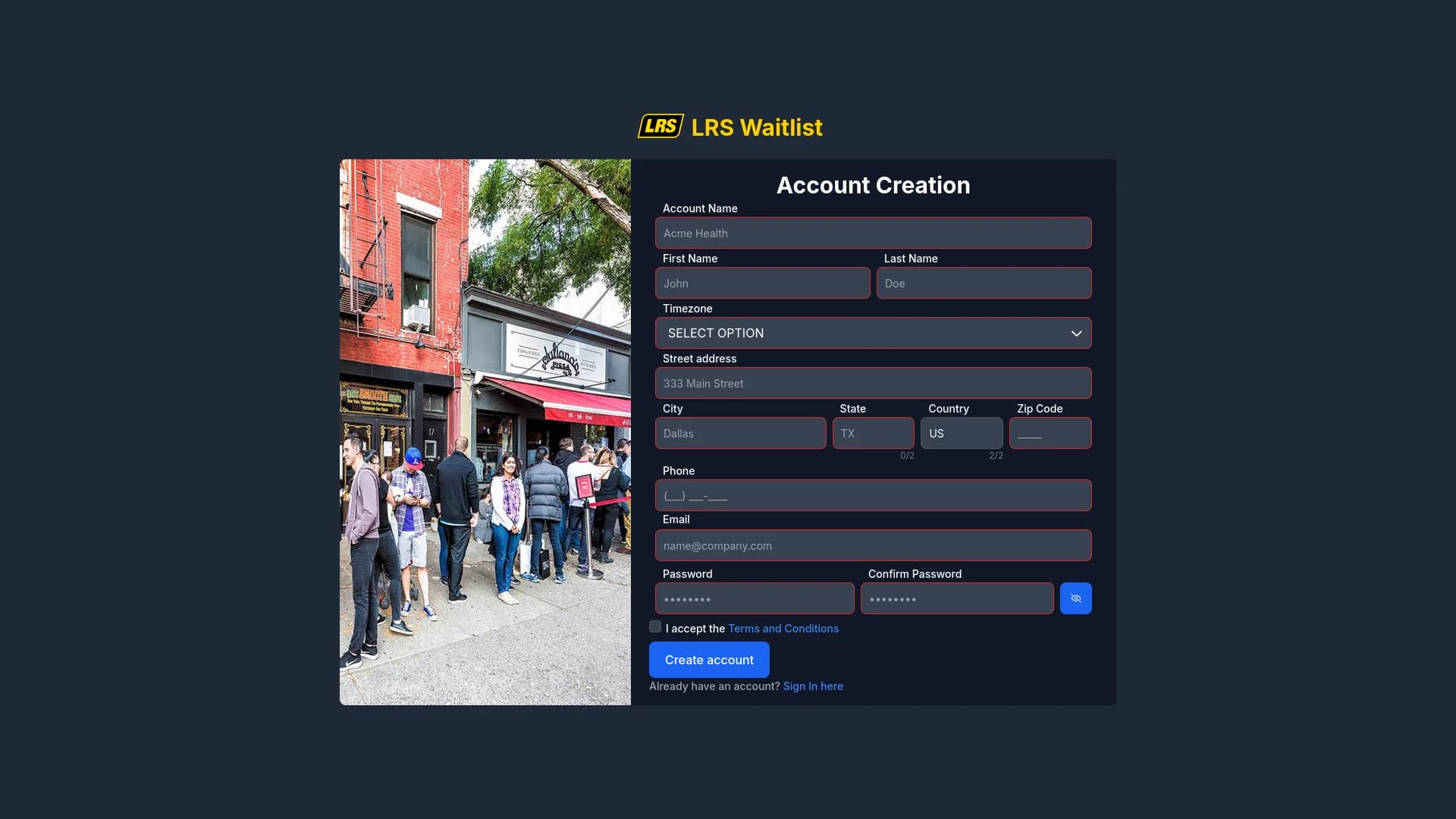
Account creation establishes the account owner and the top-level account structure. Complete this once — all other users are added later through Dashboard.
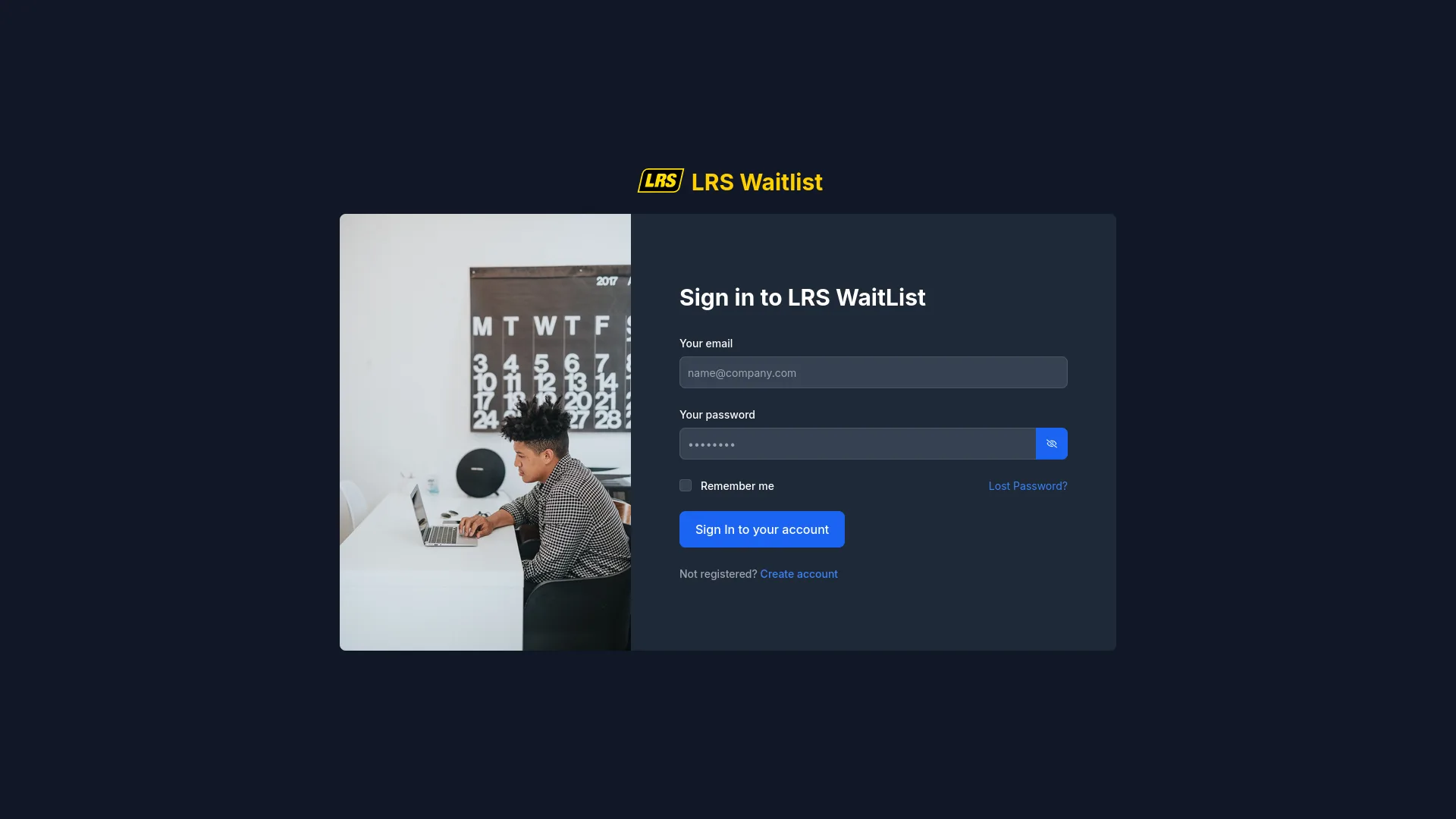
Once activated, all users — owners, admins, managers, and staff — sign in from the Dashboard sign-in screen using their registered email and password.
3. Staff
Users assigned as Staff without a manager role cannot access Dashboard setup screens. Dashboard detects the missing permission when they sign in and shows the screen below instead of the configuration interface.
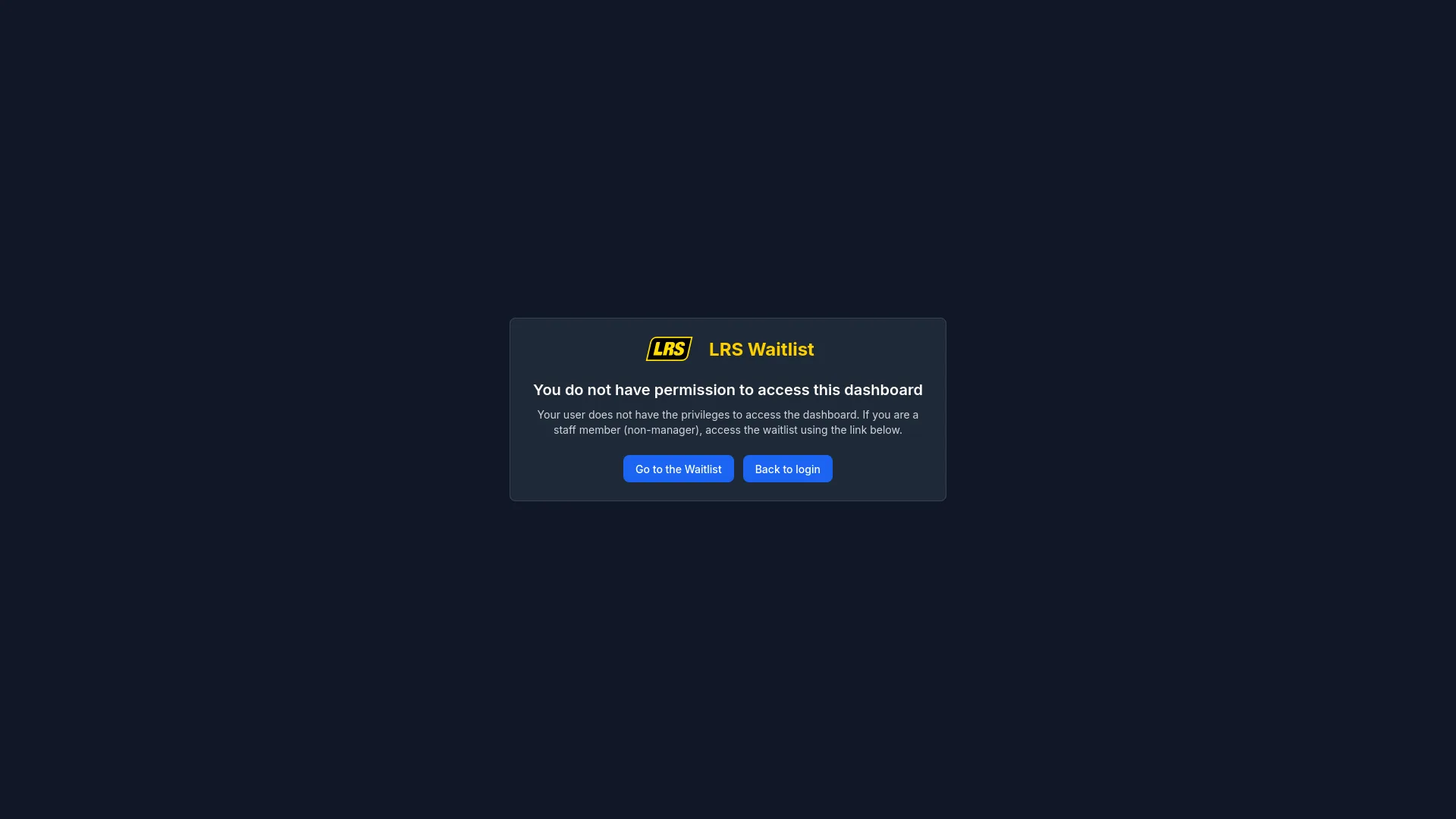
Staff use the live Waitlist app for their daily work: adding guests, sending notifications, managing entries, and completing visits. Everything a staff user needs is covered in the Waitlist guide, not here. The Go to the Waitlist button on the redirect screen takes them directly there.
4. Location Manager
Location managers are the primary daily users of Dashboard. The Dashboard home currently shows organization-level analytics for the selected organization, while location setup remains limited to their assigned locations — from operating hours and transmitters to staff pager profiles and user access.
The Dashboard home presents a fixed seven-day period for the current Dashboard context. It refreshes when the page loads or the selected organization changes; it does not update continuously as entries change.
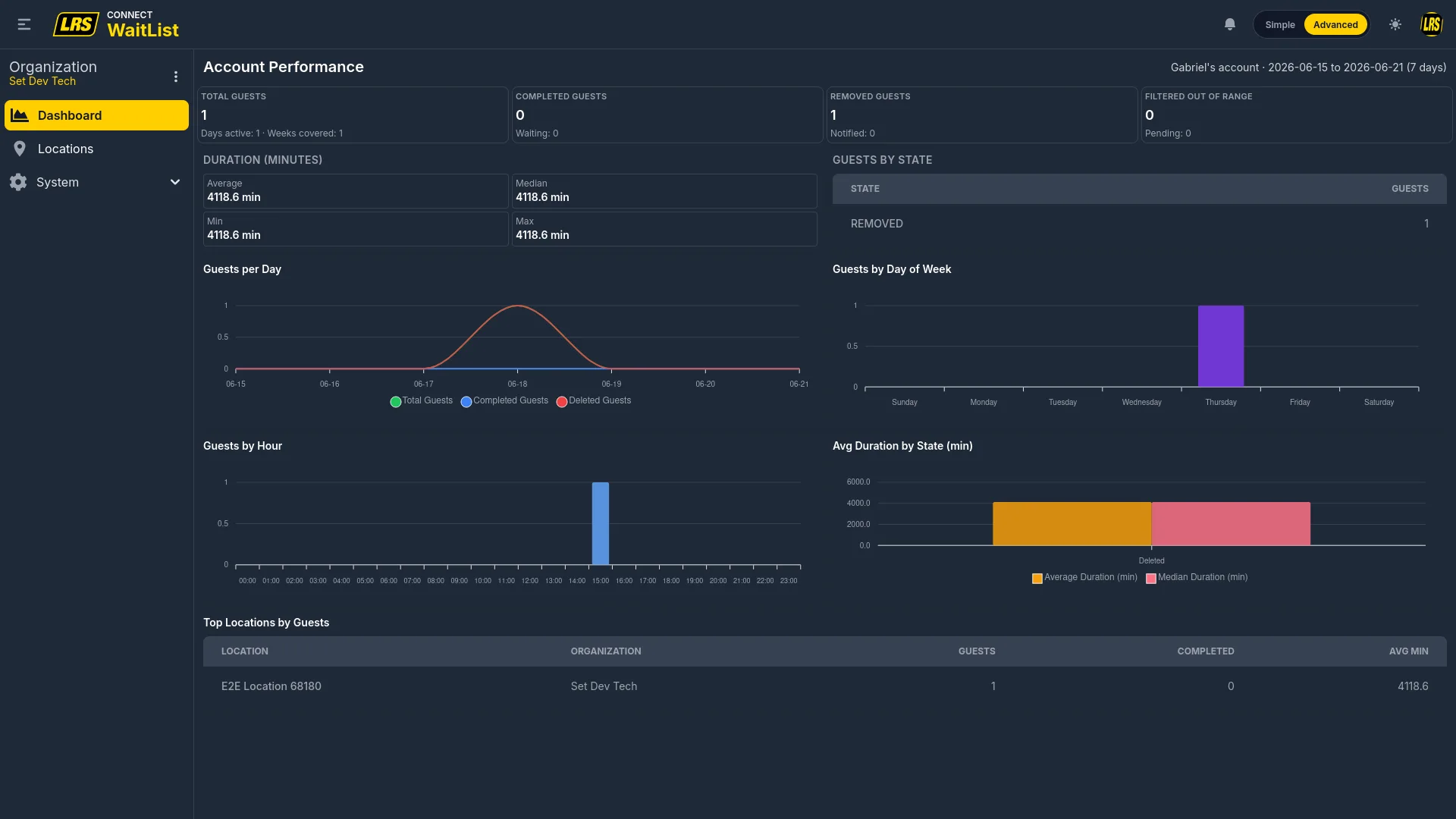
| Metric | What it measures |
|---|---|
| Total Guests | All entries added during the period. Subtext shows the number of active days and weeks covered. |
| Completed Guests | Entries that reached completed state. Subtext shows the count currently in Waiting state. |
| Removed Guests | Entries removed before completion. Secondary information shows the current Notified count. |
| Filtered Out Of Range | This value is currently not calculated and is displayed as zero. |
| Duration (minutes) | Four values — average, median, minimum, and maximum — calculated across all completed entries in the period. |
| Guests By State | Table listing every entry state with its total count for the period. |
| Guests per Day | Line chart showing total, completed, and deleted entry volume by calendar day. |
| Guests by Hour | Bar chart showing which hours of the day receive the most entries. |
| Guests by Day of Week | Bar chart showing which weekdays carry the most volume. |
| Avg Duration by State | Bar chart comparing average and median wait time per final entry state. |
| Top Locations by Guests | Table ranking locations by guest volume with completed count and average duration. |
In simple mode, clicking Locations in the sidebar opens the workspace. Readiness checks operational status, an assigned guestlist, applicable billing linkage, and billing suspension. Area configuration must be verified separately. The Manage button opens configuration, while Open app opens the live Waitlist app in a new tab.
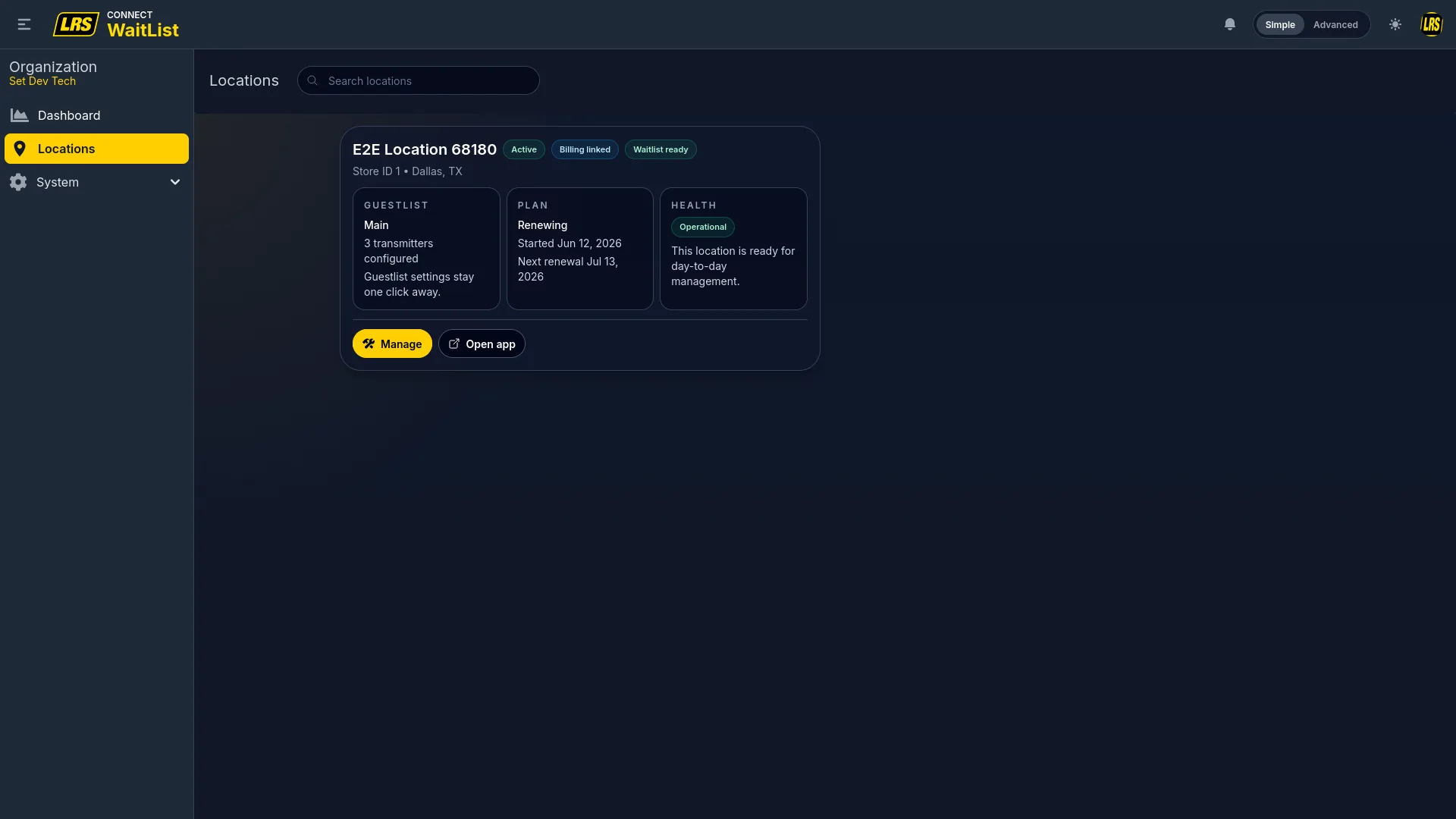
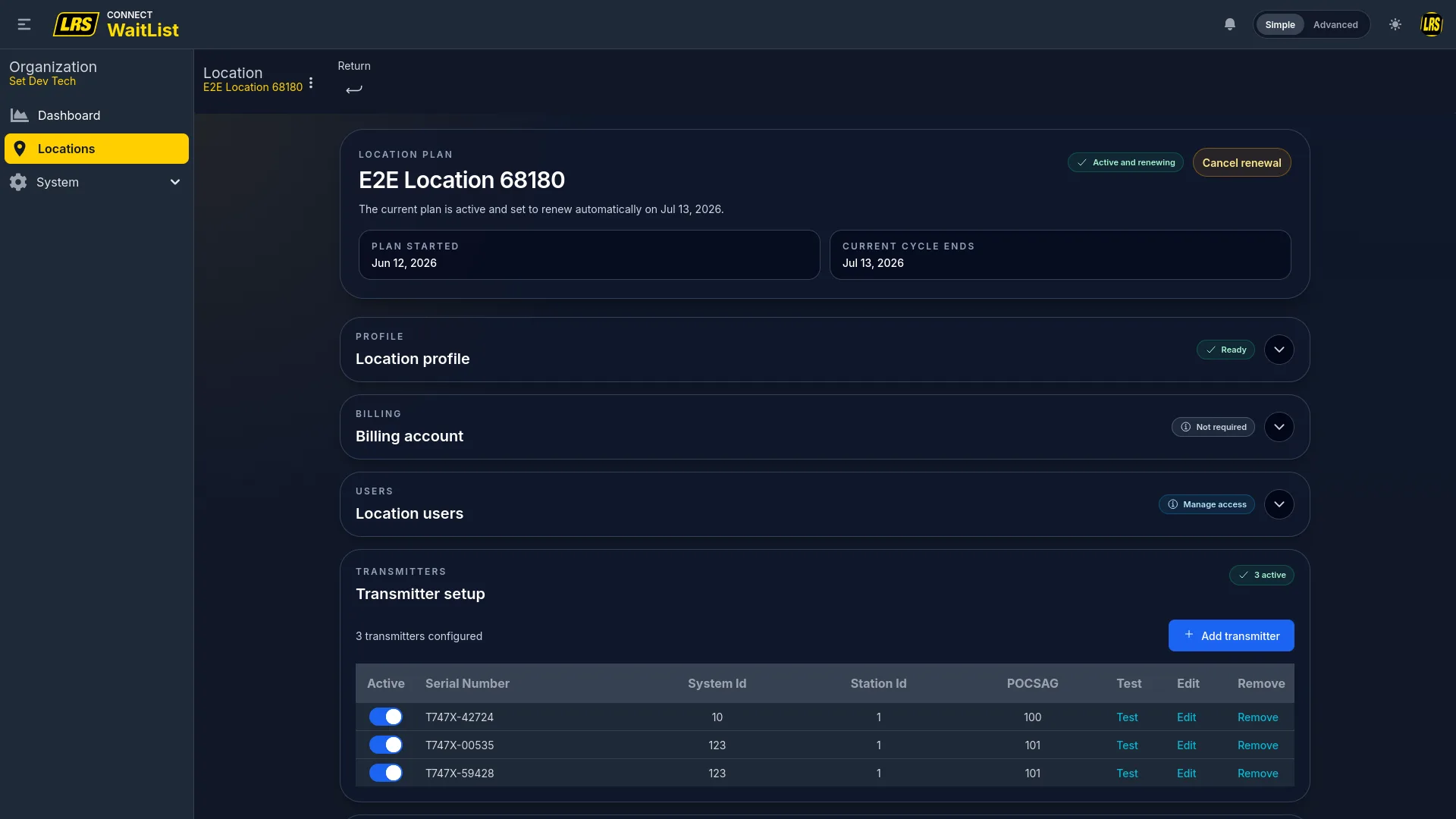
The Manage page collects everything the location needs to operate into collapsible sections: Profile, Plan, Billing, Users, Transmitters, and Guestlist. Each section shows a readiness badge — green when ready, yellow when setup is incomplete. Expand a section to configure it without leaving the page. The Transmitters and Guestlist sections are always expanded inline because they are needed most often during daily setup.
In advanced mode the sidebar exposes the complete organization hierarchy. Clicking Locations opens a table showing Status, Store ID, Name, Current Waitlist (with Manage and View buttons), Billing, Renewing state, and an Edit link. Advanced mode is more efficient when overseeing many locations at once — billing dates and renewal state are visible per row without opening each location individually.
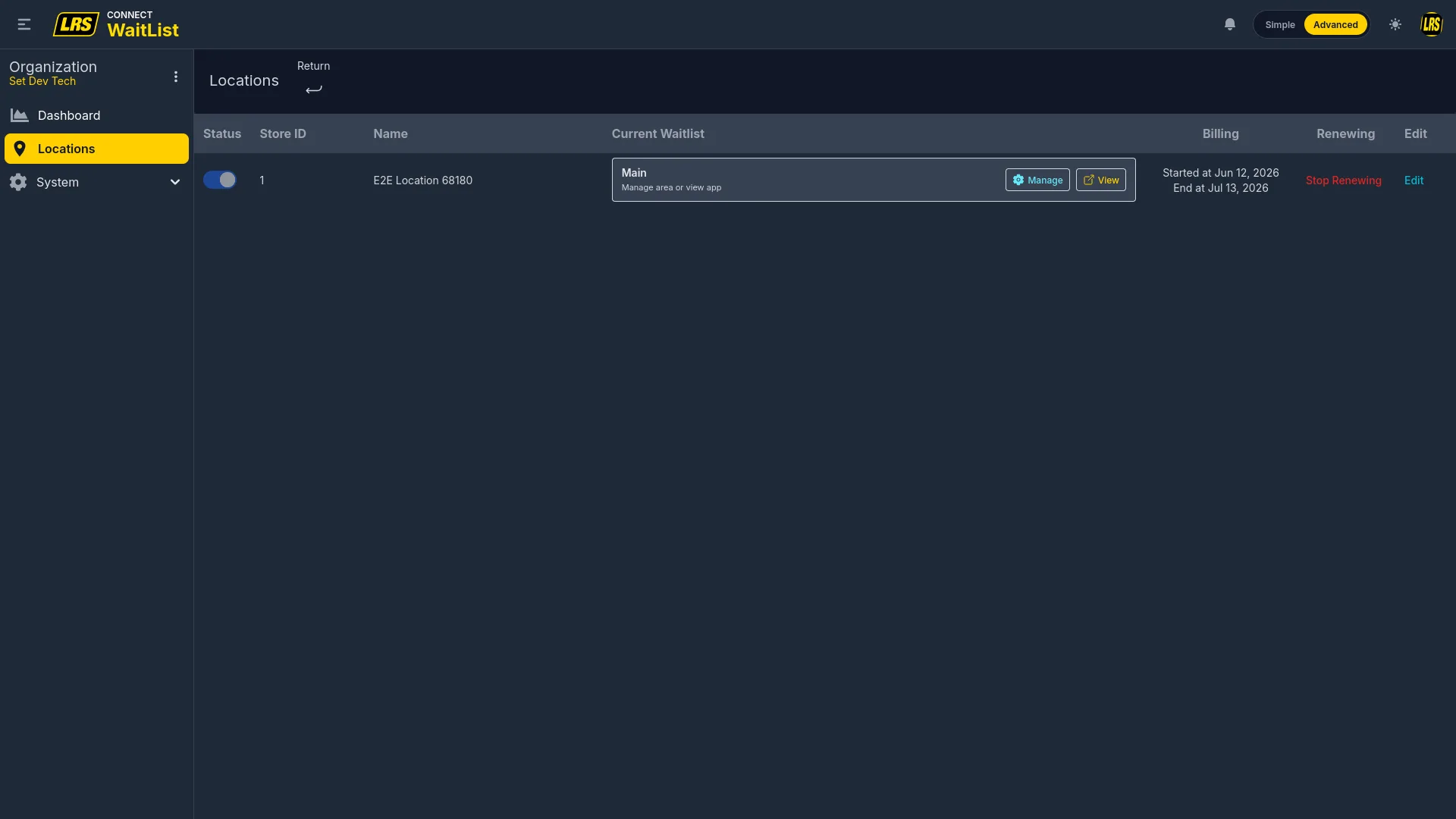
Stop Renewing schedules the service plan to end with the current billing cycle. Dashboard first settles SMS used so far against the allowance remaining for that cycle. If payment is required, cancellation is confirmed only after it succeeds. Service remains available until the cycle ends; SMS used after Stop Renewal is billed when the cycle closes, without another plan fee. If the immediate payment fails, renewal remains active; correct the payment method and retry.
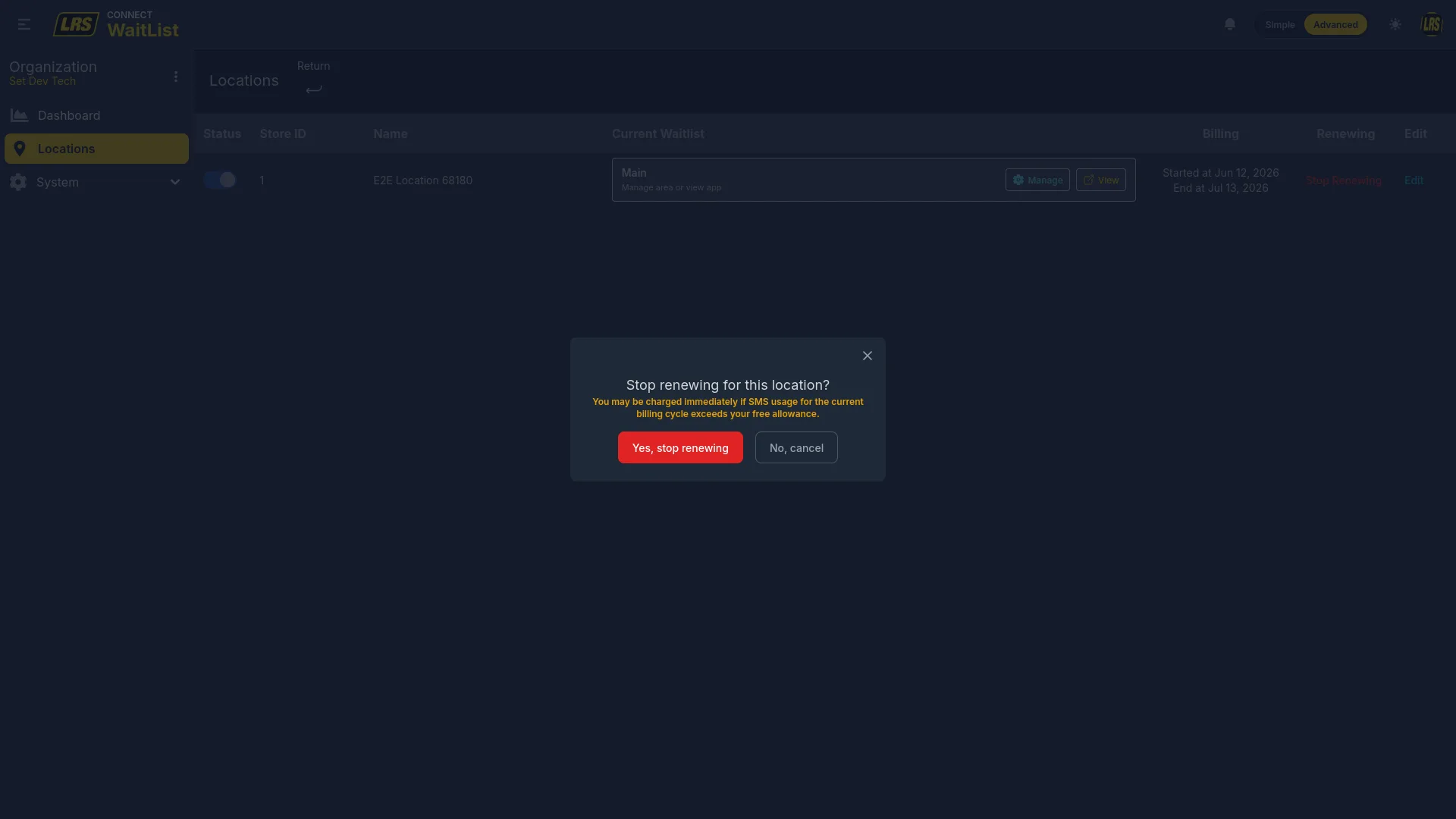
Clicking Edit in the advanced mode locations table opens the full location configuration with up to eight tabs. SMS Usage appears only for SMS-enabled accounts with United States or Canadian locations. These tabs are available in advanced mode; simple mode uses the Manage page described above.
| Tab | What it configures |
|---|---|
| Profile | Name, alias, store ID, Location Template, timezone, address, phone 1 and 2, API key assignment, website, informational page, lock enabled / timeout, and remote check-in delay tolerance. |
| Service Plan | Active plan, cycle start and end dates, add-ons (SMS messaging, API access), and renewal state. |
| Hours of Operation | Per-day operation hours, remote check-in windows, target wait times, and named service periods. |
| Transmitters | List, add, edit, test, and remove LRS pager transmitters registered at the location. |
| Guestlist | The daily operations workspace: waitlist selection, area selector, kiosk and self check-in area assignments, transmitter status, and live form preview. |
| SMS Usage (when available) | Usage, allowance, cycle, price, alerts, and send-log information. This tab appears only when the account permits SMS and the location is in the United States or Canada. |
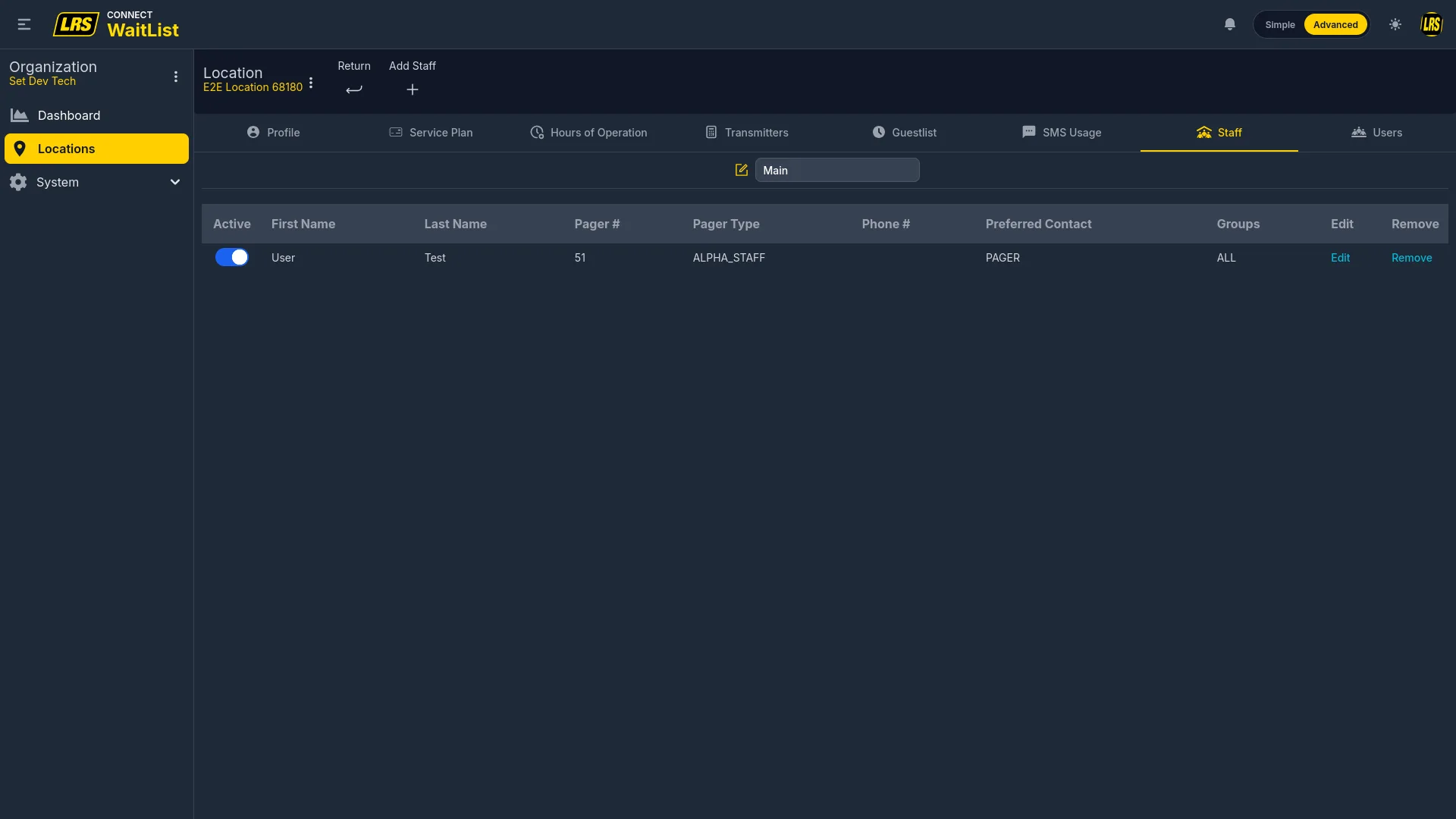
| Staff | Pager profiles for team members: name, pager number, pager type, preferred contact, and group assignments. |
| Users | Dashboard users with access to this location: role (Staff or Location Manager), lock password, and report subscriptions. |
The Profile tab holds the location's identity and operational settings. The Name field is the public-facing name; the Alias field stores a shorter internal reference useful when the full name is too long for reports or integrations. The Store ID links the location to external systems or POS identifiers. The Location Template dropdown sets the industry preset that shapes default messaging and terminology across the interface.
The Timezone setting affects how operation hours and timestamps display throughout Dashboard and in reports — set it correctly before the location goes live. The Website field stores the location's public URL; the Informational page field holds a secondary URL highlighted to guests — for example, a menu or event page. Delay Tolerance controls how late a guest may complete remote check-in. Staff cannot disable a location-enabled lock. Location managers and higher roles can set their own automatic-lock preference. The effective idle timeout is the longer of the personal timeout and the location timeout floor. The Manual Lock button locks the screen immediately; managers always have this manual control; staff see it only when their effective automatic lock is enabled. Unlocking requires the user's four-digit lock password, not a full sign-in.
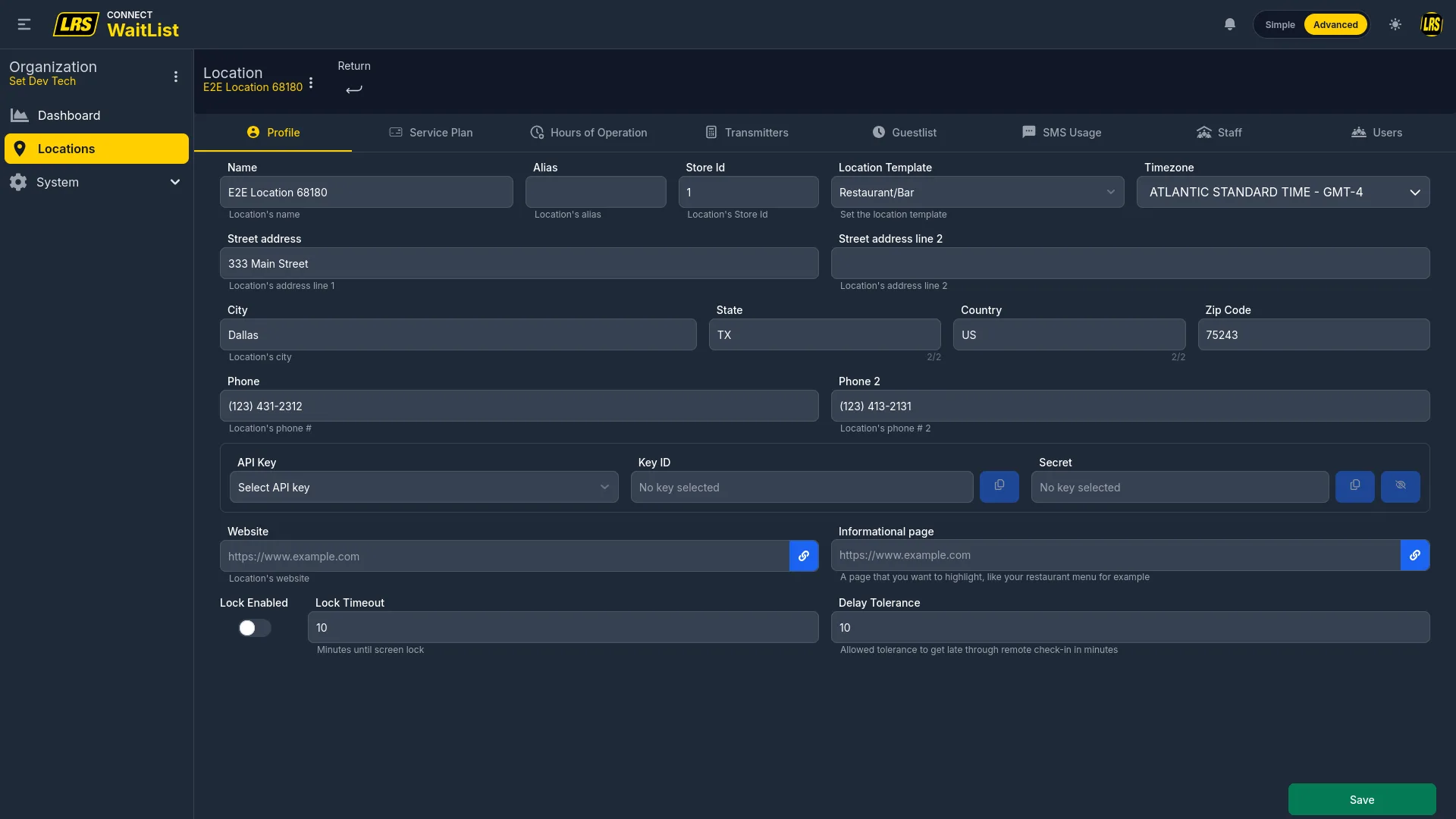
The Service Plan tab shows the active plan's cycle dates and provides three shortcuts in the left column: Invoices (billing history), Billing (link or change the billing account), and Stop Renewal. The center panel compares the active and scheduled plans. Prices come from the current product catalog or the location's effective custom billing agreement, so use the values displayed in Dashboard rather than treating examples as universal rates.
After payment, the paid invoice email identifies the assigned Customer Success representative and provides their contact address. If no representative is available, the email directs the recipient to LRS support.
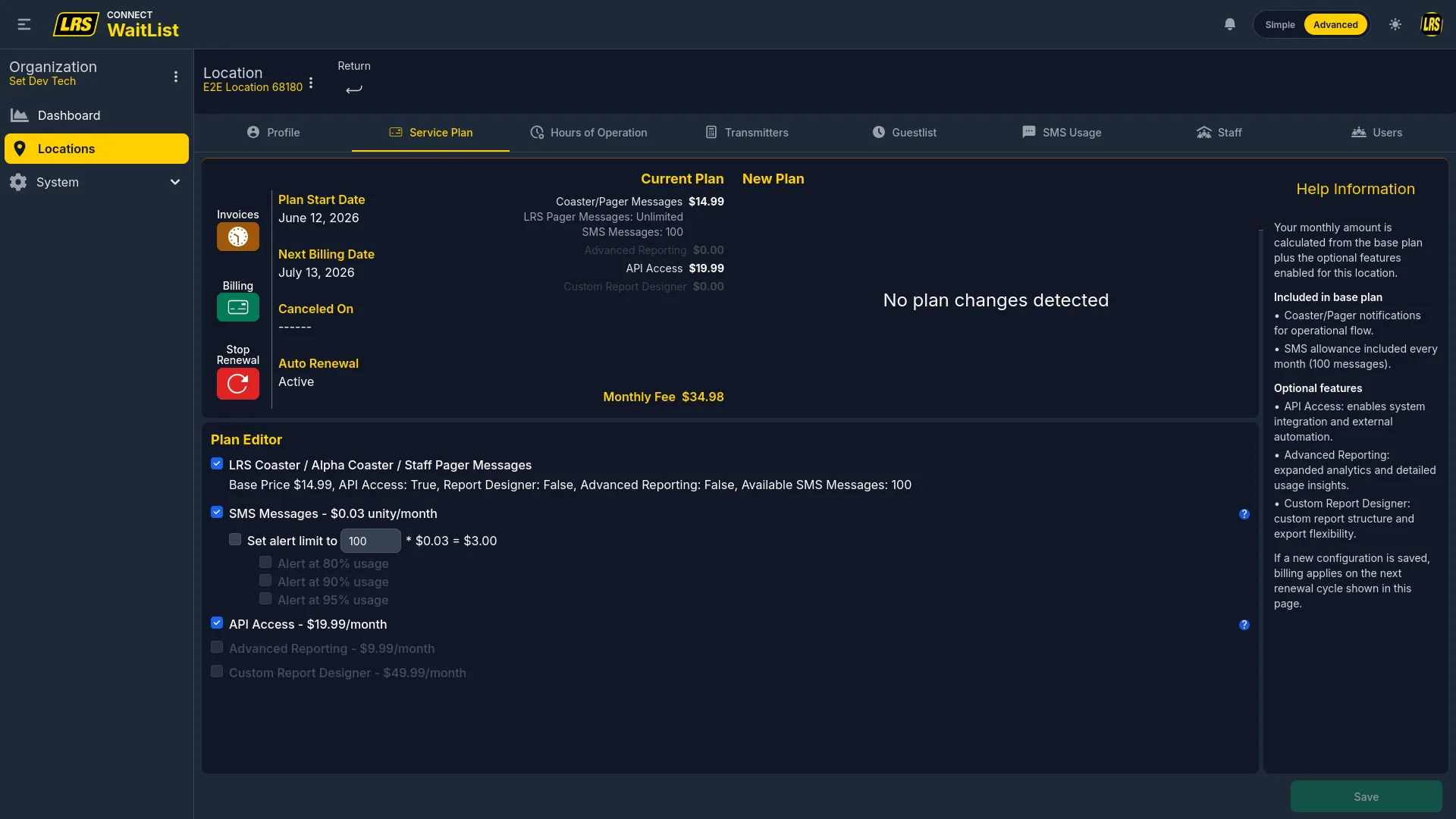
A location does not start billing or accept live traffic until it is activated. Open Activate from the location’s Manage page in simple mode, or from the locations workspace in advanced mode. The dialog is a checklist — each item shows a green check when it is satisfied and can be expanded and completed without leaving the dialog.
| Checklist item | What has to be in place |
|---|---|
| Finish your location profile | The location profile is complete and valid. Expand the item to fill in the missing fields. |
| Current Selected Plan | A service plan is selected for the location. |
| Configure your Waitlist | An active waitlist is assigned to the location. The item links directly to the Guestlist tab when none is assigned. |
| Selected Billing Account | A billing account is chosen from the accounts that already meet their collection mode's requirement. Locations that are not billable show that no billing account is needed. |
What the confirmation button does depends on the collection mode of the selected billing account. On an automatic card account it reads Activate: billing starts from that day and the account is charged every 30 days until renewal is stopped. On an annual invoice account it reads Request annual license and the dialog states plainly that submitting the request does not activate the location.
When the location’s billing account collects by annual invoice, activation becomes a request instead of an immediate charge. Submitting it records the requested plan and its annual price and puts the location in review. LRS reviews the request and issues the annual invoice to the billing account’s invoice recipients; access starts only after that invoice is paid in full. Only one request can be open per location at a time — while one is open the button reads Annual license requested and is disabled.
Once a request exists, an Annual license panel appears on the Service Plan tab and in the activation dialog. It shows the current status, the annual amount, the SMS allowance included per month, and the start, expiry, and grace dates once they apply. When an invoice is available, an Open invoice button opens it for payment.
| Annual license status | What it means |
|---|---|
| Pending review | The request was submitted and is waiting for LRS to review it. Nothing is charged and the location is not active. |
| Approved | The request was accepted and the annual invoice is being prepared. |
| Awaiting payment | The annual invoice is open. Use Open invoice to pay it; the location activates once the payment clears in full. |
| Paid scheduled | The invoice is paid, but a monthly cycle is still running for this location. That cycle finishes at its own renewal date and the annual term starts from there. |
| Active | The annual term is running and the location is billed against it. |
| Grace | A renewal invoice is past its due date. Service continues until the Grace through date shown on the panel; pay the open invoice before that date to keep the original anniversary. |
| Expired | The term ended without payment. The Financial tab reports the account as expired — contact LRS support to renew it. |
| Rejected / Canceled | The request was closed without a license. A new request can be submitted from the activation dialog. |
On an annual location the Service Plan tab prices the base plan and each paid add-on per year instead of per month. SMS keeps a monthly allowance that resets every month of the term, and any usage above the allowance is settled on the next annual invoice rather than charged immediately.
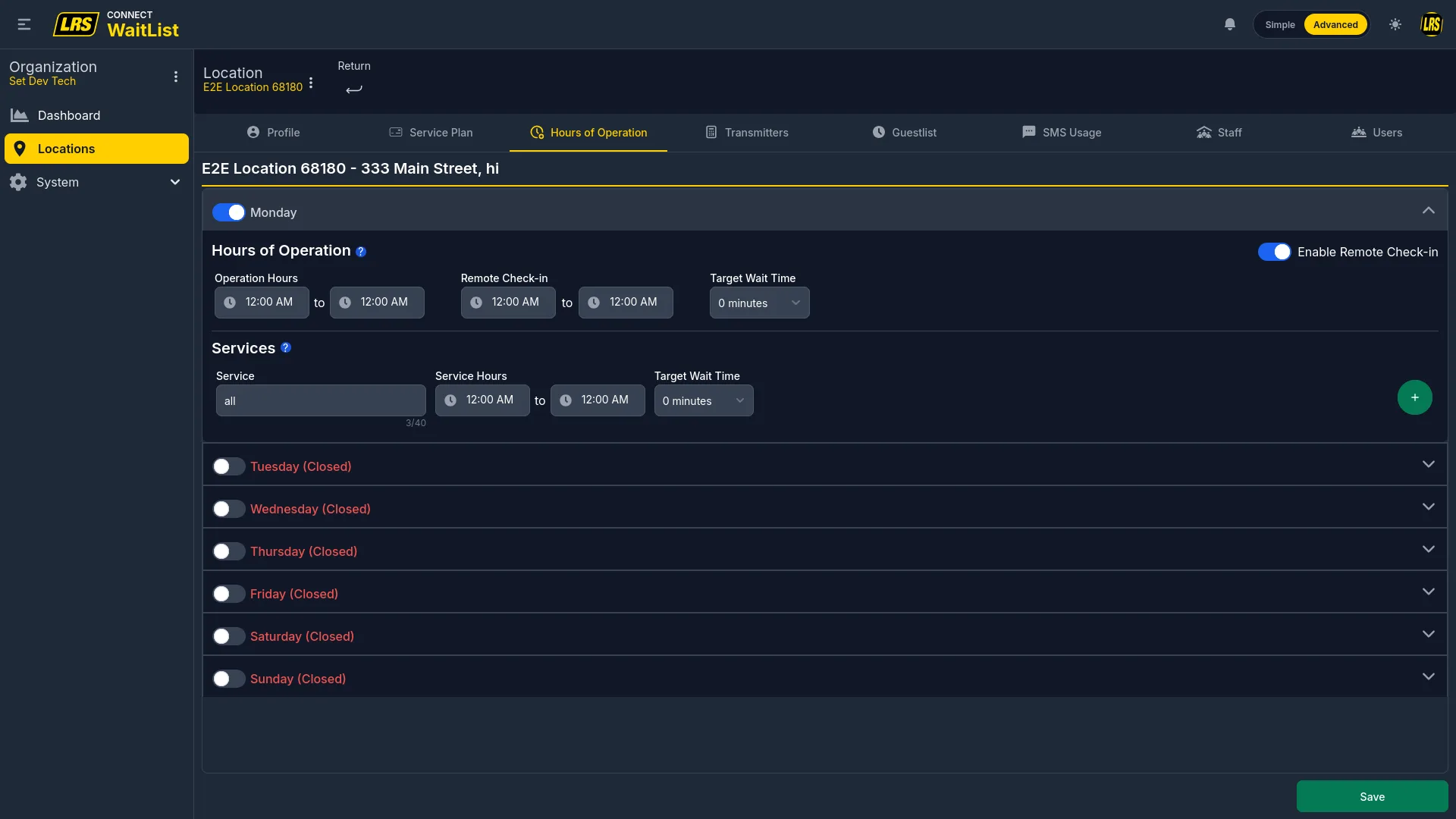
Each day has independent settings. Expand a day to set the Operation Hours during which the location is considered open, the Remote Check-in time window, and a Target Wait Time used by Programmed Notifications. The Enable Remote Check-in toggle on the right side of the expanded day must be on for self check-in to accept visitors — turning off the toggle disables remote check-in for that day even if hours are configured. The Services section lets managers add named service periods (Lunch, Dinner, etc.), each with its own Service Hours and Target Wait Time. Multiple services can be added per day with the + button. Days with the day toggle set to off are treated as Closed and remote check-in is disabled regardless of the Enable toggle.
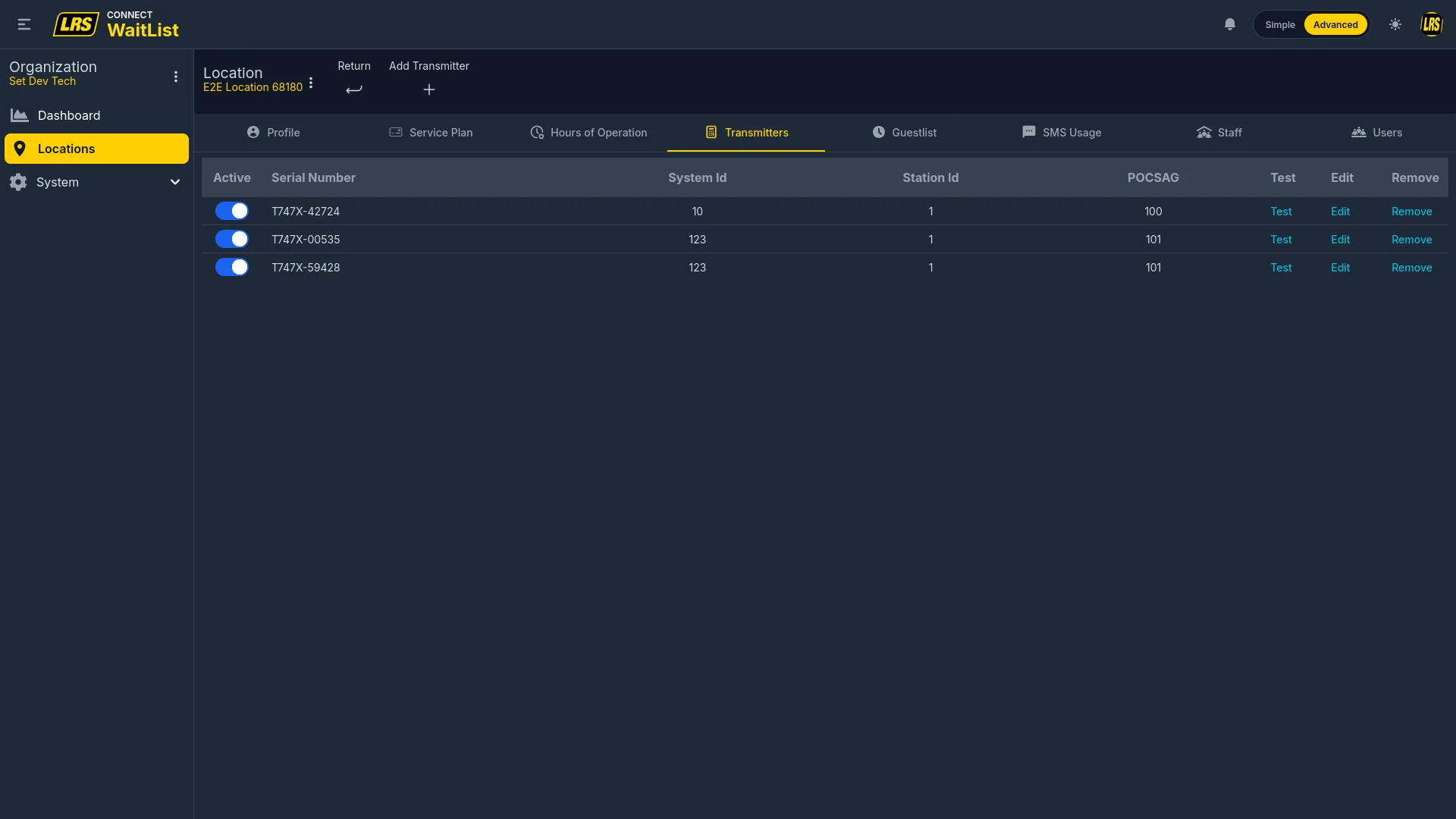
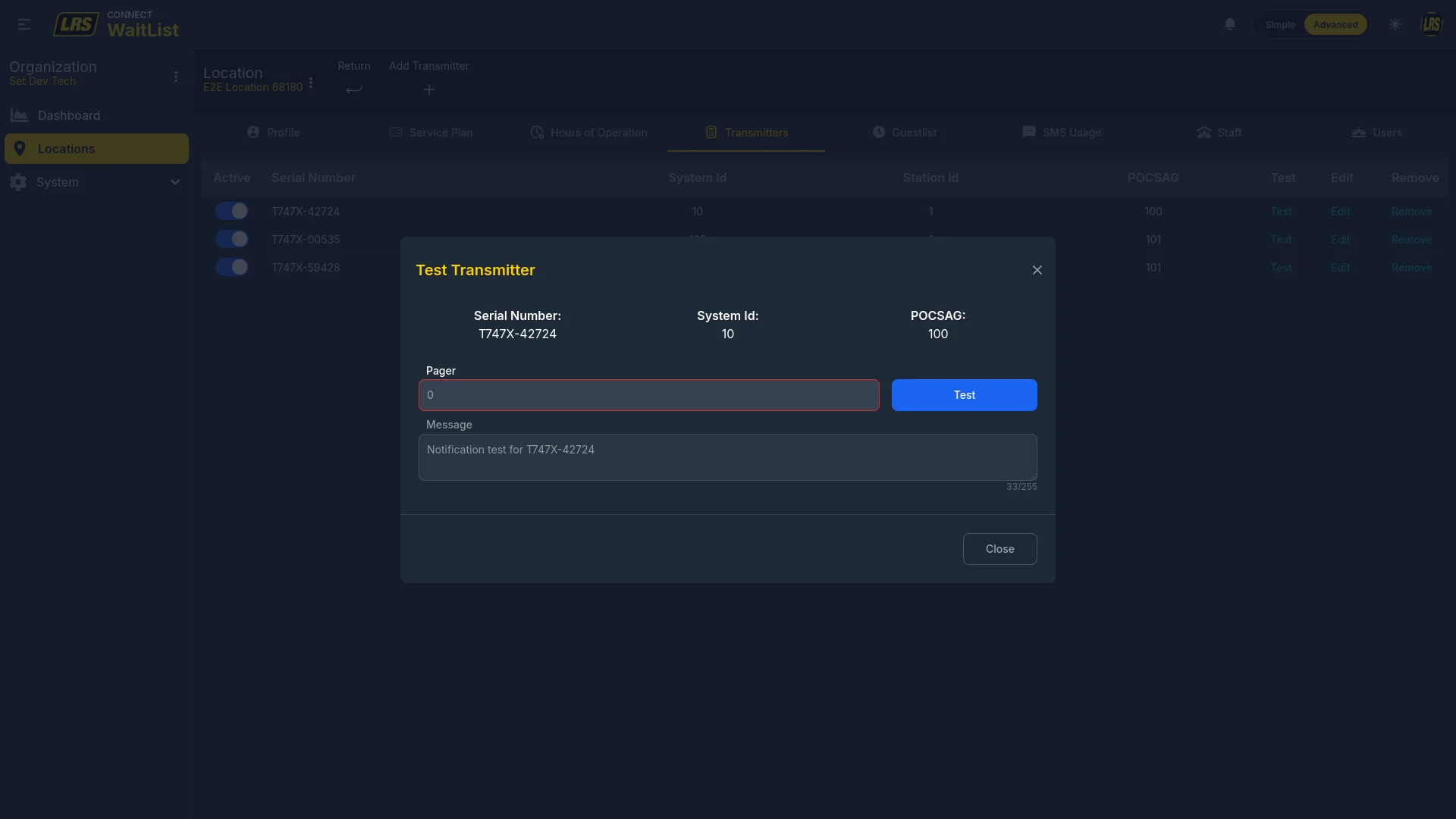
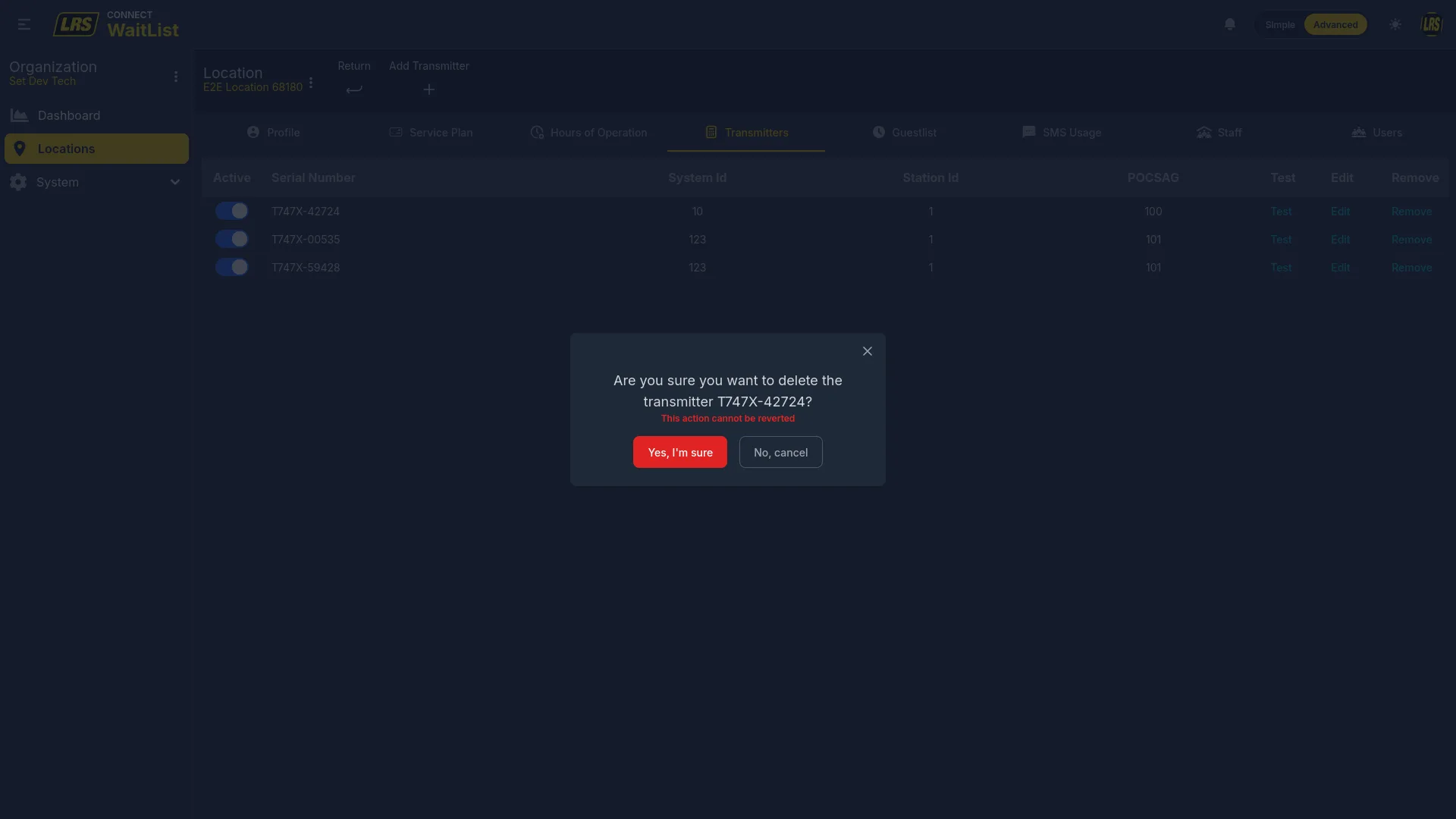
The Transmitters tab manages the LRS pager transmitters registered at the location. A transmitter must be registered here before it can be assigned to a guestlist area. The list shows each device's serial number, system ID, station ID, and POCSAG channel.
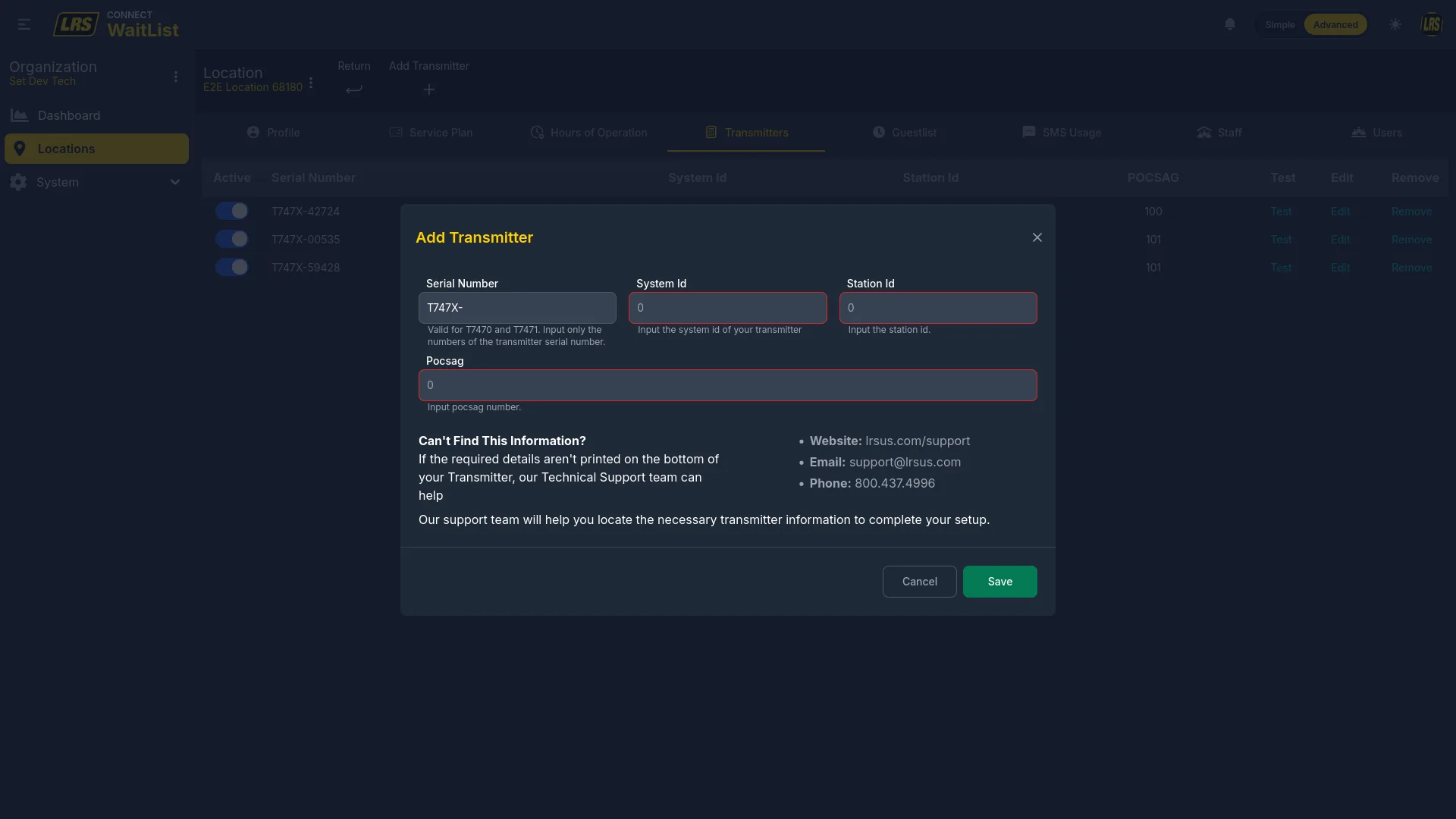
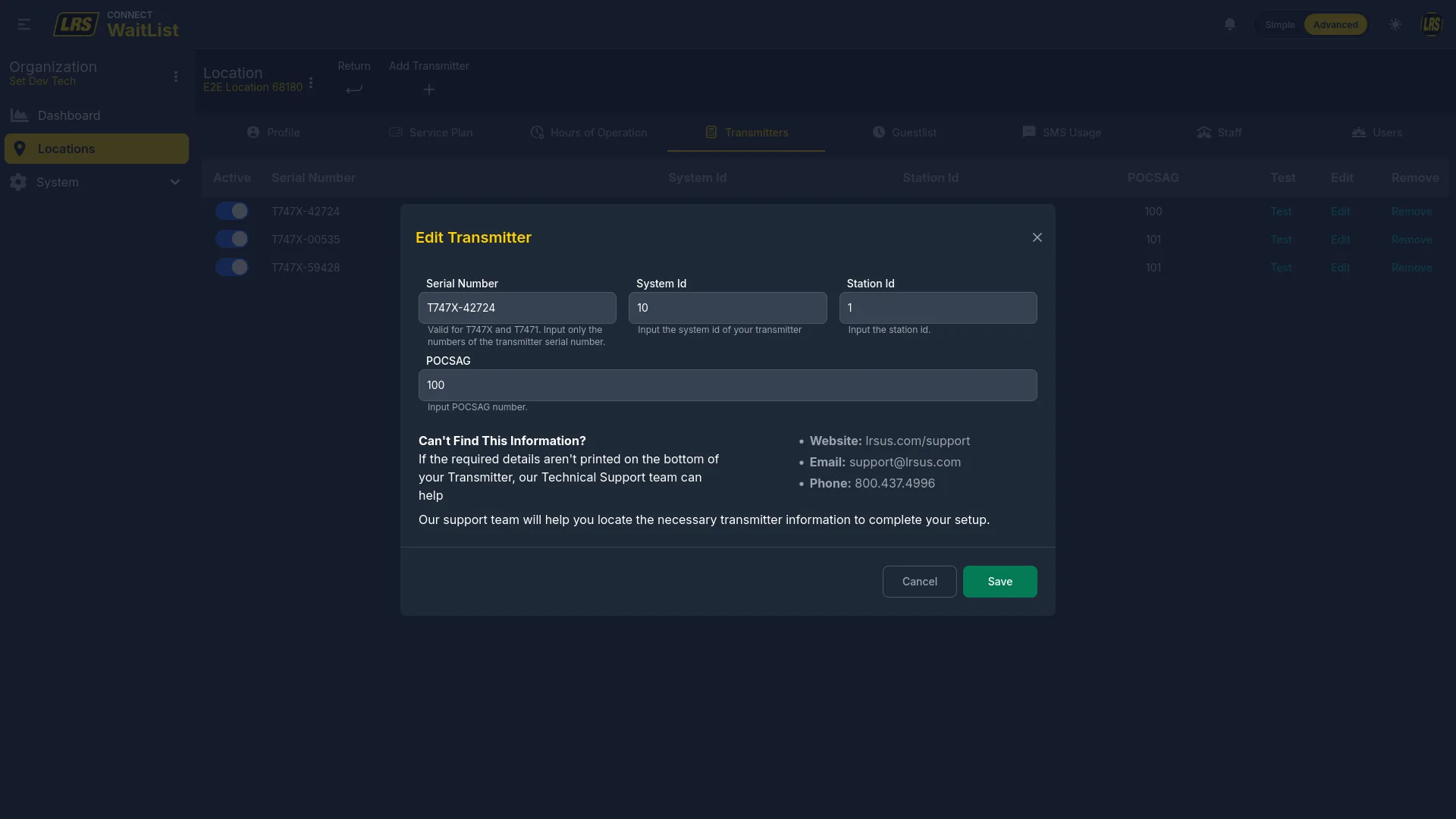
Run a test after adding or editing a transmitter to confirm the device is broadcasting correctly before going live.
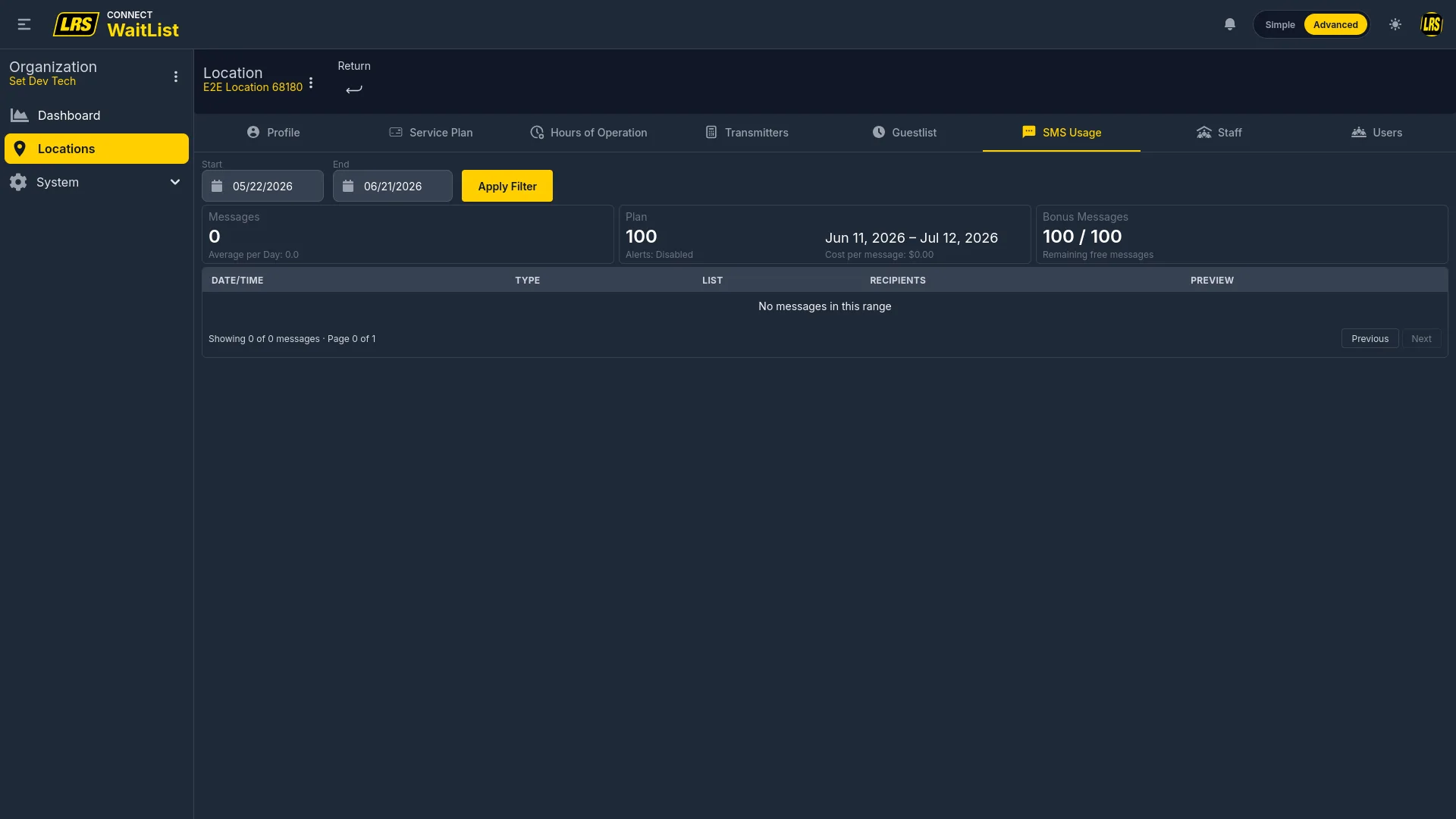
The SMS Usage tab shows usage for a configurable date range. One long message or a request sent to multiple recipients can count as more than one SMS. Set the Start and End dates and click Apply Filter to load results. The Plan and Bonus Messages cards show the cycle allowance, remaining balance, alert thresholds, and current price. The allowance is shared across the whole billing cycle; turning SMS off and back on does not reset it, and only usage while SMS is active is billable.
The Staff tab manages pager profiles for team members — these are separate from Dashboard user accounts. A pager profile stores the physical device number and type, the preferred contact method, and group assignments used to organize staff recipients.
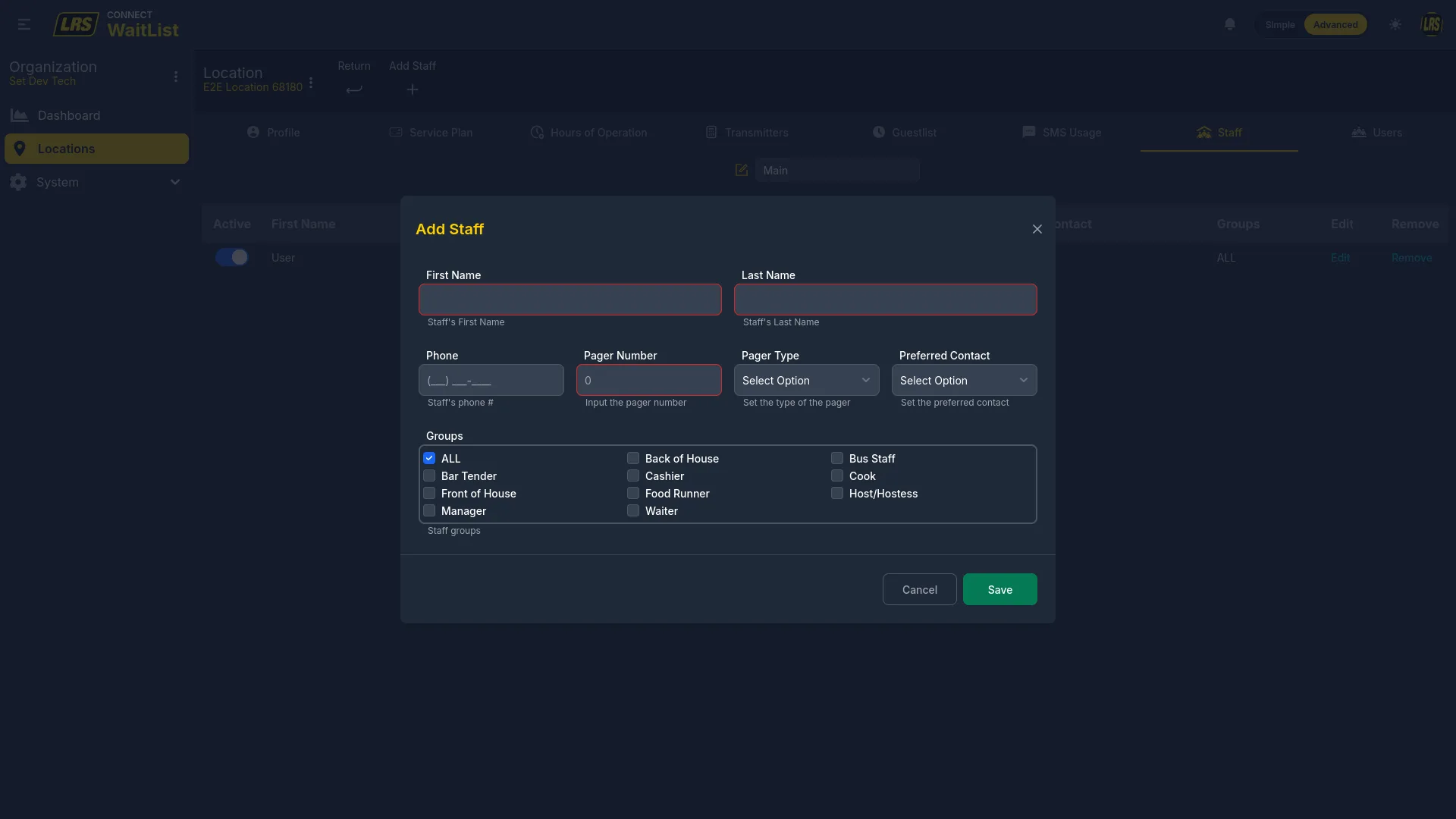
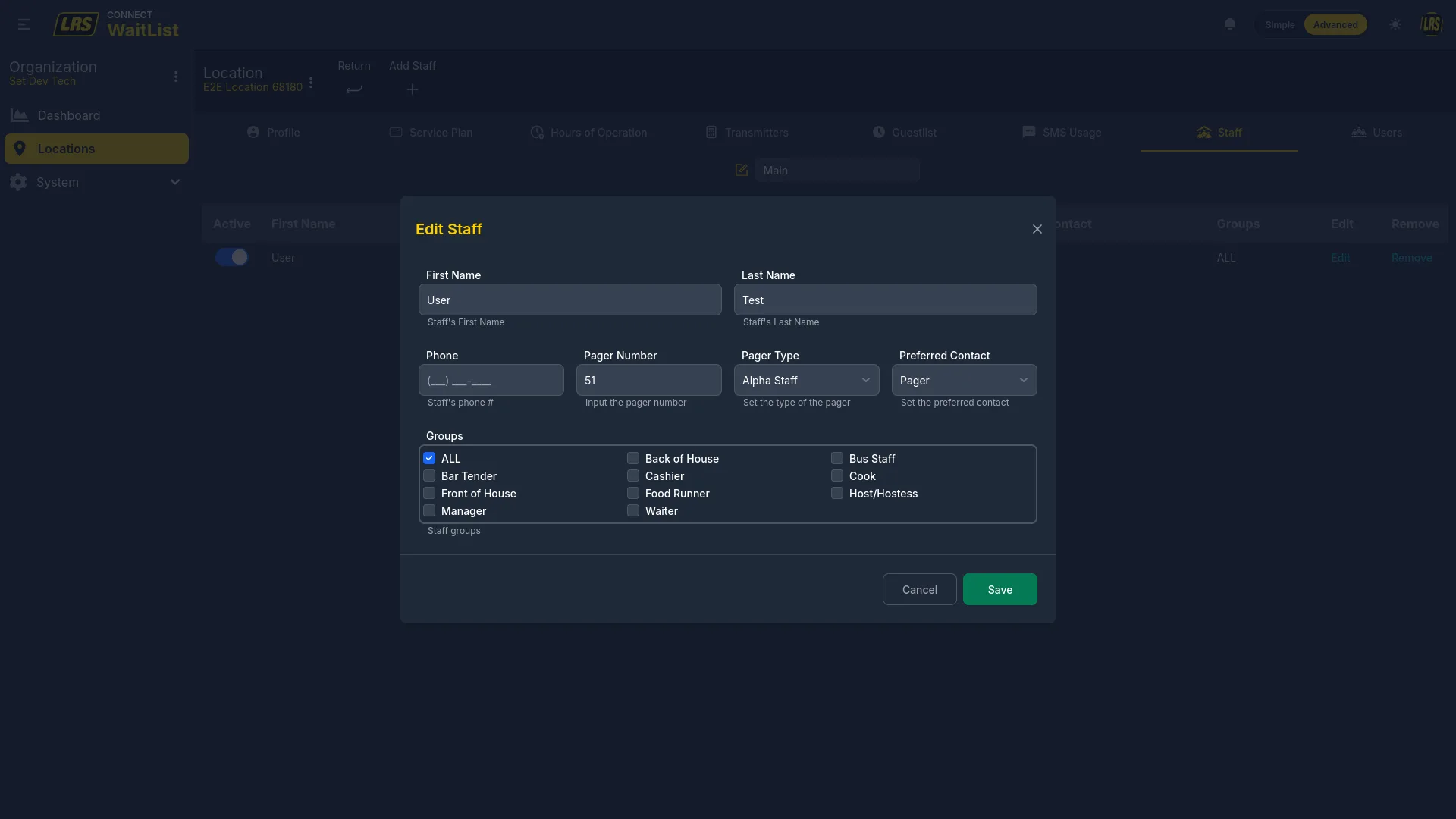
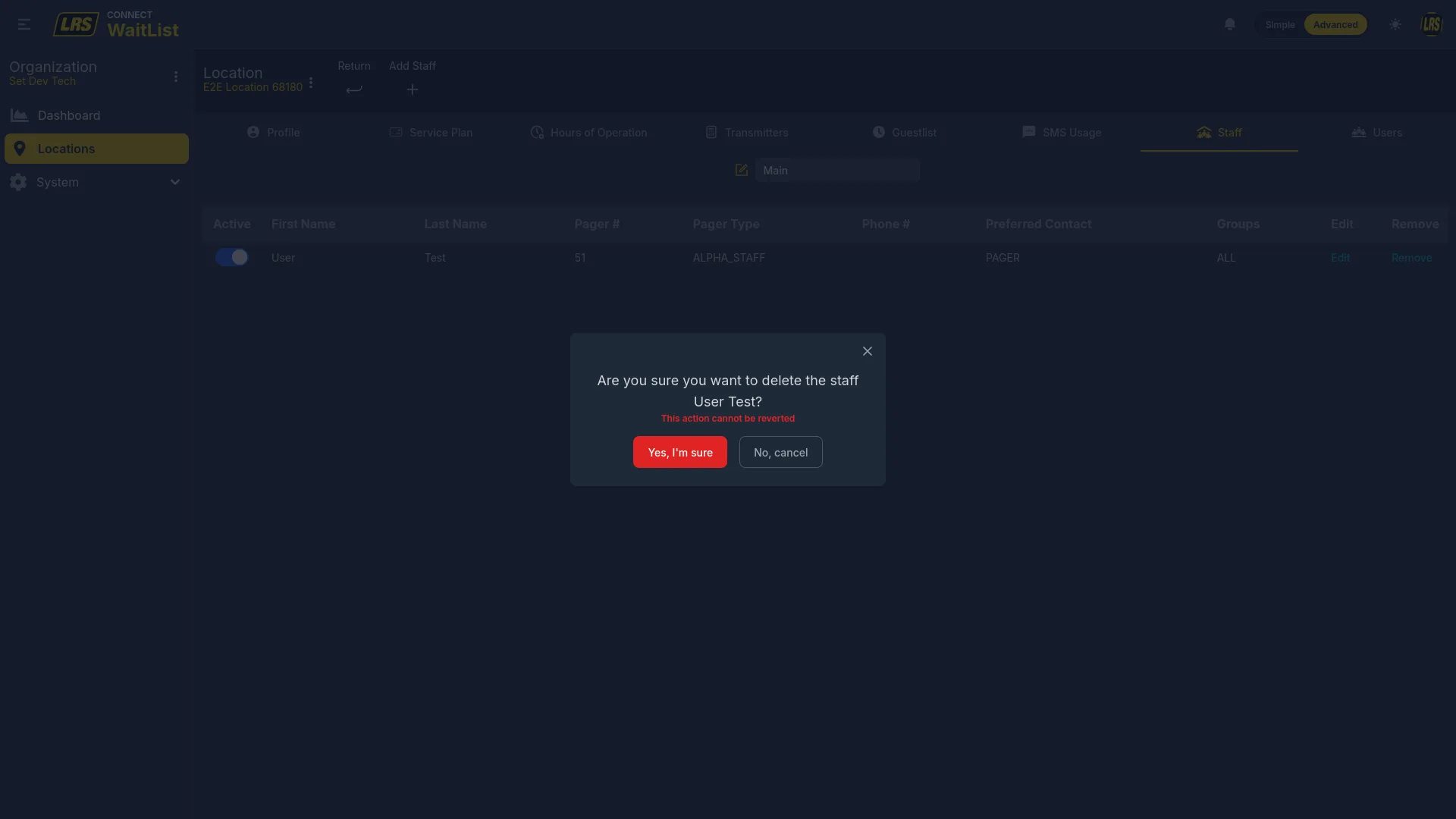
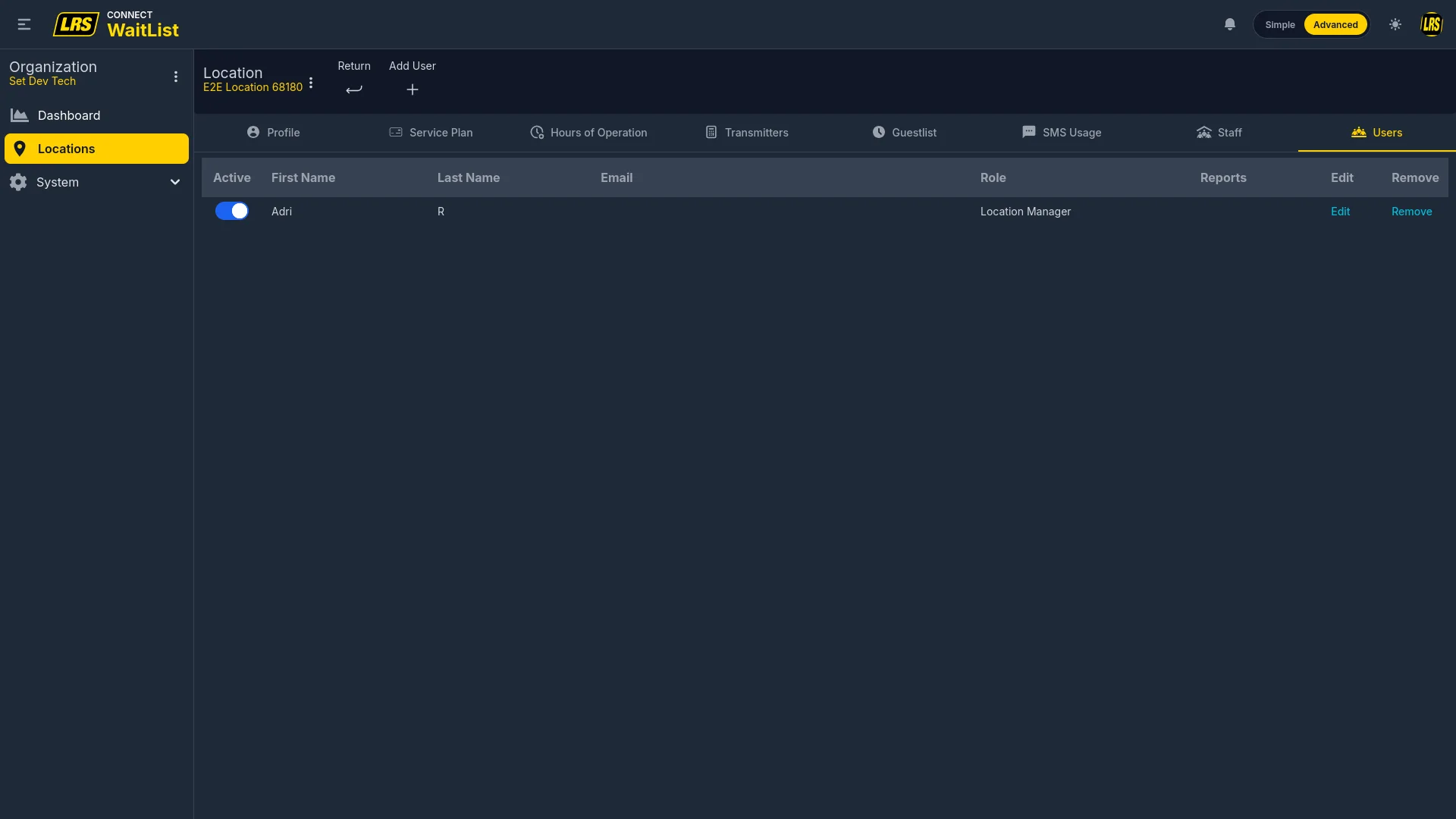
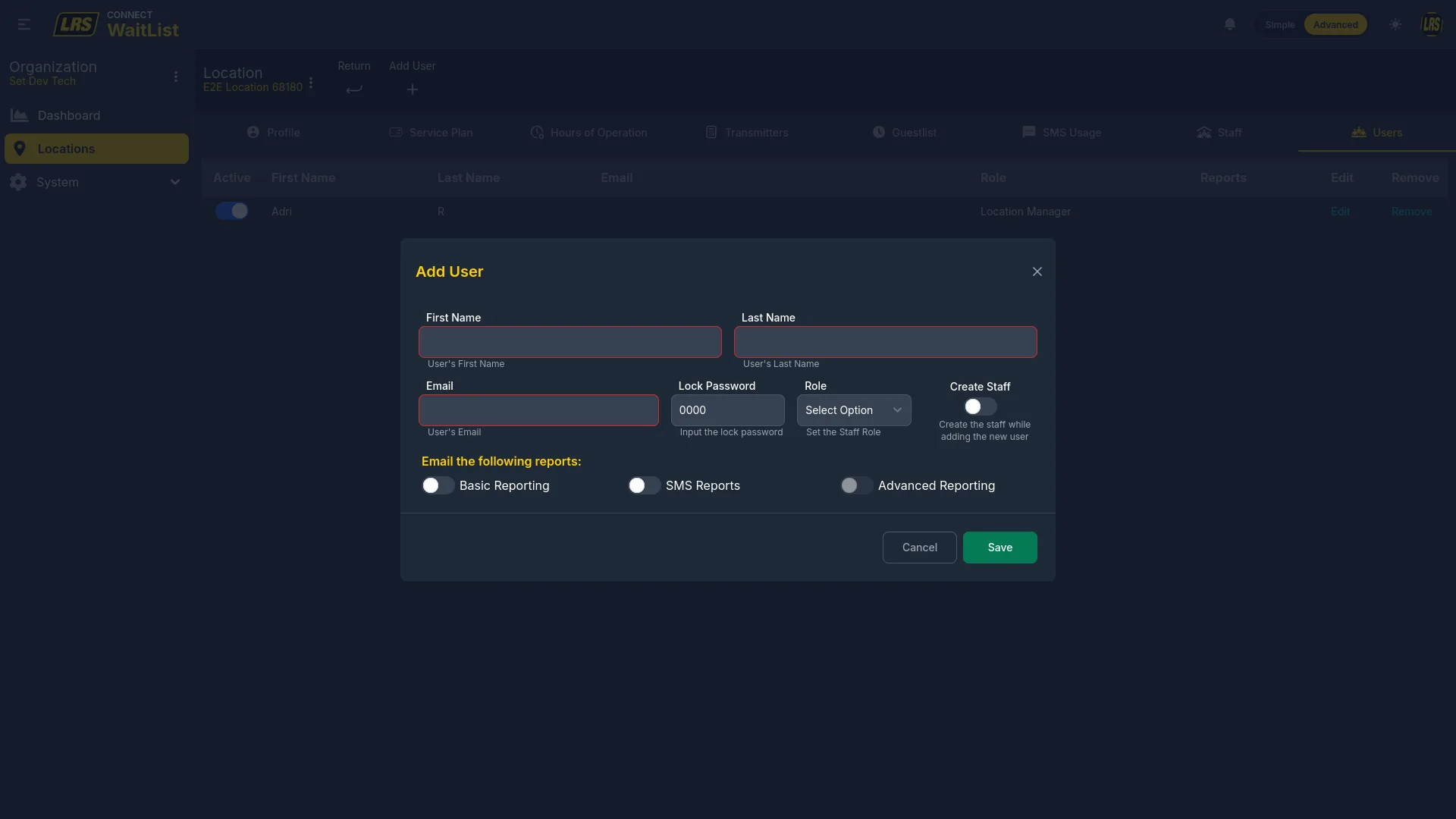
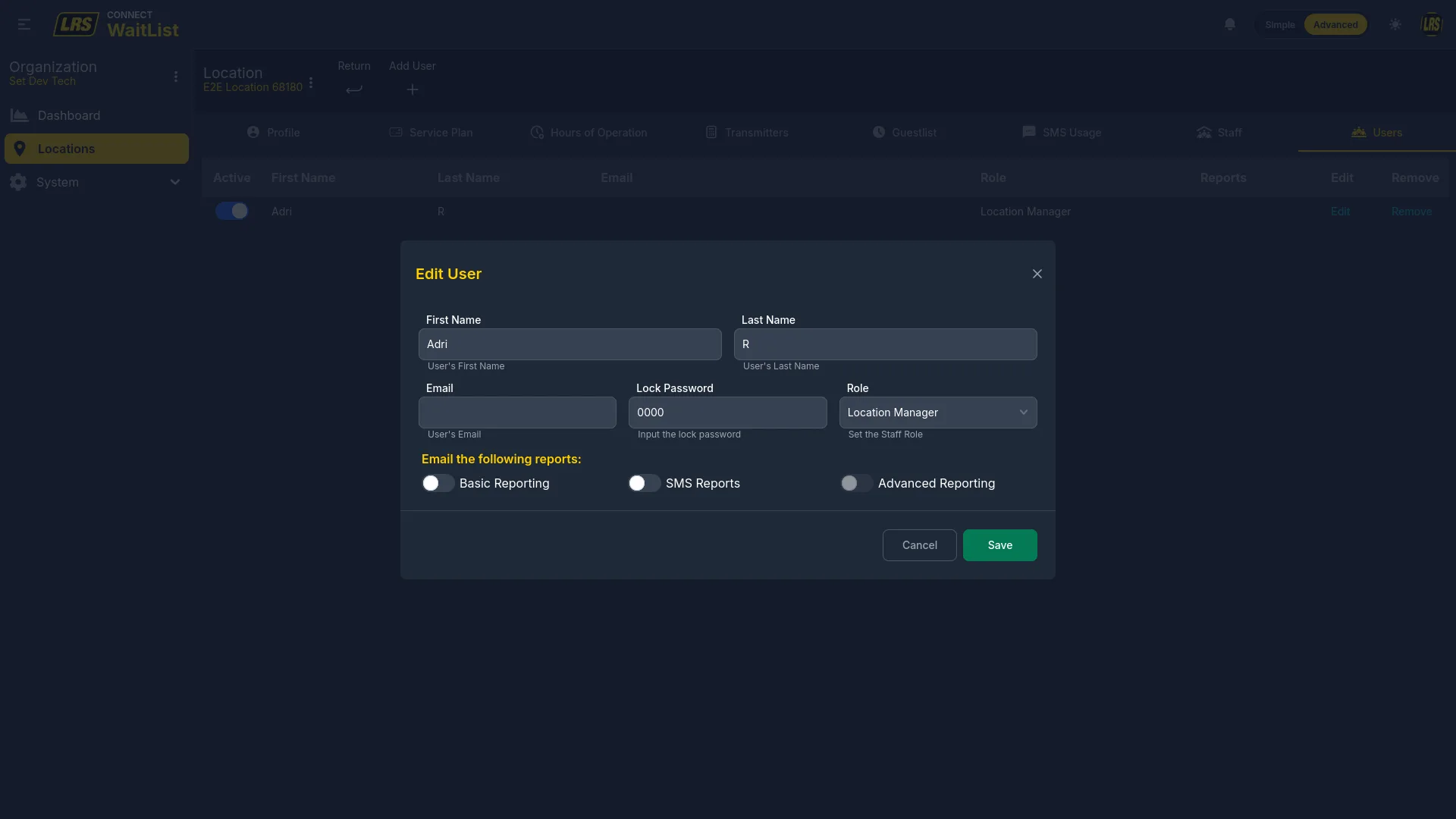
The Users tab at location level manages who can sign in to Dashboard and access this location. It is independent of the Staff tab — a user can have a Dashboard login without a pager profile, and vice versa. The Role dropdown sets whether the user is a Staff member (no Dashboard configuration access) or a Location Manager (full access to this location's tabs).
5. Waitlist configuration
Waitlist configuration covers everything that determines how the live Waitlist app behaves for a specific location: which waitlist and area are active, how kiosk and self check-in modes are launched, how areas are configured, and what the entry form looks like for each audience. The Form Designer is covered separately in the next section.
The Guestlist tab inside a location lists the location's assigned waitlists. Operational readiness verifies that a guestlist is assigned; confirm active areas separately before daily use. The area chips on each row name the areas in that location-specific configuration.
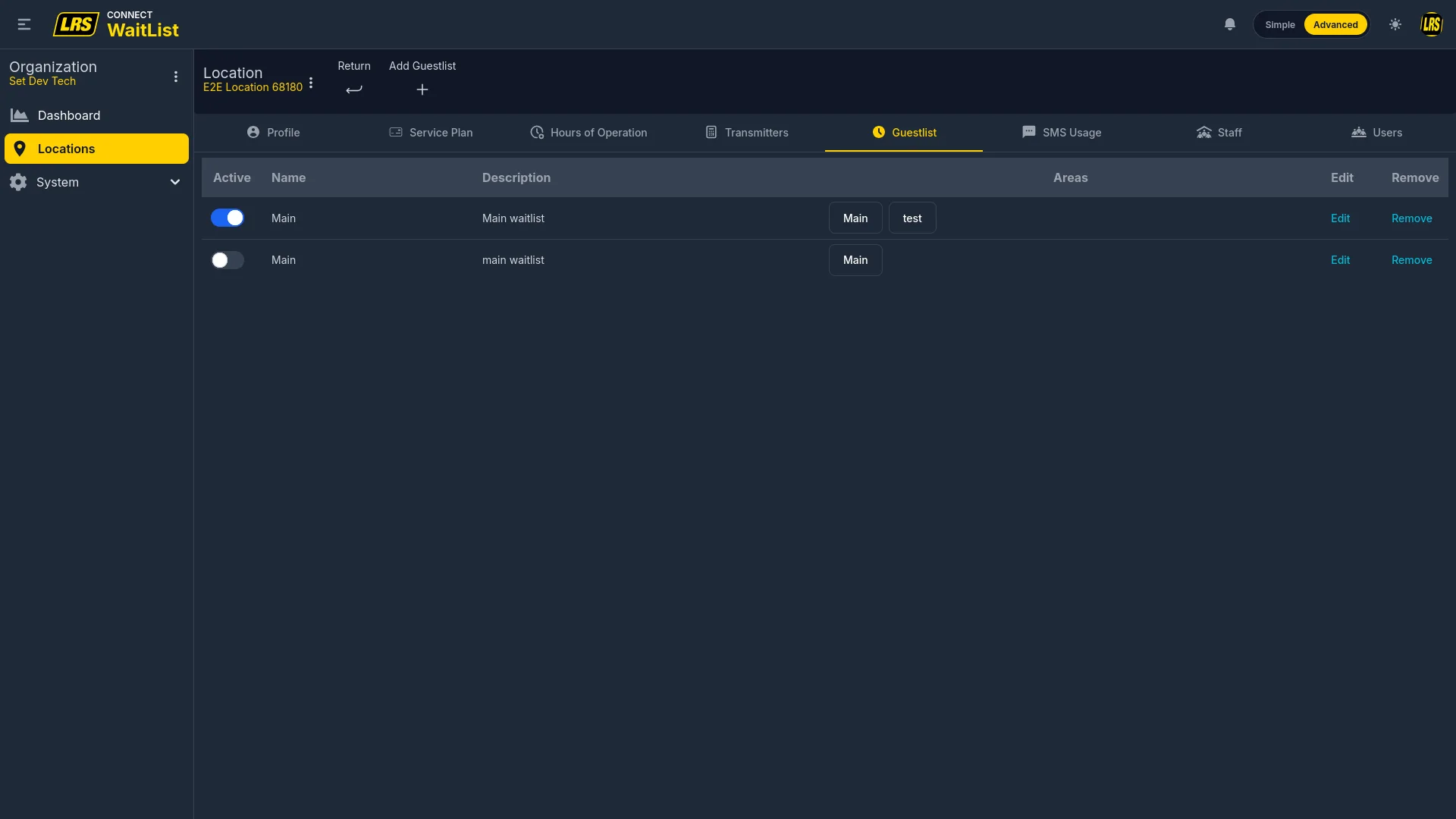
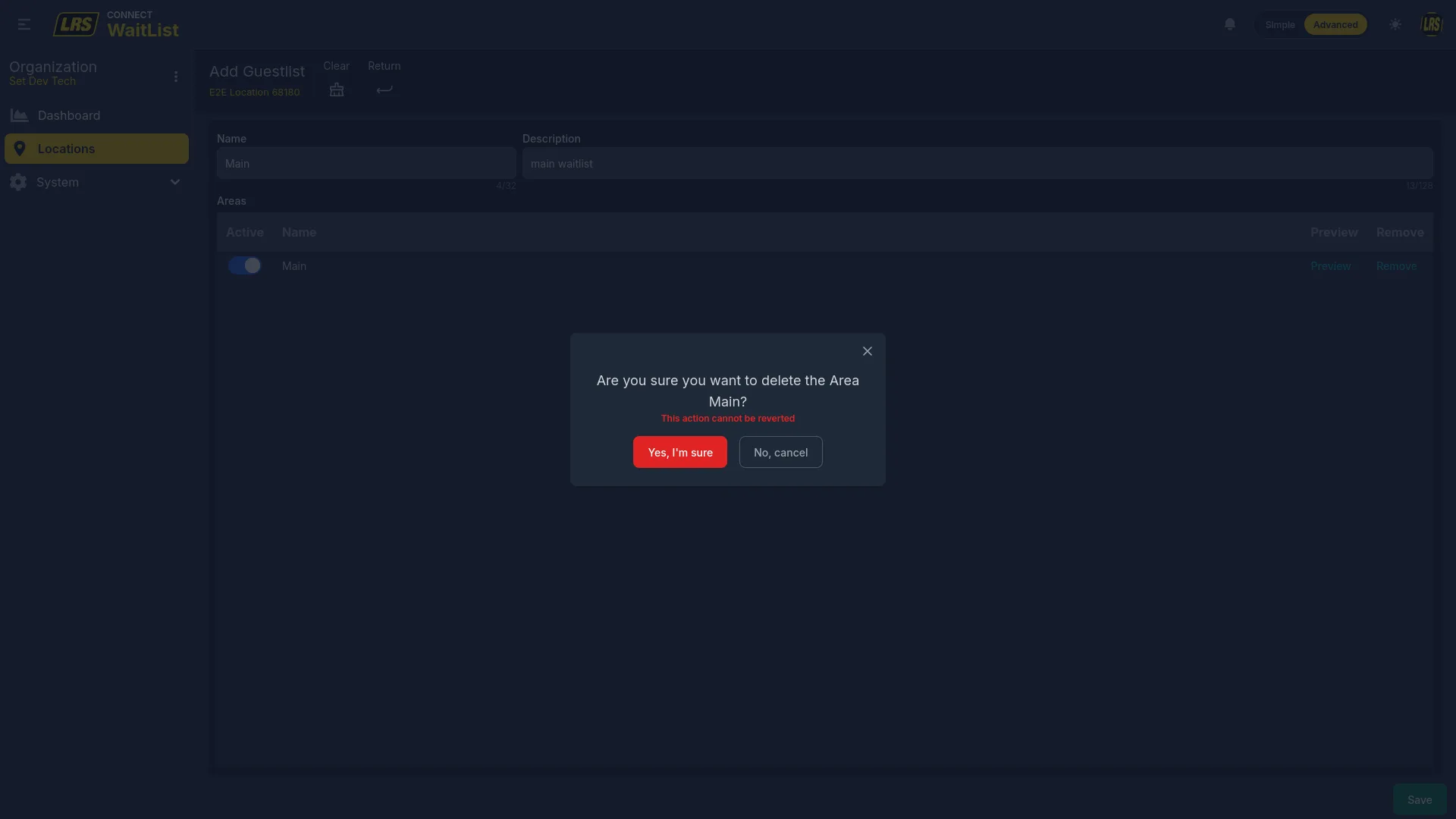
Clicking Add Guestlist starts the assignment flow. Selecting an organization waitlist previews it and creates an independent location-specific copy with new identifiers when saved. Later changes to the organization template do not propagate to the location copy.
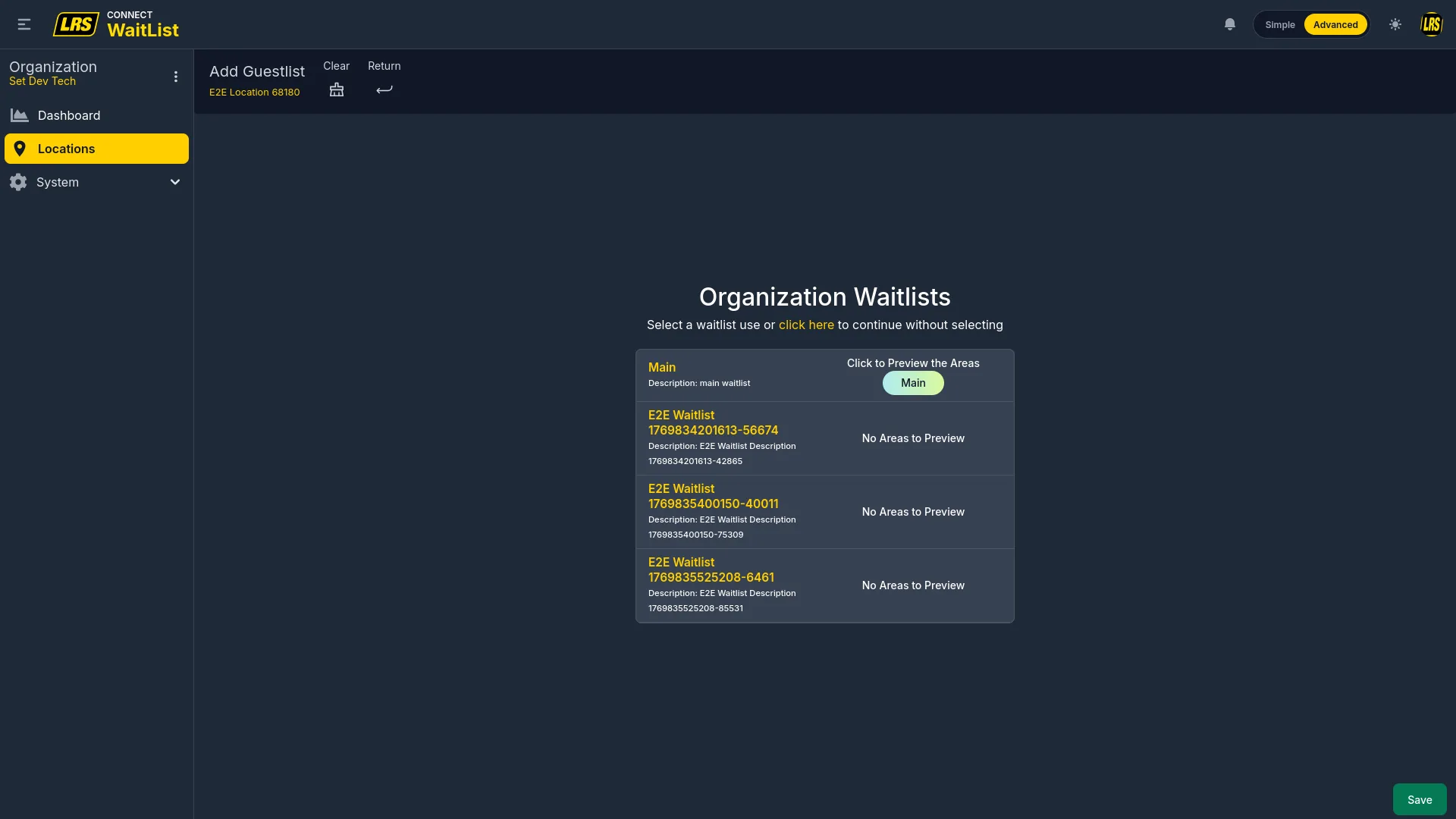
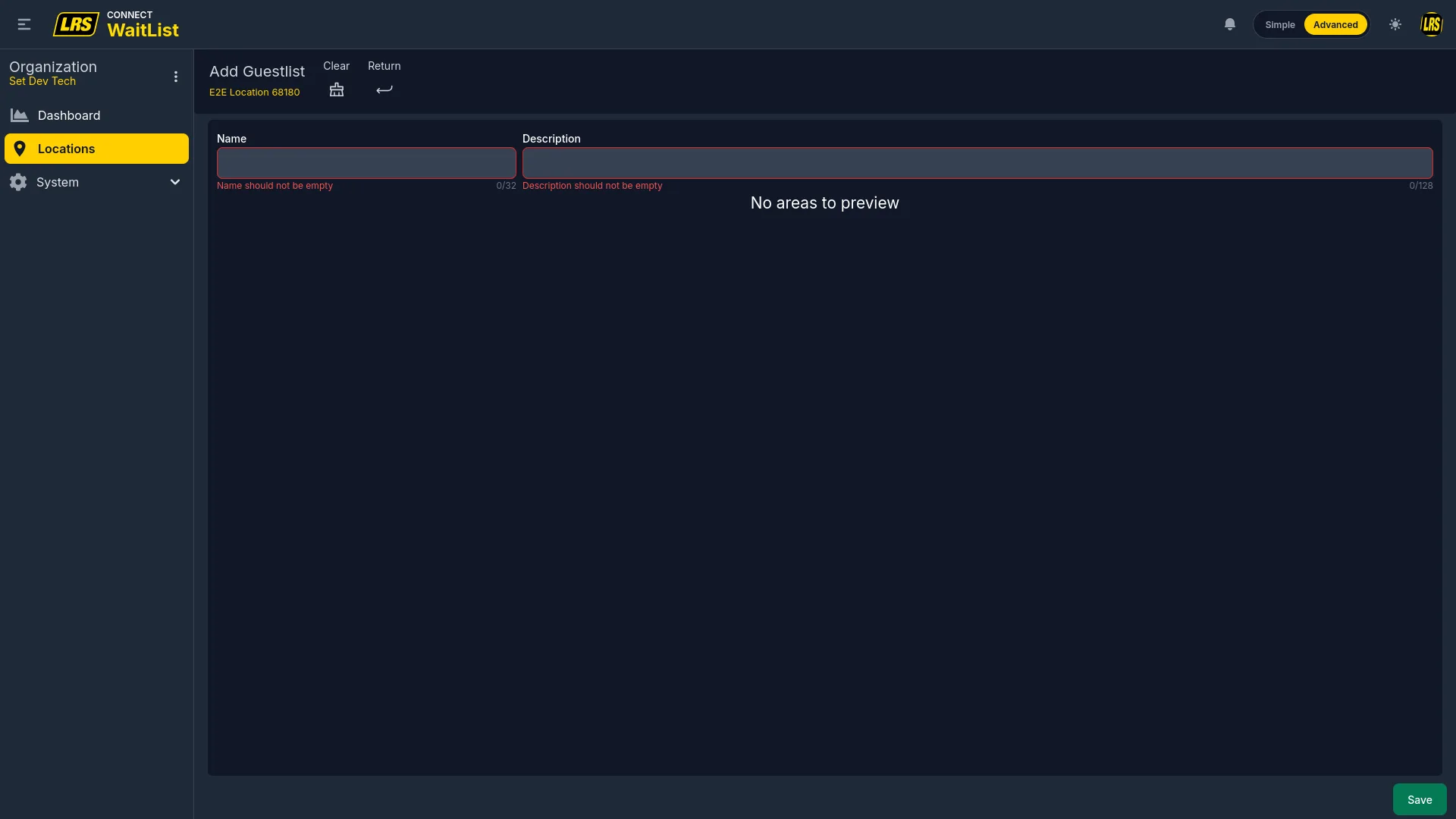
If no existing waitlist fits, click the click here link below the list and provide a Name and Description. This creates a waitlist for the current location; it does not add a reusable organization template.
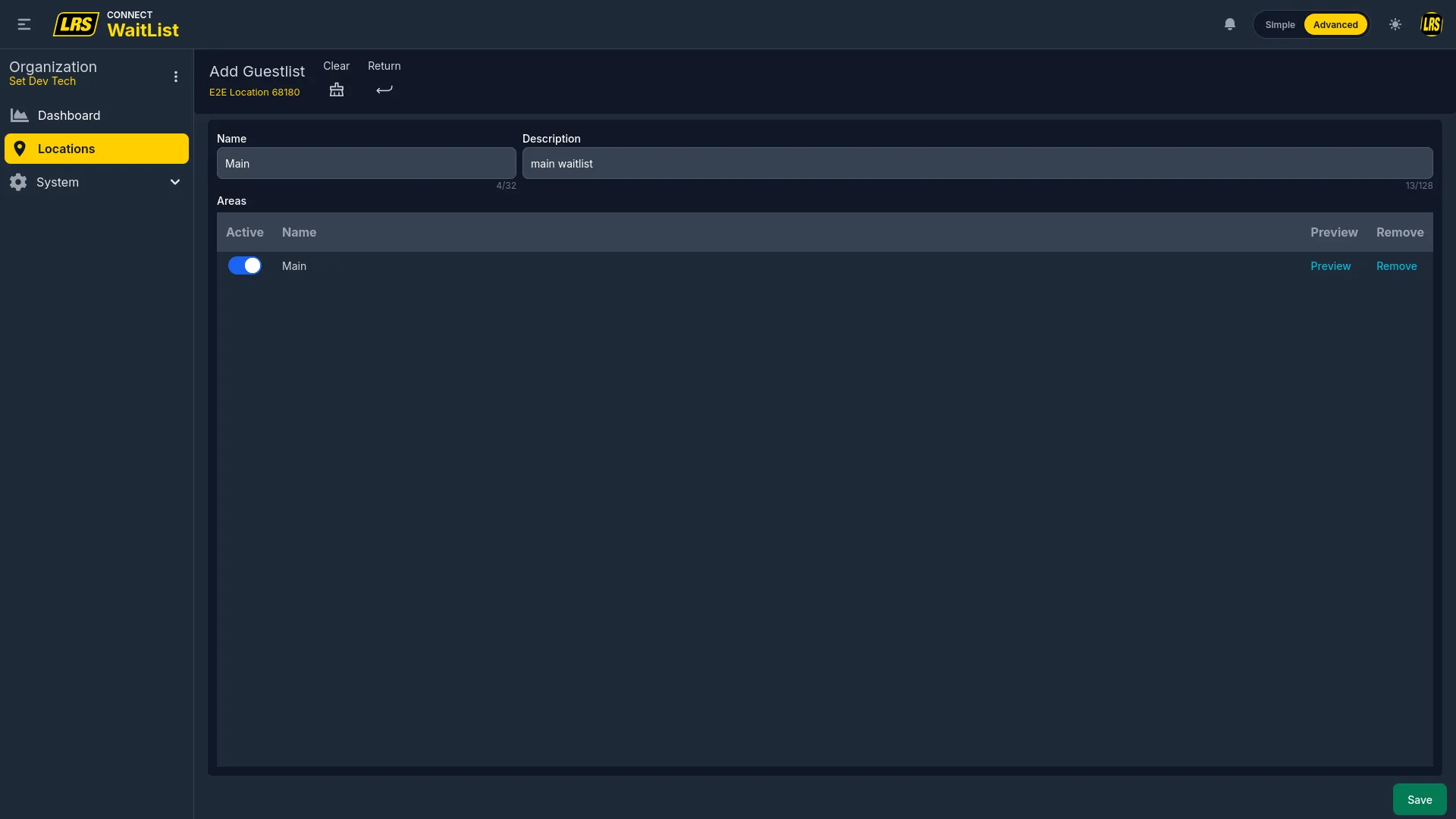
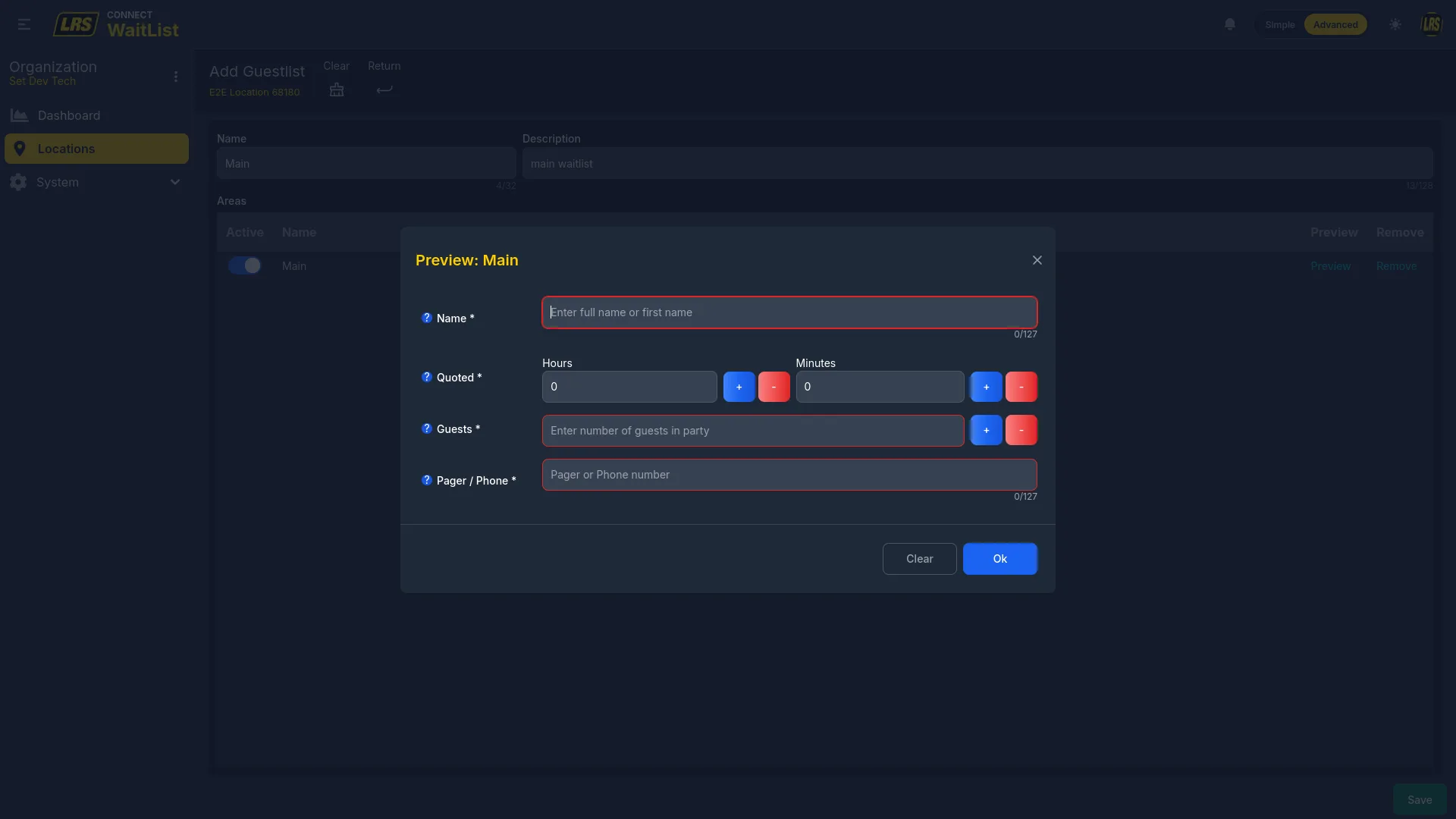
The areas table shows what will be copied. Preview verifies field order and required fields. Removing an area at this stage only excludes it from the unsaved location copy.
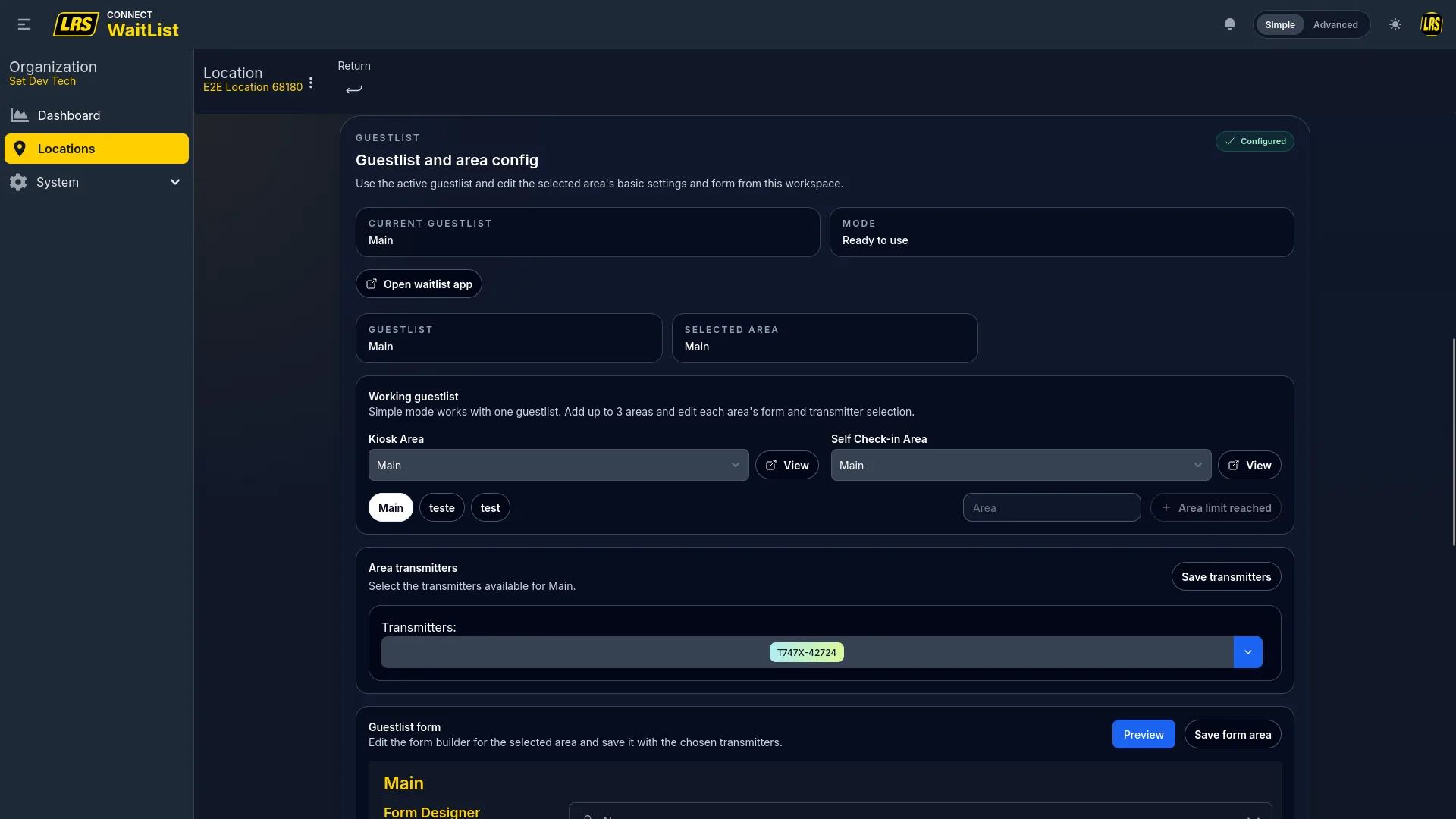
After a guestlist is assigned, the workspace is the central setup hub for that location. It shows which waitlist and area are active, lets managers set the Kiosk Area and Self Check-in Area, configure transmitter assignments per area, and edit the entry form — all from a single page. The Kiosk Area determines where kiosk-mode entries land; the Self Check-in Area is where remote check-in visitors queue.
The View button next to the Kiosk Area dropdown generates a short-lived signed launch key, which can be reused until it expires and is then exchanged for a kiosk session. Launch kiosk mode from this button instead of constructing a direct URL.
In advanced mode, clicking Edit on a guestlist row in the Guestlist tab opens the guestlist detail, where the Kiosk Area and Self Check-in Area dropdowns are configured and each area's transmitter assignment and form can be accessed via the Customize button.
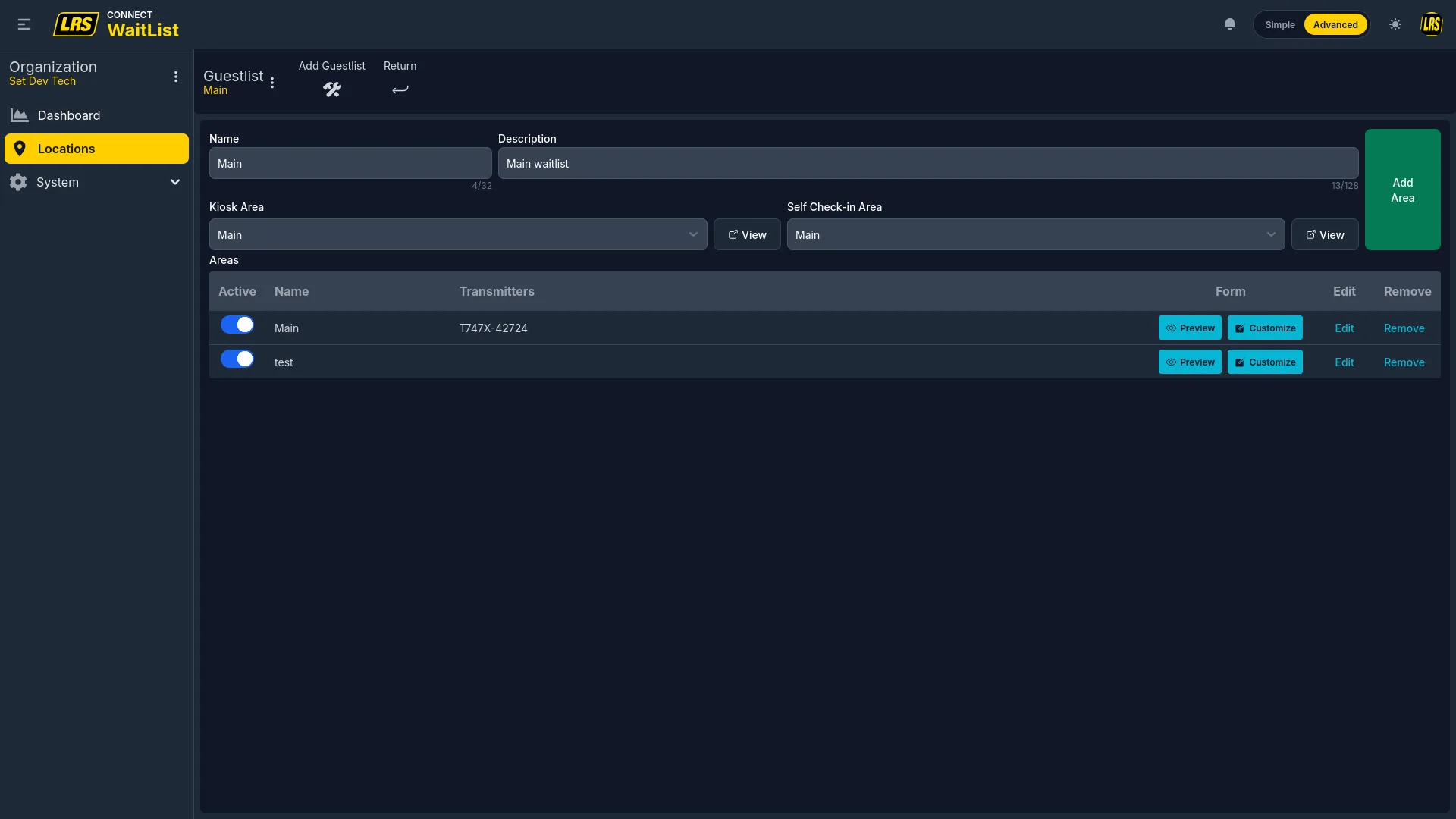
Control which Dashboard users can work in each guestlist area from either place: use the Staff selector on the area row in the guestlist detail, or open the area and use the Staff Visibility section in Settings. Both controls update the same access list.
Each area inside a waitlist is an independent queue with its own transmitters, auto-clear timer, target wait time, messaging, notifications, and form. Click Add Area inside the guestlist detail to create a new one. The description is required when creating an area, whether it is added directly or included with a new guestlist. Auto Clear removes entries from the area after a configurable idle time; Target Wait Time is the baseline used by Programmed Notifications and performance reporting.
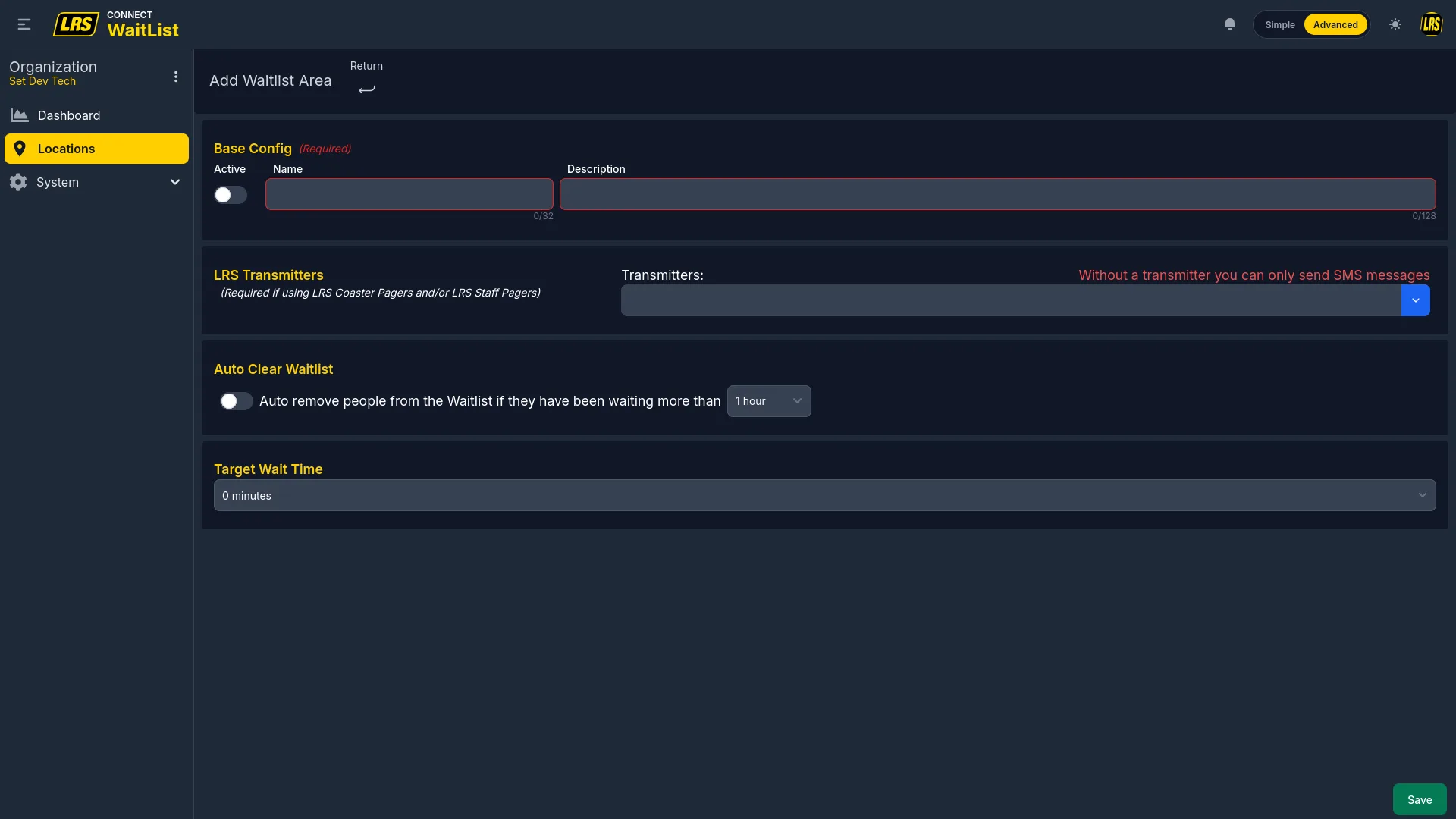
After creation, click Customize on the area row to open the full area configuration. Areas accessed from within a location have six tabs; areas accessed from the org level have four (Programmed Notifications and API Settings require the location context to function).
| Tab | What it configures |
|---|---|
| Settings | Name, required description, transmitter assignment, kiosk pager check-in, auto-clear timeout, target wait time, and remote check-in link generation. |
| Default Messages | Confirmation, notification, check-in, and cancellation message templates, including auto-send and history options. |
| Programmed Notifications (location only) | Automated messages triggered before, at, or after the quoted wait time. |
| Notification Options | Pager hardware type (LRS Guest, Alpha Guest, Both) and default alert sound pattern. |
| Guestlist Form | The Form Designer: active fields, per-field Required and Active flags, and per-context visibility switches. |
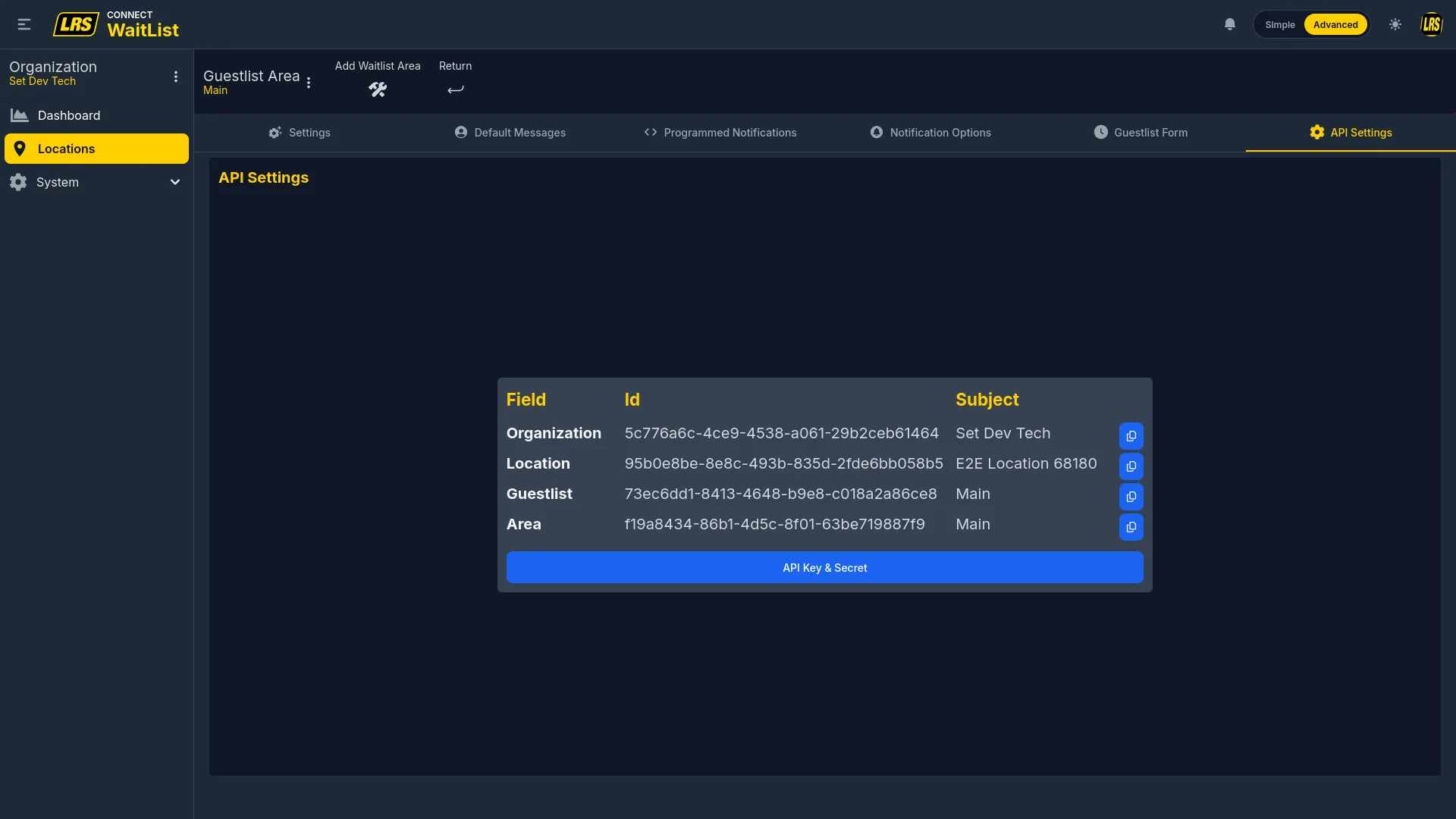
| API Settings (location only) | Organization, location, guestlist, and area UUIDs for use by external integrations. |
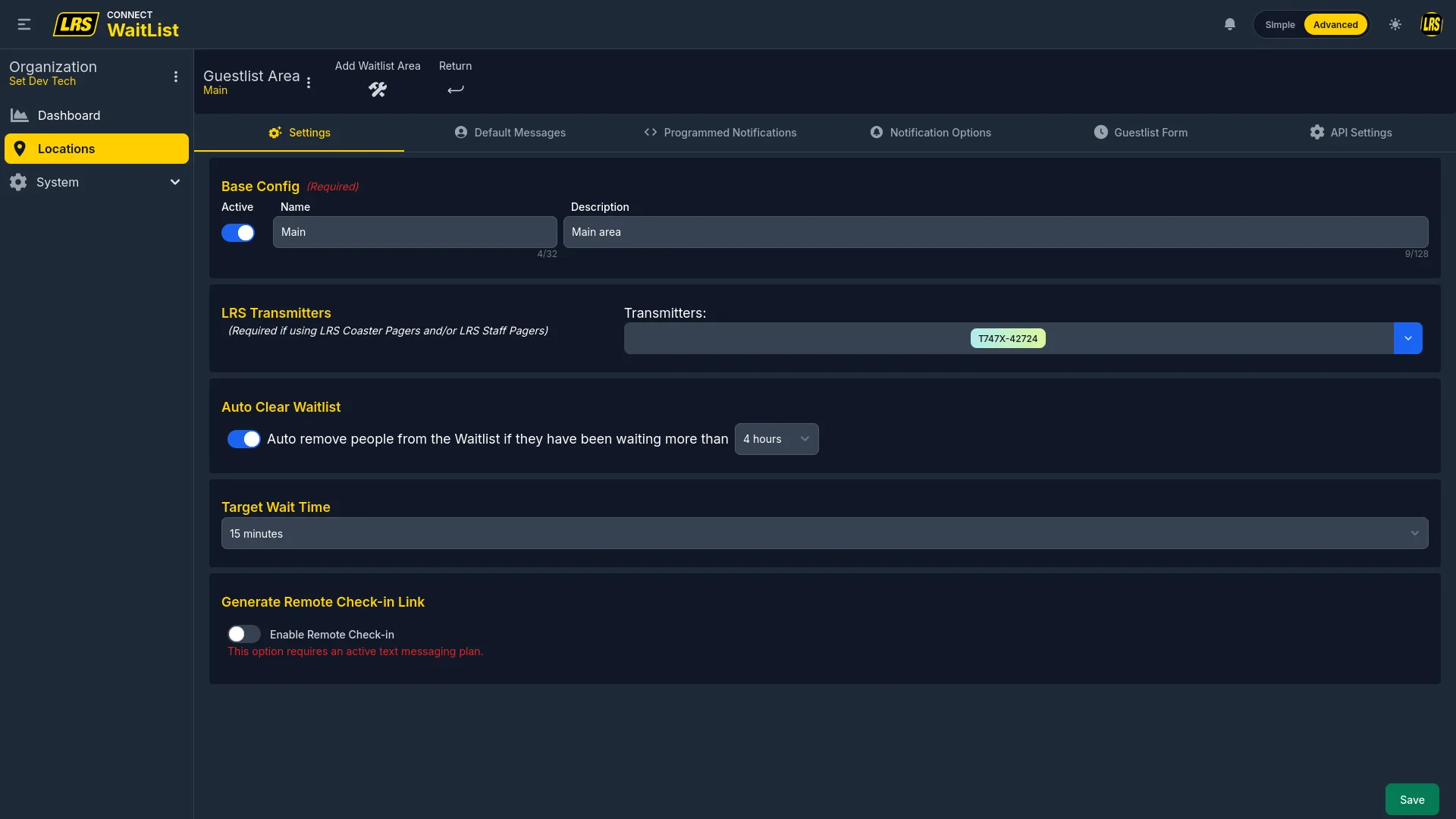
The Settings tab groups the Base Config (Active toggle, name, and required description), LRS Transmitters, Kiosk Pager Check-in, Auto Clear Waitlist, Target Wait Time, and Generate Remote Check-in Link. Turn on Automatically check in kiosk guests using pagers when pager assignments made through kiosk mode should arrive already checked in. Auto Clear removes entries after a configurable number of idle hours. Target Wait Time is the baseline for Programmed Notifications and reporting. The remote check-in block shows the Enable Remote Check-in toggle and, once enabled, the self check-in URL and QR code; an active SMS plan is required for remote check-in to work.
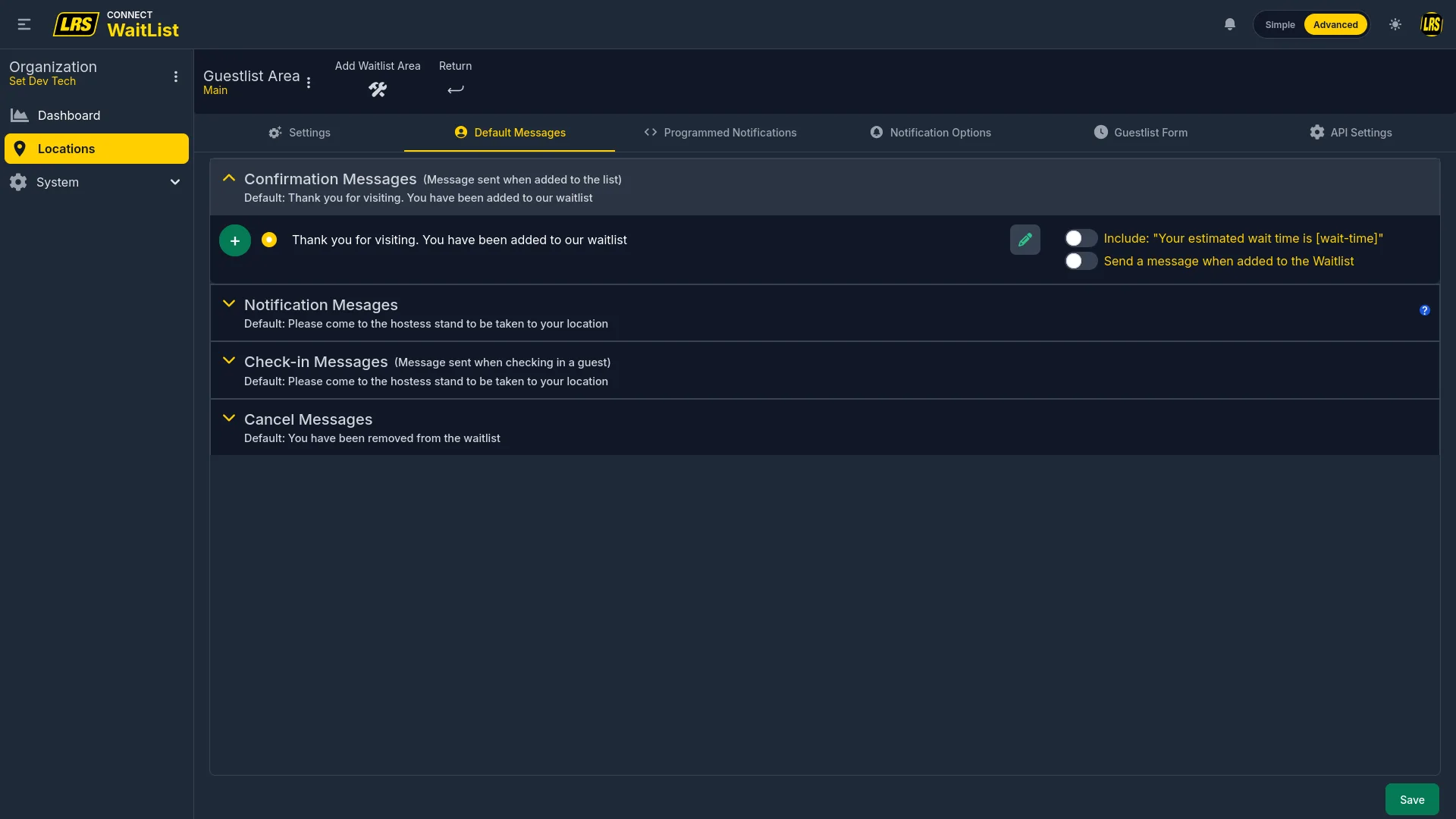
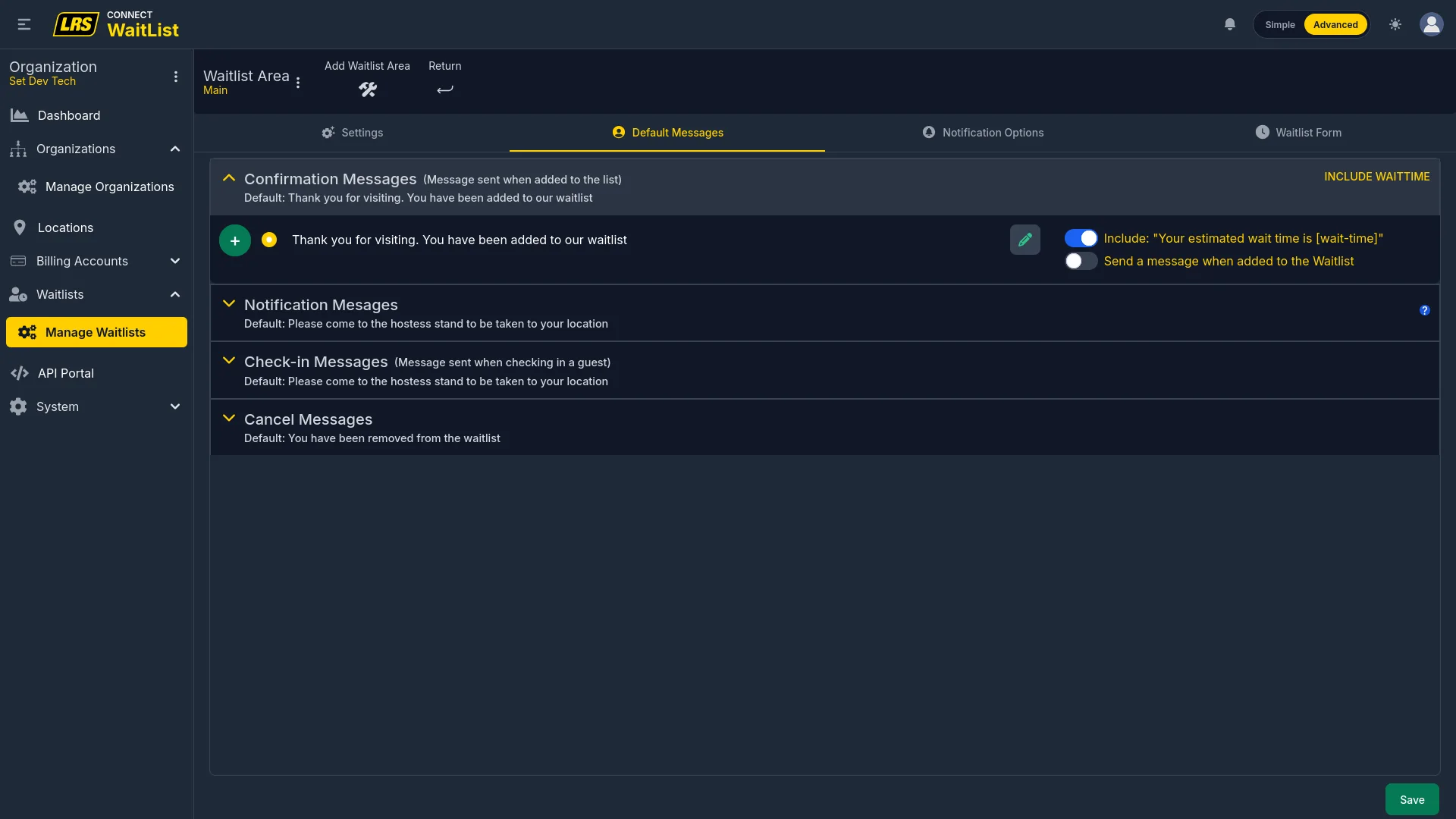
Default Messages define what guests can receive at each stage of the waitlist flow. Confirmation Messages can be sent automatically when staff creates an entry and can include the estimated wait time. Check-in Messages can be sent automatically when staff marks a guest as arrived. In either section, turn on Show in notification history and the Notified indicator when that automatic message should also count as a notification. The Notification message is what guests receive when paged or texted, and the Cancel message can be sent automatically when an entry is removed.
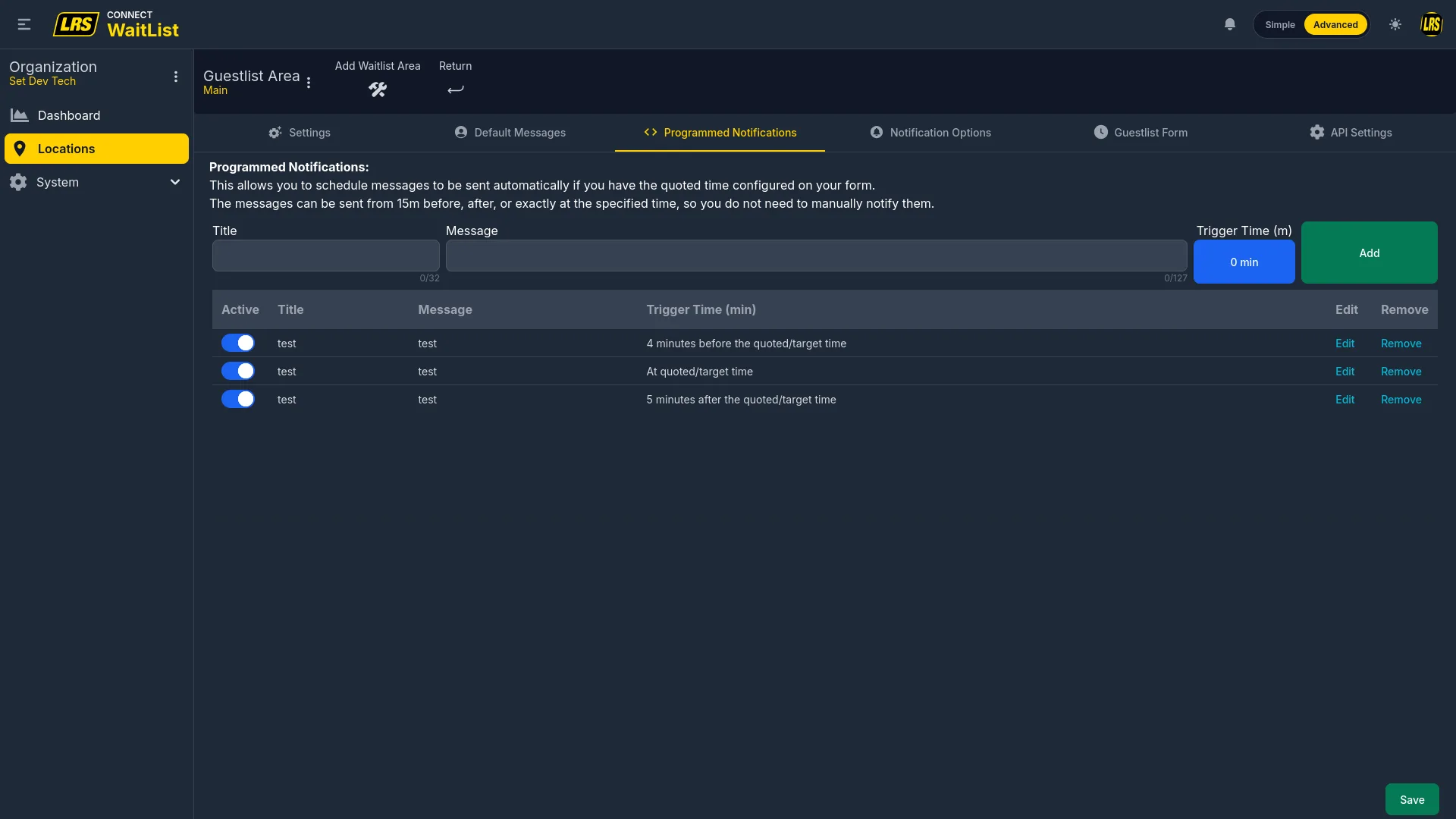
Programmed Notifications remove the burden of manually following up with guests. Each trigger in the list fires at a configured offset relative to the quoted wait time — for example, 4 minutes before, at the exact quoted time, or 5 minutes after. Entries must have a quoted wait time set for any trigger to fire. This tab is only available when the area is accessed from within a location.
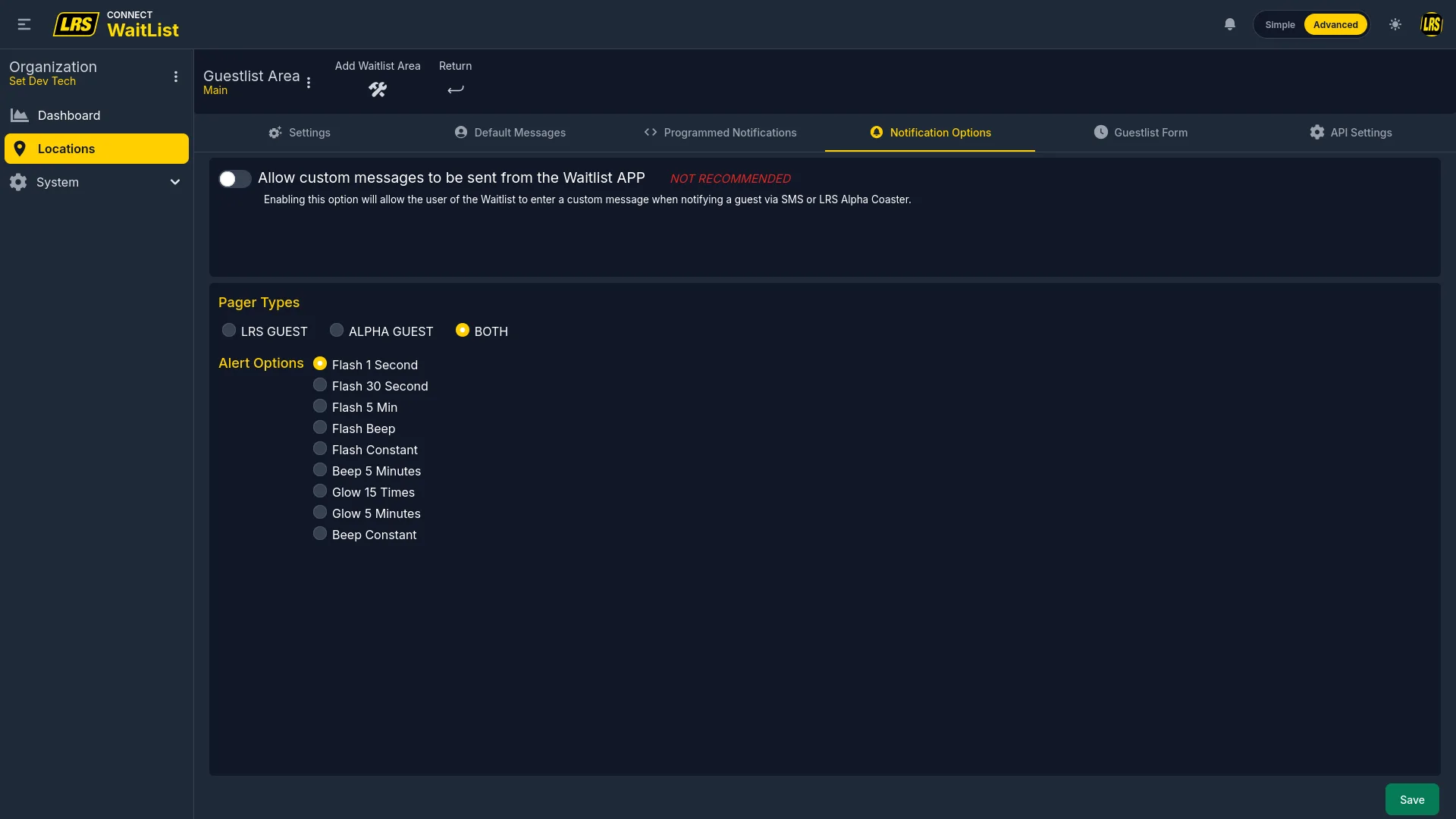
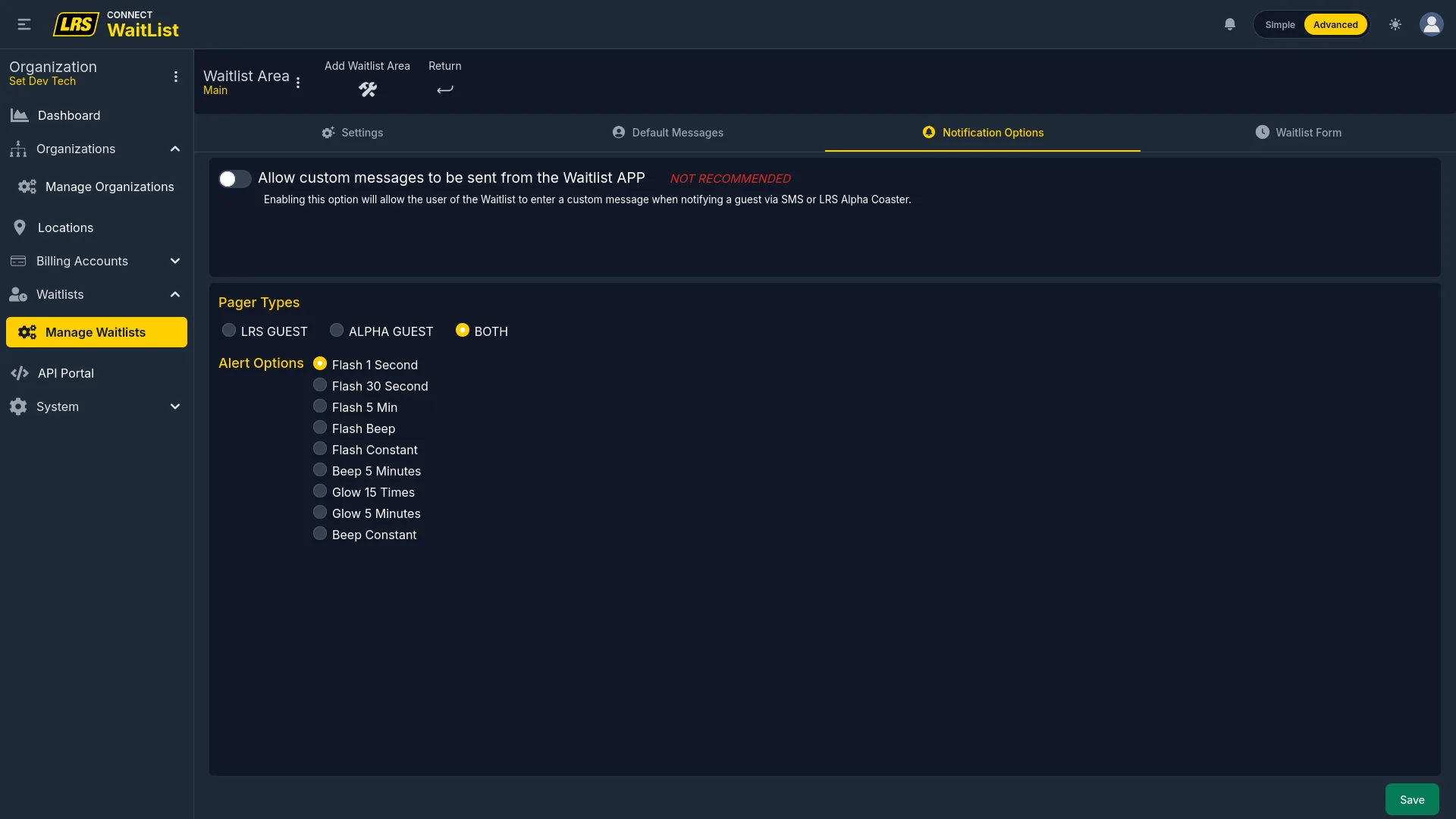
Notification Options set the pager hardware type used by this area (LRS Guest, Alpha Guest, or Both) and the default alert sound pattern broadcast when a guest is notified. The custom messages toggle controls whether staff can write their own notification text or are limited to predefined messages.
The API Settings tab exposes the four UUIDs that external integrations use to address this specific area: organization, location, guestlist, and area. The API Key & Secret button opens the organization's API Keys tab; it does not reveal credentials directly, and secret access there requires an account owner, account admin, or organization manager role. This tab is only available when the area is accessed from within a location.
6. Form Designer
The Form Designer controls which fields appear in each context of the live Waitlist app. Visibility is configurable only within each field type's constraints. Marking a standard field Required forces it into List View, Add/Edit Form, Remote Check In, and Kiosk Mode.
The Form Designer is accessible from two places: directly from the Guestlist workspace via the Form Designer shortcut, or from the Guestlist Form tab inside the area's Customize view. Both open the same interface.
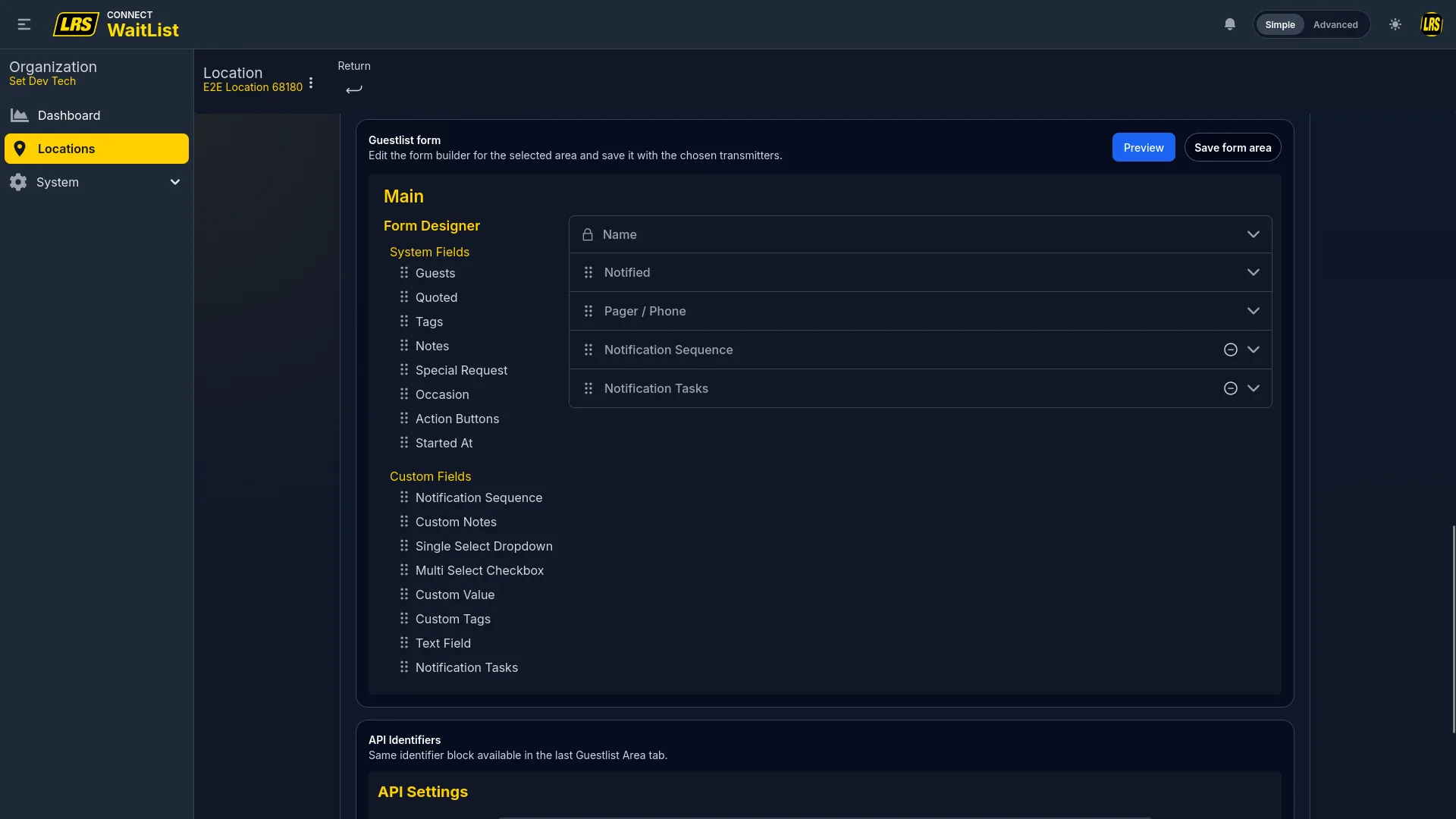
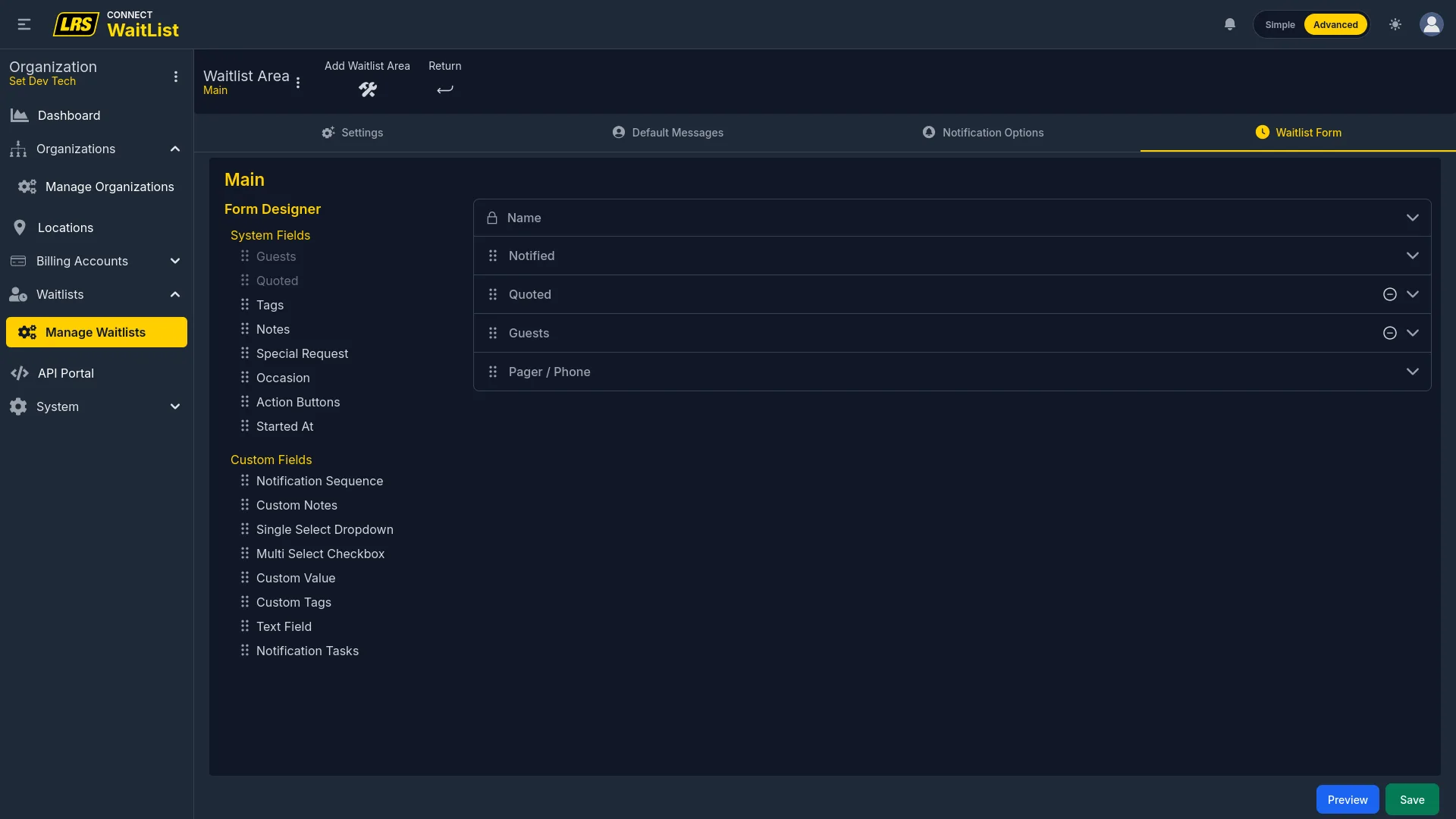
The field palette on the left contains all available fields. The right panel shows which fields are currently active. Drag a field from the palette to the right panel to activate it. Drag within the right panel to change the order — this order is what staff sees in the live entry form.
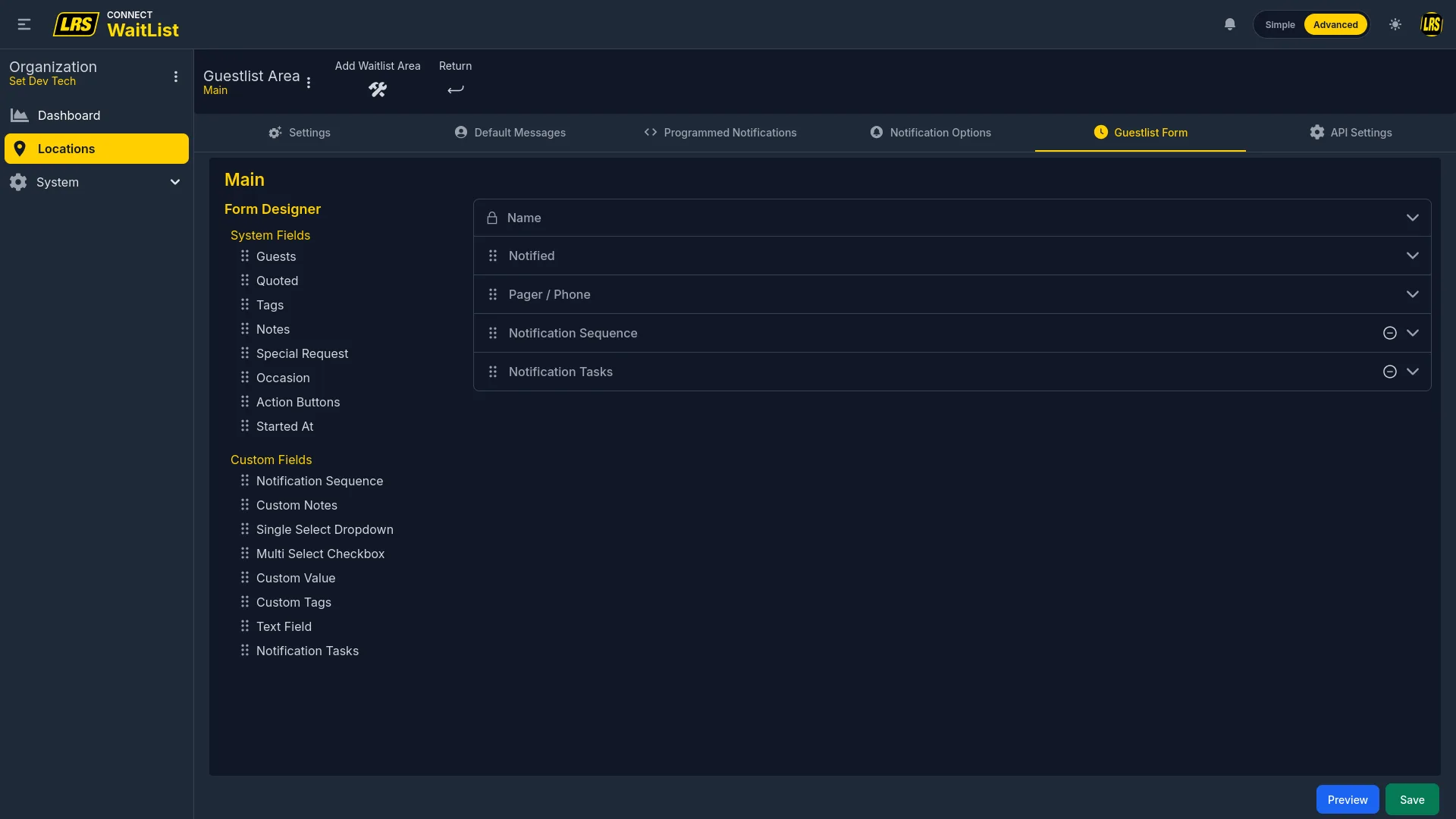
Below the Form Designer, the API Identifiers block lists the same UUIDs found in the API Settings tab. This is a shortcut for developers who are setting up the form and need the IDs at the same time.
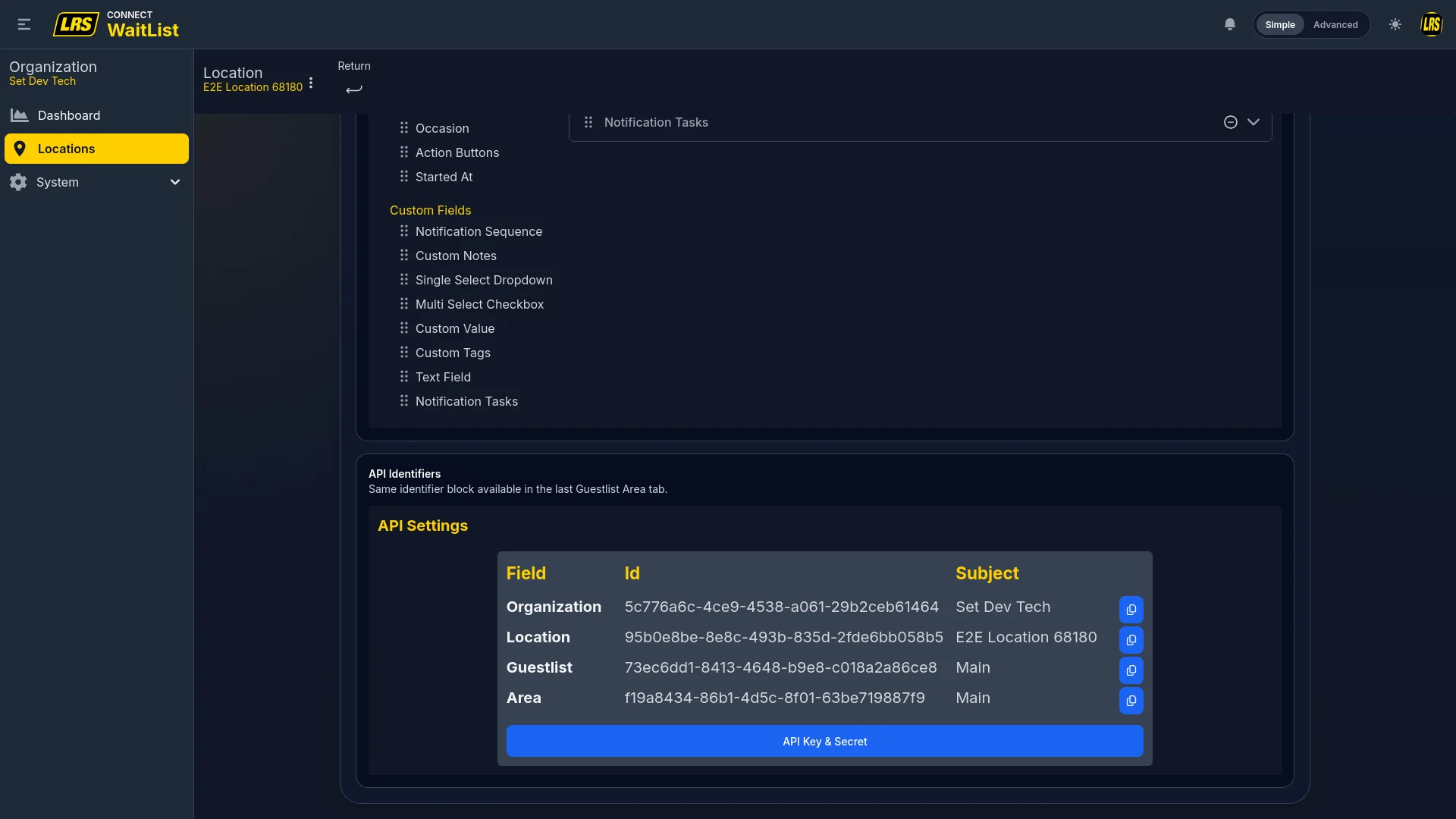
System fields cover the core data every waitlist entry needs. They are built into the system and cannot be renamed or removed from the palette, though most can be toggled off.
| Field | Description |
|---|---|
| Name | Guest name. Always required. Cannot be removed from the form. |
| Notified | Whether the guest has been paged or texted. Title and hint are customizable. |
| Pager / Phone | Guest contact for SMS or pager notification, with a customizable placeholder. Required for notification workflows. |
| Guests | Party size with optional Demographic Tracking for age and gender reporting. |
| Quoted | Estimated wait time set at entry. Shows elapsed and remaining time progress on the live list. |
| Tags | Location-specific tag chips predefined in the field configuration. |
| Notes | Free-text staff annotation field with customizable title and placeholder. |
| Special Request | A distinct text area for dietary, accessibility, or event requests. |
| Occasion | Event type selector (Birthday, Anniversary, etc.). |
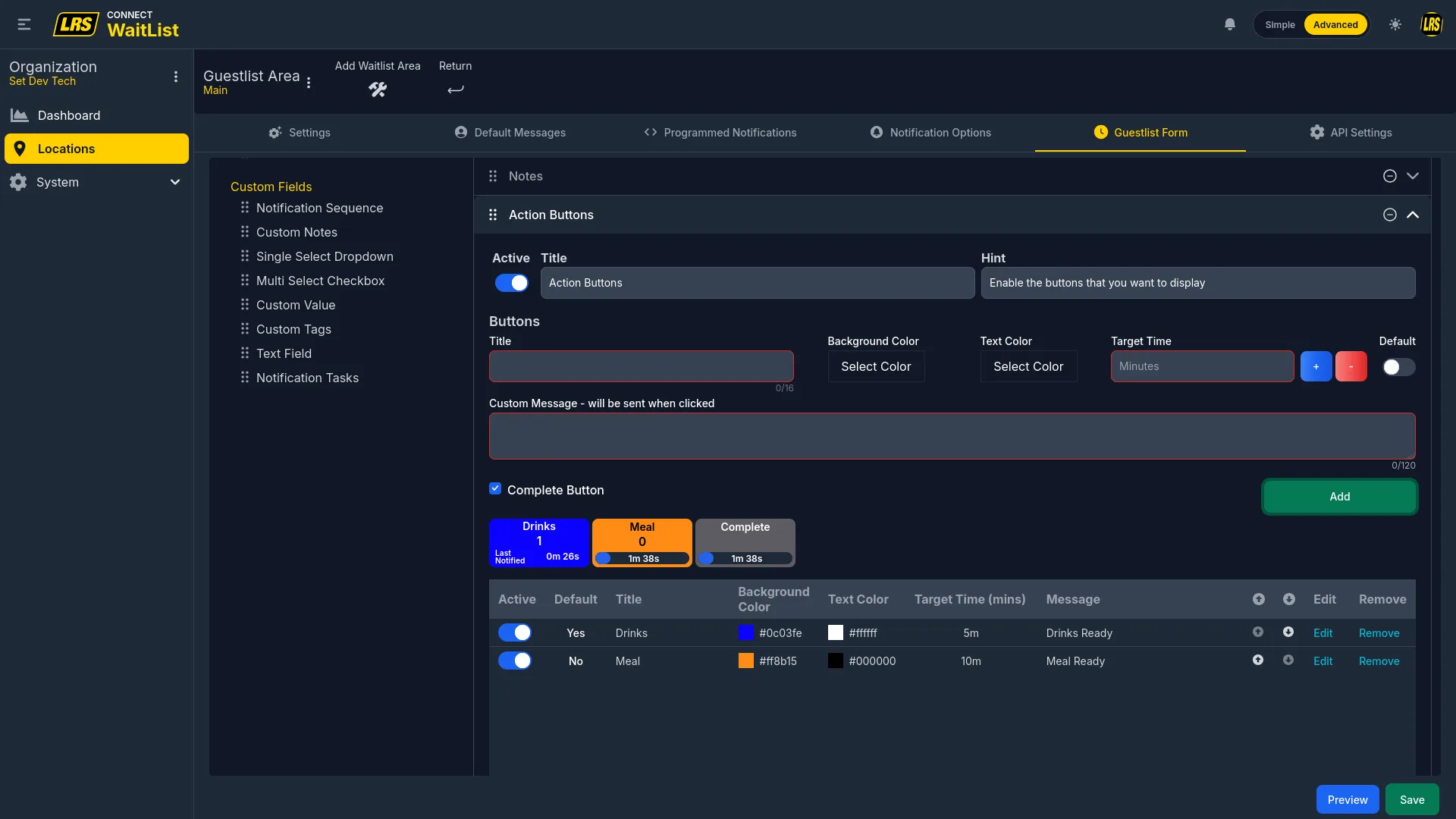
| Action Buttons | Timed colored buttons that send a message and start a countdown timer on the entry. |
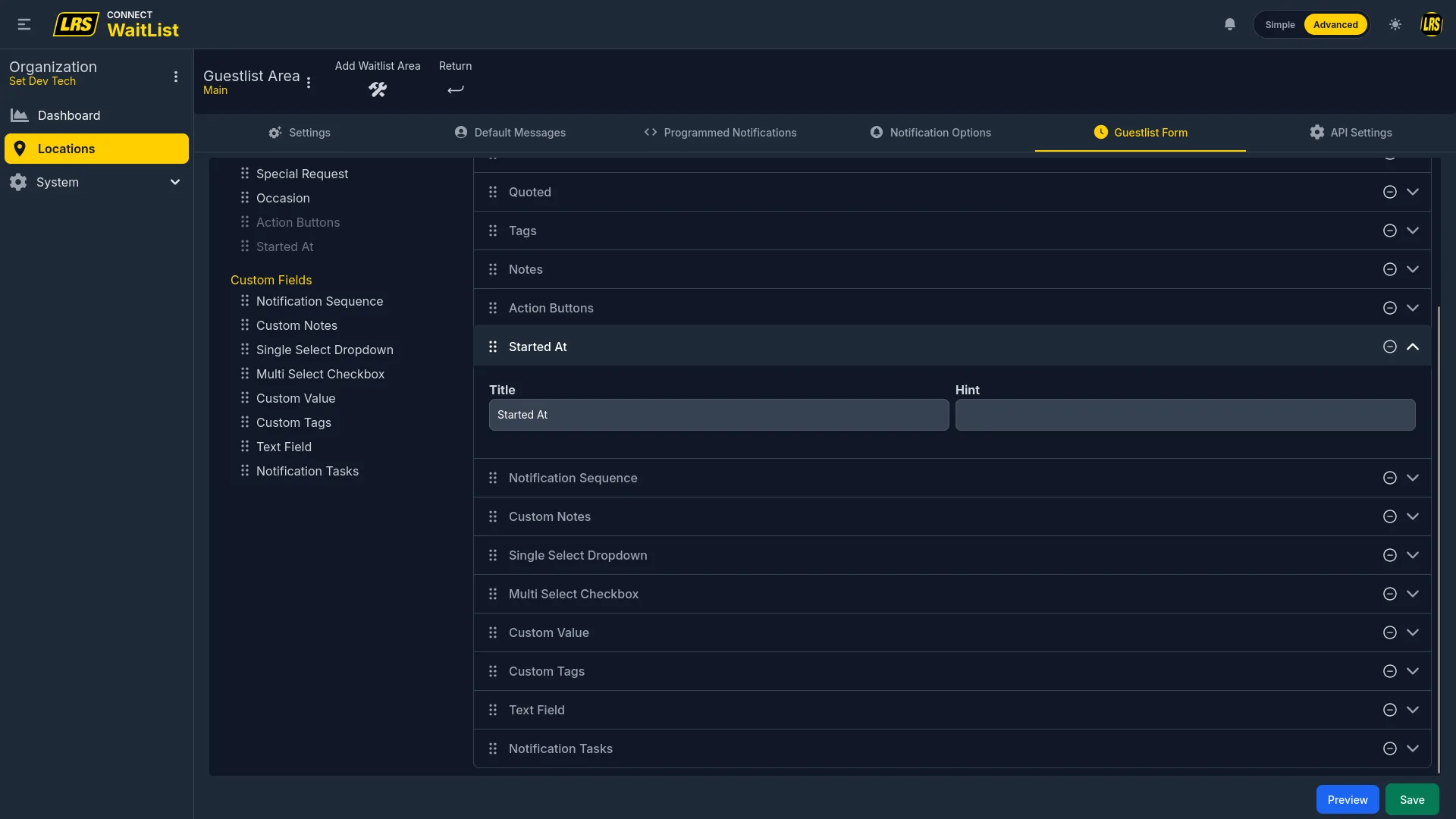
| Started At | Timestamp when the entry was created. Read-only. |
The Notified field tracks whether a guest has been paged. Its Title and Hint labels are the only two properties that can be customized on this field.
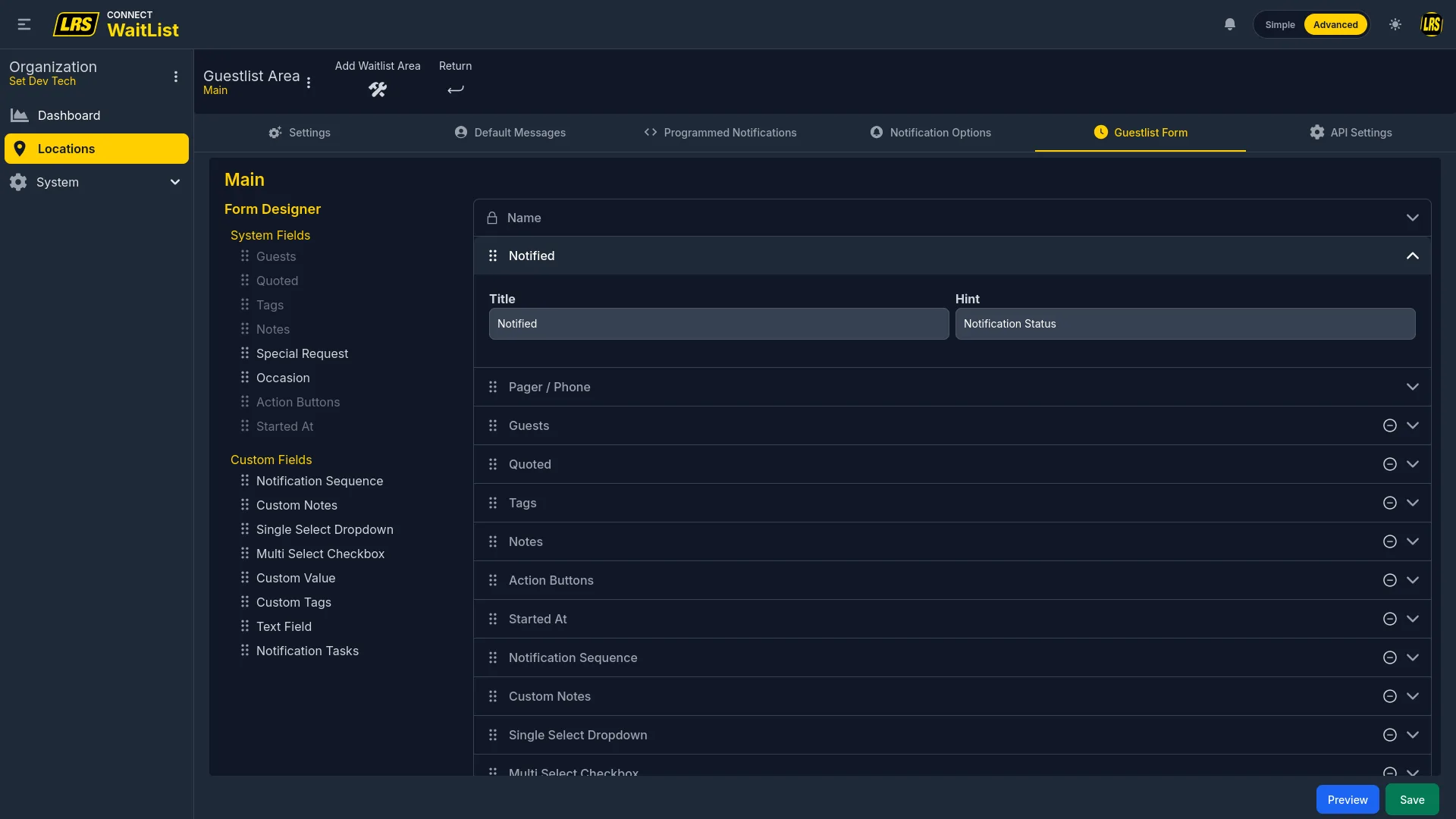
Each field type exposes the visibility controls it supports. Standard required fields are forced into List View, Add/Edit Form, Remote Check In, and Kiosk Mode; notification and workflow fields have additional constraints.
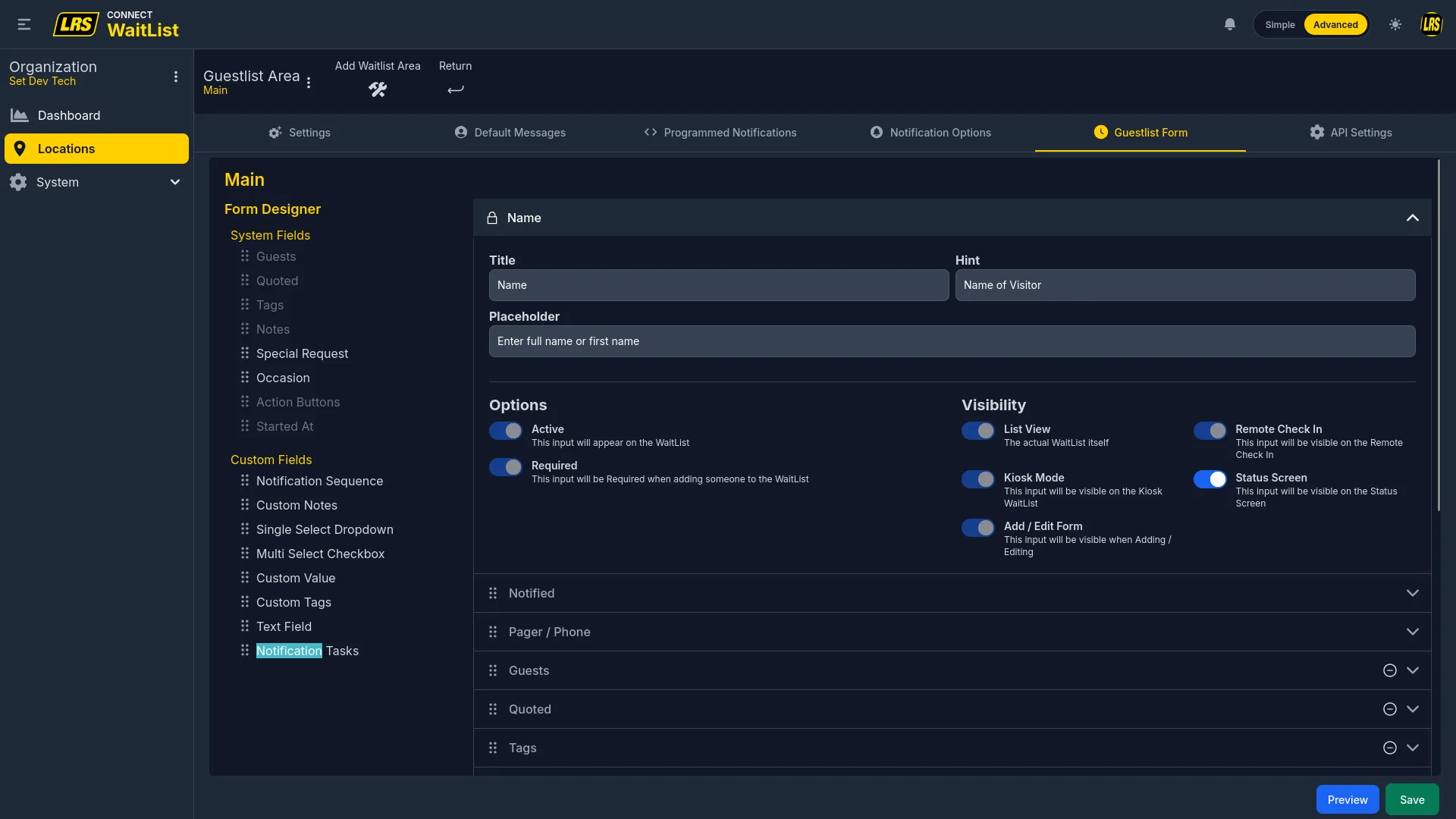
The Pager/Phone field collects the guest's contact for SMS or pager delivery. Active controls whether it is used; Required also forces the supported operational visibility contexts on. Customize the Pager/Phone field's placeholder to tell staff or guests which value to enter; new forms default to “Pager or Phone number.”
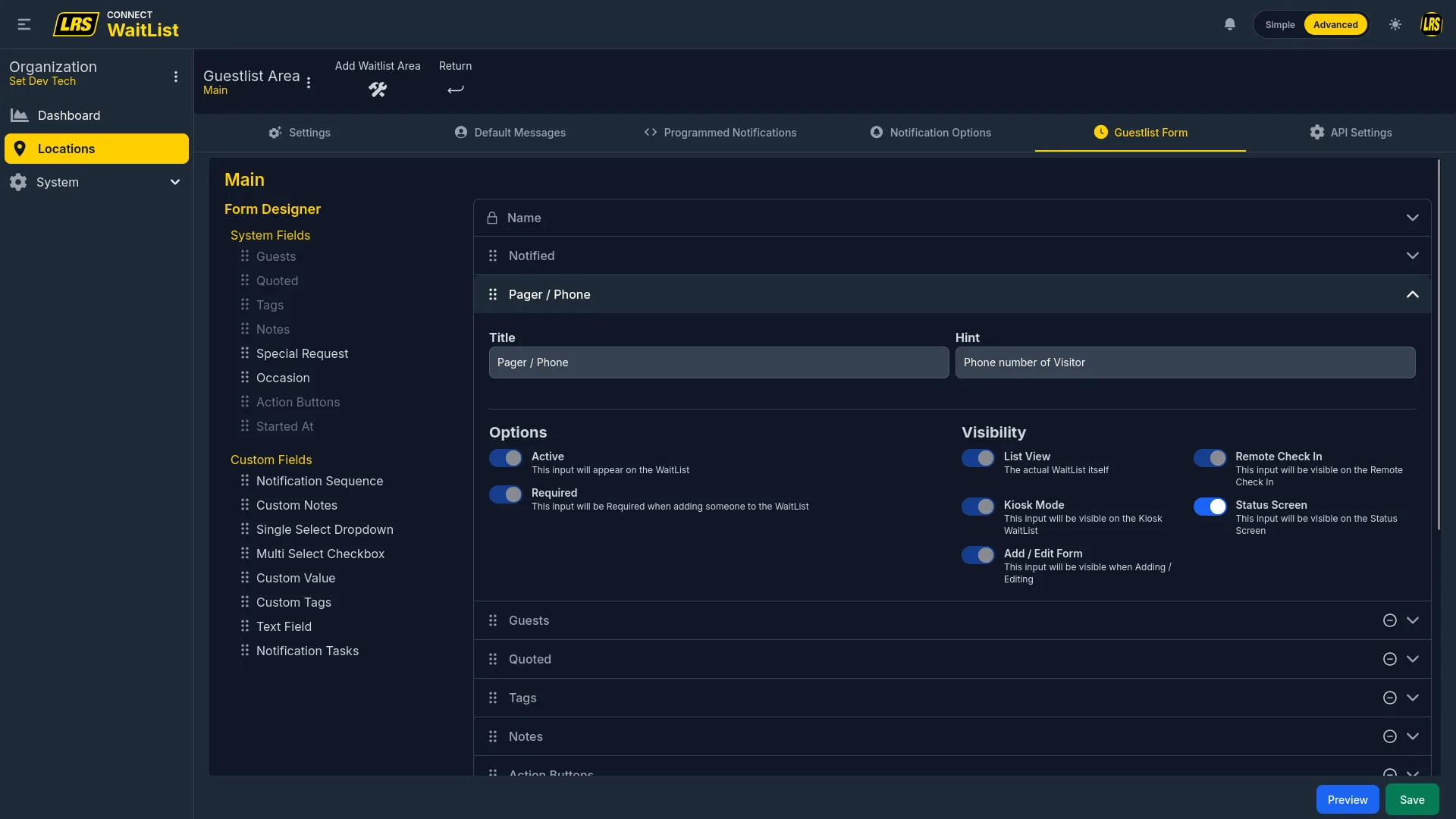
The Guests field captures party size. Demographic Tracking adds an additional collection step that records age range and gender breakdowns alongside the count — useful for aggregate reporting.
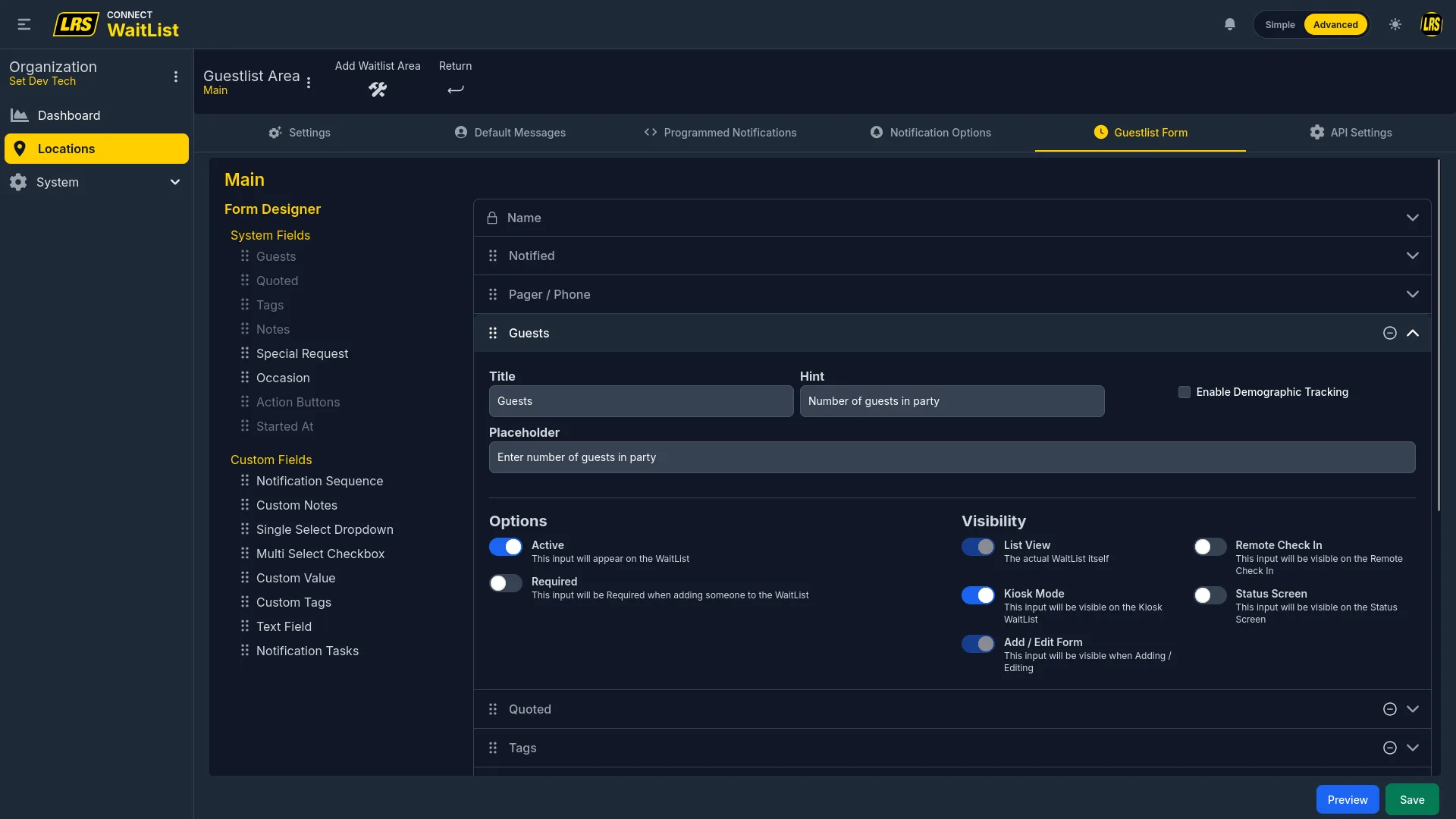
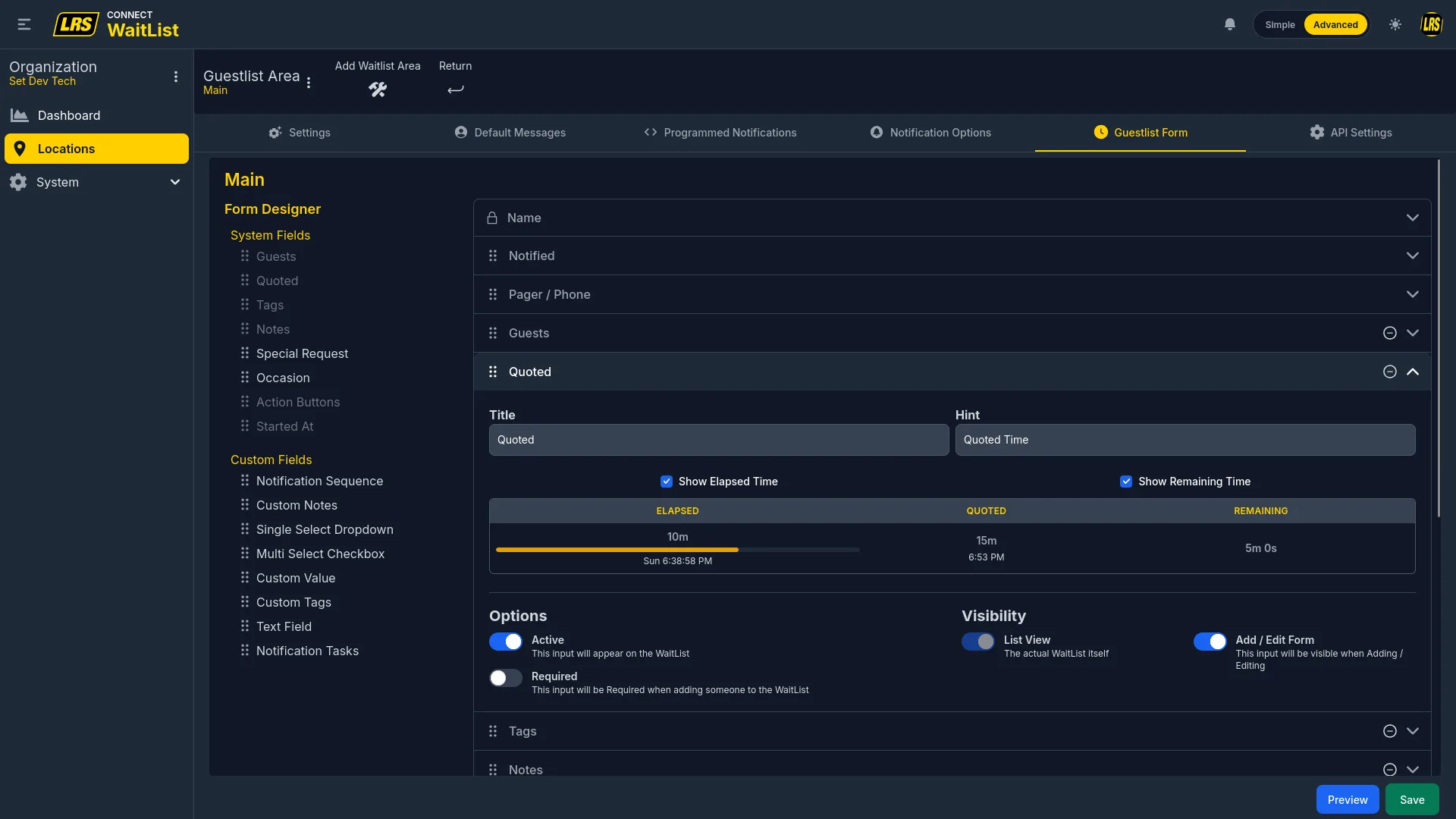
The Quoted field stores the estimated wait time staff enter when adding the entry. The Show Elapsed Time and Show Remaining Time toggles control the progress bar visible to staff on the live waitlist below the Quoted value.
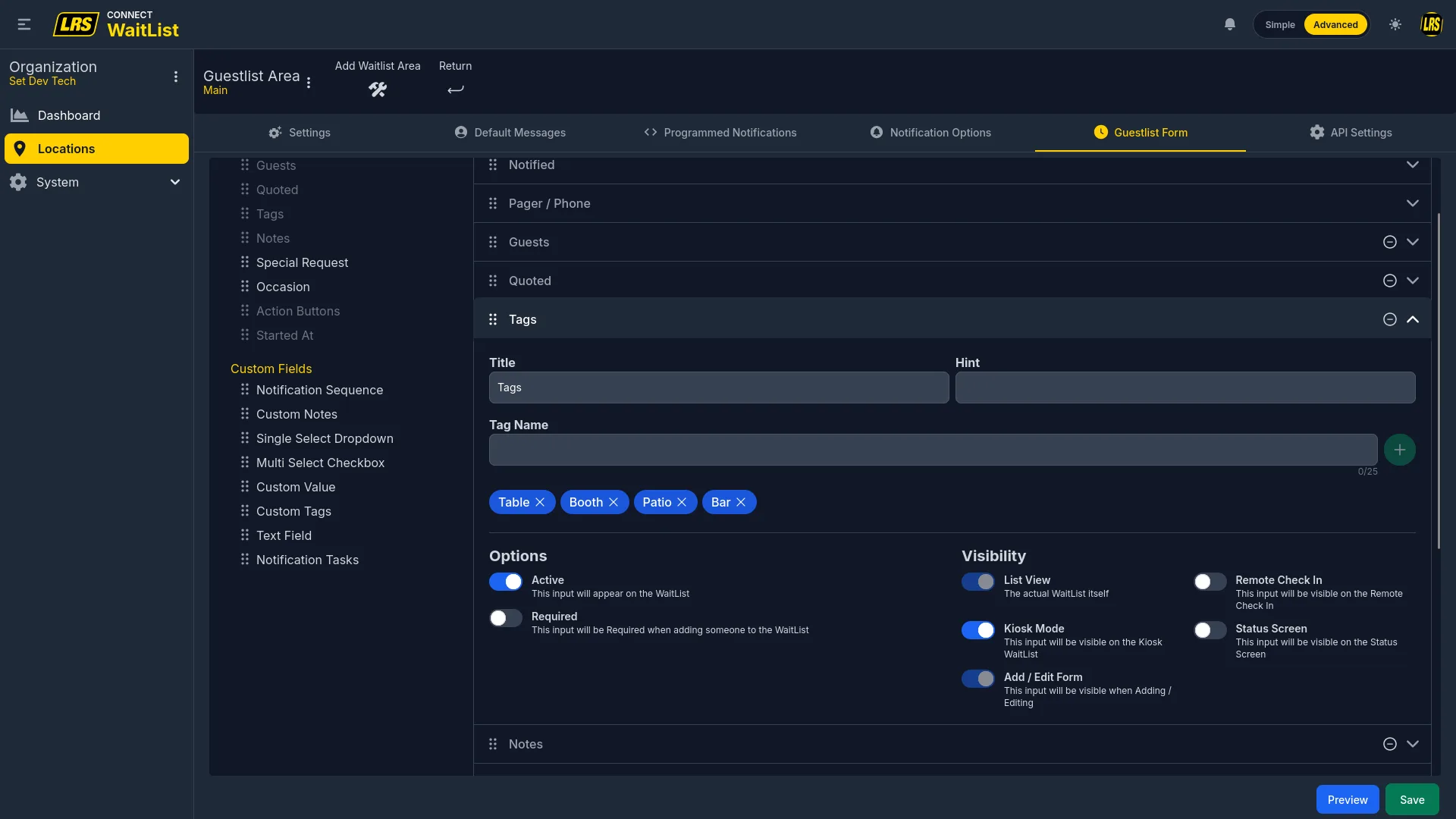
The Tags field lets staff label entries with predefined chips. Tags must be defined in the field configuration here; they appear as tappable chips in the live Waitlist app.
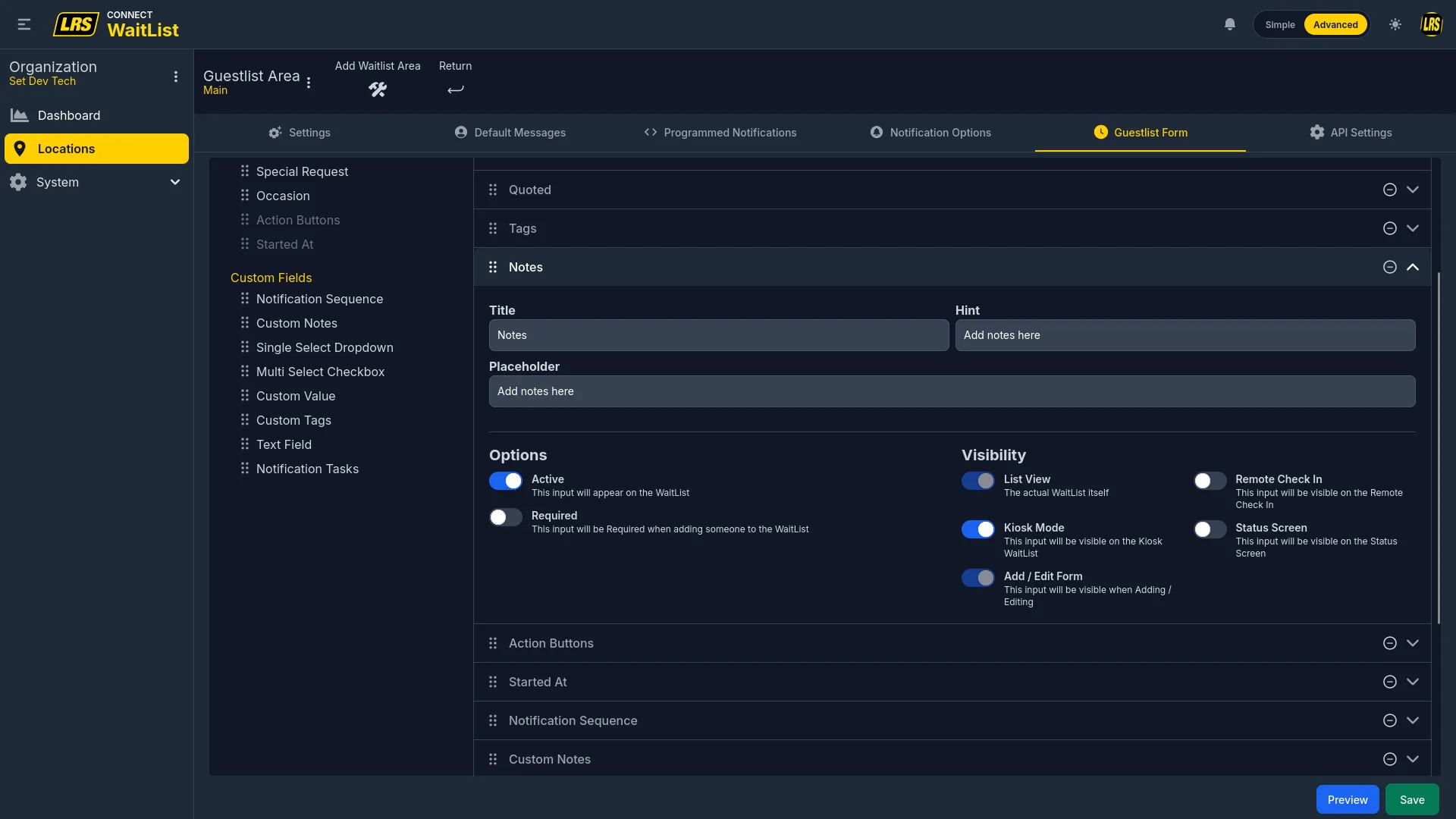
The Notes field provides a free-text annotation area. Title, Hint, and Placeholder are all customizable to prompt staff for the specific information most useful for the operation.
Action Buttons create timed workflow buttons directly on a waitlist entry. Each button sends a message to the guest and starts a countdown. When staff tap the Complete button, the sequence closes. This is useful for multi-step service flows like drink and meal delivery.
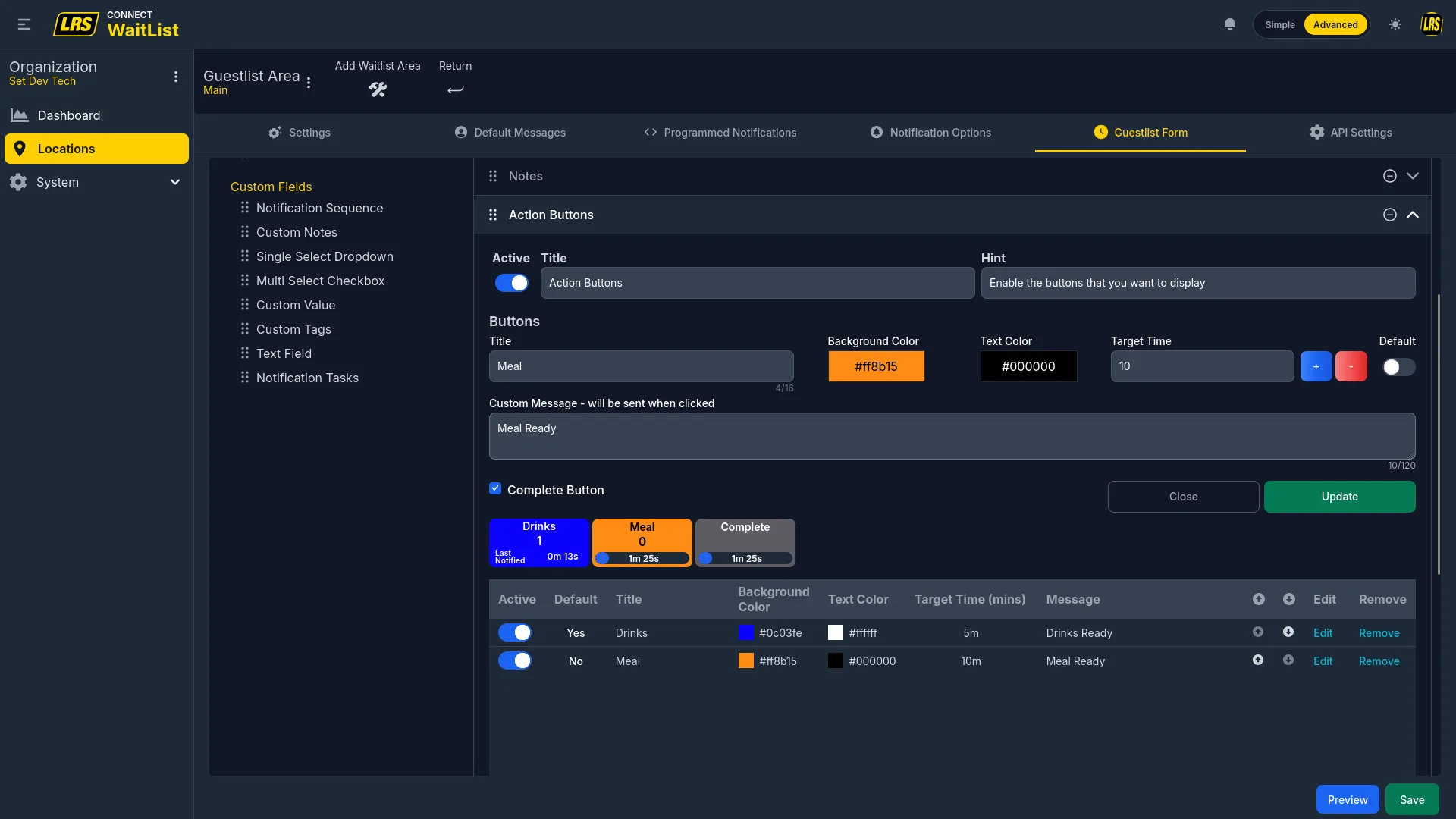
Adding a new Action Button requires a title, background color, text color, a target time in minutes, and the message sent to the guest when the button is tapped.
The Started At field is a read-only timestamp set when the entry is created. Below it in the palette sits the complete list of custom fields — all optional and all requiring an explicit drag to the active panel.
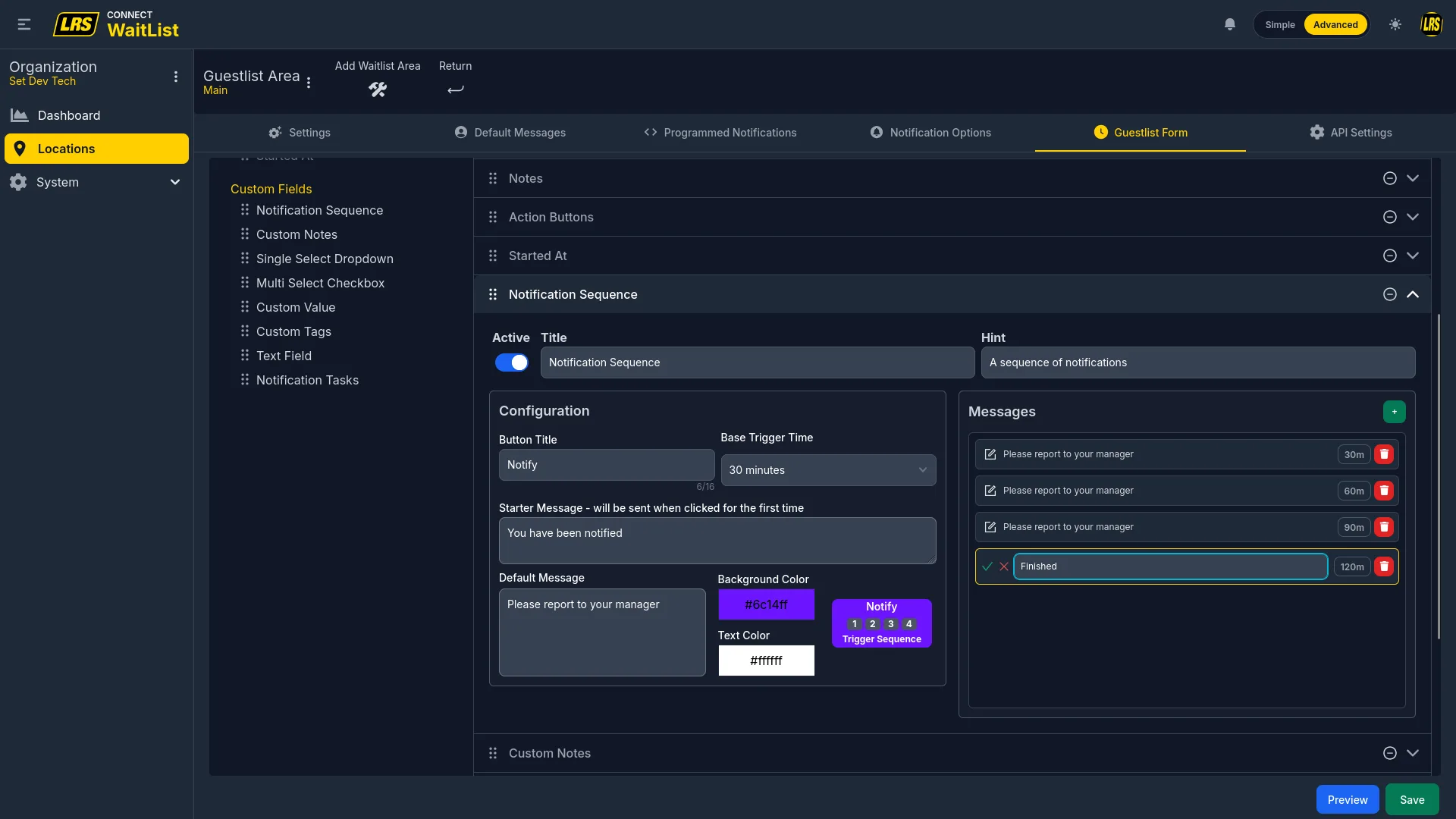
Custom fields extend the form with specialized input types for workflows, data capture, and staff coordination. All custom fields are optional and can be combined freely.
| Field | Description |
|---|---|
| Notification Sequence | Timed chain: staff starts the sequence, and each due step is sent manually with its Notify action. |
| Custom Notes | A second labeled free-text field with its own title, hint, and placeholder. |
| Single Select Dropdown | One-choice selector from a predefined list. Each option can trigger a specific notification. |
| Multi Select Checkbox | Multiple-choice selector — guests or staff check all that apply. |
| Custom Value | Labeled input with a pattern: Text, Phone #, Integer, Floating Point, Currency, or Date. |
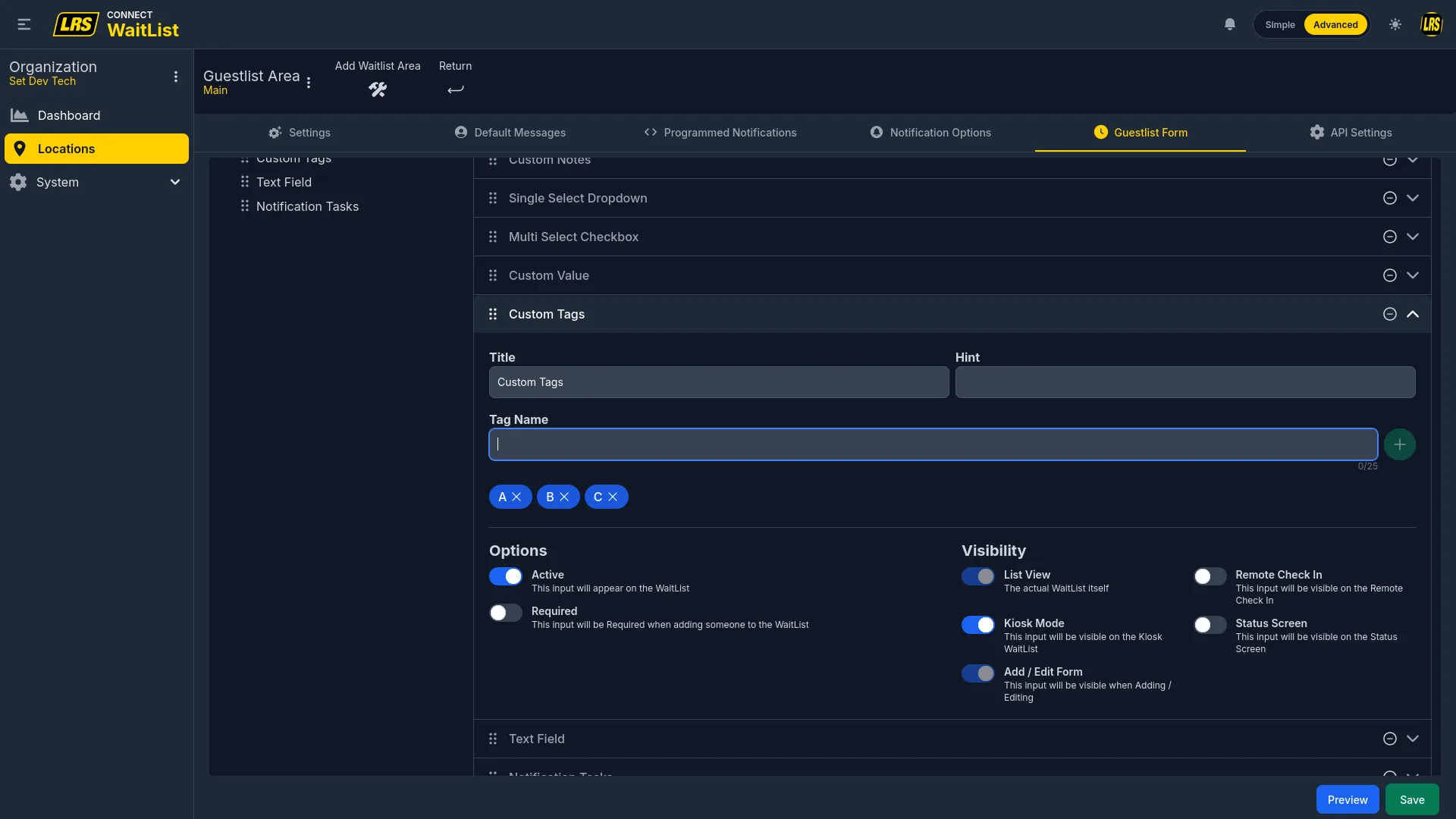
| Custom Tags | Free-form tag field with predefined default options that staff can extend at entry time. |
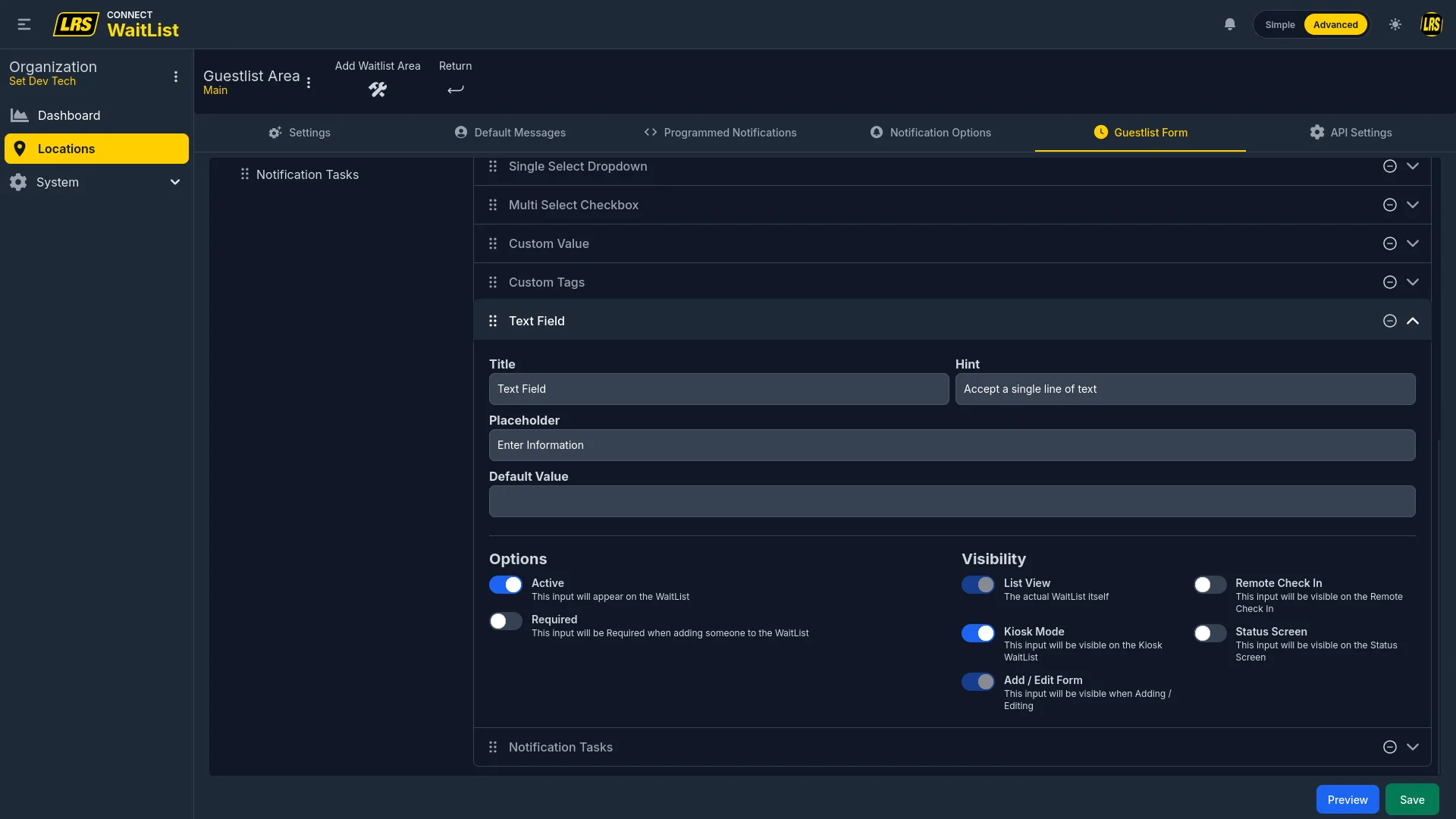
| Text Field | Plain labeled text input with a custom placeholder and no format constraint. |
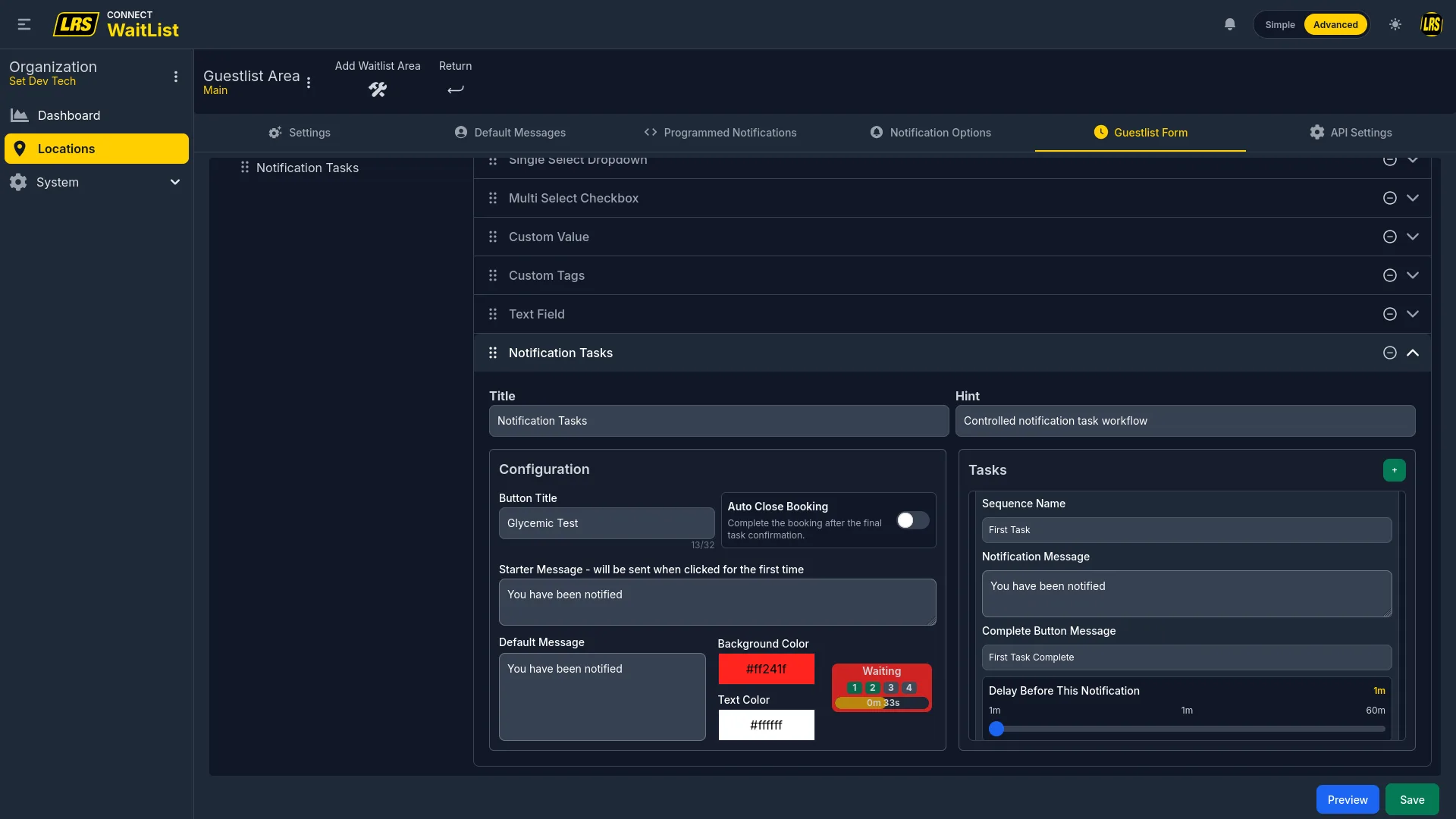
| Notification Tasks | Multi-step guest-notification workflow with acknowledgement, manual task confirmation, and optional Auto Close. |
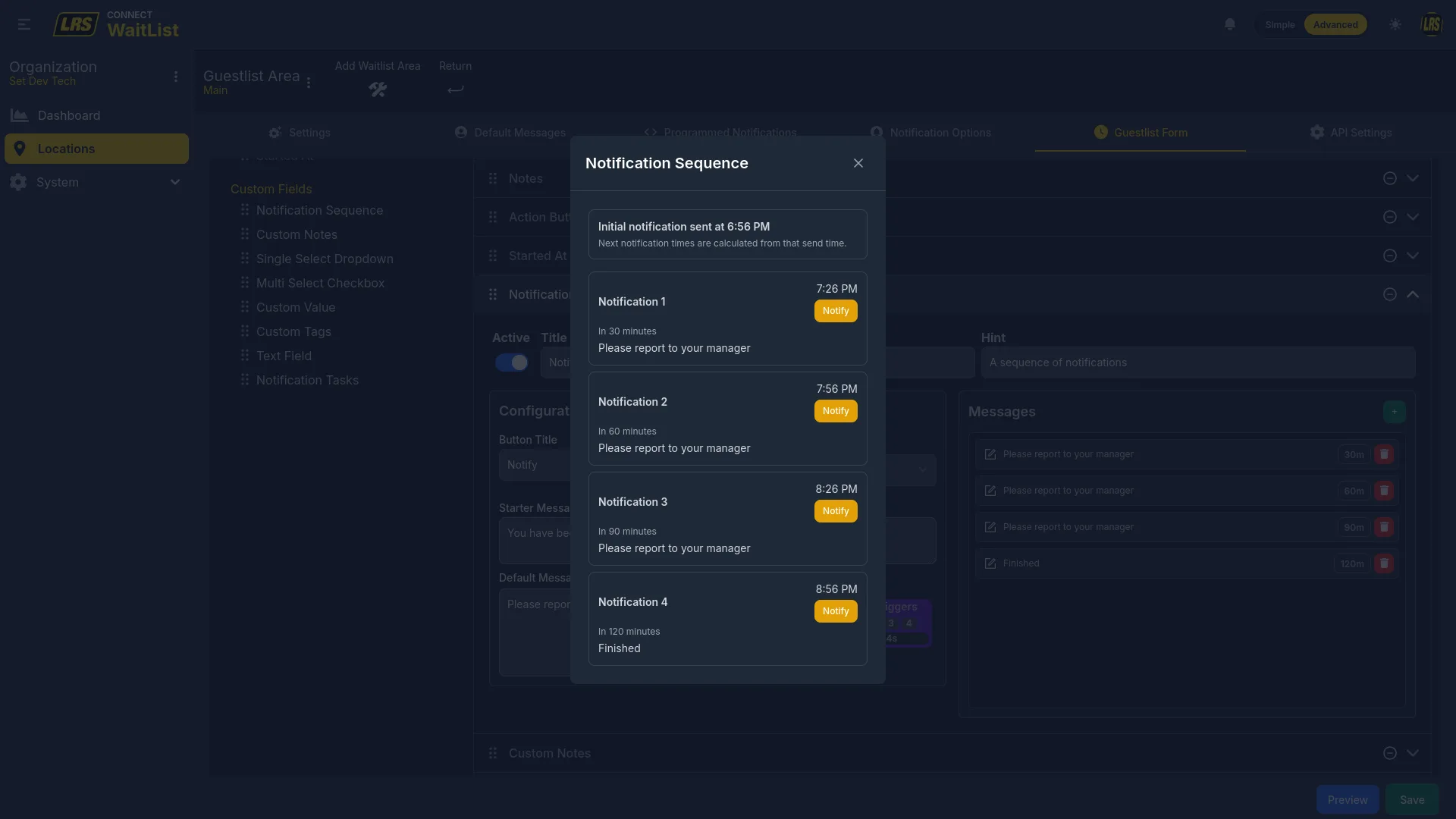
The Notification Sequence field creates a timed chain. Staff starts it per entry, and the interface calculates due times from the initial acknowledgement. Due steps must be sent with their Notify action; they do not send automatically.
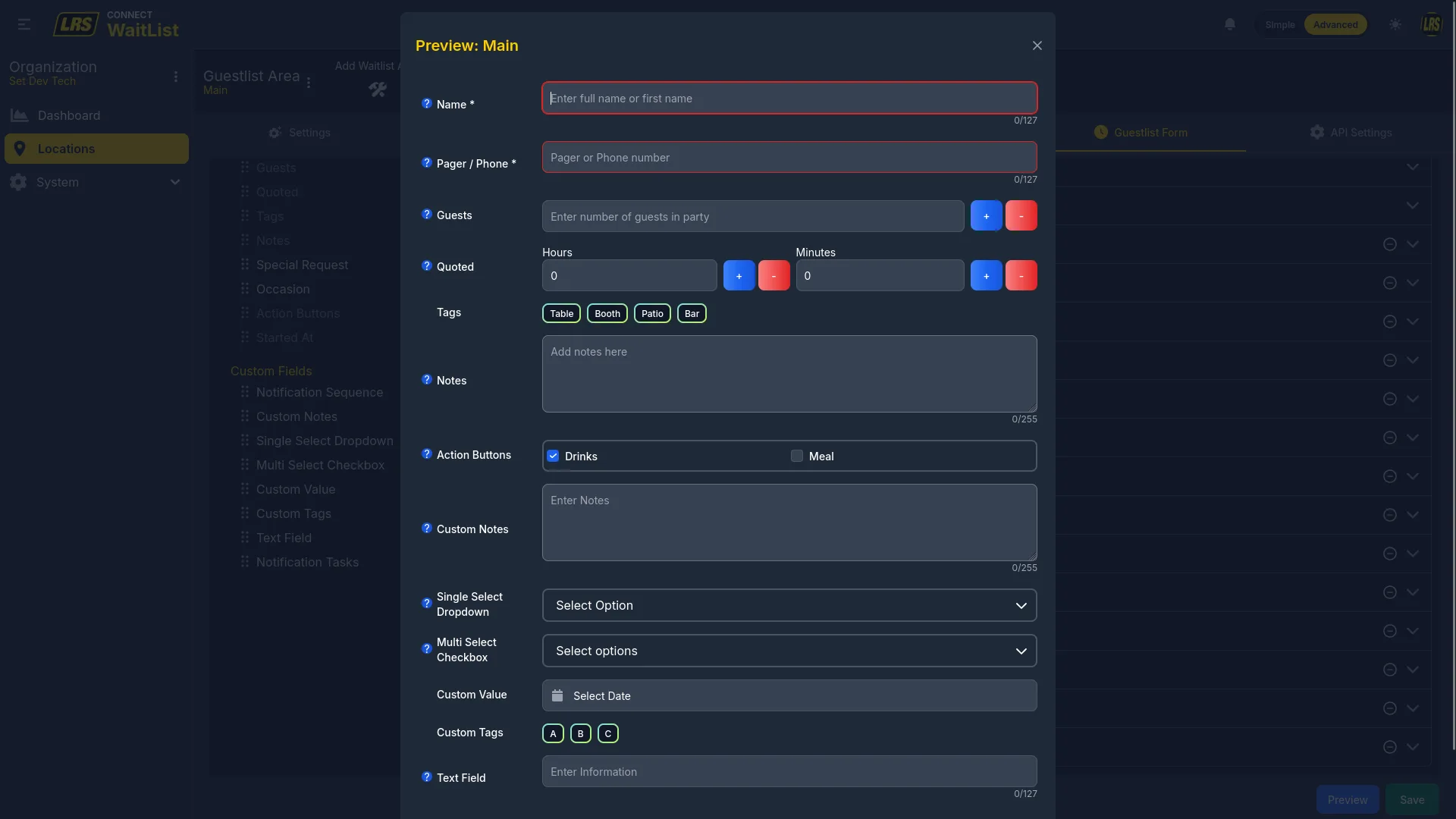
The preview modal for a Notification Sequence shows each step exactly as it will appear in the live Waitlist app, including the scheduled timestamps and individual Notify buttons that allow manual early firing if needed.
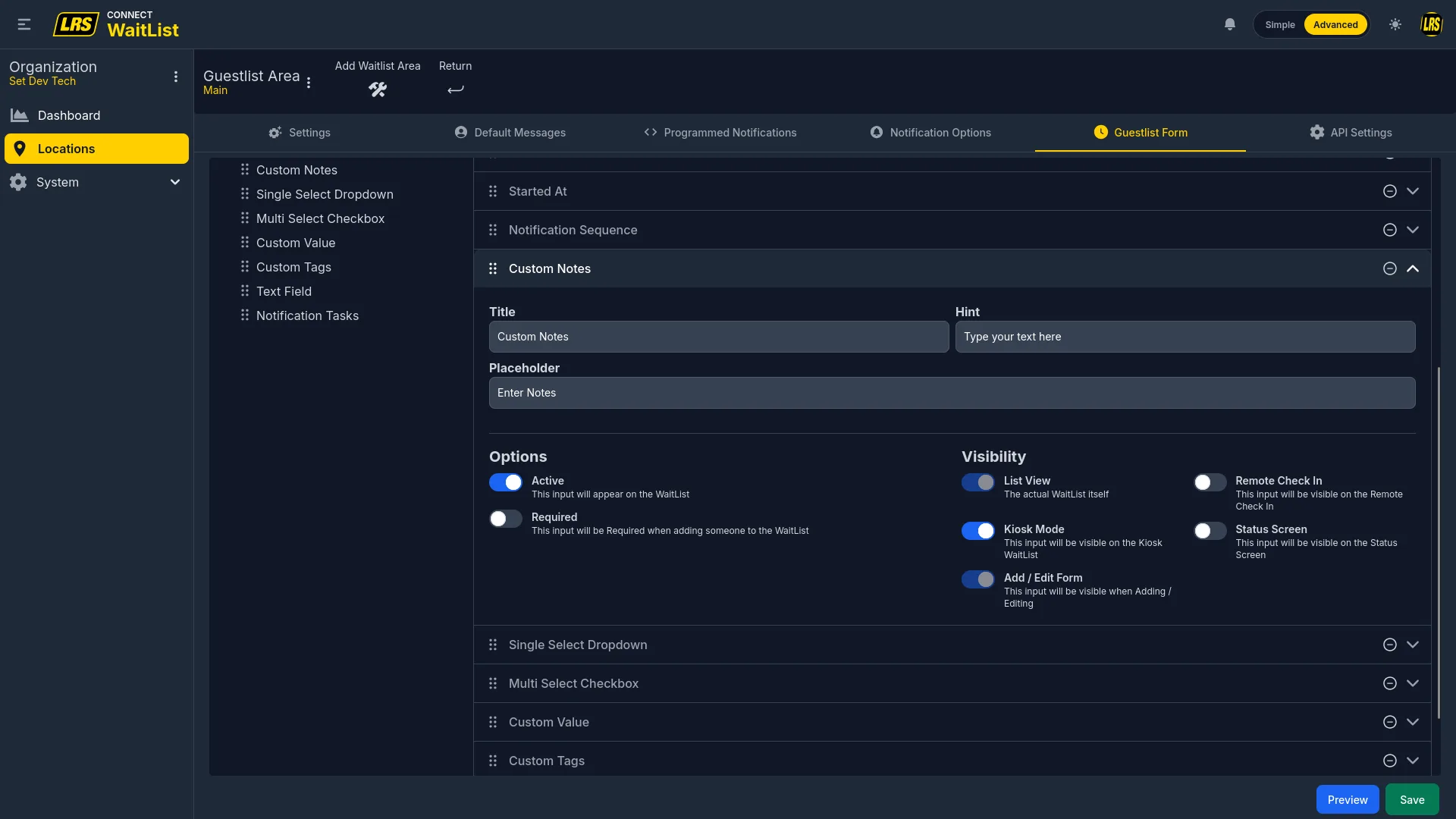
Custom Notes is a second free-text annotation field, independent of the system Notes field. Use it when two distinct note types are needed on the same entry form — for example, one for kitchen notes and one for front-of-house notes.
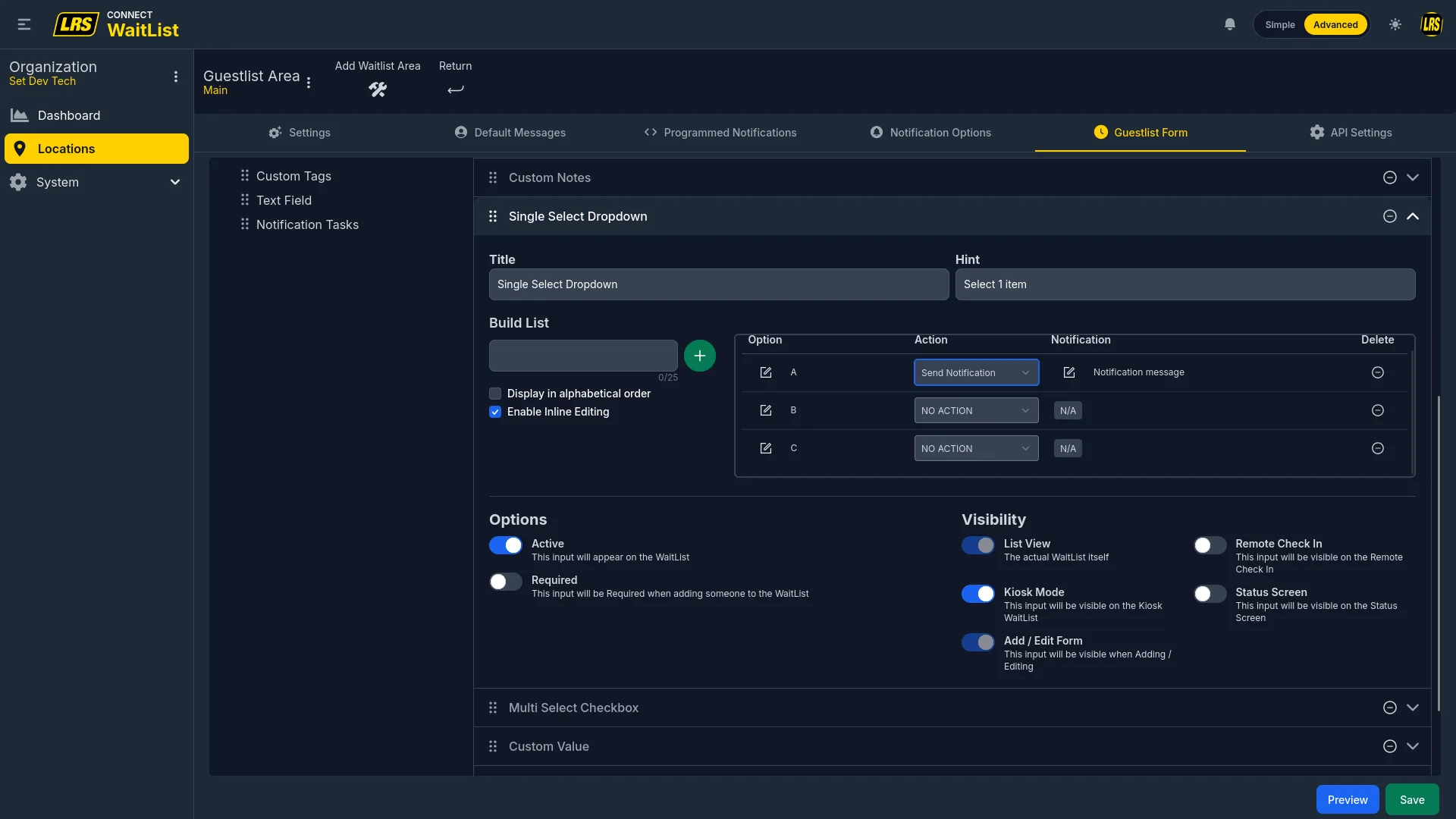
The Single Select Dropdown restricts the entry to one option from a predefined list. Each option can trigger a specific notification or take no action, making it suitable for routing entries by preference or service type.
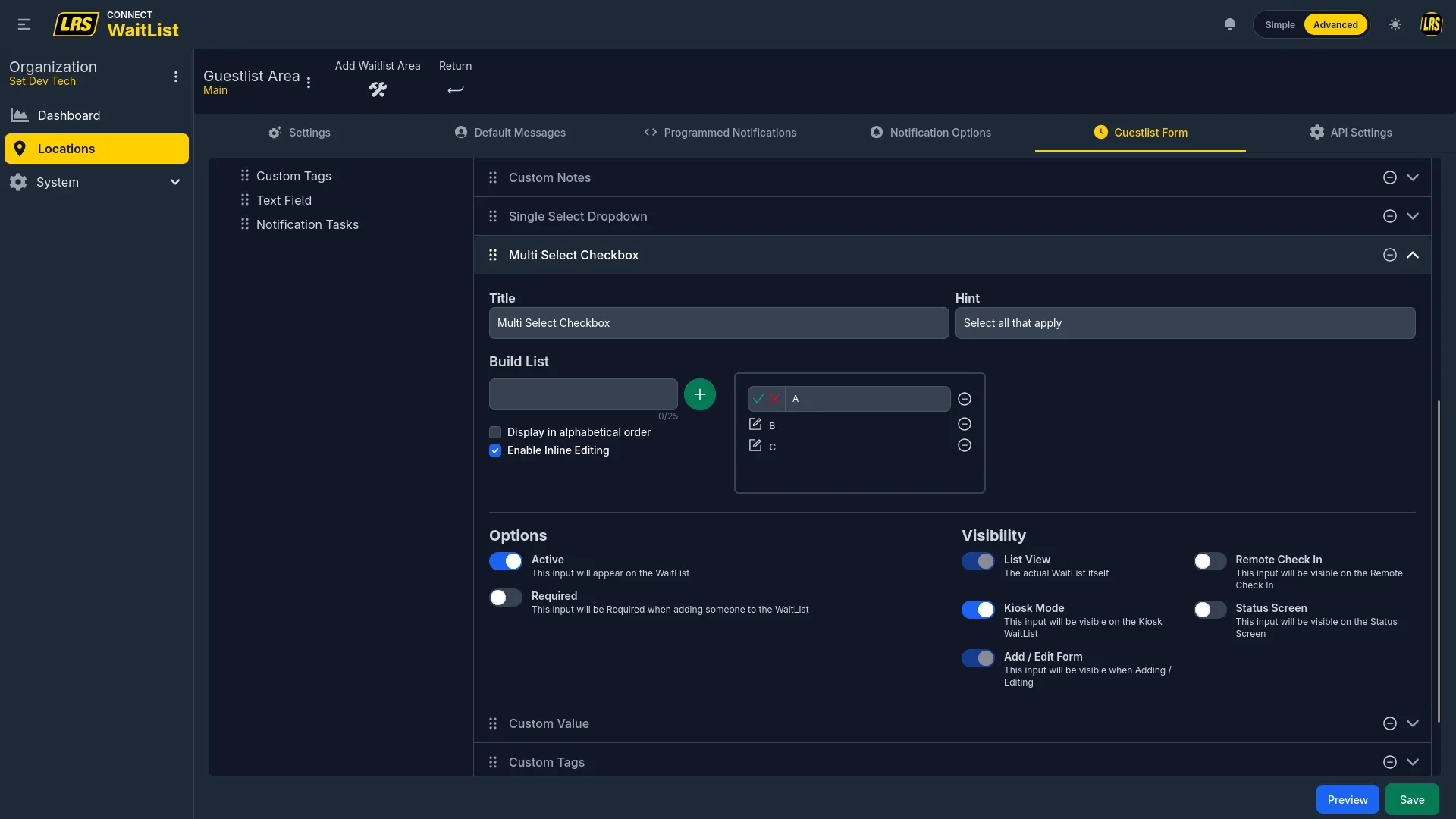
The Multi Select Checkbox allows multiple simultaneous selections from the predefined list. Use it for capturing preferences where more than one answer applies.
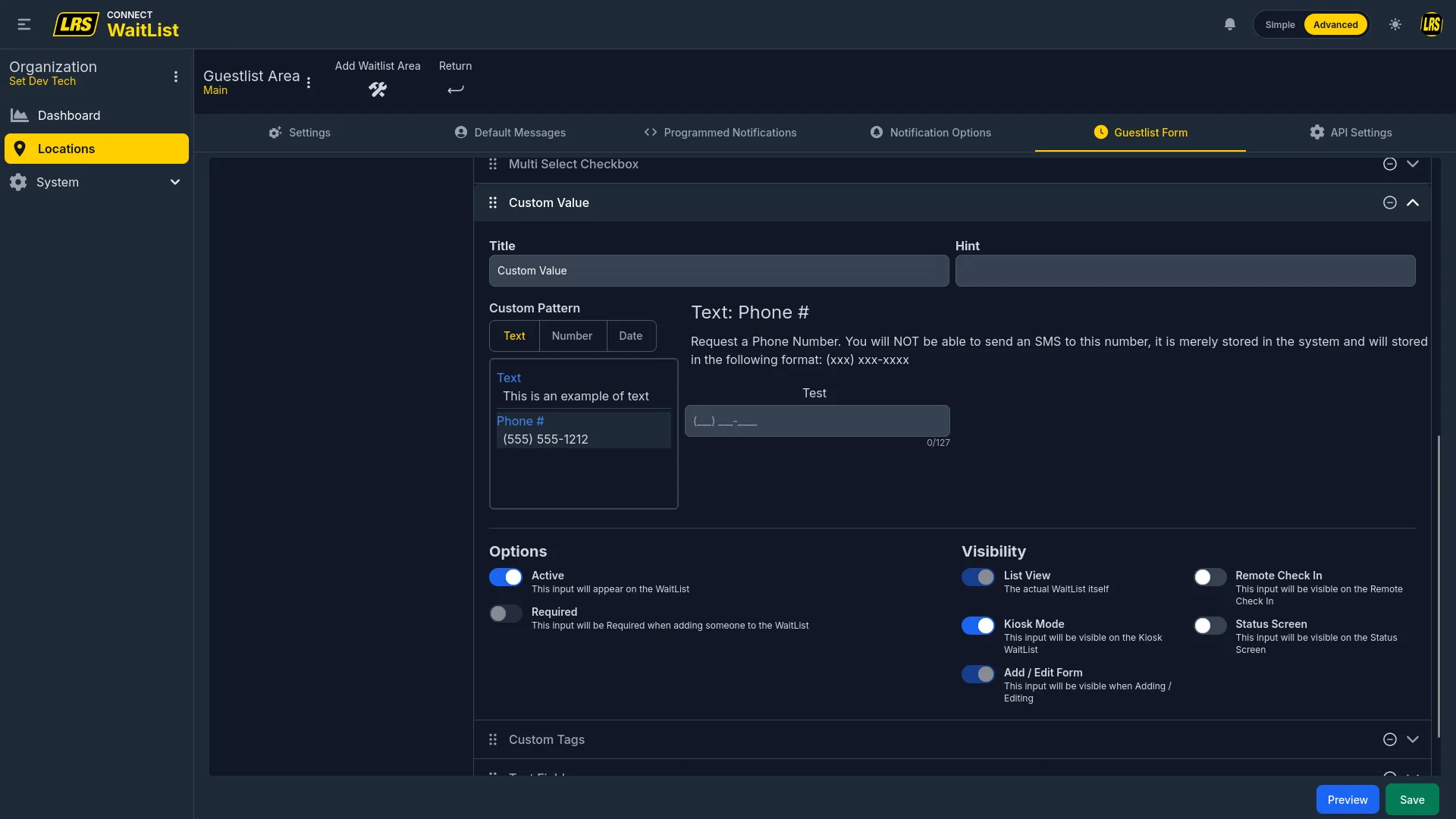
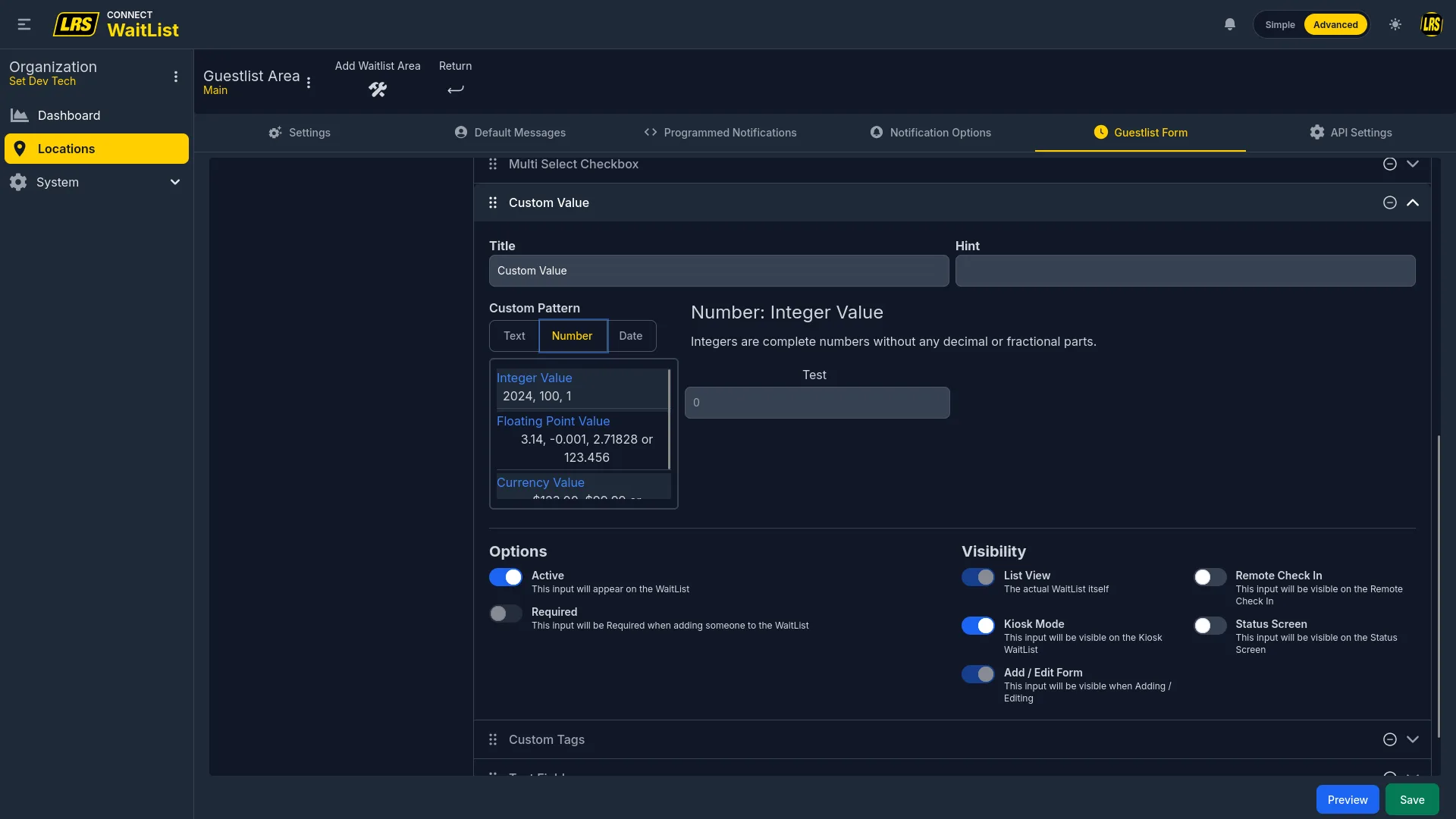
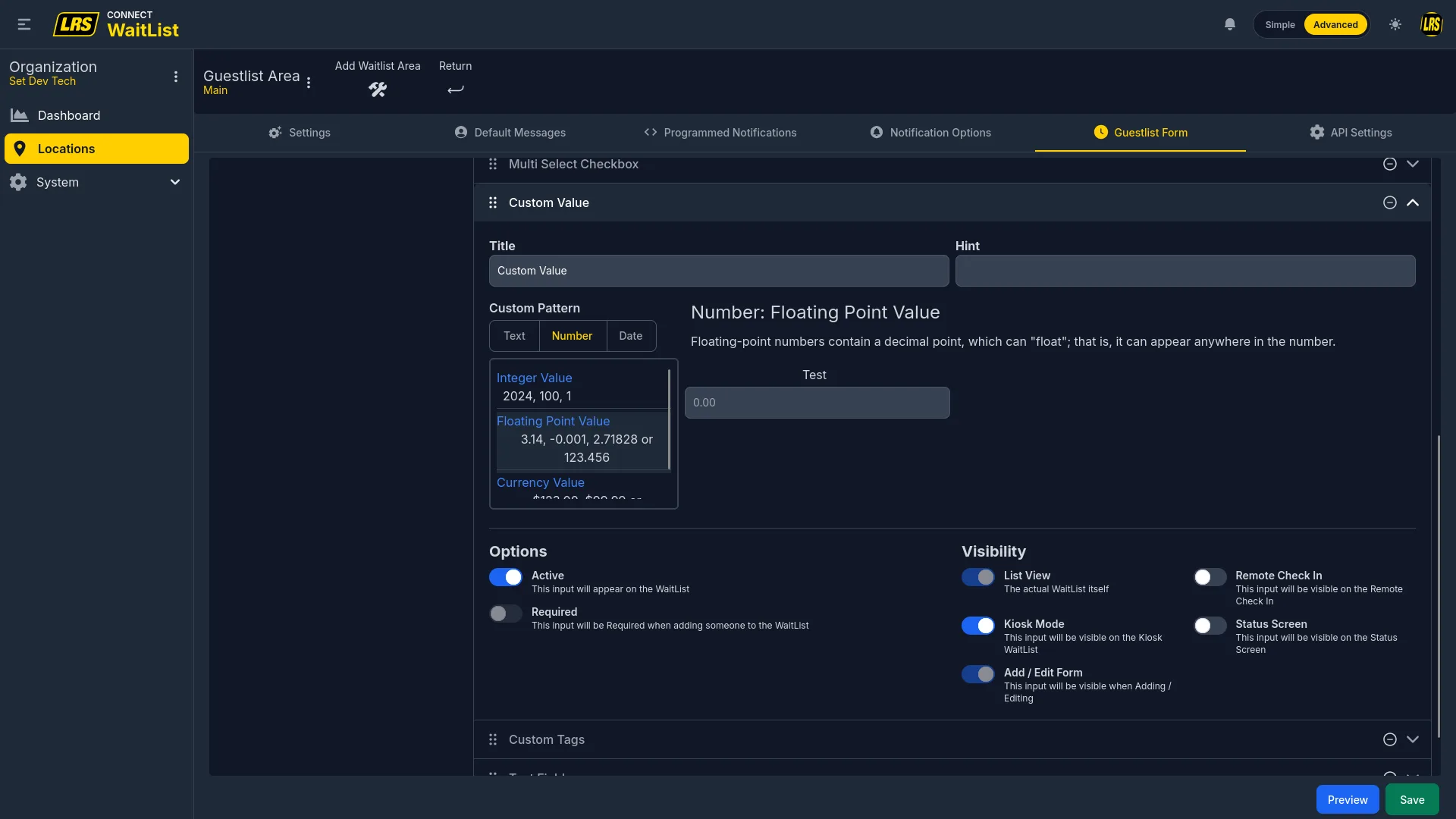
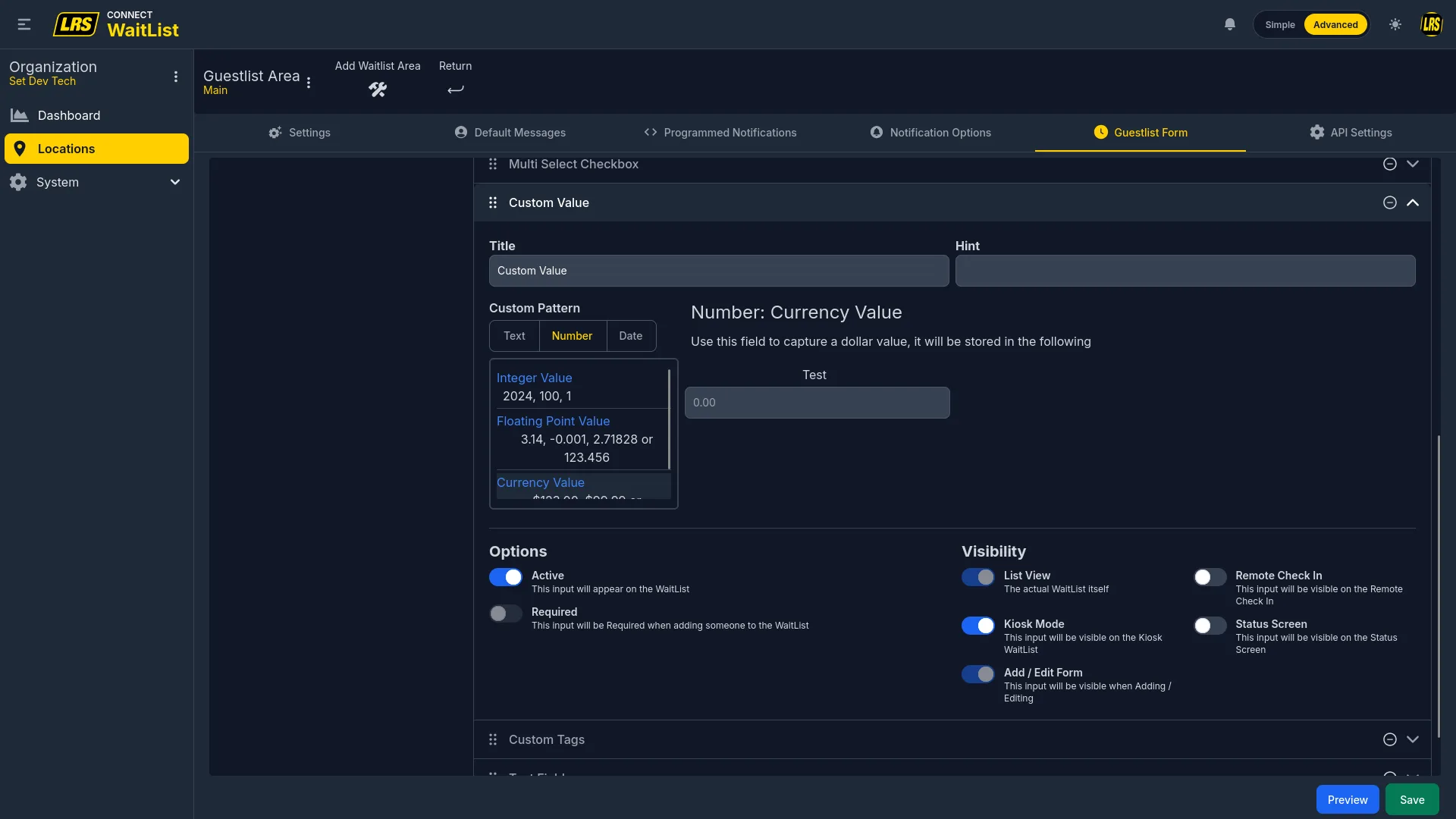
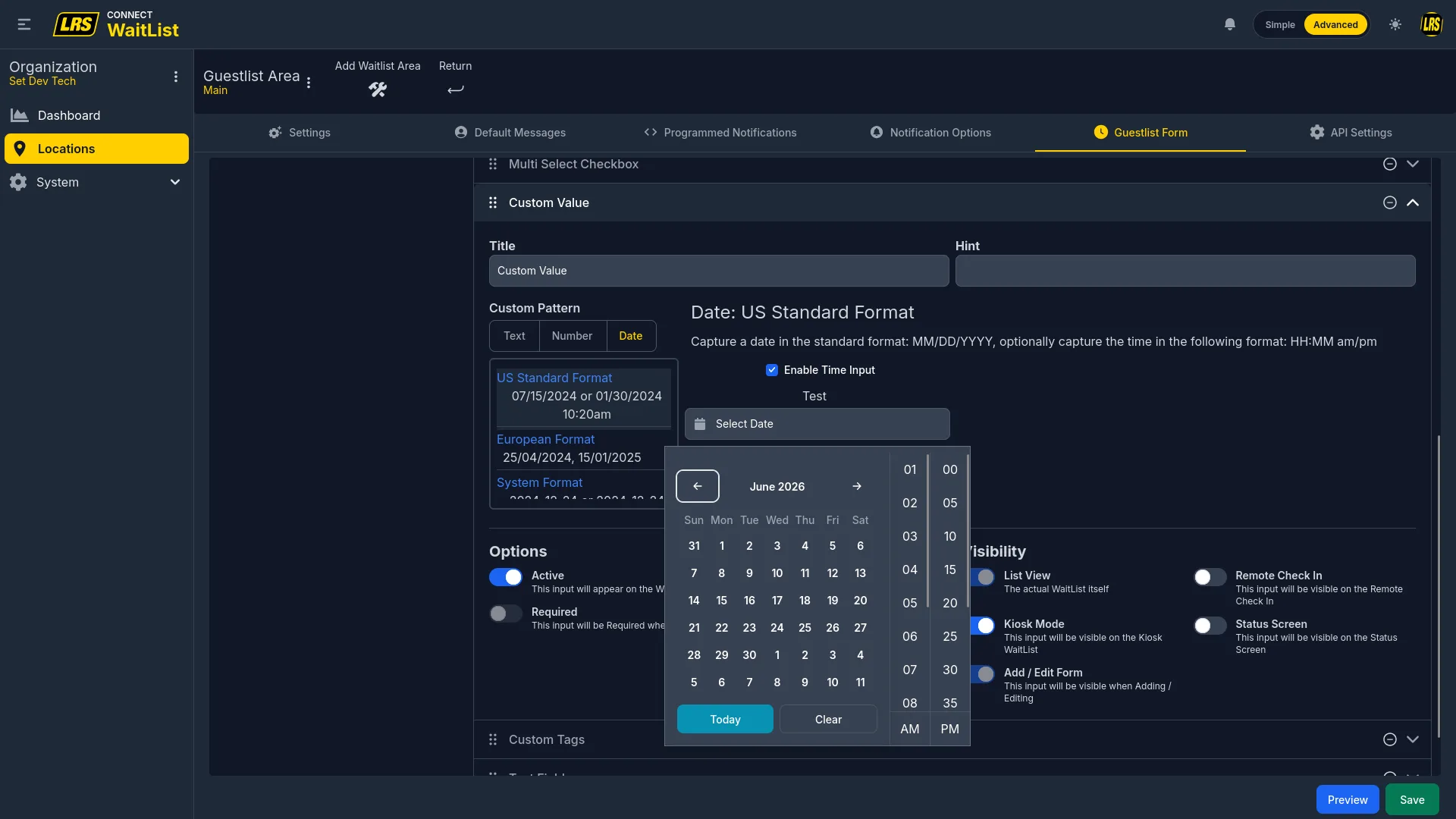
The Custom Value field is a single configurable field that supports six data input patterns. The pattern is selected when configuring the field and determines the input type, validation rules, and how the value is formatted for display.
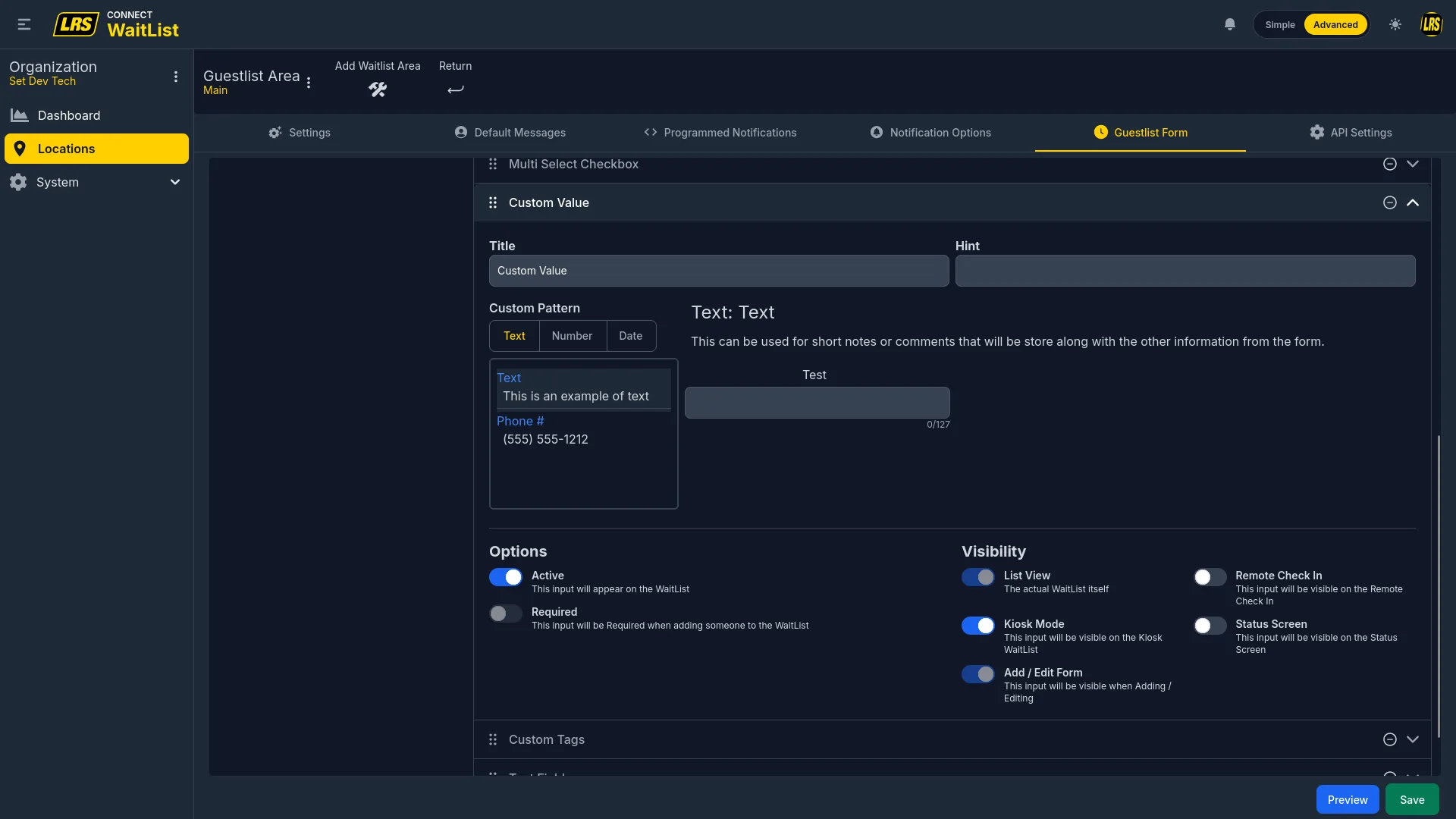
The Phone # sub-pattern within Text enforces (xxx) xxx-xxxx display formatting. This captures a secondary contact number for data purposes only — it does not replace the Pager/Phone notification field.
The Integer pattern accepts whole numbers only. Use it for table numbers, reservation IDs, or any discrete numeric capture.
The Floating Point pattern accepts decimal numbers. Suitable for measurements or any fractional numeric capture.
The Currency pattern formats the input as a dollar value. Use it for deposits or estimated tabs.
The Date pattern opens a calendar picker. Format options include US Standard (MM/DD/YYYY), European, and System Format. An optional time component can be enabled alongside the date.
Custom Tags is a free-form tagging field independent of the system Tags field. Predefined options are configured here and appear as default chips; staff can also type new tags in the live app.
Notification Tasks creates a multi-step guest-notification workflow. Staff sends the guest notification, waits for acknowledgement, and confirms the task. Later due notifications are sent manually. Auto Close Booking can finish the entry after the final task.
When multiple custom fields are active they stack in the right panel in the order they were added. Drag to reorder — the stack order is exactly what staff sees in the live entry form.
Before saving the form configuration, use the Preview button at the bottom-right of the Form Designer to render all active fields exactly as staff will see them when adding a new entry. Check field order, required markers, and placeholder text before the location goes live.
7. Org Manager
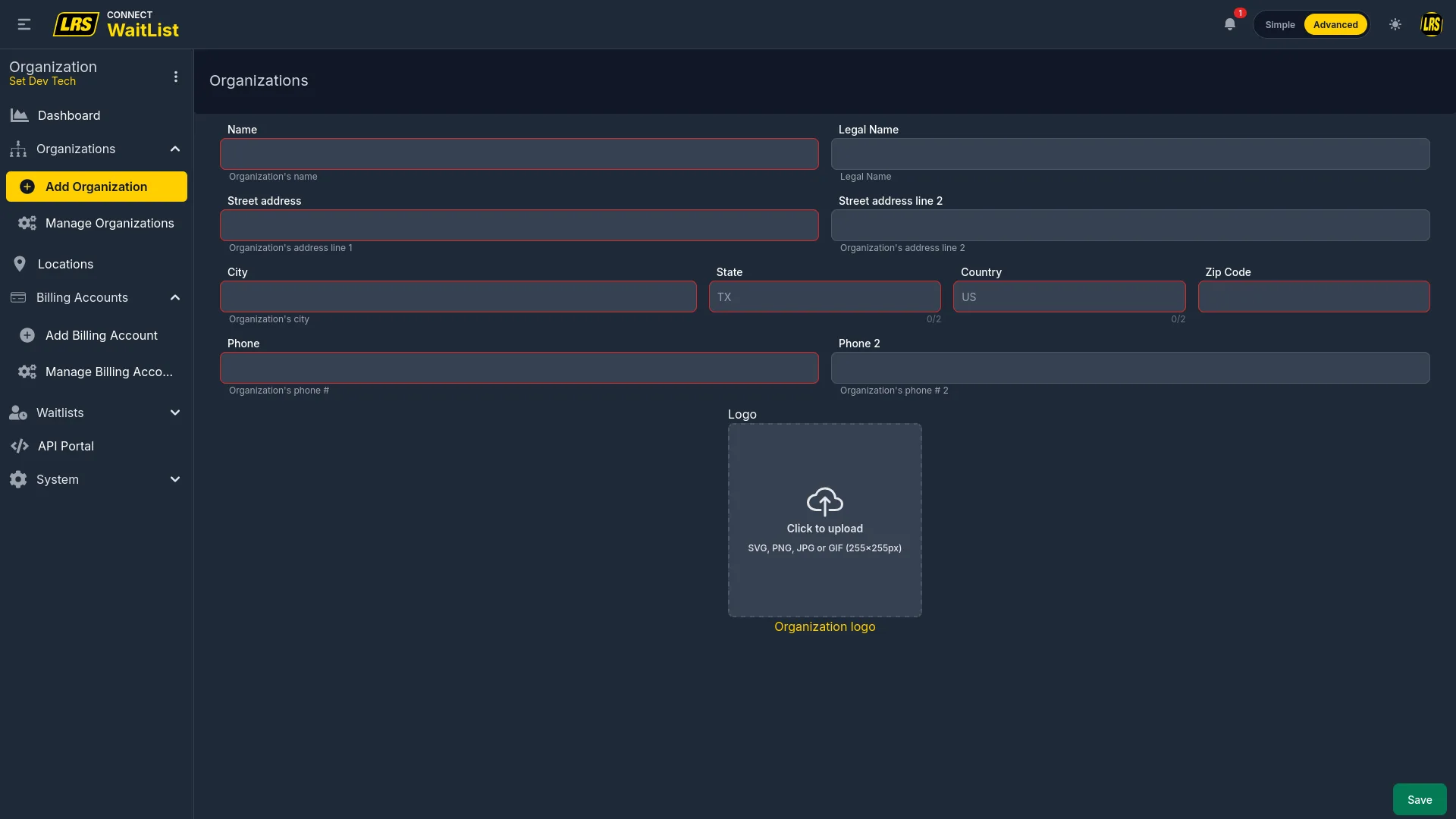
Organization managers oversee the organizations assigned to them. They configure the organization profile, handle billing accounts, monitor financial health, manage API access, manage org-level users, and build the waitlist structure that location managers later assign to their locations. Creating new organizations requires account admin or owner access — org managers can manage existing ones but cannot add new ones.
The Organizations section in the sidebar provides access to Add Organization (visible to admins and owners only) and Manage Organizations. Org managers see only the organizations they have been assigned to.
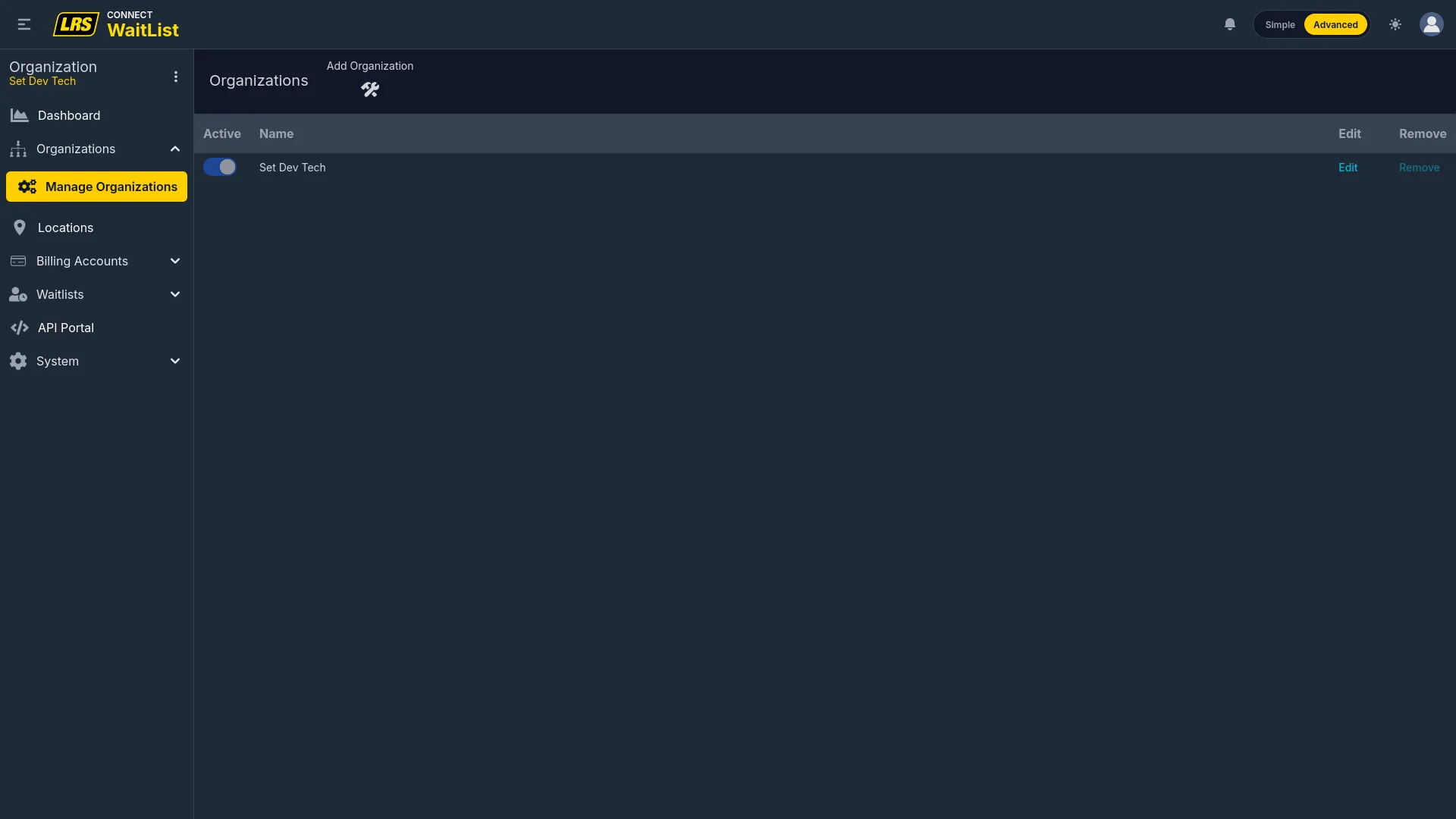
The Manage Organizations list shows all organizations in the account. Toggling Active off deactivates the organization without deleting it. Remove is only enabled when the organization is inactive.
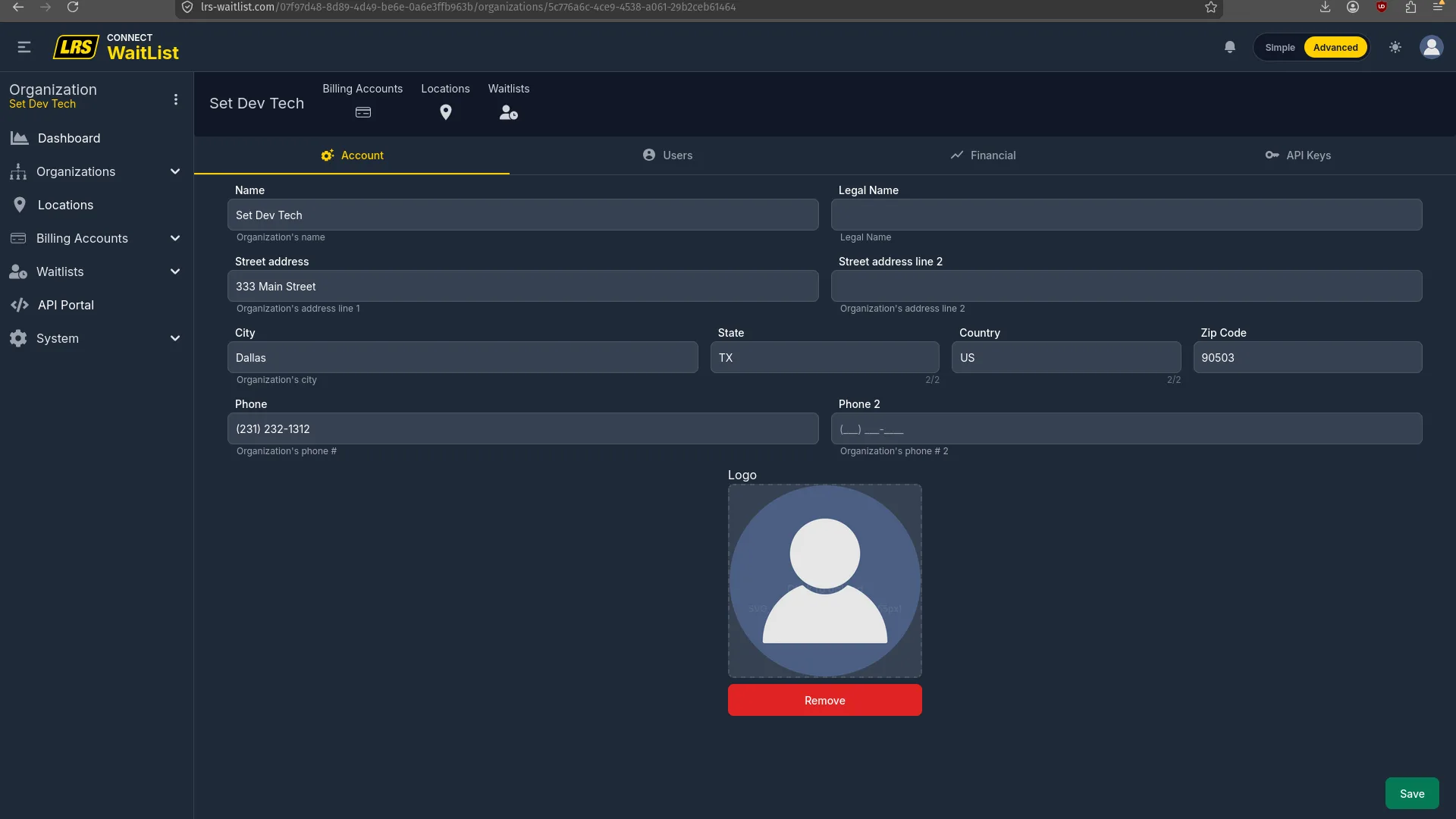
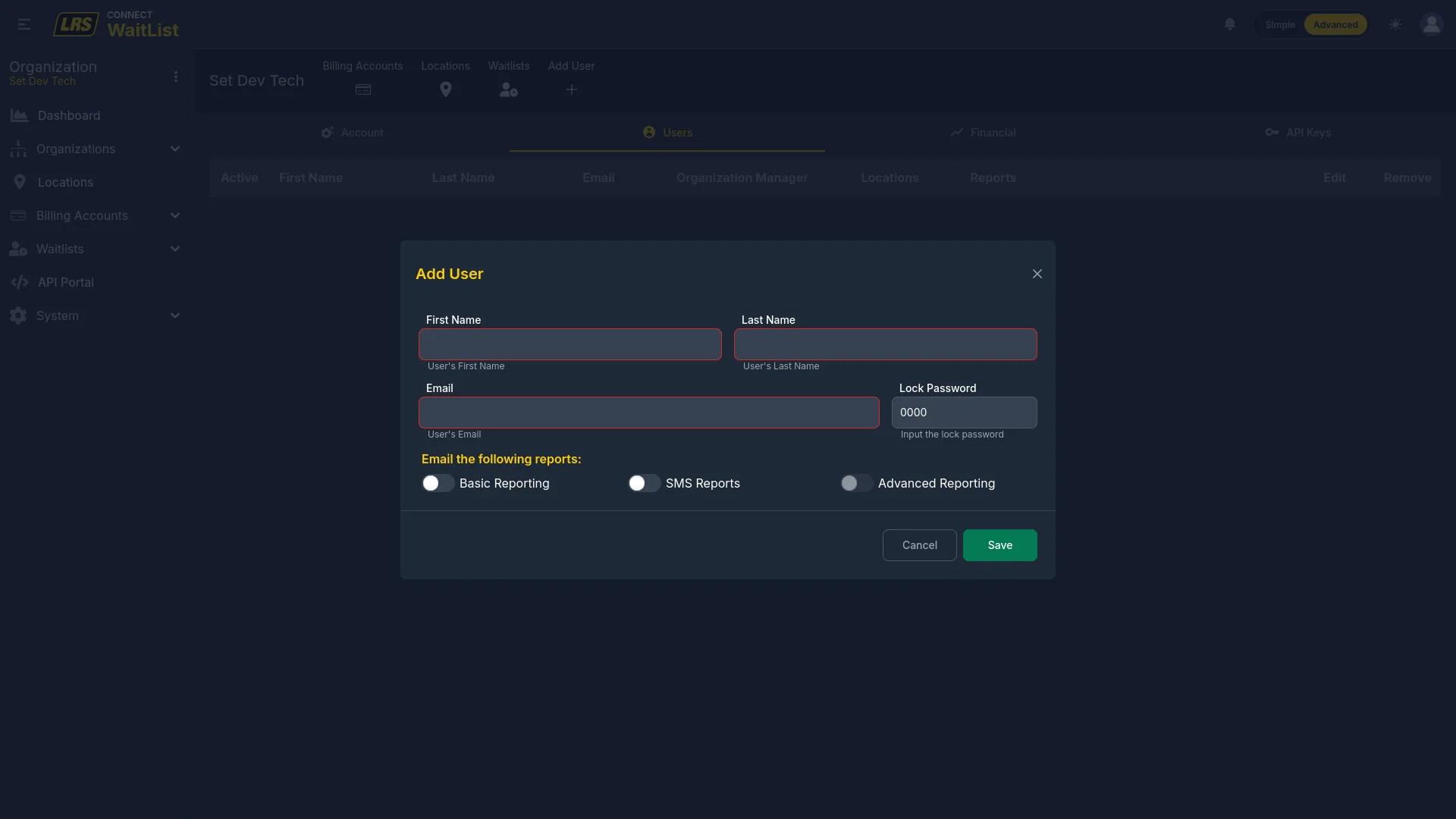
The Organization Account tab stores the profile and logo. The shortcut bar at the top of the edit view navigates directly to Billing Accounts, Locations, Waitlists, and the Add User flow without losing the organization context.
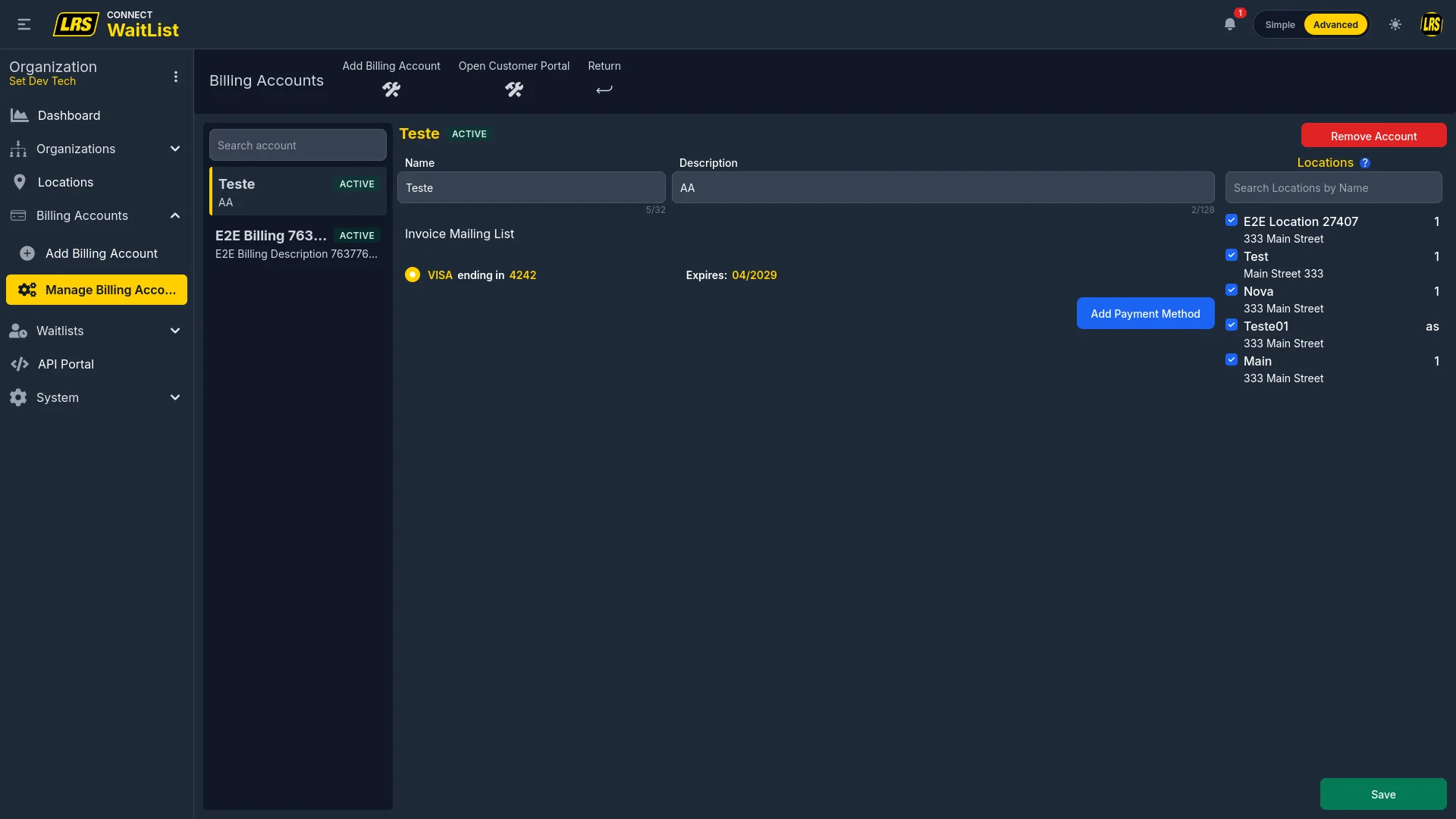
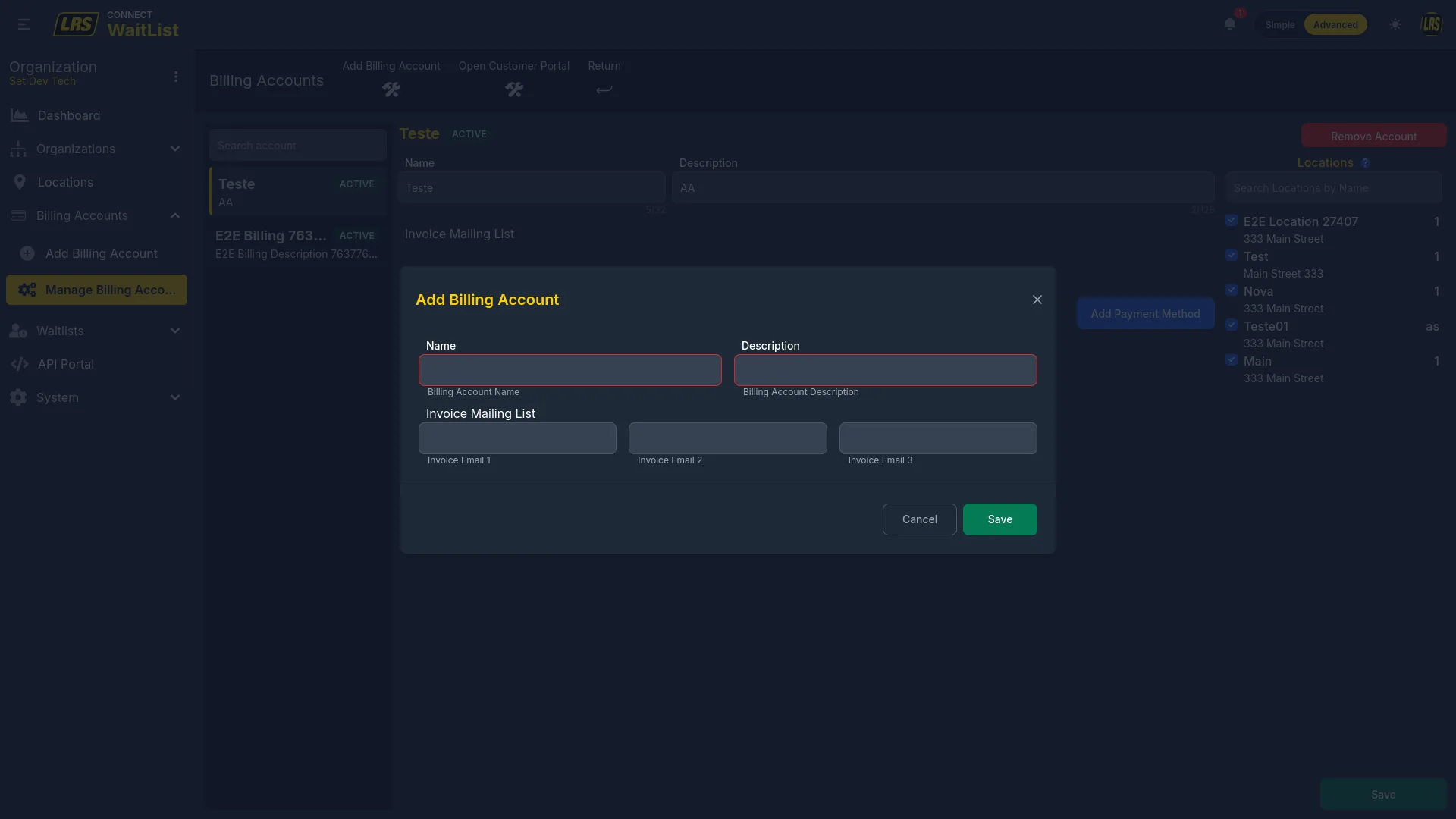
A billing account stores the collection details, invoice recipient emails, and location assignments. Billable locations require a billing account; locations that do not currently need billing may remain unassigned. The left panel lists accounts, and the detail panel manages payment, recipients, and assignments.
Every billing account collects in one of two ways, chosen when the account is created. Automatic card charges a saved credit card on a recurring 30-day cycle. Annual invoice charges nothing to a card — LRS issues an annual invoice that is sent to the account’s invoice recipients and paid separately. The mode is fixed once the account exists; to change it, create a second billing account in the mode you need and reassign the locations to it.
| Collection mode | What it requires and how locations are billed |
|---|---|
| Automatic card | Requires a saved credit card on the account; locations cannot be assigned until a card is stored. Assigned locations are charged automatically every 30 days until renewal is stopped. |
| Annual invoice | Requires at least one invoice email address; locations cannot be assigned until one is entered. Each assigned location is licensed for a term paid in advance against an annual invoice, and nothing is charged to a card. |
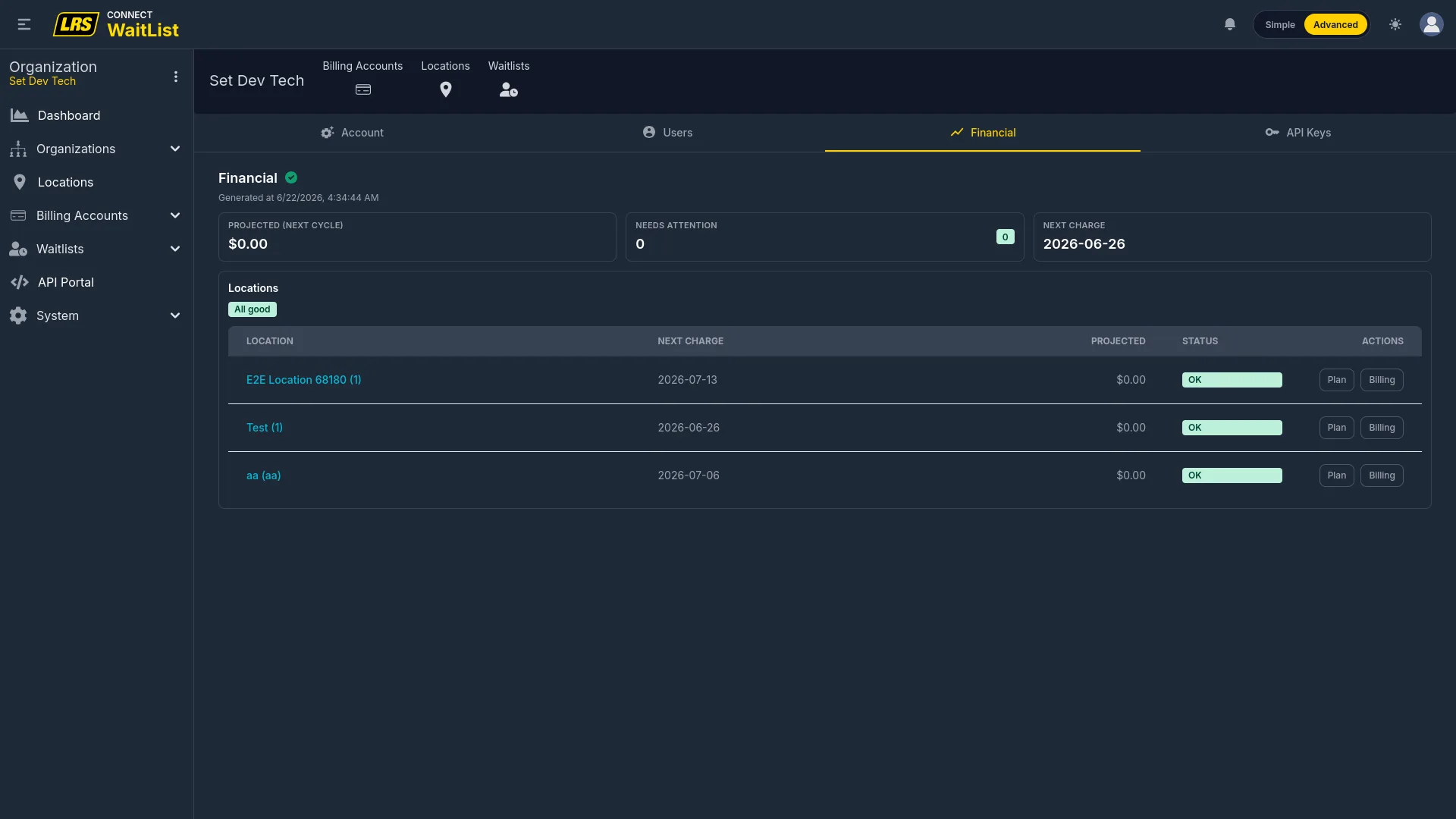
The Financial tab provides a billing health overview for the organization. Three stat pills summarize the picture: Projected (next cycle) shows the total expected charge for the next renewal, Needs attention counts locations with missing billing, expired plans, or payment issues, and Next charge shows the earliest upcoming renewal date. The per-location table lists each location with its next renewal date, projected amount, and a status badge — and includes Plan and Billing (or Issue) action buttons that link directly to the Service Plan tab or Billing Accounts for any location that needs fixing.
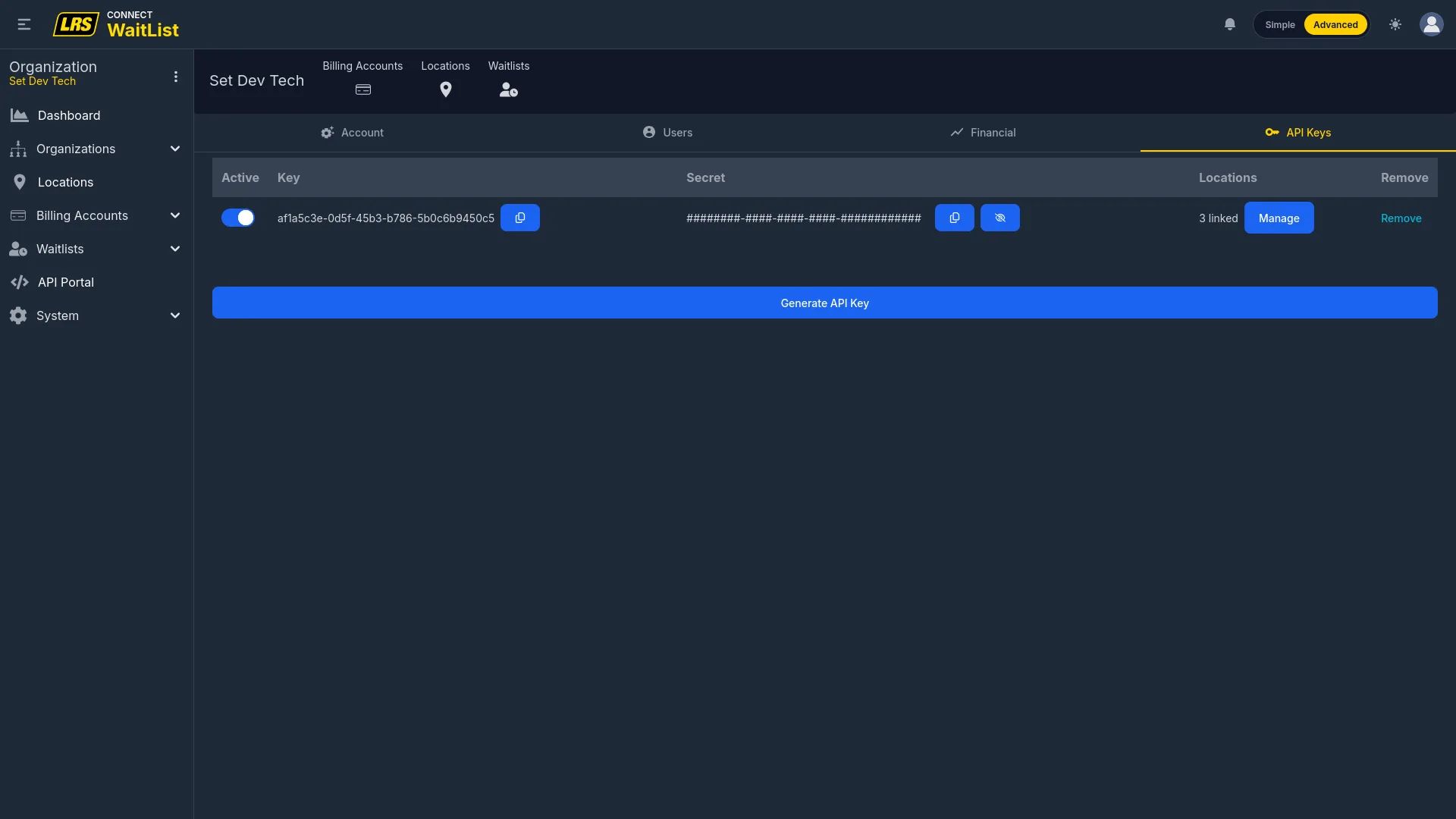
API keys and secrets are created in Dashboard. The secret is available there at creation and remains retrievable later by account owners, account admins, and organization managers from either Dashboard's organization API Keys tab or the API portal's API Keys page. Both interfaces mask the stored secret by default; reveal or copy it only when needed and handle it as a credential. An organization can have up to three API keys. Each key also has an Active toggle and a Manage button for assigning locations.
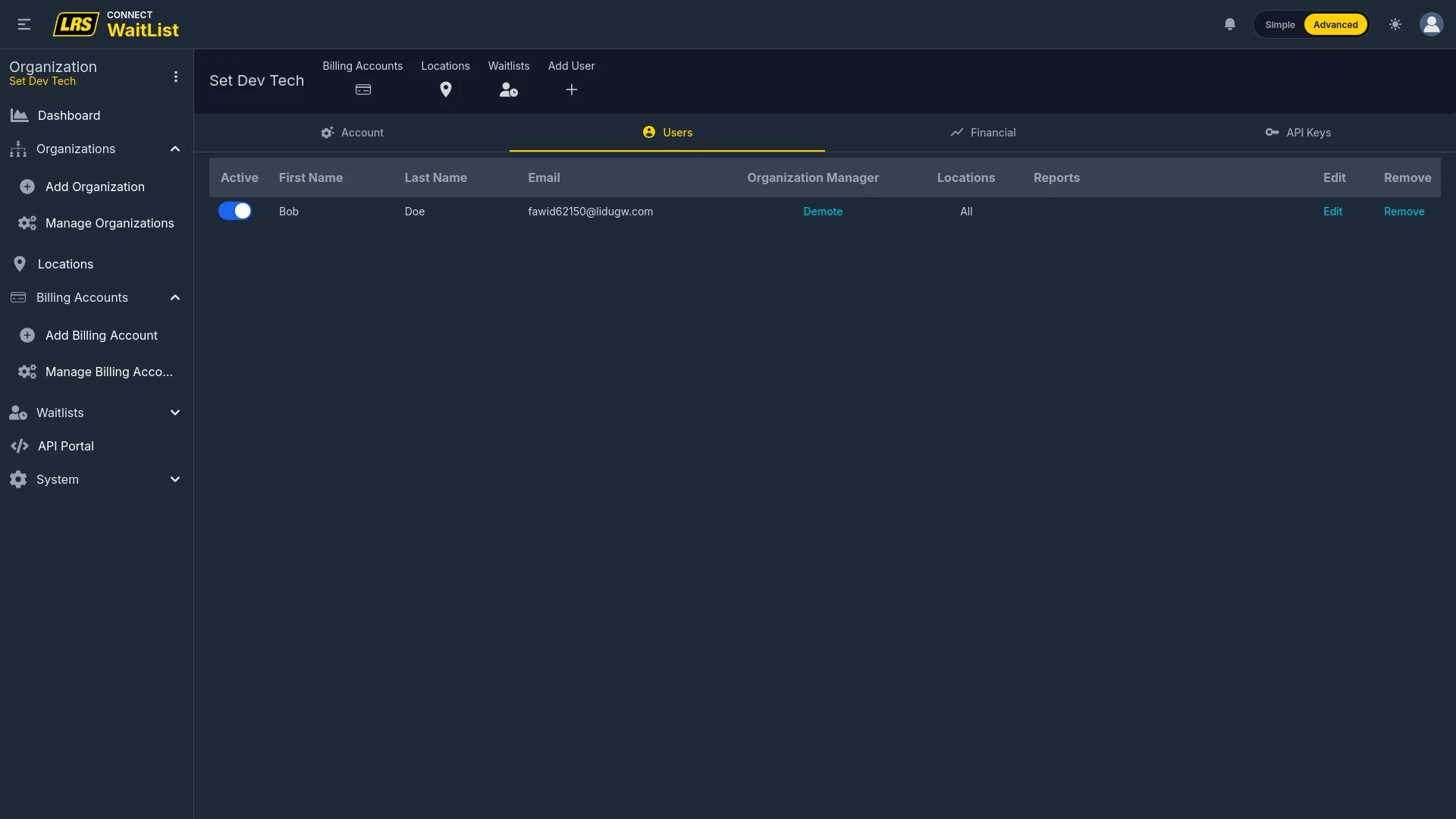
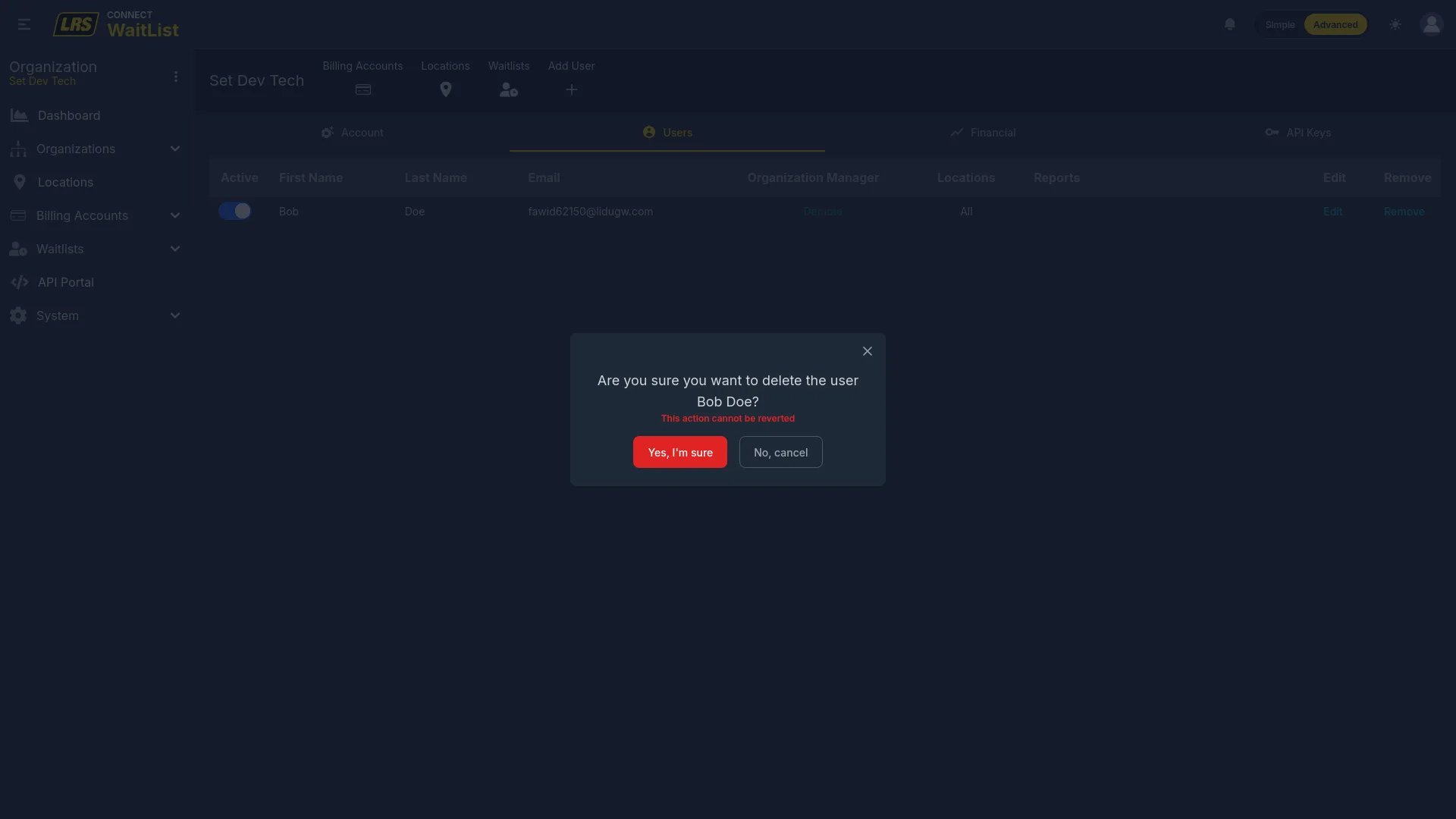
The Users tab inside an organization shows every user with access to it. The Organization Manager toggle changes only that organization role. The separate Active toggle changes the user's account-wide status, not only access to the selected organization.
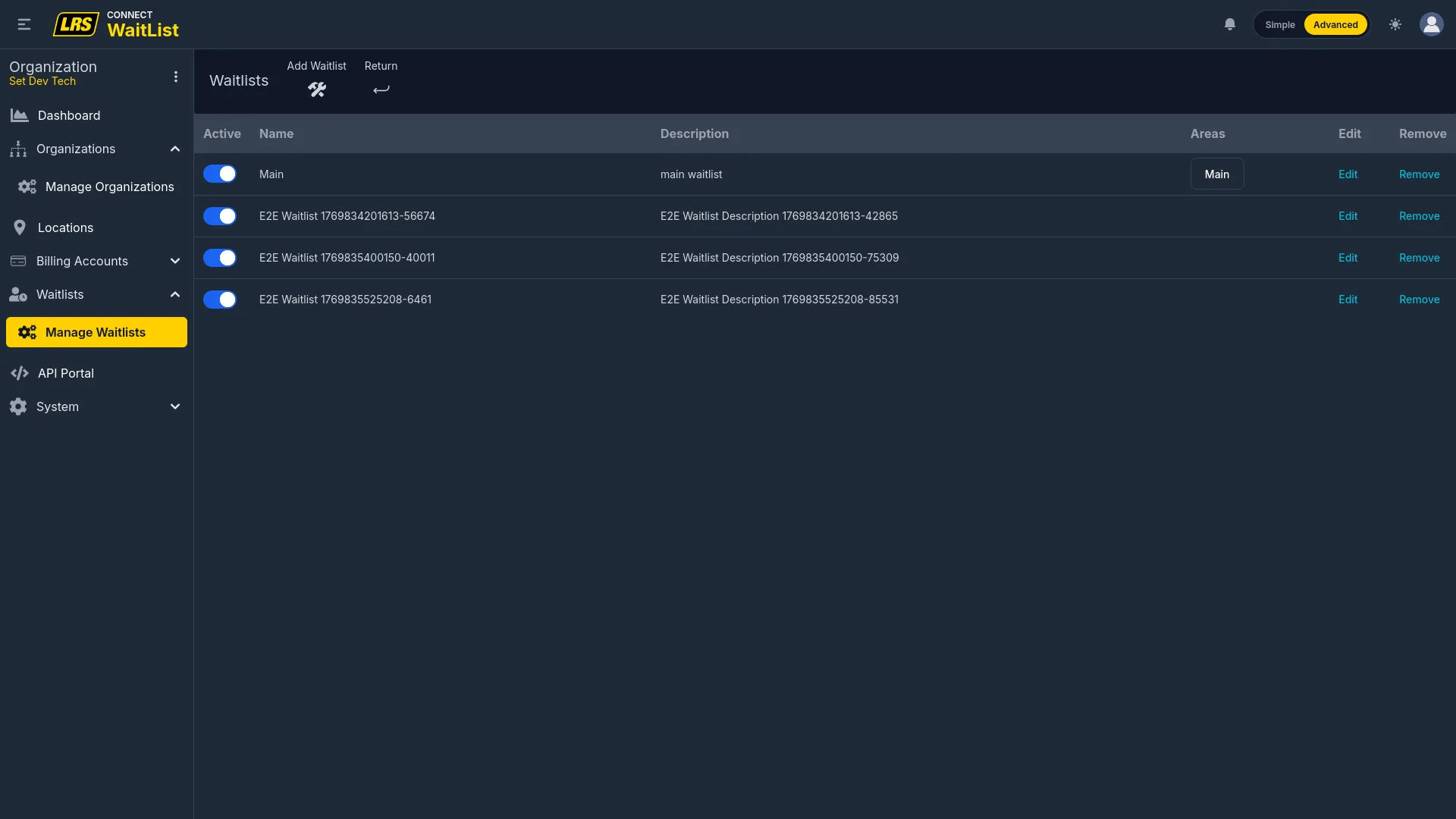
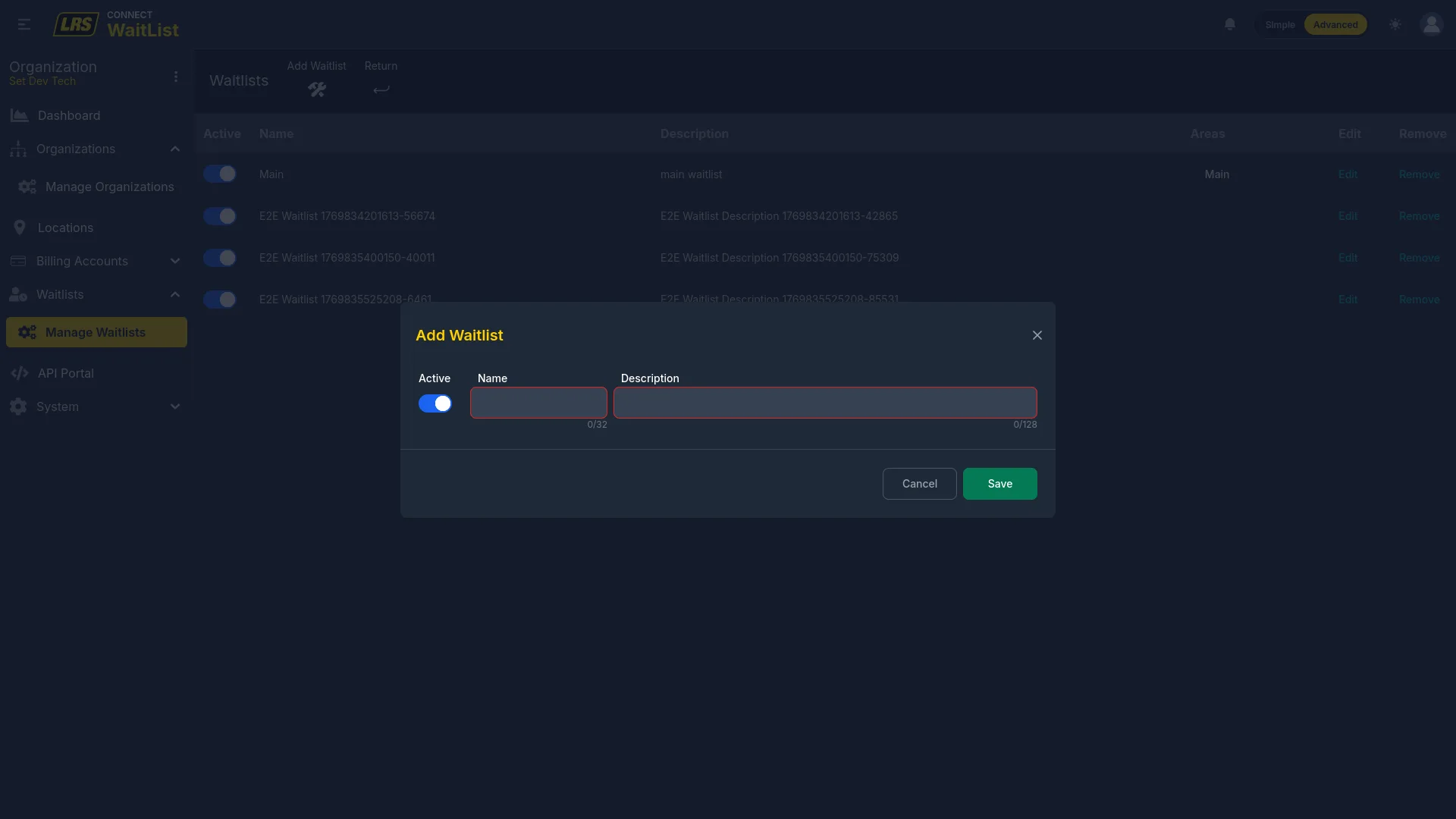
Organization-level waitlists are reusable templates. Assigning one from a location creates an independent location-specific copy with new identifiers; later template changes do not propagate to existing location copies.
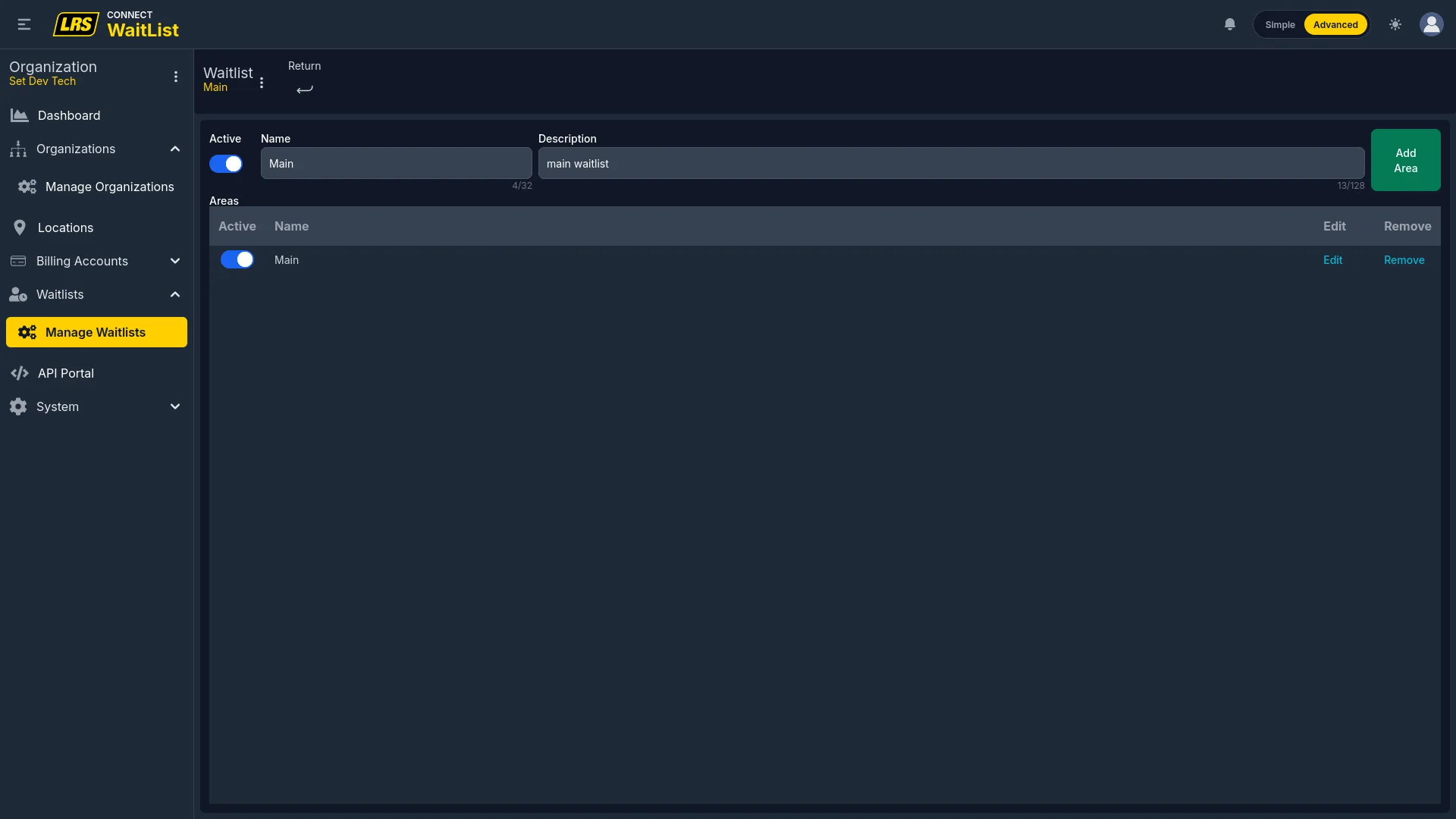
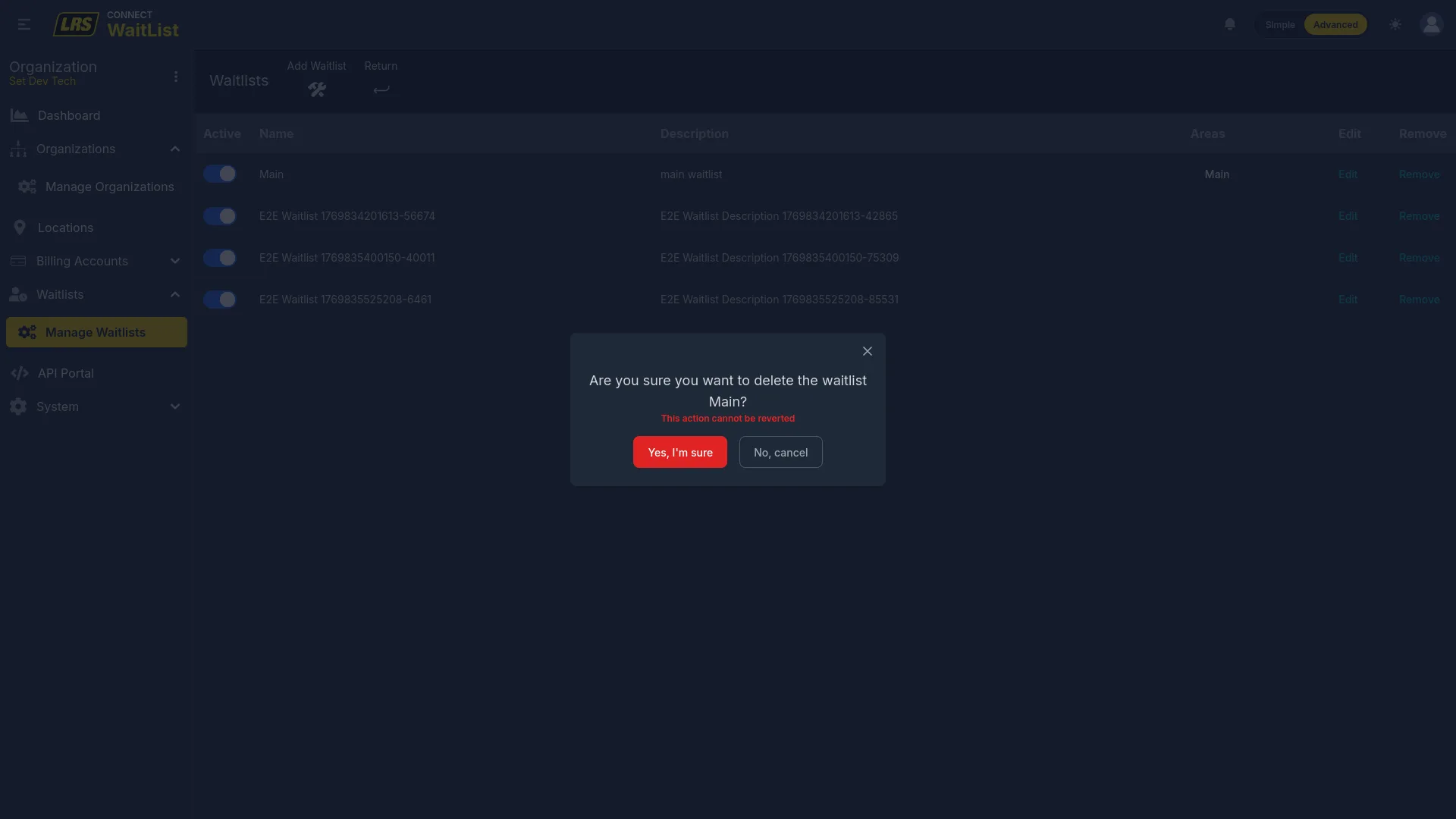
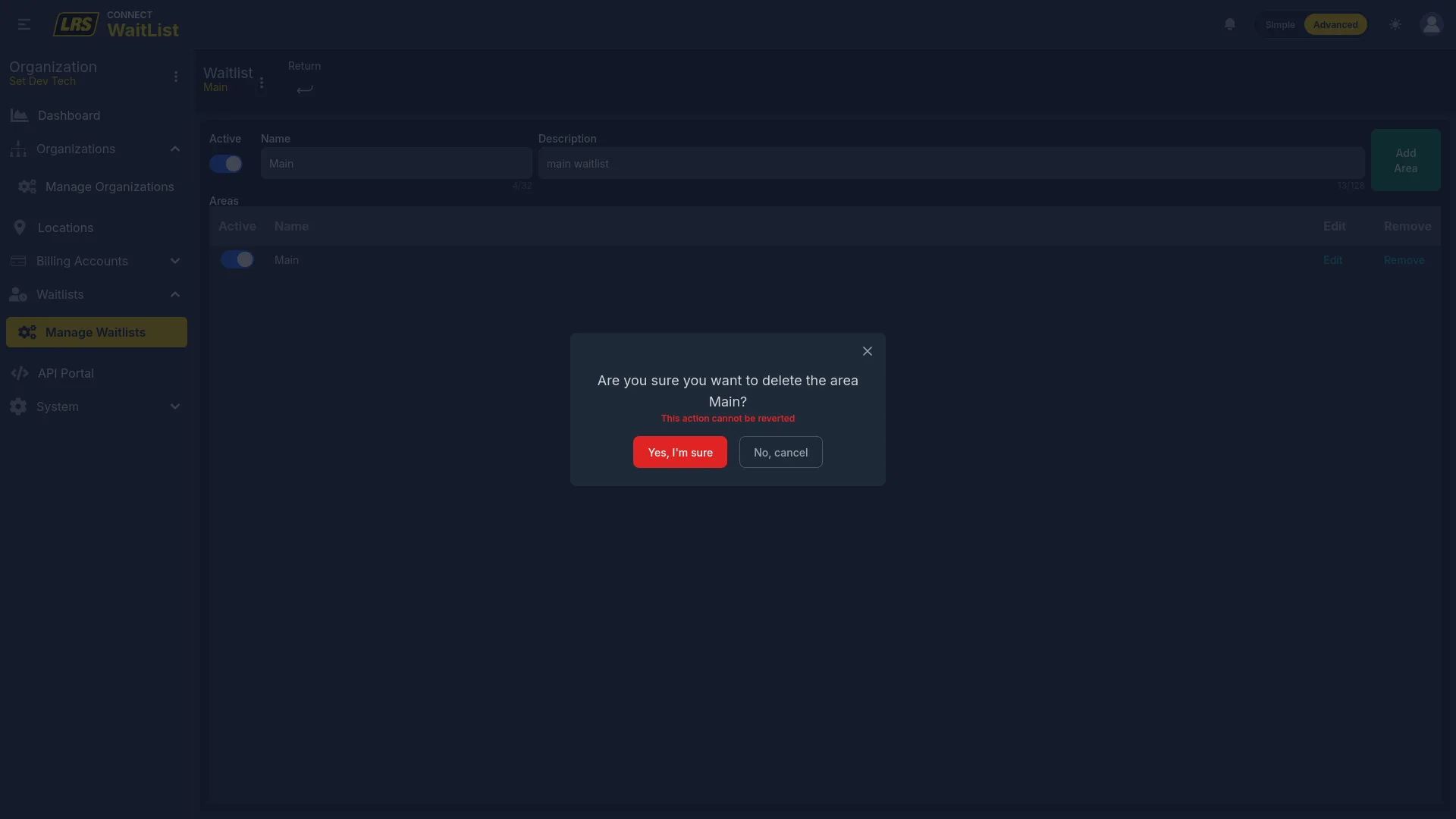
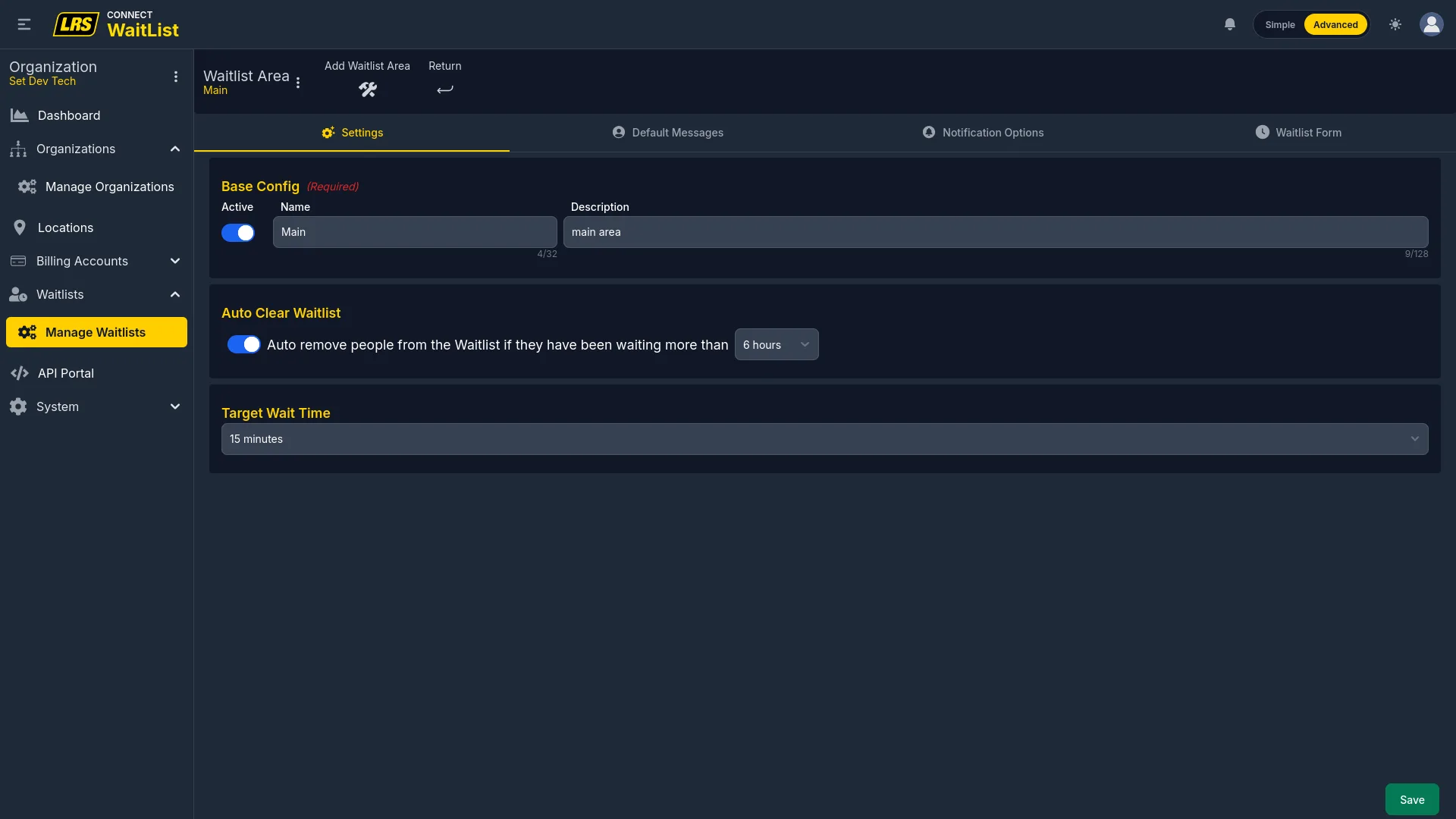
Areas added at the organization level become part of the reusable template. They are copied when a location assigns that waitlist and then evolve independently. At the organization level, areas have four tabs: Settings, Default Messages, Notification Options, and Waitlist Form.
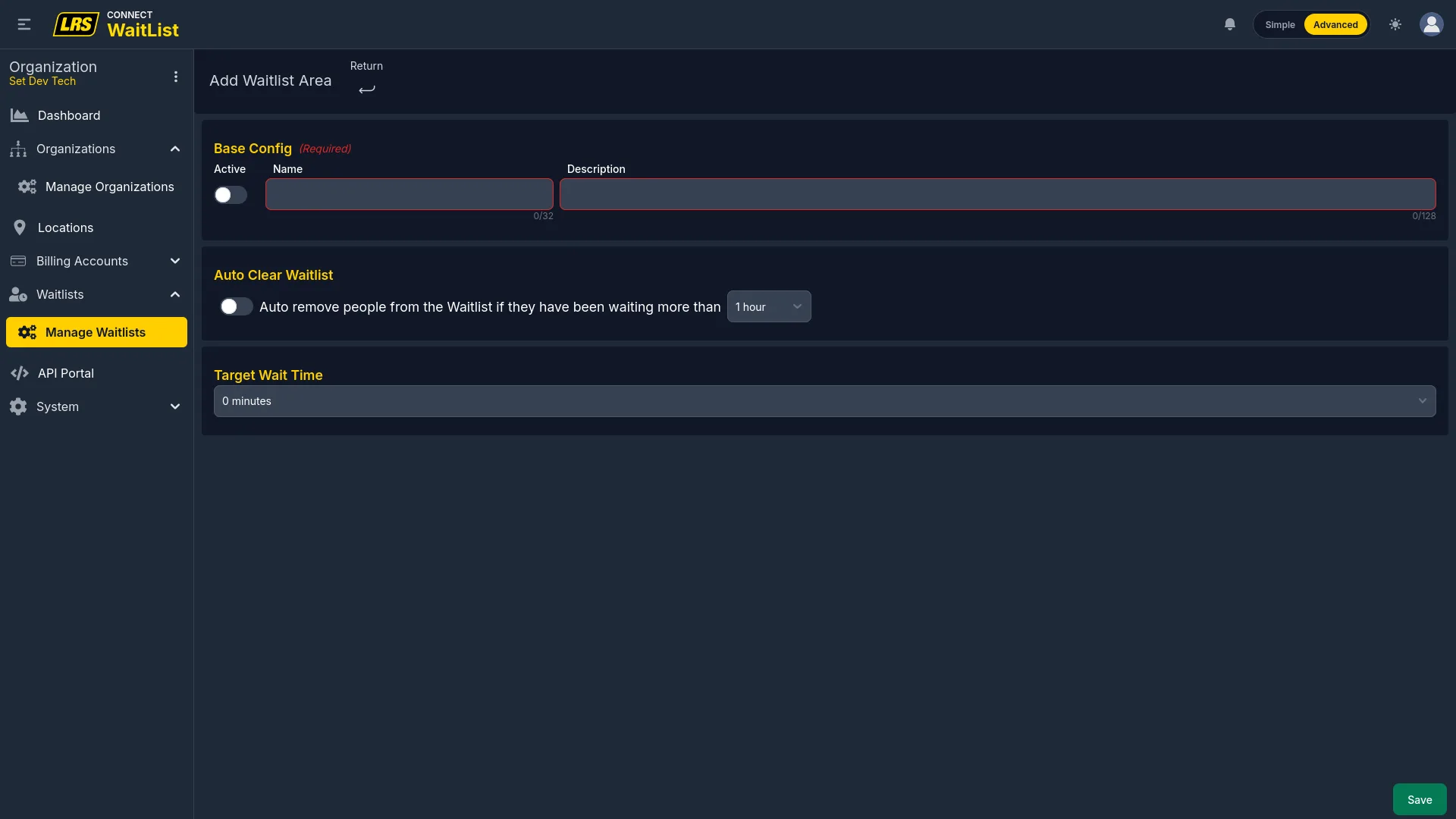
The Settings tab configures the template area's Active state, name, description, Auto Clear timeout, and Target Wait Time. These values seed future location copies but do not update copies already created.
Default Messages define the Confirmation, Notification, Check-in, and Cancel text copied into future location assignments. Editing either side later does not update the other.
Notification Options set the pager hardware type and alert pattern copied into future location assignments. Existing location copies are unchanged.
The Waitlist Form defines the form copied into future location assignments. Location managers edit their independent copy without changing the organization template.
8. Admin / Account Owner
Account admins and owners have access to System in the sidebar, which contains global user management and the auditing log. These features are not visible to org managers or location managers.
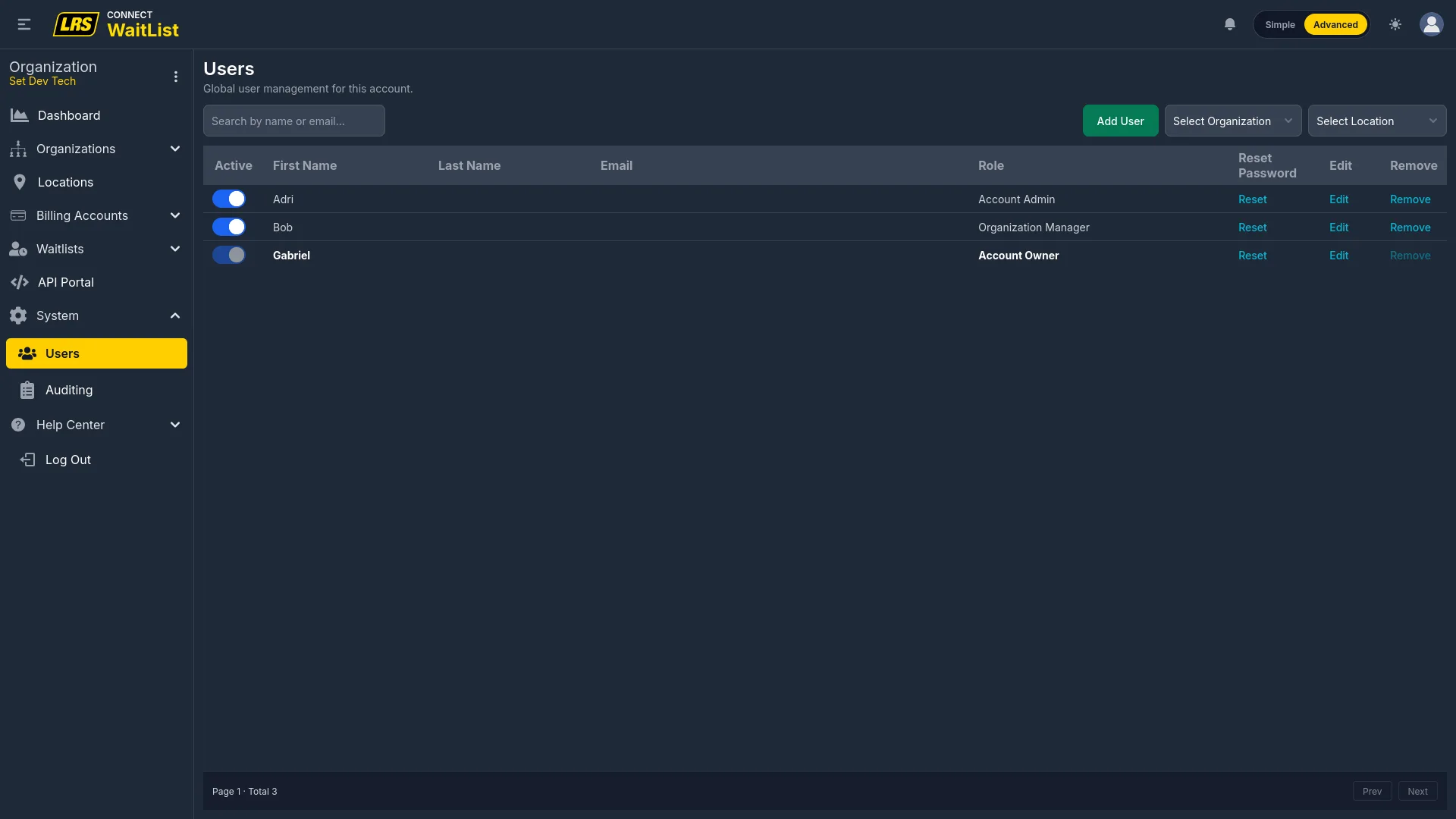
The Users page lists every user in the account. Organization and Location filters narrow the list. The Role column can show Account Owner, Account Admin, Organization Manager, Location Manager, or Staff. Account admins can send password resets, while only the owner can grant or revoke Account Admin status.
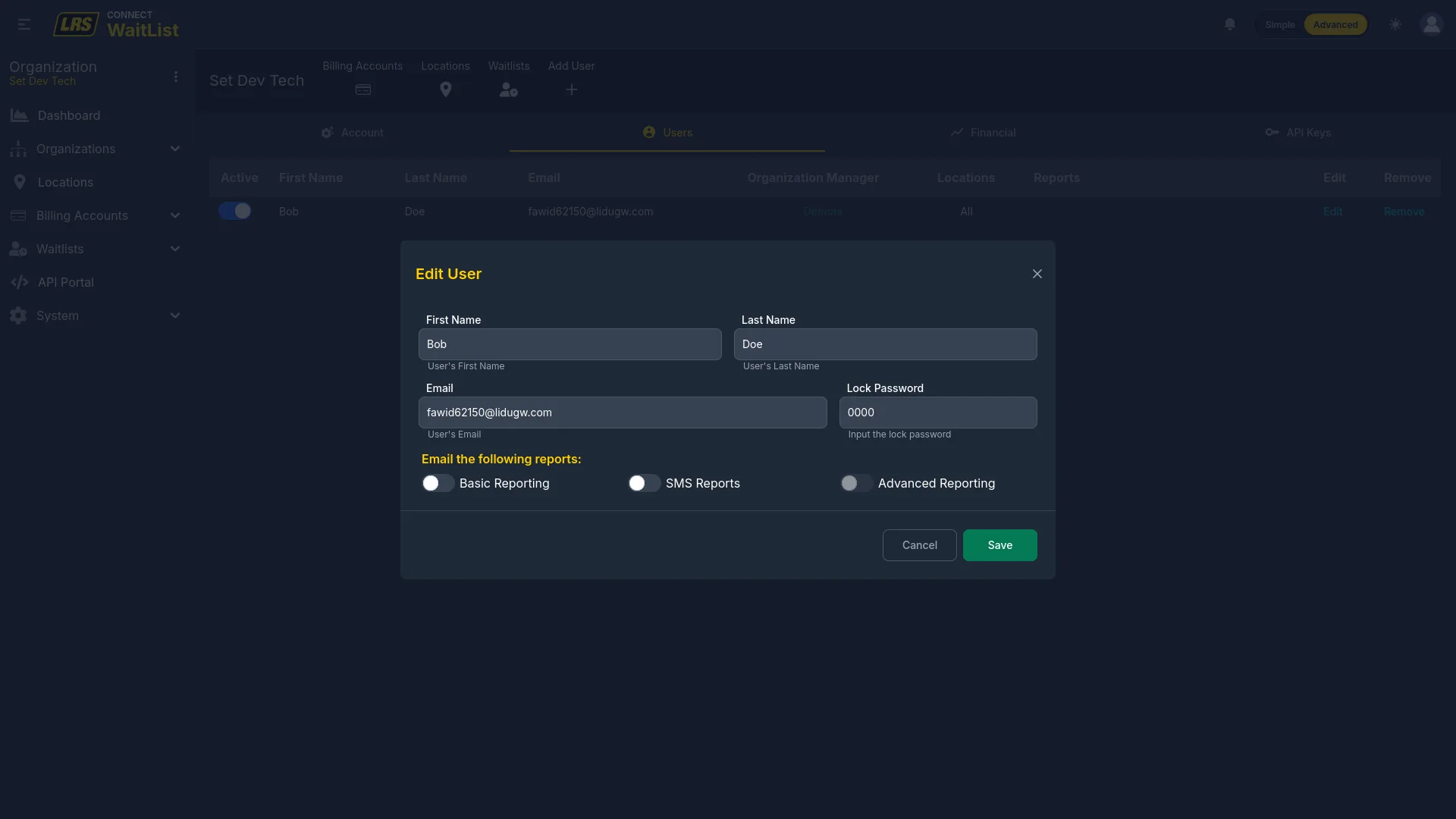
Clicking Edit on a user opens a single form with two areas. The top User Profile section edits the user's name, email, and lock password. Below it, the Account Admin toggle and per-organization sections let admins control every permission in one place: org-manager access per organization, and location roles with report subscriptions — all without switching context.
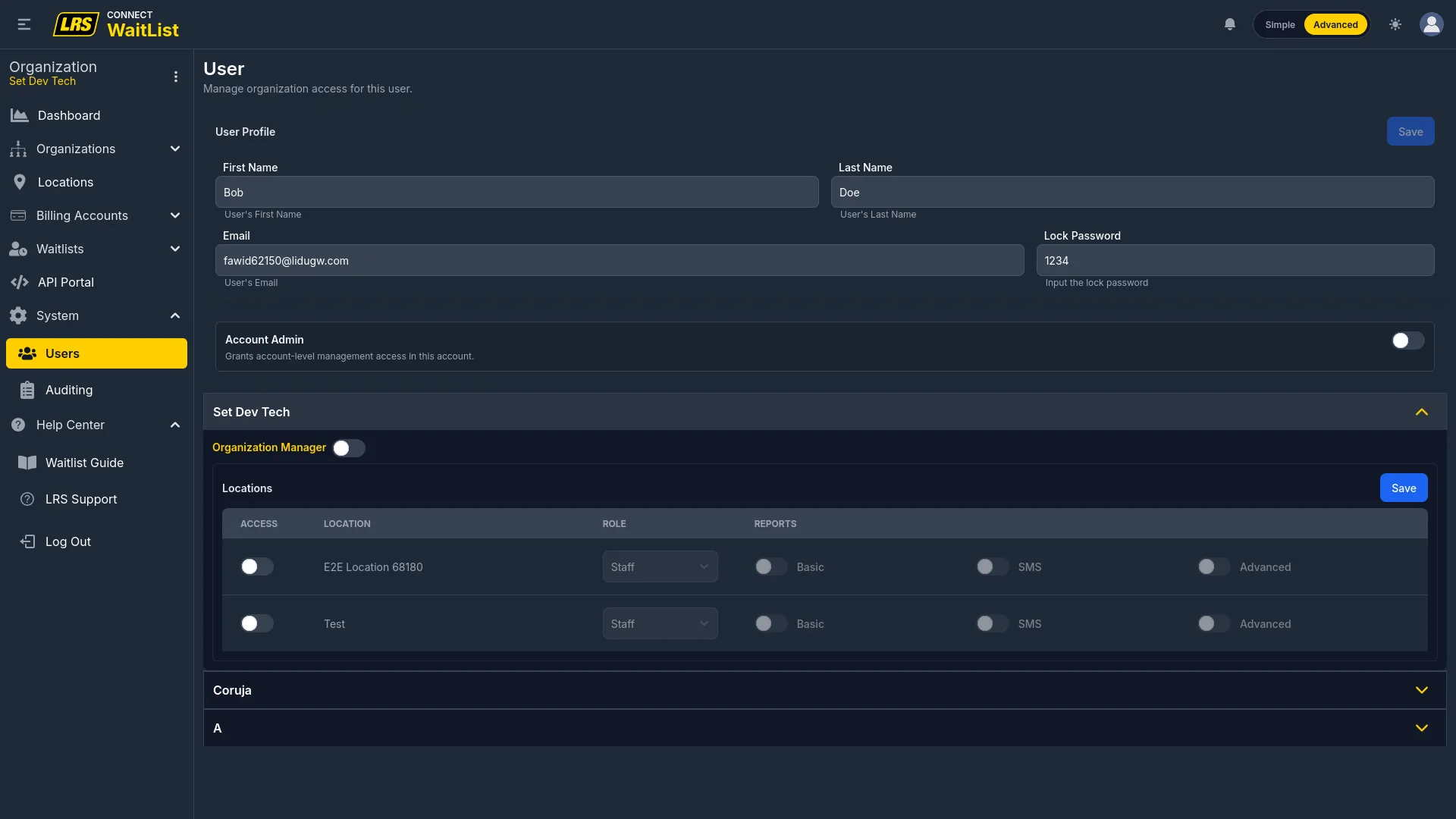
| Control | What it does |
|---|---|
| User Profile (top section) | Edits the user's first name, last name, email, and lock password — the PIN used when the Waitlist screen lock is enabled at their locations. |
| Account Admin toggle | Grants broad account-level access. Only the Account Owner can change this status. |
| Organization Manager (per org) | Toggles org-manager access independently for each organization. |
| Location access row | Sets access, role (Staff or Location Manager), and report subscriptions per location. |
| Reset Password (list) | Sends a password reset email directly from the list without opening the edit form. |
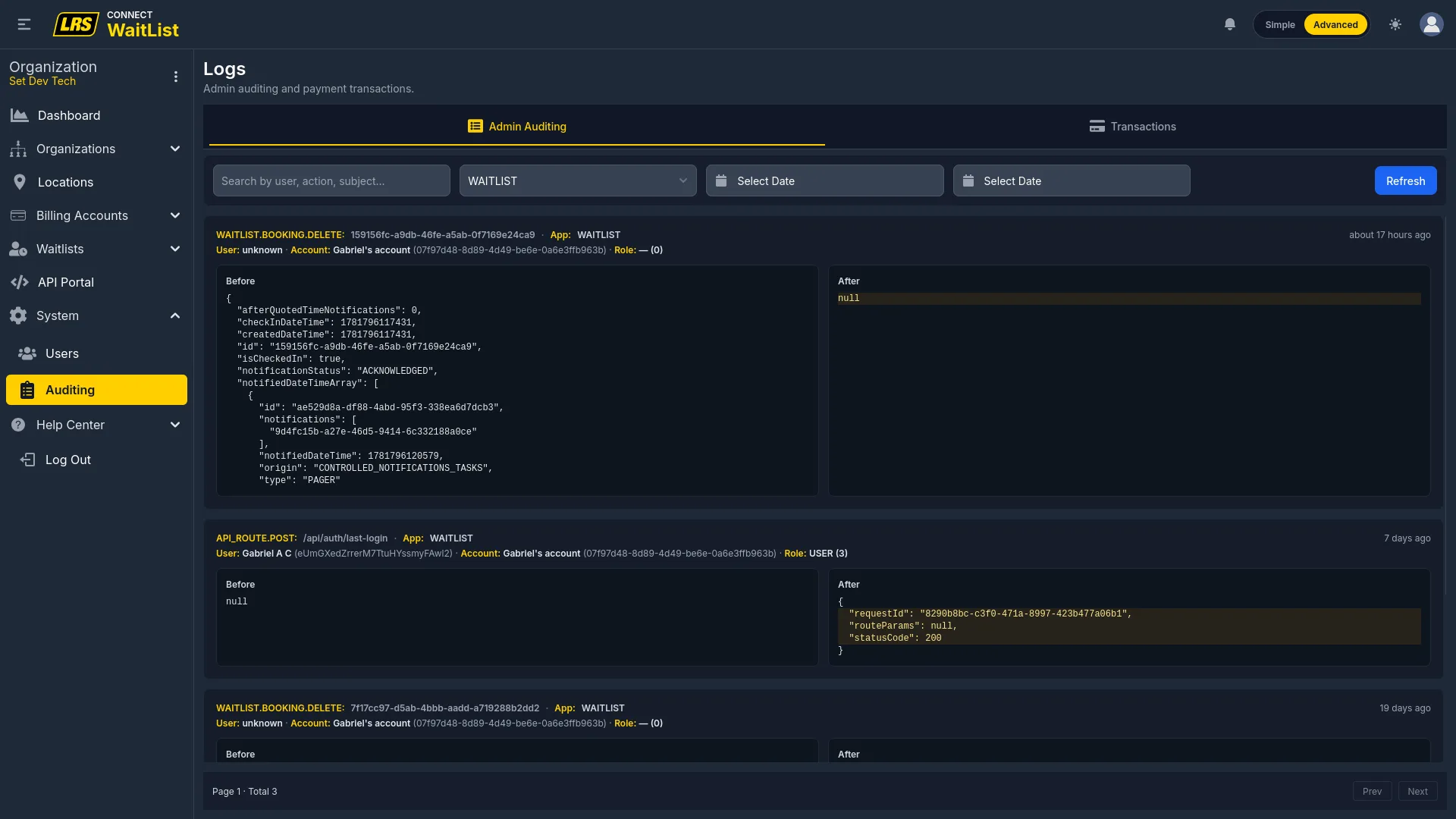
The Auditing tab shows customer-facing changes recorded across Dashboard, the Waitlist app, and the API. Actions recorded under internal Admin or Support roles are excluded. Use the keyword, application, and date filters to narrow the list.
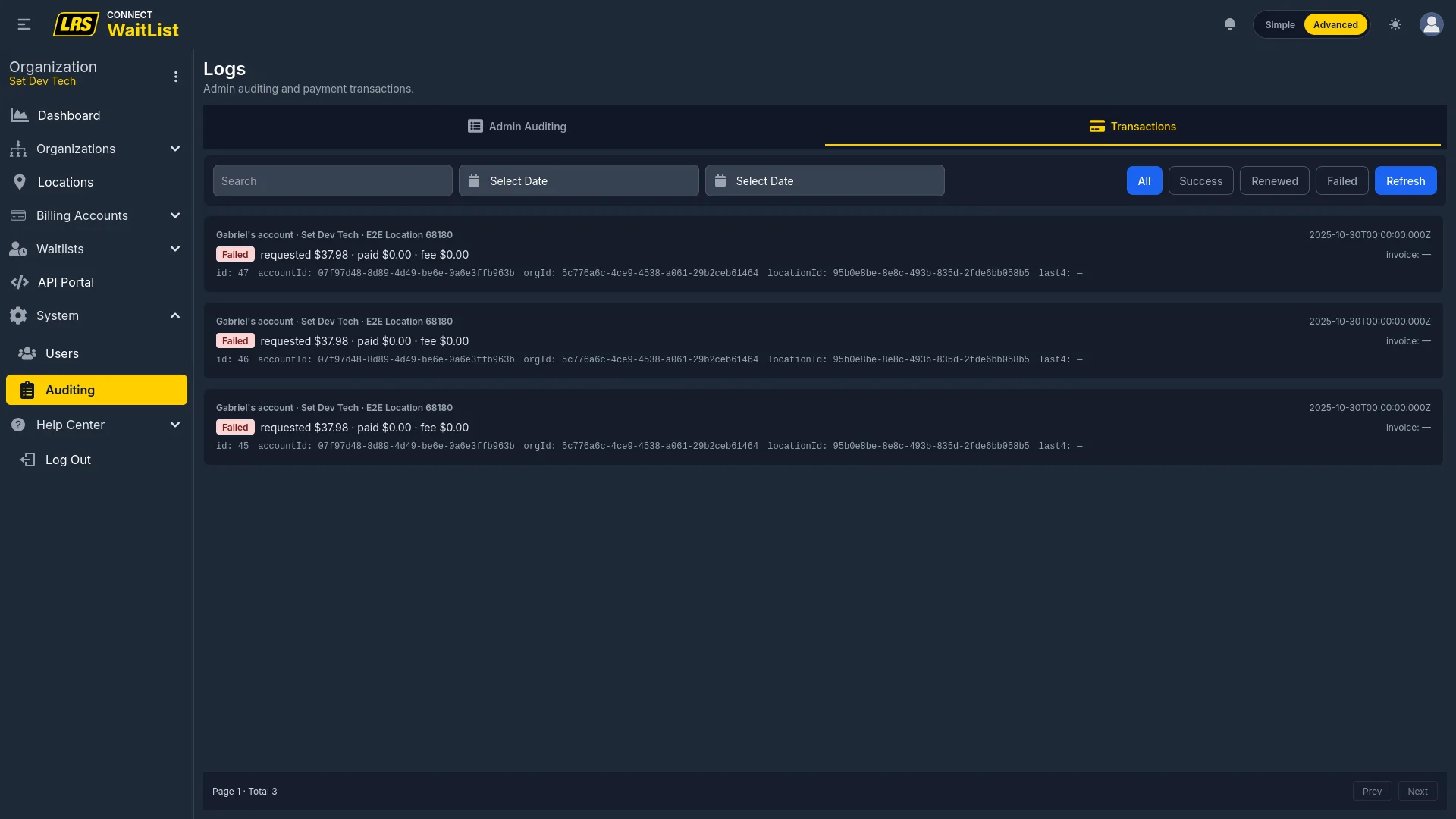
The Transactions tab shows account billing records with derived display badges. Those badges are not the complete payment lifecycle, and an in-progress reserved attempt may temporarily appear as Failed. Use the invoice link where available for follow-up.
9. Troubleshooting
Confirm the user has a location manager or org manager assignment. Staff without a manager role cannot see Dashboard configuration menus.
Only account owners and account admins can create organizations. Org managers can manage existing organizations but cannot add new ones.
Check operational status, the assigned guestlist, billing linkage when the location is billable, and whether billing is suspended. Verify active area configuration separately.
Confirm a Kiosk Area and at least one kiosk-visible field. Launch with the Guestlist workspace View button so Dashboard can issue the required short-lived signed launch key.
Confirm the area has the remote check-in link generated, that Hours of Operation has Remote Check-in hours set for today, and that those hours are currently active.
Use the Test button on the Transmitters tab to send a live signal. Verify that the POCSAG, system ID, and station ID on the record match what is printed on the transmitter hardware.
Verify the entry has a Pager/Phone number, the plan includes SMS, the account permits SMS, the location is in the United States or Canada, and no configured SMS cap has been exceeded.
Verify the key is Active, the target location is listed in the key's Manage view, and the correct Key ID and Secret are in the request headers.
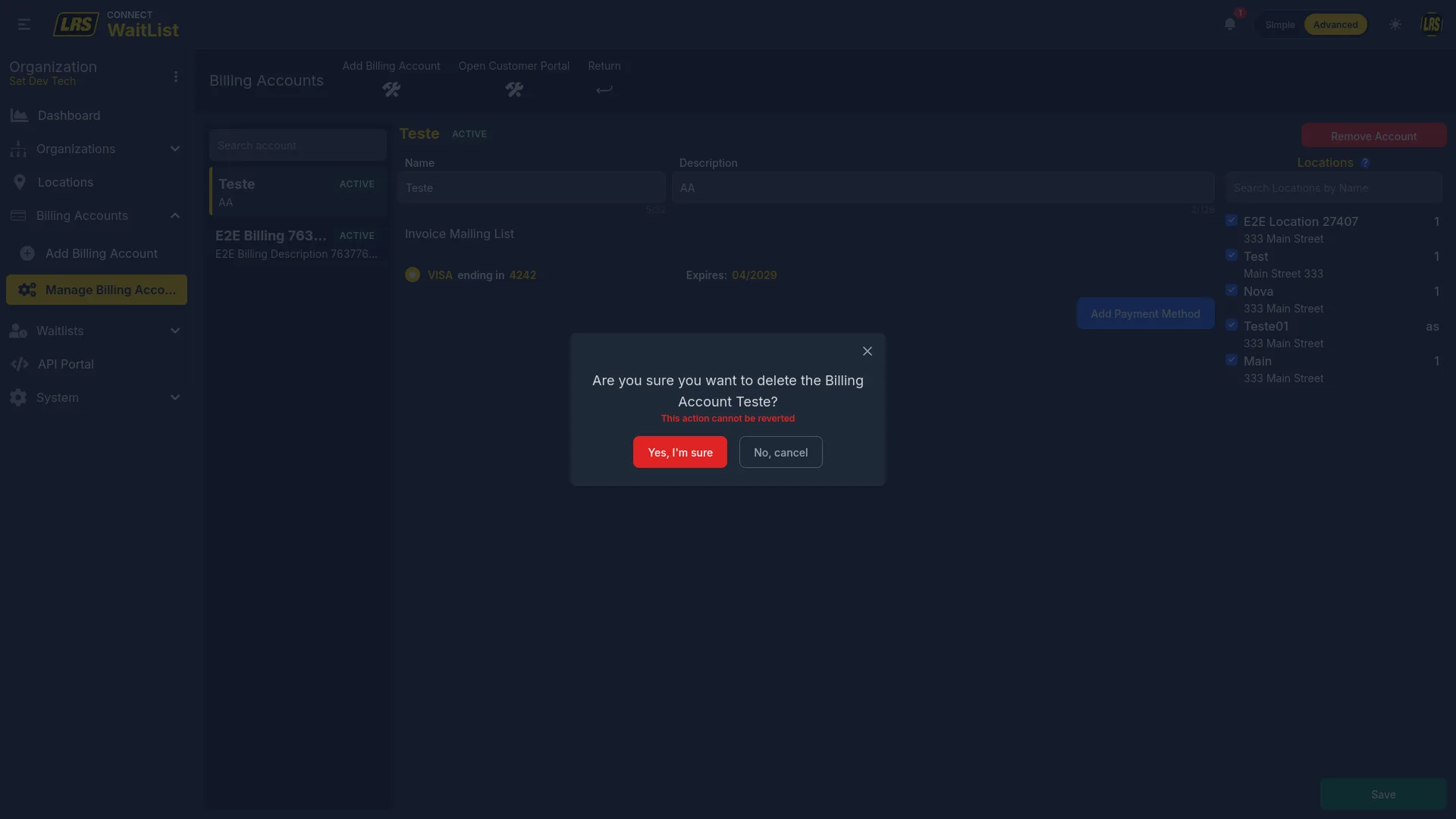
Deleting an assigned billing account clears its location assignments. Assign another billing account before the next billable plan operation.
Confirm the Quoted field is active on the form and a quoted wait time is set on the entry. Programmed Notifications use the quoted or target time as their reference.