
Fetch setup before sending data
Call List Locations first to get the active area UUID, guestlist UUID, and transmitter status. Hardcoding IDs breaks when managers reconfigure areas in Dashboard.
Use the Waitlist API to create, update, and remove waitlist entries or request activity reports. Paging partners use the separate Partner Hub to manage apps, licenses, transmitters, users, credentials, and integration tests.
1. Prerequisites
API access is an add-on, not a default feature. Every item below must be satisfied before an external system can create a booking or pull a report. Missing any one of them is the most common source of 401 errors during integration.
| Requirement | Where to configure it |
|---|---|
| Active billing cycle + API Access | The location must have a current billed cycle whose charged service plan has API Access enabled. A bound location with no active billing cycle or API Access disabled is ineligible. List Locations omits ineligible locations; location-scoped requests and organization reports that target one return 401 Unauthorized with response code UNAUTHORIZED. |
| Active guestlist and area | The location must have an active waitlist with at least one active area. Bookings target a specific area UUID — there is no default fallback. |
| API key + secret | An organization can have up to three API keys. API keys and secrets are created in Dashboard. The secret is available there at creation and remains retrievable later by account owners, account admins, and organization managers from either Dashboard's organization API Keys tab or the API portal's API Keys page. Both interfaces mask the stored secret by default; reveal or copy it only when needed and handle it as a credential. |
| Key bound to the location | A valid key alone is not enough. It must be explicitly associated to each location it will access. The binding remains stored if entitlement later changes but does not grant entitlement by itself; requests still require API Access in the current charged plan. A missing binding returns 401 even with correct credentials. |
| Area form fields known | Booking requests must include the required fields configured for the target area. Fetch the area form from the List Locations endpoint or check Dashboard's Guestlist Form. |
2. Authentication
Every request requires valid credentials. Use the Authorization header for all integrations and for GET /locations. JSON-body POST, PUT, and DELETE requests may alternatively carry secretKey, but body credentials can appear in application logs.
| Method | How it works |
|---|---|
| Authorization header (recommended) | Base64-encode the string keyId:secret (both are UUIDs) and send the result as the Authorization header on every request. Example: Authorization: Base64("keyId:secret"). Note: this is not standard HTTP Basic Auth — do not include a "Basic " prefix. |
| secretKey in request body (limited alternative) | Body authentication with secretKey is available only for JSON-body POST, PUT, and DELETE requests. GET /locations requires the Authorization header. If both are present, Authorization takes precedence. |
For the Authorization header method, join the Key ID and Secret with a colon (keyId:secret), base64-encode the result, and send it as the Authorization header on every request: Authorization: <base64>. Do not include a Basic prefix — this API uses a raw base64 value, not the standard HTTP Basic scheme. Both the Key ID and Secret are UUIDs generated in Dashboard.
Use the API portal origin as the base URL; the /api/... paths below are relative to that origin, not Dashboard. Every endpoint uses the organization UUID and location-scoped calls also use the location UUID.
| Endpoint | Method and URL pattern |
|---|---|
| List Locations | GET /api/{organizationId}/locations |
| Create Booking | POST /api/{organizationId}/locations/{locationId}/bookings |
| Update Booking | PUT /api/{organizationId}/locations/{locationId}/bookings |
| Remove Booking | DELETE /api/{organizationId}/locations/{locationId}/bookings |
| Organization Report | POST /api/{organizationId}/report |
| Location Report | POST /api/{organizationId}/locations/{locationId}/report |
The organization UUID and location UUID come from Dashboard's API Settings tab, accessible from inside any area's Customize view. That tab shows all four UUIDs — organization, location, guestlist, and area — together in one place. The area UUID is also visible in the portal's Locations page when you expand a location card.
3. Partner Portal
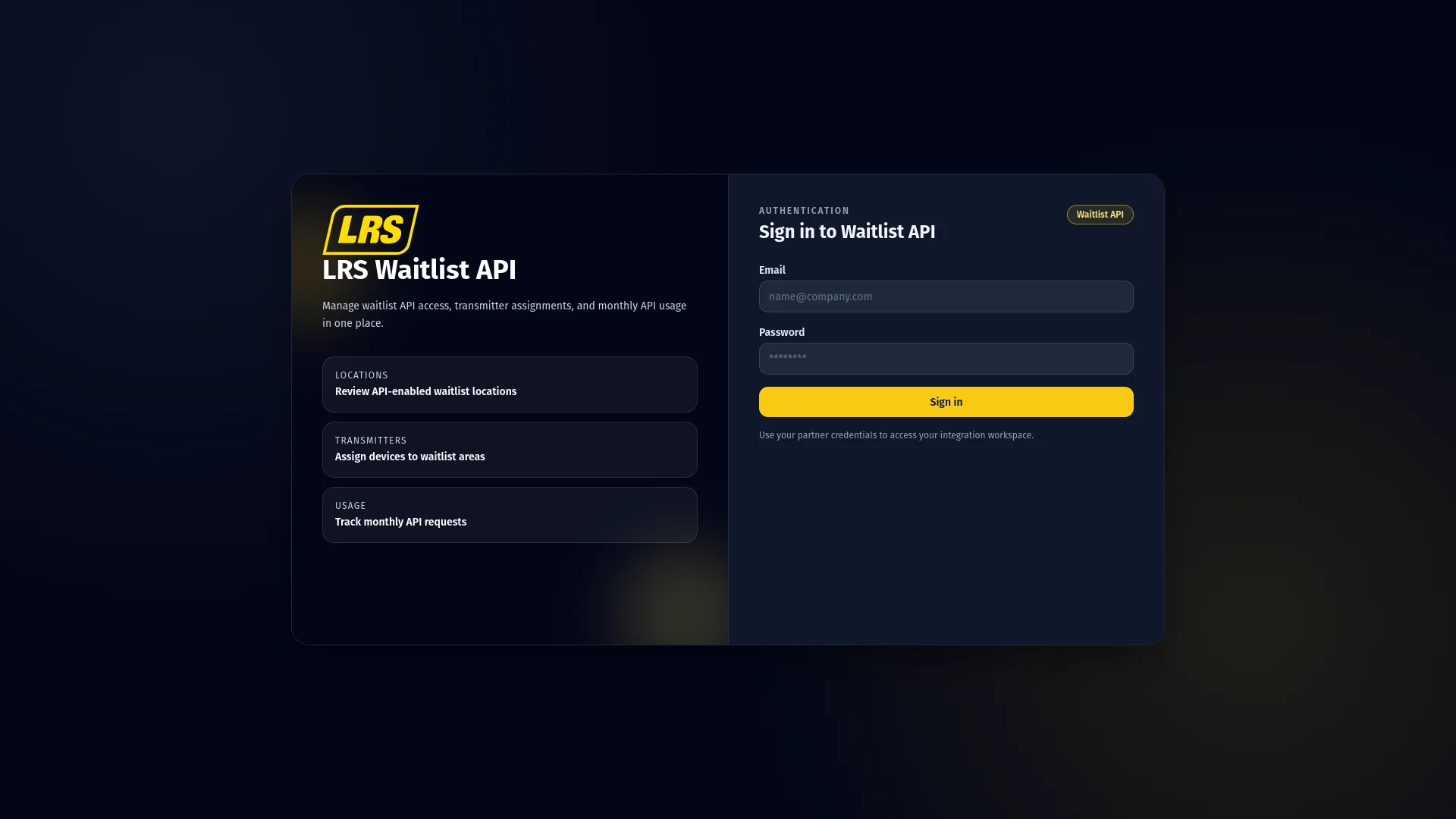
Partner Hub is the paging-integration workspace for approved partner accounts. It is separate from the Waitlist API workspace described in the booking sections of this guide. Sign in with the email and password assigned to your partner account, or use Forgot password when needed.
Account members enter their linked account directly. LRS administrators and support users first select the active account they need to manage. If access cannot be prepared automatically, retry from the access screen or contact support rather than creating a second account.
4. Partner overview
The Partner workspace summarizes active licenses, enabled integration apps, transmitters in use, and current-month paging usage. The primary-license panel shows the plan, monthly allowance, transmitter limit, reset schedule, and overage count when applicable.
Integration app cards identify each trusted domain and webhook URL. Recent notifications can be filtered by app and refreshed without reloading the rest of the page. Message text appears only when notification storage was enabled when the paging request was recorded.
5. Company and Apps
| Page | What it controls |
|---|---|
| Company | Review company status, contacts, rate limits, notification storage, and permitted external API authentication methods. |
| Apps | Create partner applications, set trusted domains and optional webhook URLs, and manage account API credentials when authorized. |
Company settings include contact details, whether paging messages are stored in notification history, and which external API authentication methods are allowed. At least one of HMAC, Basic, and Payload must remain enabled.
Each app requires a name and trusted domain; its webhook URL is optional. Authorized users can edit or delete apps. An app tied to an active license cannot be deleted until that dependency is resolved.
6. Licenses and transmitters
| Page | What it controls |
|---|---|
| Licenses | Review active and inactive licenses, monthly usage, transmitter limits, billing-cycle dates, and submitted license requests. |
| Transmitters | Register and manage transmitter hardware under an active license. |
Licenses are grouped as active and inactive or suspended. The Main plan totals the limits of active licenses, while each license card shows its own monthly usage, remaining requests, transmitter allowance, cycle, and end date. Use Request license to choose an integration app, propose a plan name and limits, add optional notes, and then follow the request status under Requested licenses.
A license only grants access while it is active and the current date falls inside its validity period. A license whose end date has passed — or whose start date has not arrived yet — is treated exactly like an account with no active license: registering or reactivating a transmitter and sending paging requests are refused. A license with no end date does not expire. Watch the end date on the license card and request the renewal before it is reached.
A transmitter must be linked to an active license and includes a serial number, System ID, POCSAG value, and hardware version 8 or 10. The same serial number cannot be registered twice under the same license. The Location field and localhost mode are not part of the current transmitter form.
7. Users and permissions
| Role | Portal access |
|---|---|
| Account owner | Can manage the company, credentials, apps, transmitters, and members, including granting or revoking account-admin rights. |
| Account admin | Can manage company settings, credentials, apps, transmitters, and members, but cannot grant or revoke account-admin rights. |
| Member | Can view account information and create an integration app or license request, but cannot view credentials or use protected management controls. |
| LRS administrator or support | Can select an active account and use the controls required to support that account. |
Authorized users can add members by first name, last name, and email or remove eligible members from the account. Only the account owner can grant or revoke admin rights. You cannot remove yourself or the account owner from the Users page.
8. Partner Playground
The Partner Playground sends real requests through the current account while keeping signing credentials on the server for portal-initiated tests. Select an operation, complete its guided fields, send the request, and inspect the returned status and JSON.
| Area | Available tests |
|---|---|
| Paging | Send a paging notification and inspect stored notifications. |
| Apps and licenses | List apps and licenses, update an app, and list or create license requests. |
| Transmitters | List, create, update, or remove transmitters and request the current status of one transmitter. |
| Code samples | Switch between HMAC, Basic, and Payload authentication and between cURL and JavaScript. |
Choose the integration app whose trusted domain represents the calling system. Notification filters include transmitter, pager number, date range, and page; license and transmitter lists can be filtered by app or license. Get transmitter status checks one selected transmitter and reports its current connection result.
9. Waitlist API portal
The Waitlist API portal is the account and organization workspace for booking and report integrations. Account owners, account admins, and organization managers enter their allowed account directly. LRS administrators and support users select the active account they need to support.
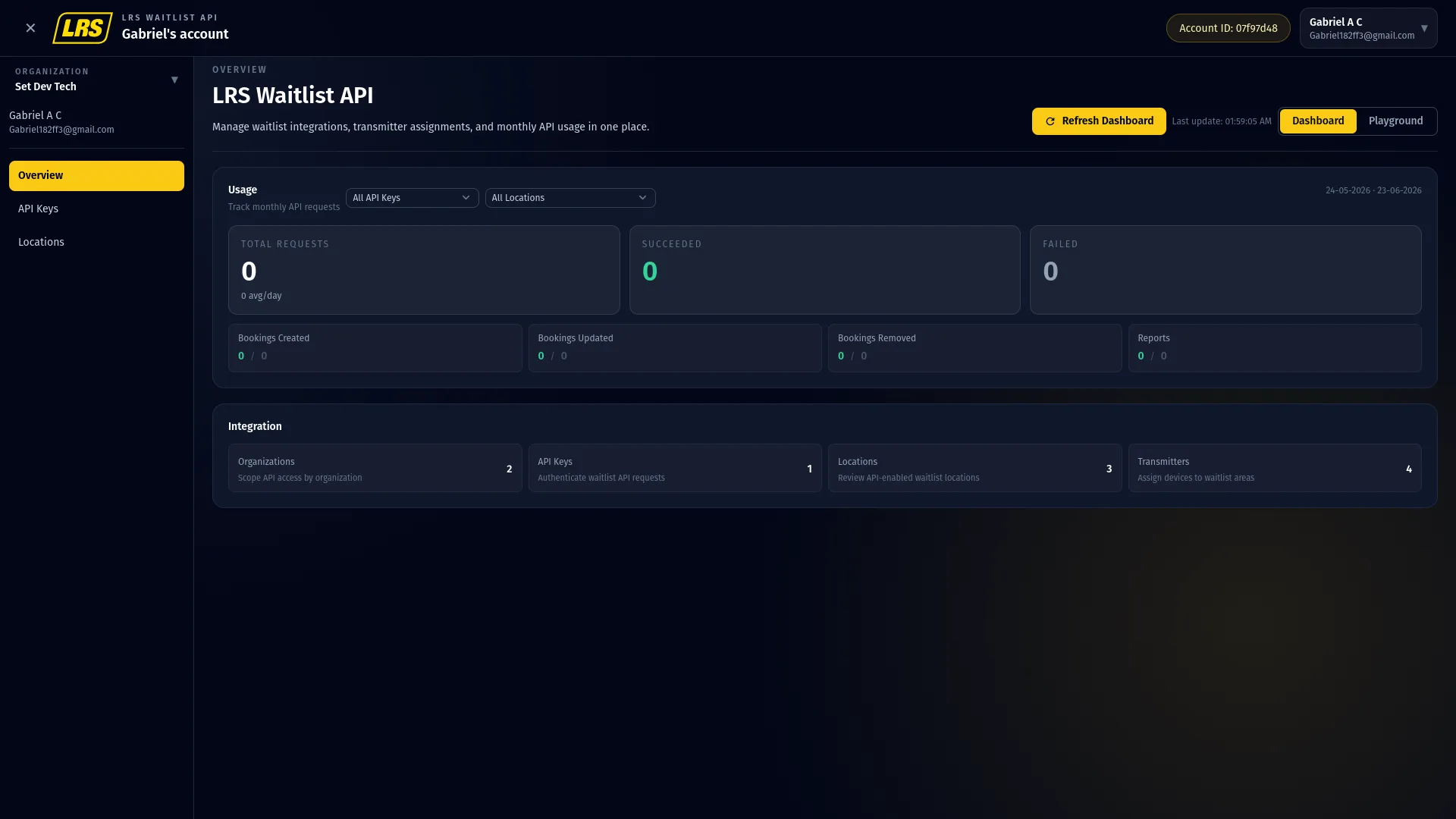
After the account is resolved, the first available organization opens automatically. Use the organization selector in the sidebar when more than one organization is available. An inactive account membership does not grant portal access.
10. Waitlist API overview
Dashboard mode shows a rolling 30-day activity window. Total Requests, Succeeded, and Failed summarize the selected filters; separate cards show successful and failed booking creates, updates, removals, and generated reports. Recent Activity lists the latest recorded operations with status, duration, and location context.
| Page | What it controls |
|---|---|
| Overview | Review rolling 30-day request totals, successful and failed booking operations, reports, recent activity, and the selected organization's integration counts. |
| API Keys | Reveal masked secrets when authorized and associate or remove eligible location bindings. |
| Locations | Review API-enabled locations, active guestlists, areas, and transmitter assignments; assign or remove existing transmitters per area. |
API-key and location filters narrow the usage and recent-activity views. The Integration summary shows organization, active-key, API-enabled-location, and active-transmitter counts for the current portal context.
11. API Keys and Locations
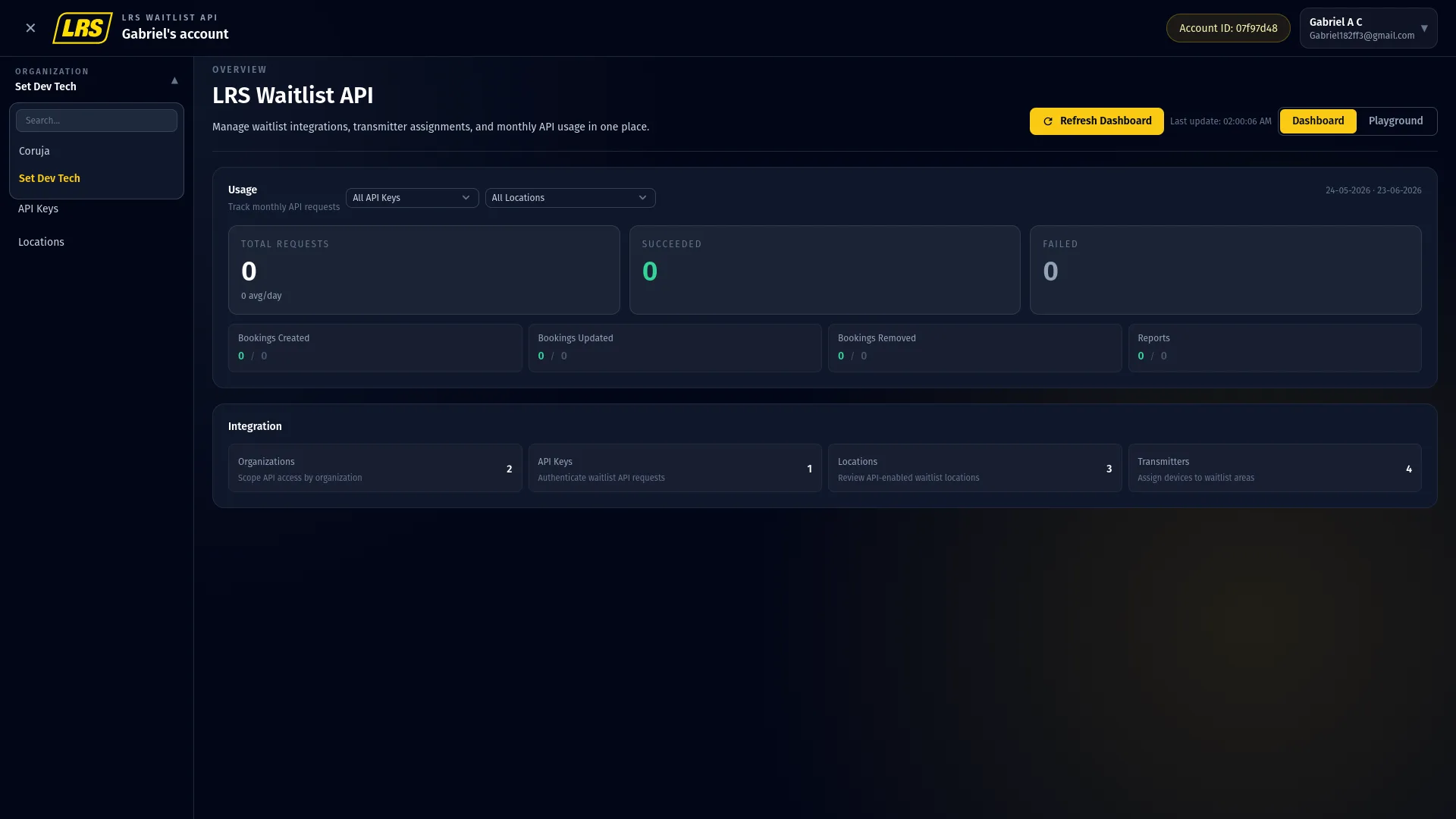
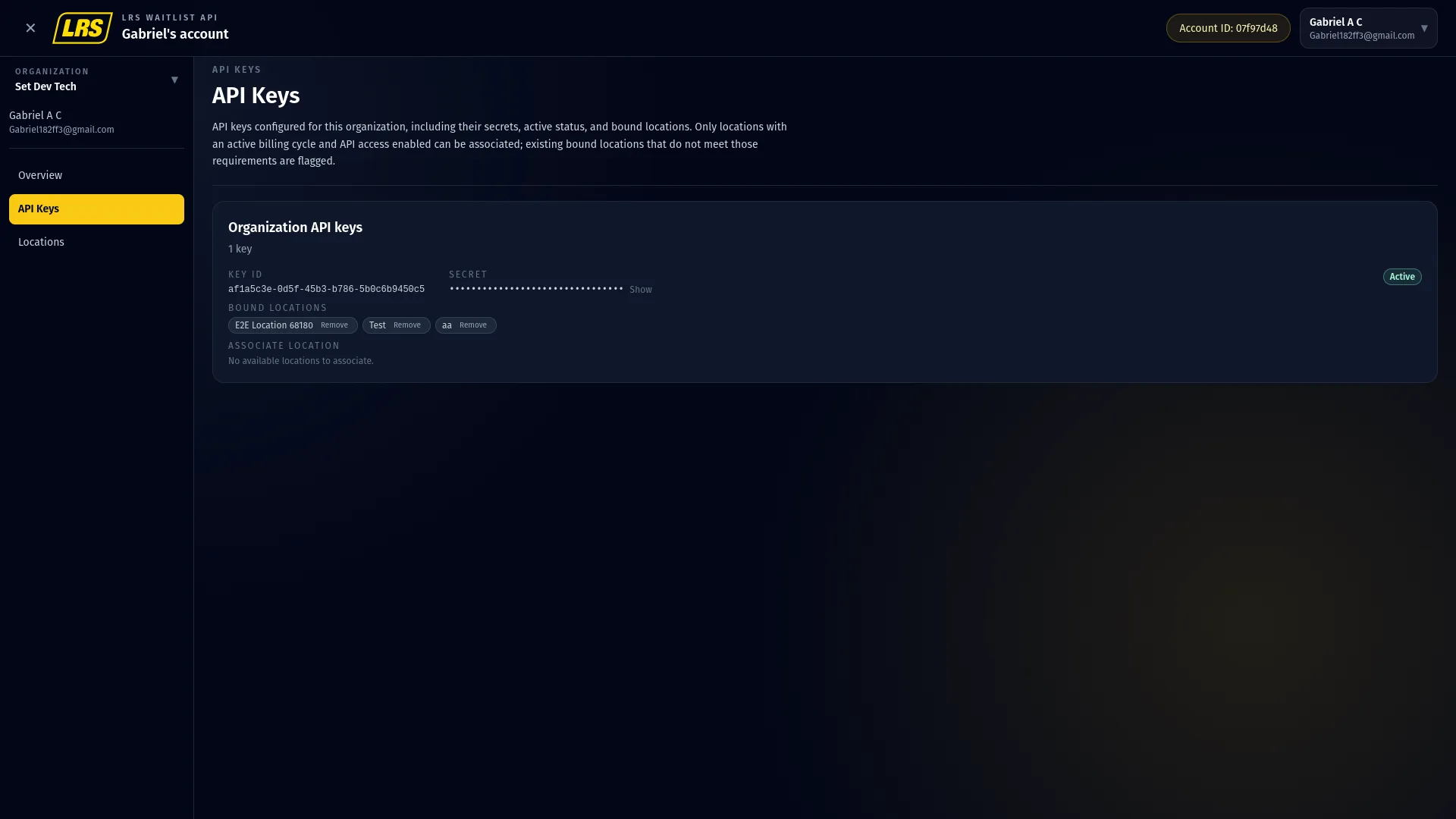
API Keys lists the selected organization's Key IDs, masked secrets, active status, and bound locations. Show or Hide controls only visibility; they do not rotate the key. Associate adds an eligible unbound location, while Remove deletes an existing binding.
Locations shows API-enabled locations for the selected organization. Expand a location to see its active guestlist, areas, area UUIDs, available transmitters, and current area assignments. Use + Add to assign an existing transmitter or Remove to disassociate one.
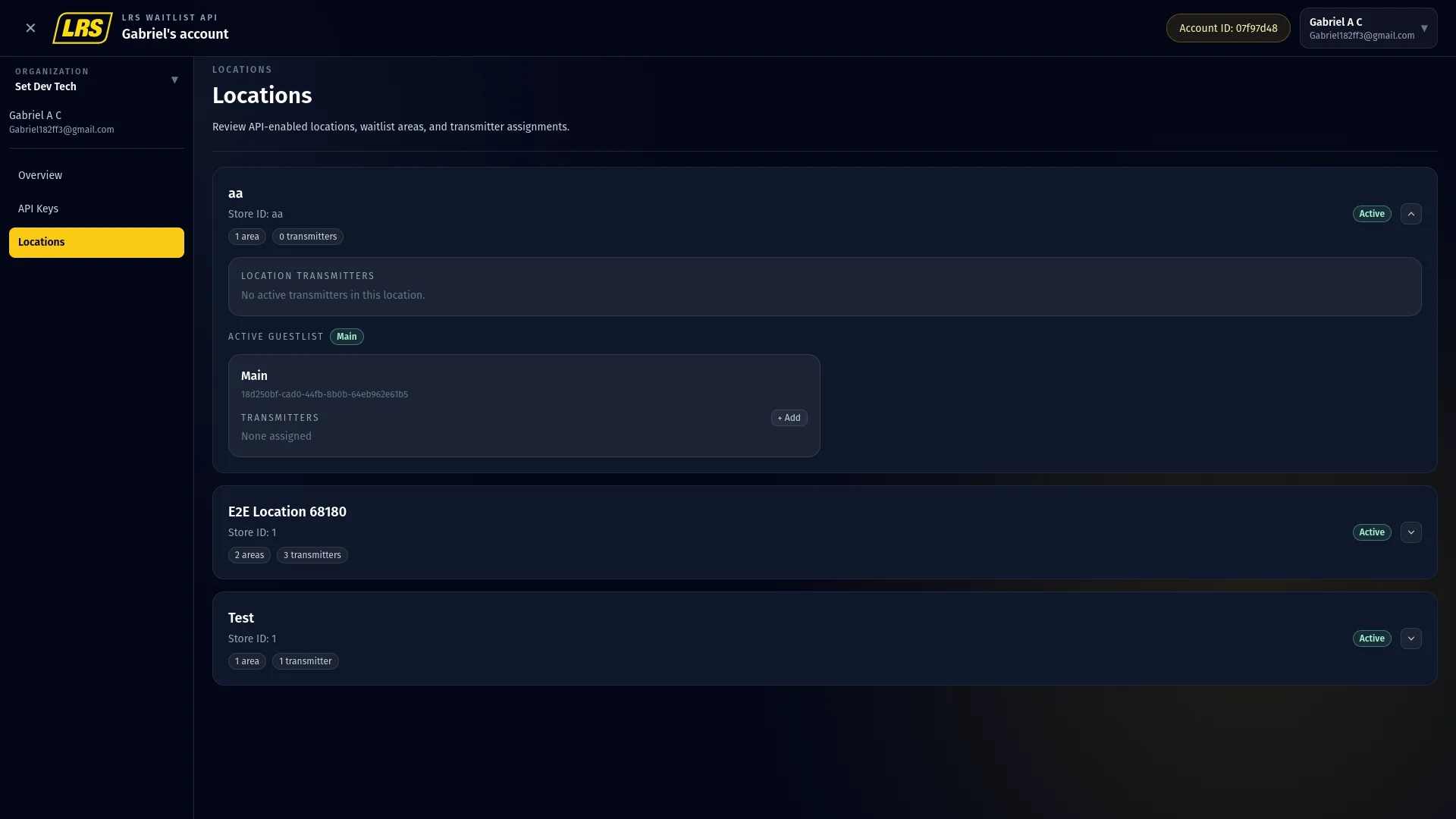
None assigned means that area has no transmitter assignment. Registering or editing transmitter hardware and changing guestlists or form fields remain Dashboard tasks.
12. Booking rules
The API writes directly into the live Waitlist. These rules prevent data inconsistencies between the external system and what staff see.
Call List Locations first to get the active area UUID, guestlist UUID, and transmitter status. Hardcoding IDs breaks when managers reconfigure areas in Dashboard.
Required fields must be present. Use current field titles and matching value types; unknown or malformed fields may return 400. Refresh local form metadata after Dashboard changes.
An active key is not sufficient. It must also be explicitly associated to the location being targeted. A valid key with no binding returns 401.
Duplicate detection compares the exact pager_phone_number.value string among active entries in the area. Normalize phone and pager formatting before sending requests.
After a 201 or 200 response, the entry should appear in the live Waitlist app immediately. If it does not, verify the organization, location, guestlist, and area identifiers used by the request.
Delete state defaults to COMPLETED. Send COMPLETED or REMOVED for terminal outcomes. Delete is idempotent, so HTTP 200 does not prove that every supplied booking ID existed.
| Operation | JSON body |
|---|---|
| Create body | { guestListId, areaId, data, secretKey? }. Save the response id for later operations. |
| Update body | { bookingId, guestListId, areaId, data, secretKey? }. PUT replaces the complete data object, so include every value that must be retained. |
| Delete body | { guestListId, areaId, guests: [bookingId, ...], state?, secretKey? }. Each booking ID in guests must be a UUID. state defaults to COMPLETED. |
| Operation | Response |
|---|---|
| Create | HTTP 201 with the complete created booking object. Its id is the bookingId used by Update and in Delete guests[]. |
| Update | HTTP 200 with the complete updated booking object. |
| Delete | HTTP 200 with { message: "Removed from waitlist" }. Missing IDs are ignored, so the response is idempotent. |
| Error | { message, requestId, code }. Invalid credentials or location scope return 401; inactive accounts or suspended organizations return 403. Malformed JSON in Create Booking returns 400 BAD_REQUEST. |
13. Waitlist API Playground
The Playground is a built-in API tester. Run every endpoint against a real key and real data without writing any code. Verify that credentials are valid, the area UUID resolves, and a booking appears in the live Waitlist app — all before connecting an external system.
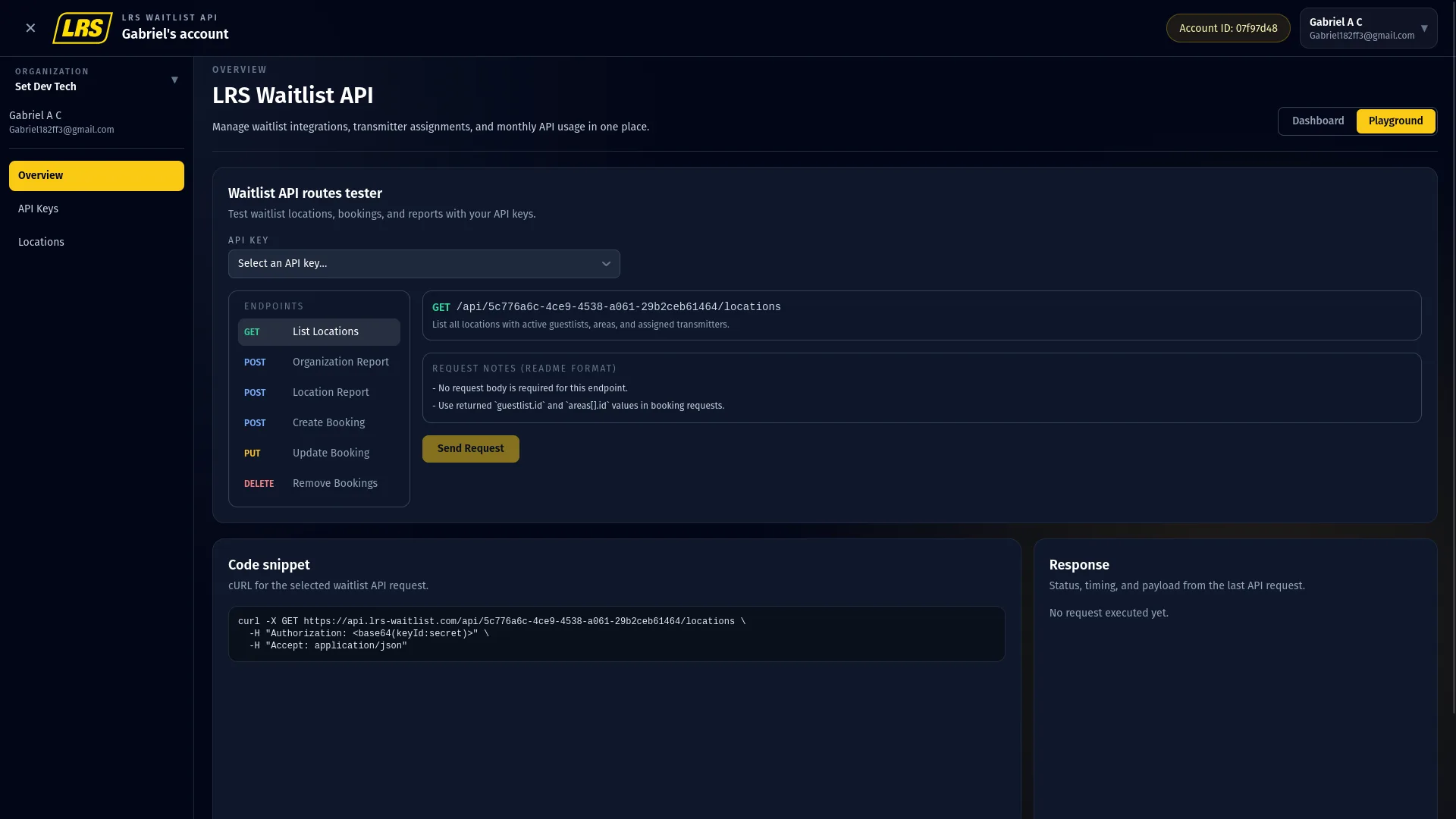
Before the first request, the Response panel remains pending. It changes to the returned status and JSON after Send Request.
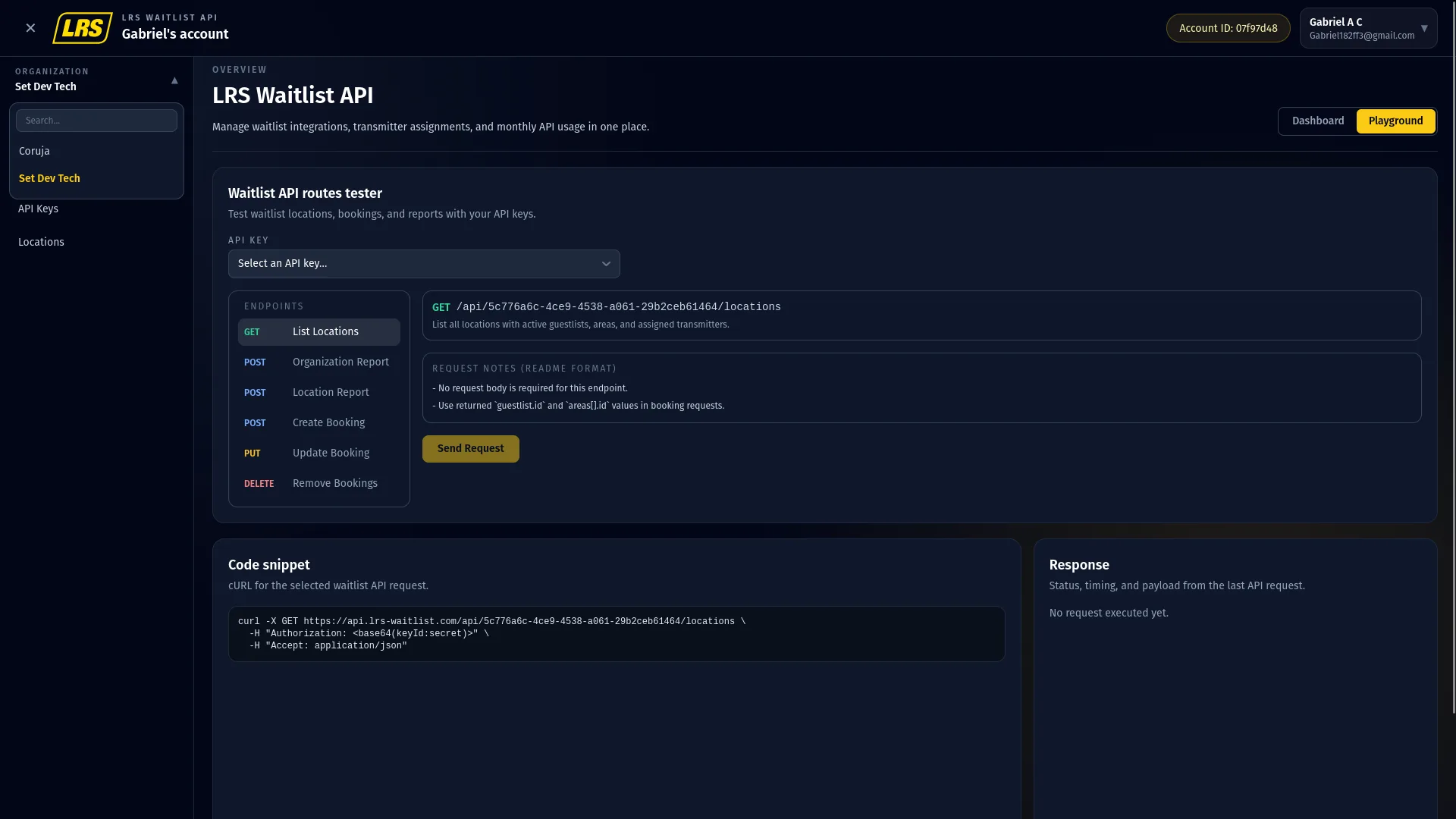
Select an API key, choose an endpoint, and fill in every required field before sending. The cURL panel begins as a template and updates from those selections. Treat its authorization value as a credential and do not share it.
| Endpoint | What to confirm after sending |
|---|---|
| List Locations | The response contains eligible locations bound to the selected key with an active guestlist and area. It may be narrower than the portal Locations page. |
| Create Booking | Status 201 with the created booking. Save its id and confirm the entry appears in the correct area. Create does not send a pager notification. |
| Update Booking | Status 200 with the updated booking. Verify all retained data because PUT replaces the complete data object. |
| Remove Booking | Status 200 with a message. The operation is idempotent and does not prove every supplied ID existed. The API has no restore endpoint. |
| Organization Report | Status 200 with a nested JSON payload. See the Reports section for the response shape. |
| Location Report | Status 200 with the same payload format scoped to the single location. |
14. Reports
Both report endpoints use the same date fields and return the same response shape. The organization report may also accept a locations filter; the location report is already scoped by the location UUID in its URL.
| Field | Description |
|---|---|
| start_date | Required. ISO date string (YYYY-MM-DD). Start of the reporting window. |
| end_date | Required. ISO date string (YYYY-MM-DD). The range must not be reversed and is limited to 30 days; invalid ranges return 400 BAD_REQUEST. |
| locations | Optional organization-report array. Omit it or send [] for all eligible bound locations. An unbound or ineligible location returns 401 UNAUTHORIZED. |
The response is a JSON array nested as organization → locations → guestlists → areas → orders. Each order represents one waitlist entry and contains the following fields:
| Field | Description |
|---|---|
| state | Final state of the entry: COMPLETED, REMOVED, or another configured terminal state. |
| createdDateTime | Unix timestamp (ms) when the entry was added to the waitlist. |
| completedDateTime | Unix timestamp (ms) when the entry reached a terminal state. Null if still active at the time of the report. |
| duration | Seconds between createdDateTime and completedDateTime. Zero for entries that were not completed. |
| data | Object projected using the area's current active, editable fields and current labels. Renamed or deactivated fields can be renamed or omitted from historical output. |
| notifiedDateTimeArray | ACTION_BUTTON notification events only. createdDateTime is serialized as an ISO string; action durations are nested in the corresponding action-button value in data. |
The data object uses the area's current form labels as keys and includes current active, editable fields. Renaming or deactivating a field can rename or omit it from historical report output.
When the report query succeeds but has no matching report rows, the API returns an empty JSON array ([]) rather than an error.
400 BAD_REQUEST. The Playground always replaces entered dates with today and the previous two calendar dates. Use direct requests for other valid ranges.15. Troubleshooting
The Key ID or Secret is wrong, or the key is inactive. Confirm the key is Active in the portal's API Keys page. If the secret is not known, open the portal's API Keys page — the secret is masked by default but can be revealed there using the Show control.
The key is not bound to that location, the location has no active billing cycle, or API Access is disabled in its current charged plan. The response is 401 Unauthorized with code UNAUTHORIZED. Check the binding in the portal and billing in Dashboard.
List Locations omits ineligible locations. Confirm that the key is bound, a billing cycle is active, and API Access is enabled in the current charged plan.
A required field for the target area is missing, or a field value does not match the expected format. Open the area's Guestlist Form in Dashboard to see the current configuration.
The request used the correct area UUID but the wrong organization or location UUID in the URL path. Recheck all three IDs from the Locations page in the portal.
An active entry has the exact same pager_phone_number.value string. Normalize formatting, then update the existing booking or wait for staff to clear it.
Confirm the date range contains activity and that the key is bound to at least one location. If the key has no bound locations, the org report returns 401 rather than empty data.
Create Booking only adds the entry; it does not send a pager notification. Active area transmitter assignments are used by later staff paging actions.